Managing Real-time Segments
This topic explains how to create, manage, and publish real-time segments in the Marketing Automation Platform. It covers segment creation workflows, status definitions, rule configuration, editing, duplication, archiving, and integration with external systems. Segments allow marketers to target specific groups of users based on defined criteria, automate campaigns and analyze performance.
A real-time segment allows you to target users based on their immediate, ongoing behavior and historical data. When creating or updating a real-time segment, particularly one that incorporates data from other data sources, the system initiates a background workflow involving data processing, synchronization, and activation. This topic describes the segment statuses you will see in the UI and outlines the workflow from creation to activation.
The status updates provide visibility into the background processes, such as event creation in Detect, synchronization of data between Athena and MongoDB, and final activation via the Core API. During certain "in progress" statuses, user ability to edit the segment is temporarily restricted.
| Status | Description |
|---|---|
| Data preparation in progress | The initial status immediately after the segment is defined. The system is calling the Detect API to process the new segment's data and create a corresponding event in Detect. |
| Data preparation completed | The Detect process successfully finished. |
| Error in data preparation | The Detect process failed (e.g., if Detect was down during creation). |
| Data sync in progress | The segment has been enabled via an engagement. Data related to the segment conditions (from Athena DB) is being synchronized to MongoDB via a Glue job and DAG execution. |
| Data sync failure | The synchronization process failed. |
| Activation in progress | The system is making the final call to the core API to activate the segment. This status is rarely seen by users as it happens in a fraction of a second. |
| Activation failure | The final activation attempt failed. |
| Active | The segment is fully processed, synchronized, and ready for use. |
| Inactive | The segment is not currently in use (or the engagement using it is disabled). |
| Data Preparation Update Failed | Detect API failed to update event related changes when the segment is edited. |
Create a Real-time Segment
To create a real-time segment, follow the steps below:
- On the Segments page, click + Segment and select Real Time option to create a new segment.
- In the New Segment screen, enter the following segment details:
- Name: Enter a unique name (6–25 characters).
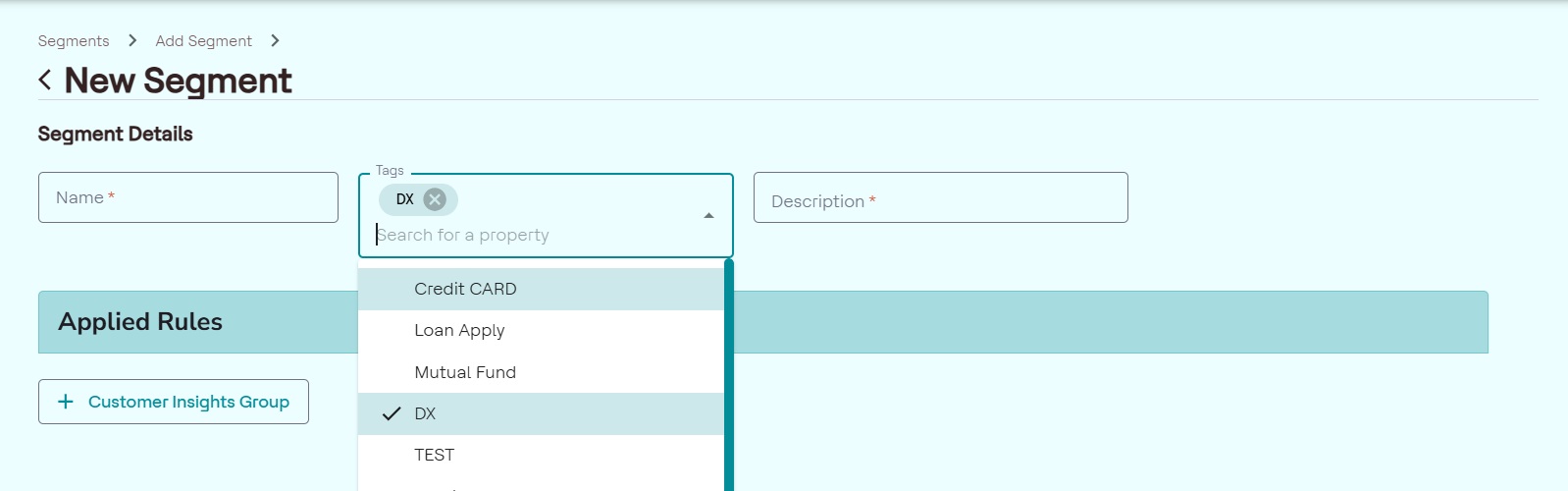
- Tags: Add descriptive keywords to organize and analyze the segment. You can add multiple tags to a segment. For more information about adding tags, refer Add a Tag.
- Description: Provide a brief description (at least 6 characters).
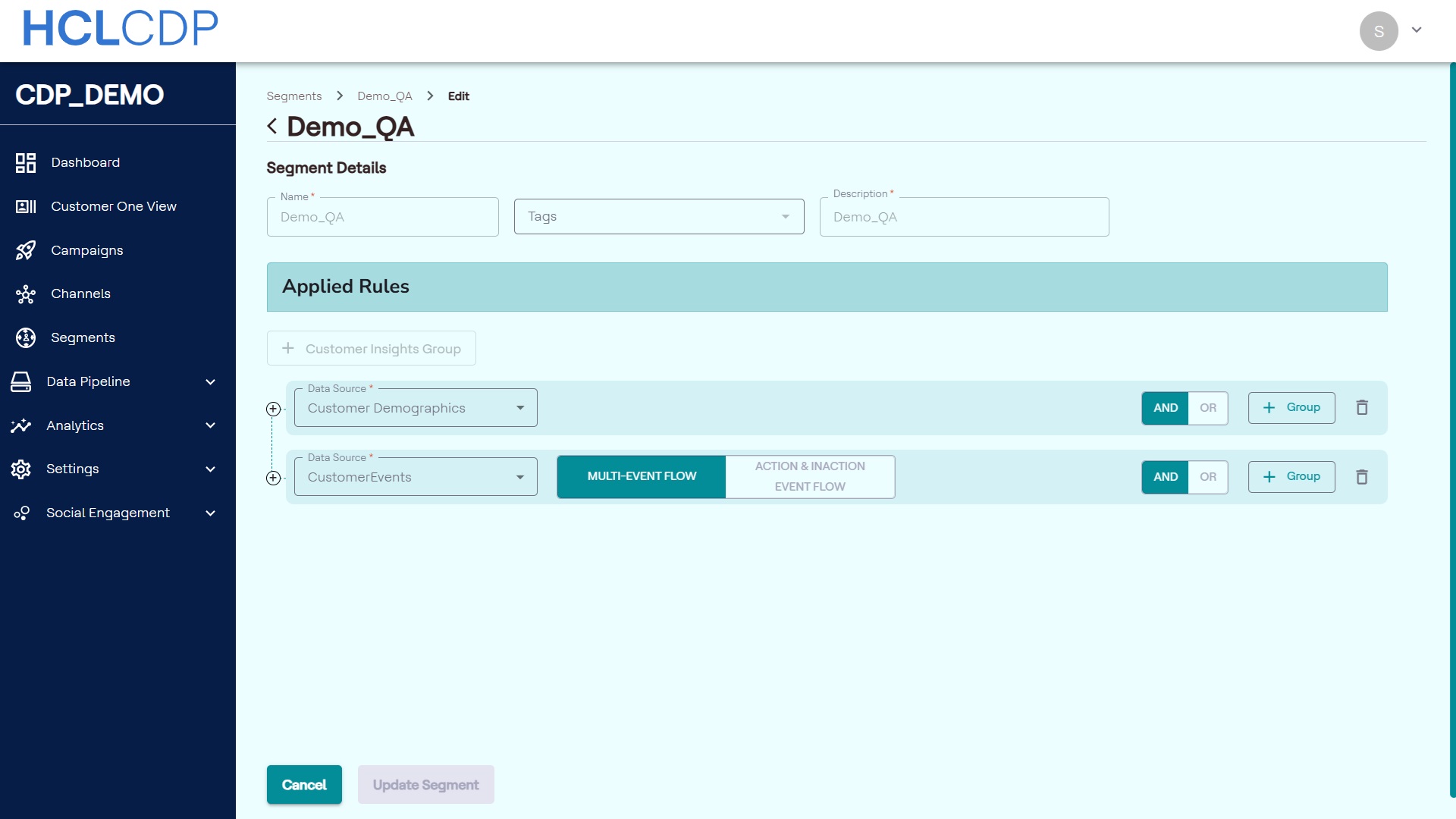
- In the Applied Rules section, to create a customer insights group, click
+ Customer Insights Group. By default, the first parent group is
created with the Customer Event data source. After defining the first
data source with rules, click + Customer Insights Group to add and define
the next data source. Data sources include but not limited to Transactional
Behaviour, Conversion Insights, Campaign Interaction, Customer
Demographics.Note: You cant delete the default first parent group
- Add rules to the customer insights group based on the selected data source to filter segment data. To know more, refer Define Applied Rules.
- To apply rules to the segments, in the Dimension field, define rules by choosing dimensions such as "Last Page Visited" or "Purchase Value".
- In the Aggregate drop-down list, select appropriate available option. For more information about data type and operators, refer Data Types and Operators.
- To add more rules or create complex logic, use groups:
- Add Rules and Groups: Click + Rule to add another rule to the current group or click + Group to create a nested group.
- Set Logic: Use the AND/OR toggles to define the logical
relationship within and between groups.
- AND: Includes only users who meet all conditions in the group.
- OR: Includes users who meet at least one condition in the group.
- Exclude Users: To exclude users based on specific criteria,
create a group and set its logic to
NOT. For example, a group with the ruleChannel = 'WhatsApp'can be used to exclude all users who interacted via WhatsApp.Remember:- Ensure that the exclude condition is placed at the end of a group or subgroup.
- An exclude condition should be between two groups.
- In a subgroup, if you want to exclude records, the exclude condition must be the last one in that subgroup.
- Avoid placing exclude conditions between more than two parallel groups as it leads to an invalid scenario.
- An "or" condition can be applied to children within an exclude group.
- To manage complex segment views, use the following features:
- Move: Drag and drop a rule or group using the grip dots
icon to reorder it or move it to a different parent group. All rules and
values within the group will be moved to the new group.Note: You can't move any group to the main parent group.
- Clone: Hold the
Ctrlkey and drag the grip dots icon of a group to create a duplicate of that group and all its rules. - Collapse: Click the collapse (-) icon on a group to hide its details and see a summary of its logic.
- Move: Drag and drop a rule or group using the grip dots
icon to reorder it or move it to a different parent group. All rules and
values within the group will be moved to the new group.
- After applying or changing rules, click the Refresh Count button to view
the updated Segment Audience count.Note: A segment count of zero may indicate that the conditions are logically contradictory (e.g.,
Age > 30ANDAge < 20). Review your rules to correct any contradictions. - Click Save Segment to save the Segment.
Real-Time Segment Status Workflow
Real-Time Segment Creation Workflow
When a user creates a real-time segment:
- Creation and Initial Status: When the user clicks Save segment, the message Segment created successfully is replaced with Segment creation in progress. The status of the new segment will initially be Data preparation in progress.
- Data Preparation: The system calls the Detect API to process the
segment data, creating an event in Detect.
- If successful, the status changes to Data preparation completed.
- If unsuccessful, the status changes to Error in data preparation.
- Viewing the Status: Users must refresh the UI to see the updated status.
Segment Activation Workflow
Once a segment is in the Data preparation completed state, it can be activated by enabling an engagement linked to it.
- Enabling Engagement: When the user enables the engagement and confirms activation, the notification changes to Data sync in progress.
- Data Synchronization: The segment status changes to Data sync in
progress. During this time, the system synchronizes event
information from Athena DB to MongoDB.
- This process involves a Glue job and DAG execution and can take several minutes depending on the segment size.
- If this process fails, the status changes to Data sync failure.
- Final Activation: After data sync, the system performs the final
activation call and the corresponding Detect event changes from a "stopped"
state to a "running" state.
- The status briefly changes to Activation in progress.
- The final successful status is Active.
- If the final activation is failed, the status is Activation Failure.
Editing a Real-Time Segment
Editing a segment especially modifying the event criteria, which requires a new Detect process, triggers the segment workflow again.
- Editing and Status: When the user clicks Update segment, the status changes to Edit in progress. The segment status reverts to Data preparation in progress (or) Data sync in progress if an engagement is active.
- User Restrictions During Processing: While a segment is in the
Data preparation in progress or Data sync in progress
state:
- The segment entry in the list will be visually disabled.
- The user is restricted to click on the segment to edit it.
- If a user tries to edit the rules while the segment is in the Data sync in progress state, they will receive an error message: "Segment data sync in progress state. Please try again later."
- Completion: Once the edit workflow completes successfully, the status will return to Active (if the engagement is enabled) or Data preparation completed (if the segment is disabled).
Define Applied Rules
You can define targeting rules in the Applied Rules section by selecting a data source. The available data sources are Customer Demographics and Customer Events. The options and configuration steps vary depending on the data source you choose.
To define rules to the real-time segment, follow the steps below:
- Customer Demographics: allows you define rules based on demographic attributes such as city, country, and other profile information.
- Customer Events: allows you define rules using properties from user events, such as actions or behaviors.
To define rules using Customer Demographics
- In the Data Source drop-down, select Customer Demographics.
- Under Rules, in the Dimension drop-down list, choose a dimension such
as Country, City, or other profile attributes.
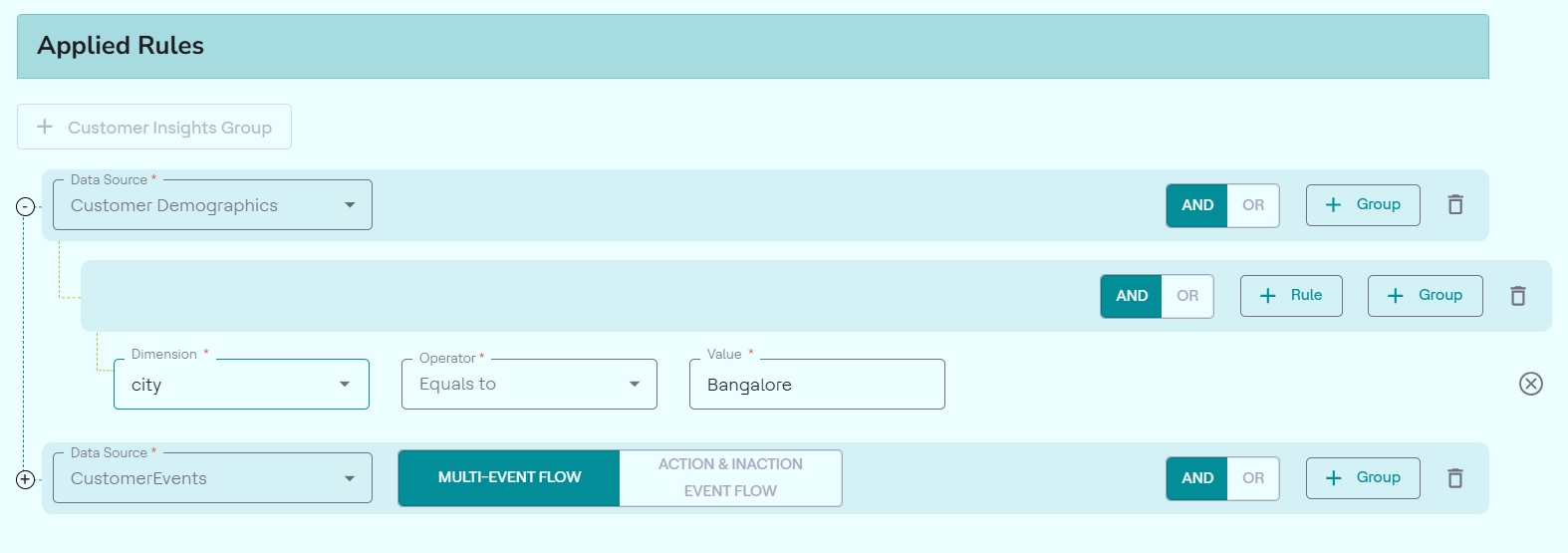
- Select an operator (for example, equals to, contains, etc.).
- Enter the dimension value like Chennai.
To define rules using Customer Events
- In the Data Source drop-down, select Customer Events.
- Choose one of the following event flow types:
- MULTI-EVENT FLOW
- ACTION & INACTION EVENT FLOW
- Under Rules, in the Events drop-down list, select an event, and in
the in last x days field, set a time window (for example, in the
last 7 days).
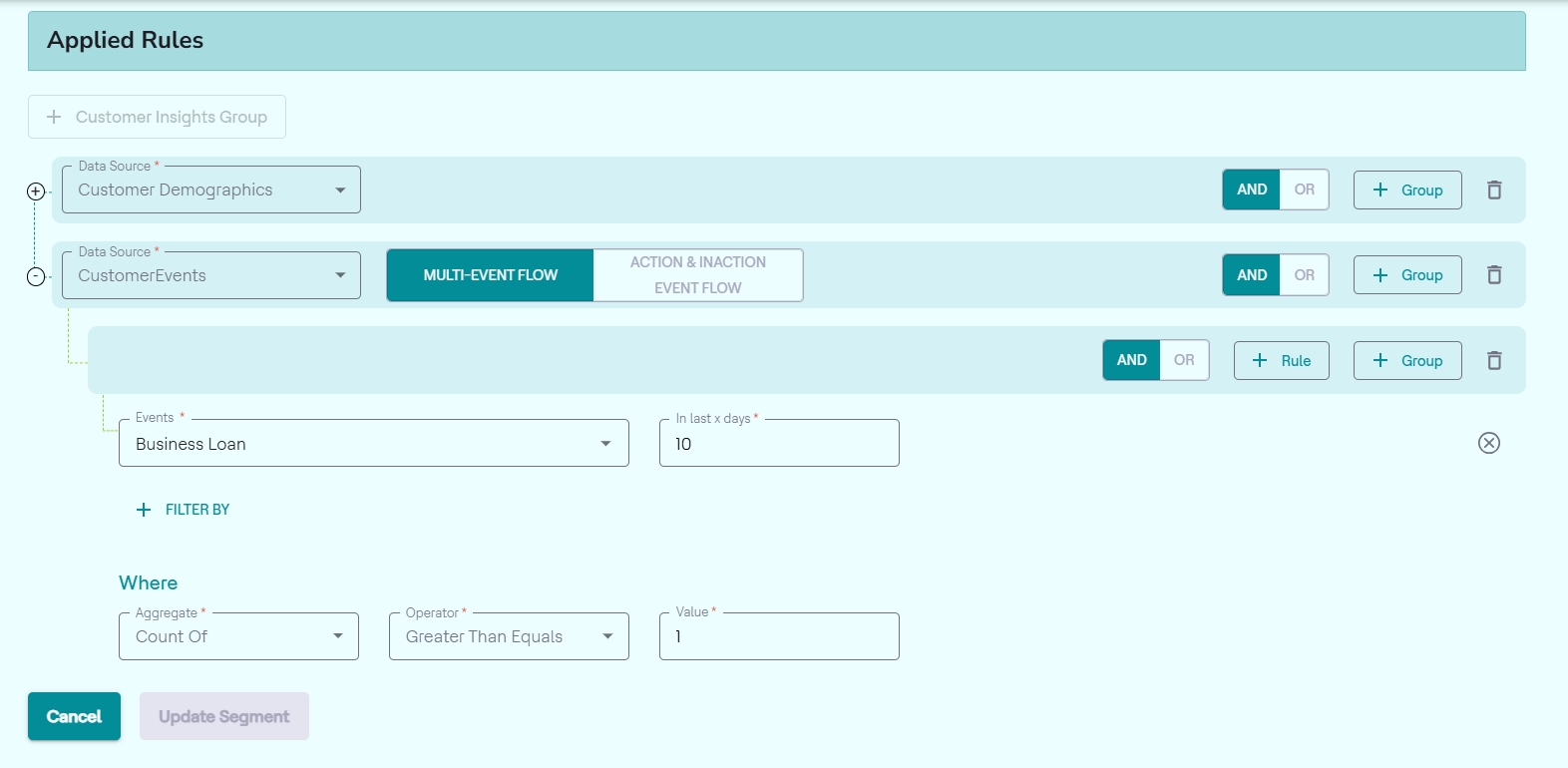
- Click + Filter By to add event properties, and in the Where section, aggregate the event properties.
- Click + Group and + Rule to add multiple groups and rules using the above steps.
- From the As soon as user does drop-down, select an
event.
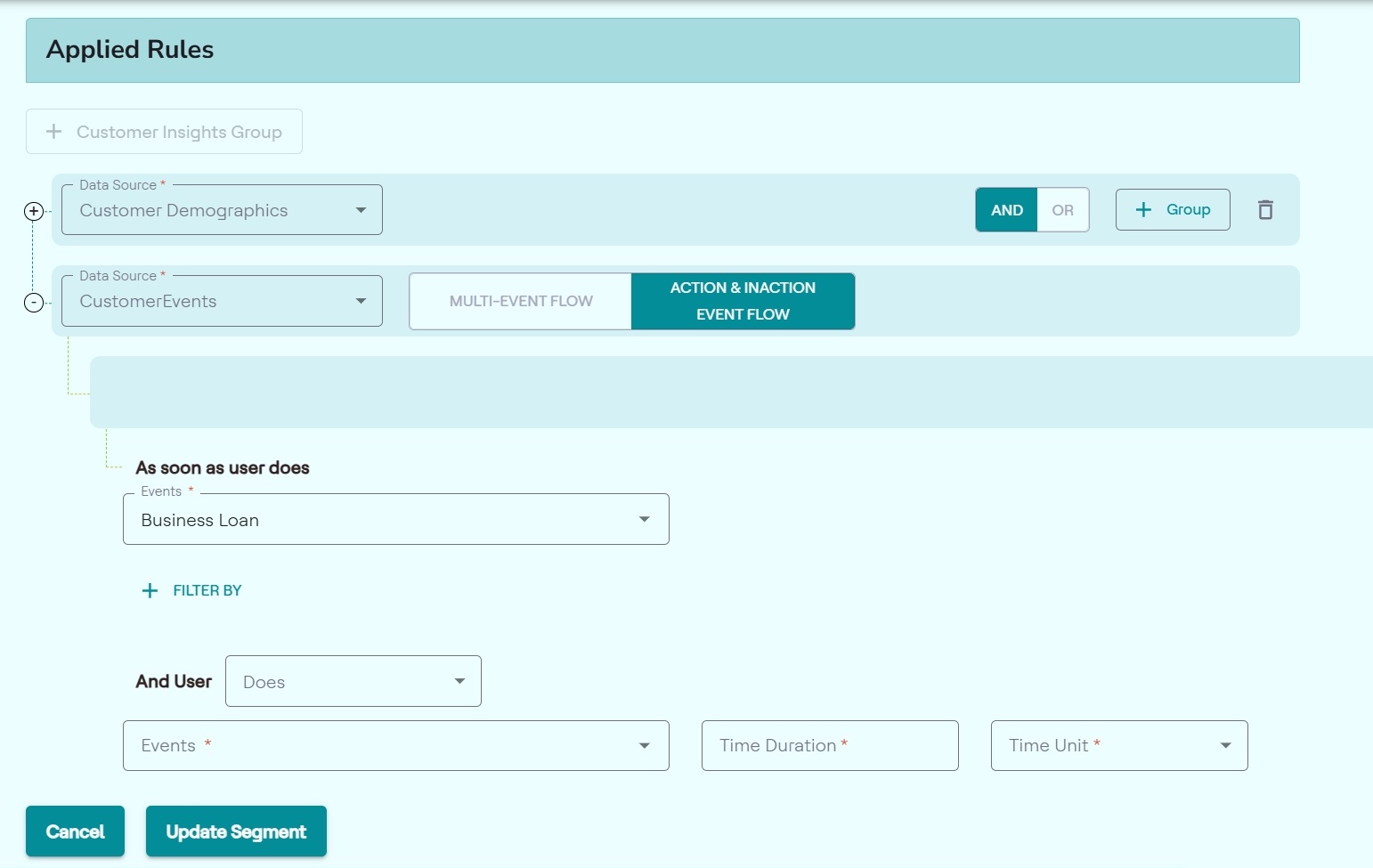
- Click + Filter By to apply event property filters to narrow down the event.
- In the And User section, choose either Does or Does Not option.
- Select another event that falls under this category, and set a time duration with units. For example, 2 days).
Edit a Real-time Segment
To edit the real-time segment and make changes to it, follow the steps below:
- On the Segments page, click the name of the segment you want to edit.
- Click the edit (📝) icon next to Conditions, to start the editing, and implement changes to the Segment.
- Click Save to apply the changes made. As a result, a pop-up window will appear to review the active engagements and journeys linked to the segment.
- Click Confirm Segment Edit after reviewing the changes made.
- As a result, a pop-up window will appear notifying the Segment Edited Successfully.
- Click View the Segment to examine the changes made.
Publish Real-Time Segment
After creating the real-time segment, you can send the real-time notifications, JSON, or events to third-party systems like Journey or other external APIs. To publish real-time segment data, follow the steps below:
- On the Segments page, select a real-time segment, and from the left pane, select External API. To add engagement using Journey API, refer Create Engagement.
- Select a configured API, and then click +Add Engagement.
- In the General tab, enter the engagement name.
- In the Configure Parameters tab, select either Journey or rtsCTEvent template from the drop-down list.
- Define the demographics and event attributes to publish.
- Click the DEMOGRAPHIC tab, and select attributes to publish. Click the > icon to move them to the Original Field vs Custom Field section.
- Similarly, click the EVENT tab, select an event from the drop-down list, and then select the attributes to publish. Click the > icon to move them to the Original Field vs Custom Field section.
- (Optional) In the Original Field vs Custom Field section, edit the names in the Custom Field column to customize the headers in the payload.
- Click Preview to preview the JSOB format of the selected attributes.
- Click Save to publish the real-time segment data. The data will be published to the configured application say Unica Journey.
Duplicate a Segment
To duplicate a segment, follow the steps below:
- Click the three dots next to the desired segment, and click Duplicate.
- Rename the duplicated segment, and modify the rules, tags, or attributes of the
segment as needed.Note: Make sure the segment name should be unique.
- Click Save Segment.
Archive a Real-time Segment
You can archive or unarchive the real-time segments created. If a segment is Archived, all the engagements under that Segment will be deactivated and hidden from the UI.
- In the Segments page, click the three dots next to the segment you want to archive. Archived segments will appear in the Archived tab and engagements under them will be deactivated.
- In the Segments page, click the Archived tab.
- Click the three dots next to the desired segment and select Unarchive.
Add a Tag
You can add multiple tags to a segment in the HCL CDP Marketing Automation platform to categorize and organize it effectively. These tags can be edited for existing segments as well.
To add a tag, in the Tags drop-down, enter the tag name and click Add tag name.