
Journey Integration
This page explains how to configure Journey integration in HCL CDP to transfer the user profile to Unica Journey account.
Integrating HCL CDP with the Unica Journey allows seamless transfer of detailed user profile information to Unica Journey for personalized customer engagement. By using the HCL CDPJourney API, user profile data collected in the HCL CDP can be transferred to the journey in real-time. This integration ensures that personalized customer journeys can be initiated based on updated user information.
In this process, create a journey ID with an entry source that defines how users enter the journey, triggered by specific events. Data definitions are established in the Unica Journey to ensure that the user profile data is correctly mapped and processed. Using the HCL CDP Journey API, the user profile details are sent in the payload, along with the entry source code, allowing for the initiation of a personalized customer experience based on the specific profile attributes.
Prerequisite
Make sure that the following things are in place:
- Create a journey, entry source and data definition in the Unica Journey. For more information, refer Getting started with Unica Journey.
- Create Journey Rest integration. For more information, refer Creating a new REST integration.
- Create Journey API Channel in the HCL CDP, only if Journey API is not listed in Channels. For more information about create the Journey API table, refer Create Trigger API channel as Journey API.
- Configure the Journey API refresh token to authenticate the Journey API. For more information about refresh token configuration, refer Configure Journey refresh token API.
Create Trigger API channel as Journey API
Before you create the channel, make sure the Journey API feature is not available in the application. To create a new trigger api channel for Journey API, follow the steps below:
- In the DMPChannel table, add a new entry for JOURNEY Channel using the
following
query.
INSERT INTO DMPChannel (Name, Description, DisplayName, ECDisplayName, Preference, Config, Type) VALUES ('JOURNEY API', 'JOURNEY API', 'Journey API', 'Trigger API', 21, '{"isSegChannelCap":1}', 'trapi'); - After inserting the Journey channel, in the DMPCampaignChannelMapping
table, insert the journey ChannelMapping using the following
query.
INSERT INTO DMPCampaignChannelMapping (CampaignId, DMPChannelId, Status, ImpressionCap, ImpressionEnabled, FrequencyCaps, EmailScheduleTimeInMins, IcDisabled, DMPCampaignChannelMapping) VALUES (6525, 31, 1, 500, 0, '{"monthly":{"value":1500},"weekly":{"value":1350},"daily":{"value":200,"isPersistent":0},"lifetime":200}', 10, 1, 5); - On successful update, the journey api will be listed under the Channels.
Configure Journey refresh token API
Unica Journey uses thirdpartylogin api to generate authentication token to send the data from HCL CDP. To generate authentication token, follow the steps below:
- Before generating the tokens, encrypt the clientSecret using KMS encrypt api.
Use the following curl commands to encrypt the
clientSecret.
Response:curl --location 'https://<base_url>/kms-service/kms/encrypt' \ --header 'Content-Type: application/json' \ --data '{ "kmsKey": "arn:aws:kms:ap-south-1:654654226610:key/8595ade8-8f55-4487-92da-b42183a2b455", "data": "8eInFG2JqfLCkYl9o7.GjpmVZlA4.JkW", "campaignId": "campaignID", //replace campaignID "region": "aps1" }'{ "val": "+la4fQPzcUtxjl9t+sekbvGnIjUflBHJjmBuvxCDbzwczhiSdjCV/hp9R2XYmhdK", "key": "AQIDAHi1hwJPT6CZTmDECgxOuTdLNdmiQDB2pRjyszBH67kWkQFwJukJOvuPFkYdvF7/2K06AAAAfjB8BgkqhkiG9w0BBwagbzBtAgEAMGgGCSqGSIb3DQEHATAeBglghkgBZQMEAS4wEQQM8NyLH08Qj6TdjZ97AgEQgDte70kBTjq9vE1Z4igQAbLh5noiwcPlZSAPbtEM6TDTPQeyt4o4wVBizTQoykaED/0rhXvtbHcZGQmMFA==" } - Use the Journey's third party login API to generate tokens.
- Endpoint: https://unicabeta.hcltechsw.com/journey/api/thirdpartylogin
- RequestType: POST
- ContentType: application/json
- EncPassword: Include the encrypted clientSecret val generated from the above step.
- EncKey: Include the encrypted clientSecret key generated from the above step.
- Config: JSON corresponding to the request parameters and also the response parsing for ThirdParty token.
{ "accessTokenParam": "tokenId", //Response parameter key for the Refresh token" "p": { // Request Parameters for JSON body as per the request payload that you need, "clientId": "cliendID", //replace with client ID "clientSecret": "@PASSWORD@", //PASSWORD macro is decrypted and replaced from EncPassword while generating a fresh token. }, "h": {}, // Request Headers "qp": {} // Query Parameters that you want to send if it is a GET request } - In the DMPTriggerApiAuthDetails table, add above prepared refresh token
entry. Use the following SQL
query.
INSERT INTO DMPTriggerApiAuthDetails
            (id,
             Name,
             CampaignId,
             Endpoint,
             RequestType,
             ContentType,
             EncPassword,
             EncKey,
             Config)
VALUES      (51,
             ‘journeyThirdpartyToken’,
             6335,
             https://unicabeta.hcltechsw.com/journey/api/thirdpartylogin ',
             POST,
             application/json ',
             iYTY0M0srD82xP9E7oNeBSRMn8GK9EyFbOjPFnnbf+WR6isz4dCz64n1wyH2e/A7',
‘bmotc2FtcGxlOnZhdWx0OnYxOjZtbGhab0NlbGJrYThpcjJacHJ0NEs0VXN1WEVqNGYvN1orUzM1MkVyN05WYjZjMEZrT0xQNURXSm1COXg4STF1TDZvRnhqMEF5MnU2UVc1’
             ,
'{"accessTokenParam":"tokenId","p":{"clientId":"yAzVN1zDl4RhTeaEge42Ipbw30Mp.oO8","clientSecret":"@PASSWORD@"},"h":{},"qp":{}}'
);
Configure Journey API
To configure journey API, follow the steps below:
- Navigate to Channels > Journey API. Or Navigate to Segments > ALL SEGMENTS > select a segment and click Journey API.
- Click +Add New Journey API, and add BASIC DETAILS.
- Name: Name your journey API. This name cannot be editable once it is saved.
- Description: Enter the description of your API.
- Journey API Details:
- URL: Enter the unica journey rest api url.
- Client ID:
- Client Secret:
- Click Save Details to create Journey API.
- On the Test API tab, enter the payload, and click Test
Configuration to verify the journey api connectivity. Before testing the
configuration, make sure to run the following queries in VRM database.
- Get the API ID from the database using the following query. In the below
query, replace "JourneyApiname" with the created journey api name. The
result of this query returns the API
ID.
SELECT Id FROM DMPTriggerApiDetails WHERE NAME='JourneyApiname' - For the newly created Journey API, update the DMPTriggerApiAuthDetailsId
and AuthType from
DMPTriggerApiDetailsto get a dynamic refresh token by providing API ID. Use the below query to update the authentication for the Journey API. In the below query, replace <ID> with the API ID obtained in the previous step.UPDATE DMPTriggerApiDetails SET DMPTriggerApiAuthDetailsId=51, AuthType='ACCESSKEY' WHERE Id= <ID>
- Get the API ID from the database using the following query. In the below
query, replace "JourneyApiname" with the created journey api name. The
result of this query returns the API
ID.
- On successful testing of API, create an engagement.
Create Engagement
After successfully configuring the Journey API, create an engagement and easily map fields between CDP (Athena) and Journey through a simplified UI and Auto mapping feature.
To create an engagement for Journey:
- In the Journey API page, click + Add Engagement. As a result, the Create Journey API Engagement page will be displayed with General and Configure Parameters sections.
- In the General section, provide an Engagement Name.
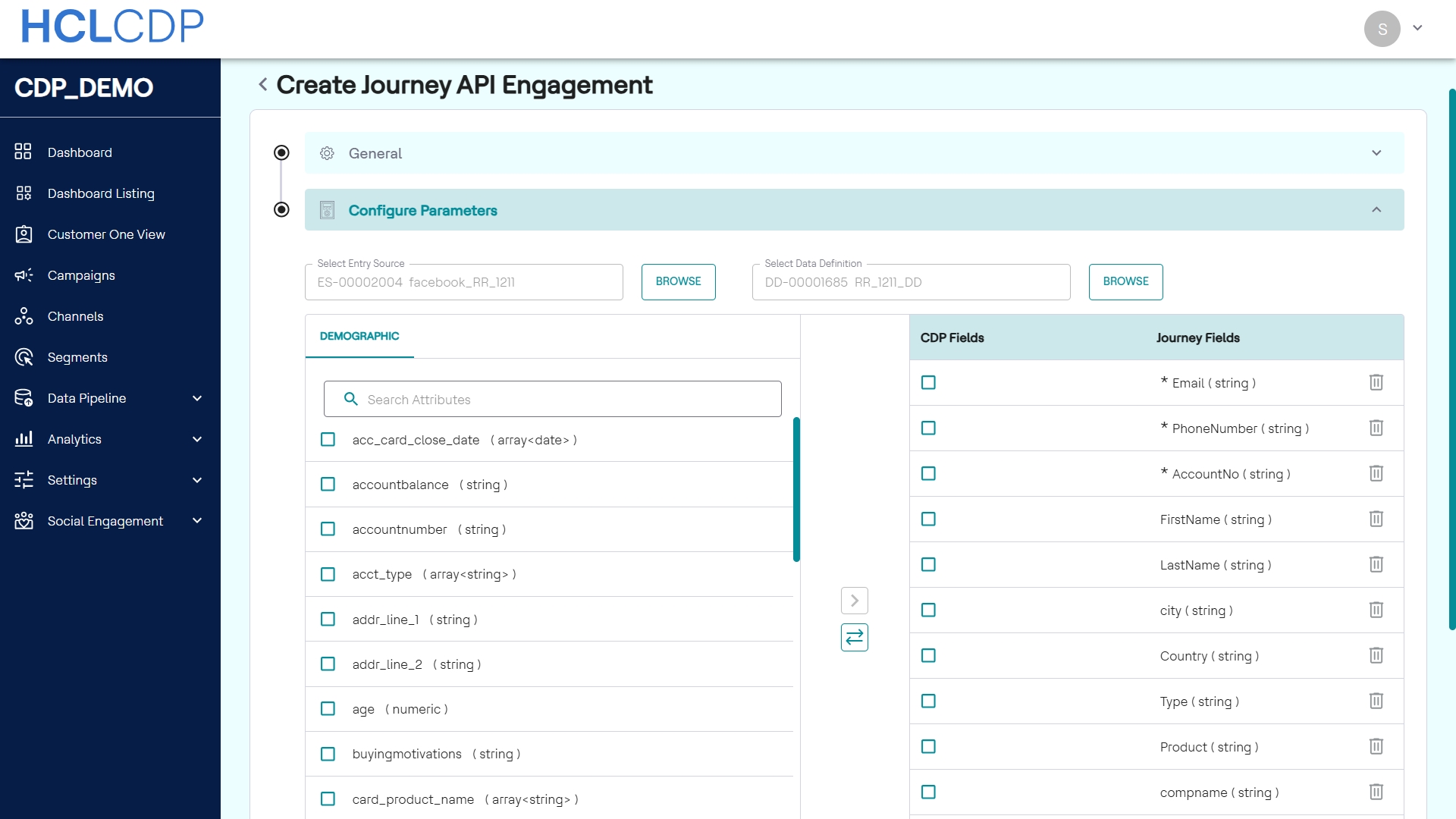
- In the Configure Parameter section, locate the two fields: Entry Source and Data Definition.
- To select the Entry Source, click the Browse button next to
the field.
- The system displays a list of all available entry sources from the Journey API.
- Use the search functionality or select an entry source from the list.
- Select the Data Definition using the Browse button next to the field. Once a Data Definition is selected, the Journey Fields list will populate with the corresponding fields from the Journey.
- To map the CDP fields to the Journey fields, you have two options:
- Manual Mapping (Optional):
- Under the DEMOGRAPHIC list, select a CDP attribute
(e.g.,
Email). - For the specific CDP attribute, in the Journey Fields list, select a specific Journey field e.g., Email (String).
- Upon selecting the attributes from the DEMOGRPHIC and Journey Fields, the map button > (an arrow pointing from the CDP field to the Journey field), will be enabled.
- Click the map button to map the CDP and Journey fields. The selected fields are "grayed out" to indicate they are mapped
- Repeat this process for all the required fields.Note: Fields marked with an asterisk (*) are mandatory. The engagement cannot be enabled or saved without mapping these fields.
- To change a mapping, delete the existing mapping (only the CDP field mapping is deleted, not the Journey field) and map a new one.
- Under the DEMOGRAPHIC list, select a CDP attribute
(e.g.,
- Automatic Mapping:
- Click the
 Auto Config
button, which below the map button.
Auto Config
button, which below the map button. - The system automatically searches for and maps Journey
fields to CDP (Athena) fields that are an exact match. Note: The match must be exact, including capitalization and underscores (e.g.,
email_addresswill not map toe_mail). Fields that do not have an exact match will remain unmapped and must be mapped manually.
- Click the
- Manual Mapping (Optional):
- (Optional) Click the Preview button to view how the JSON payload will look after mapping.
- Click Save. A confirmation pop-up is displayed.
- After saving, you can Enable the engagement. Enabling the engagement will also enable the associated segment.
- (Optional) Click Reset to clear the selected Entry Source, Data Definition, and all mappings. The page will return to its initial state, requiring a new Data Definition selection.