
Upgrade Process
Upgrade via Devtron
To sync Helm Charts from Devtron chart store, follow the steps below:
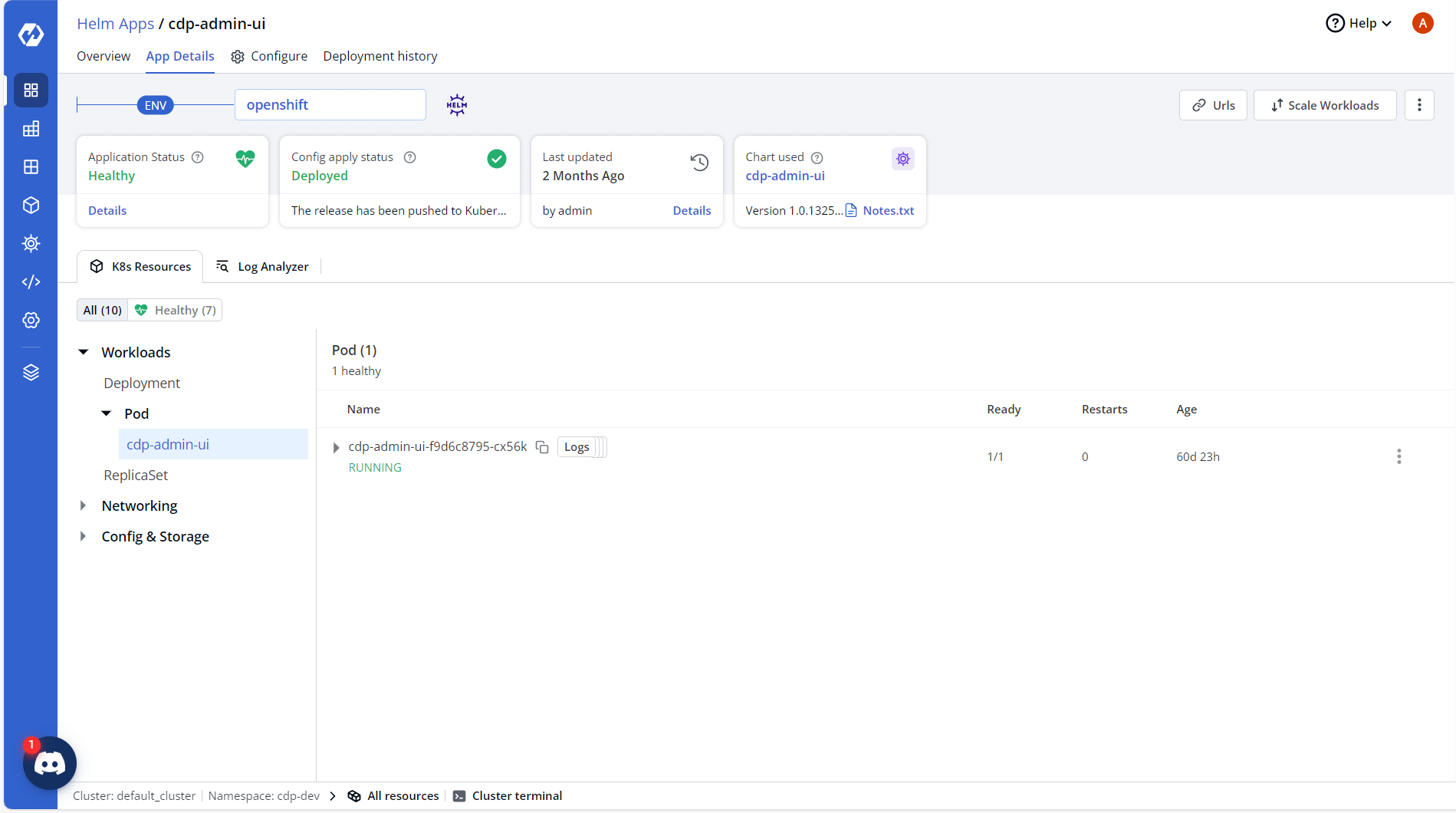
- To locate application, navigate to the Helm Apps section in the Devtron dashboard.
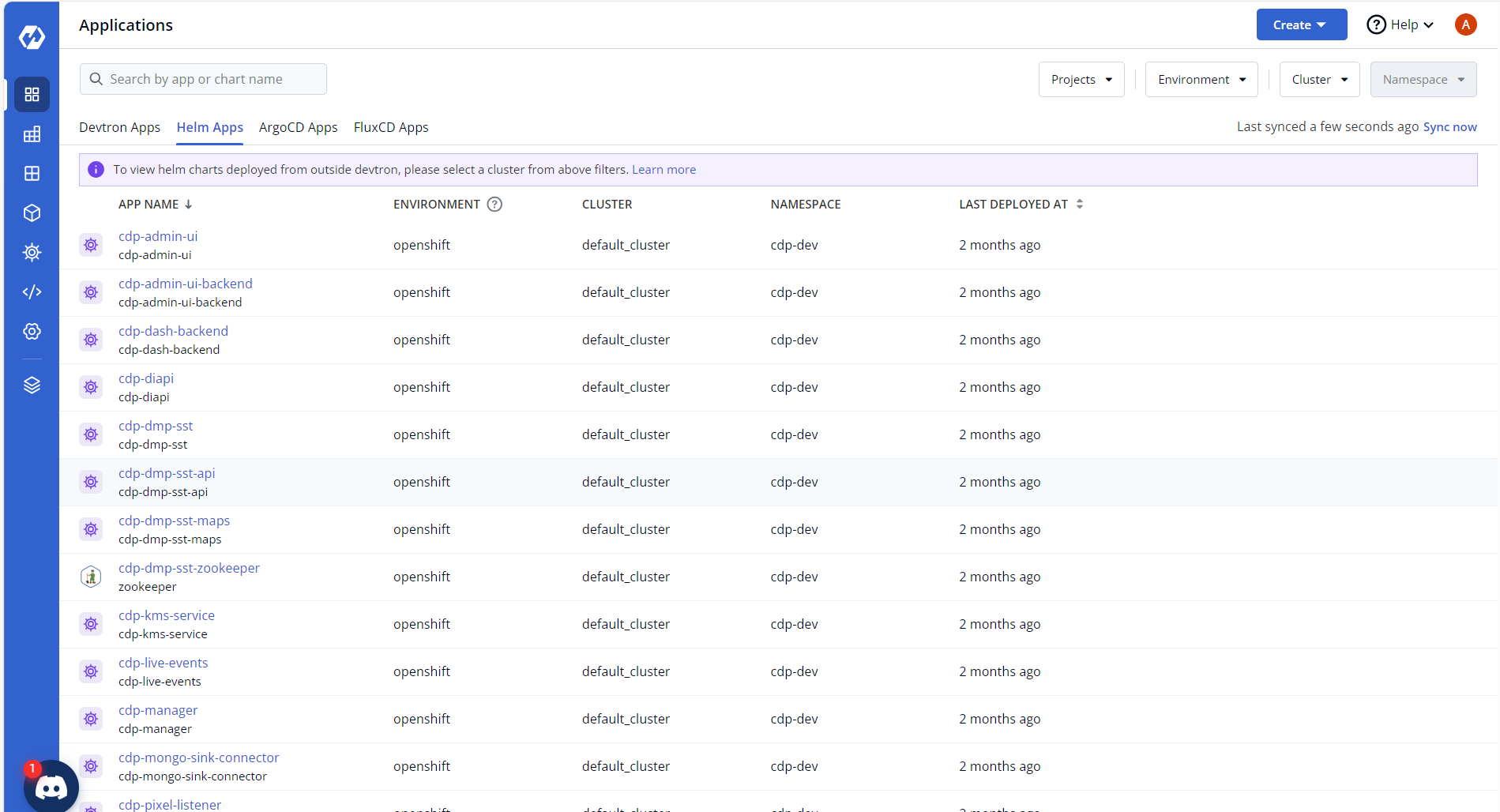
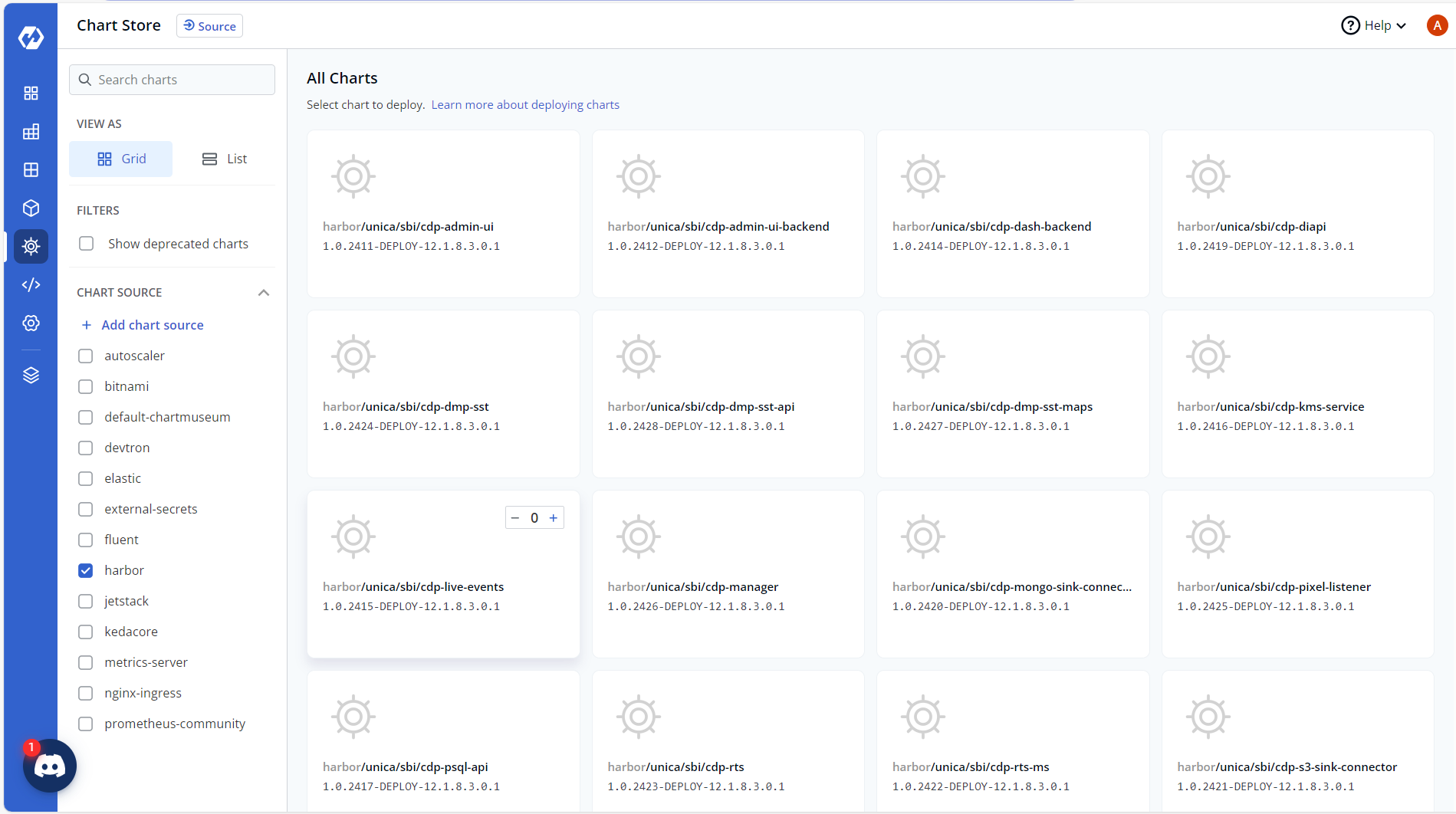
- Confirm whether the latest version of helm charts are synced up in the Devtron
store.
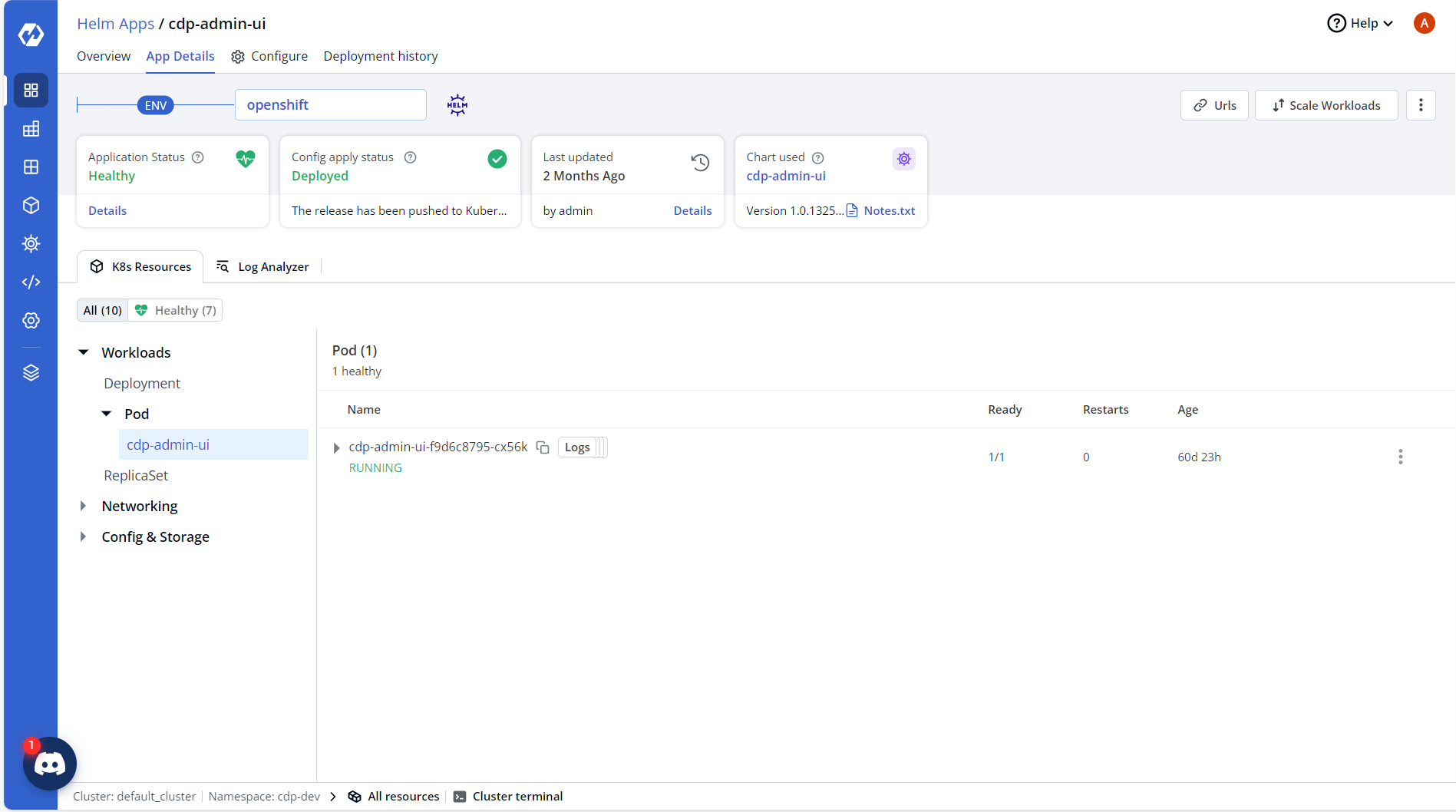
- Identify and select the application to be upgraded.
- Open the Configure section and confirm that a new chart version is available for upgrade.
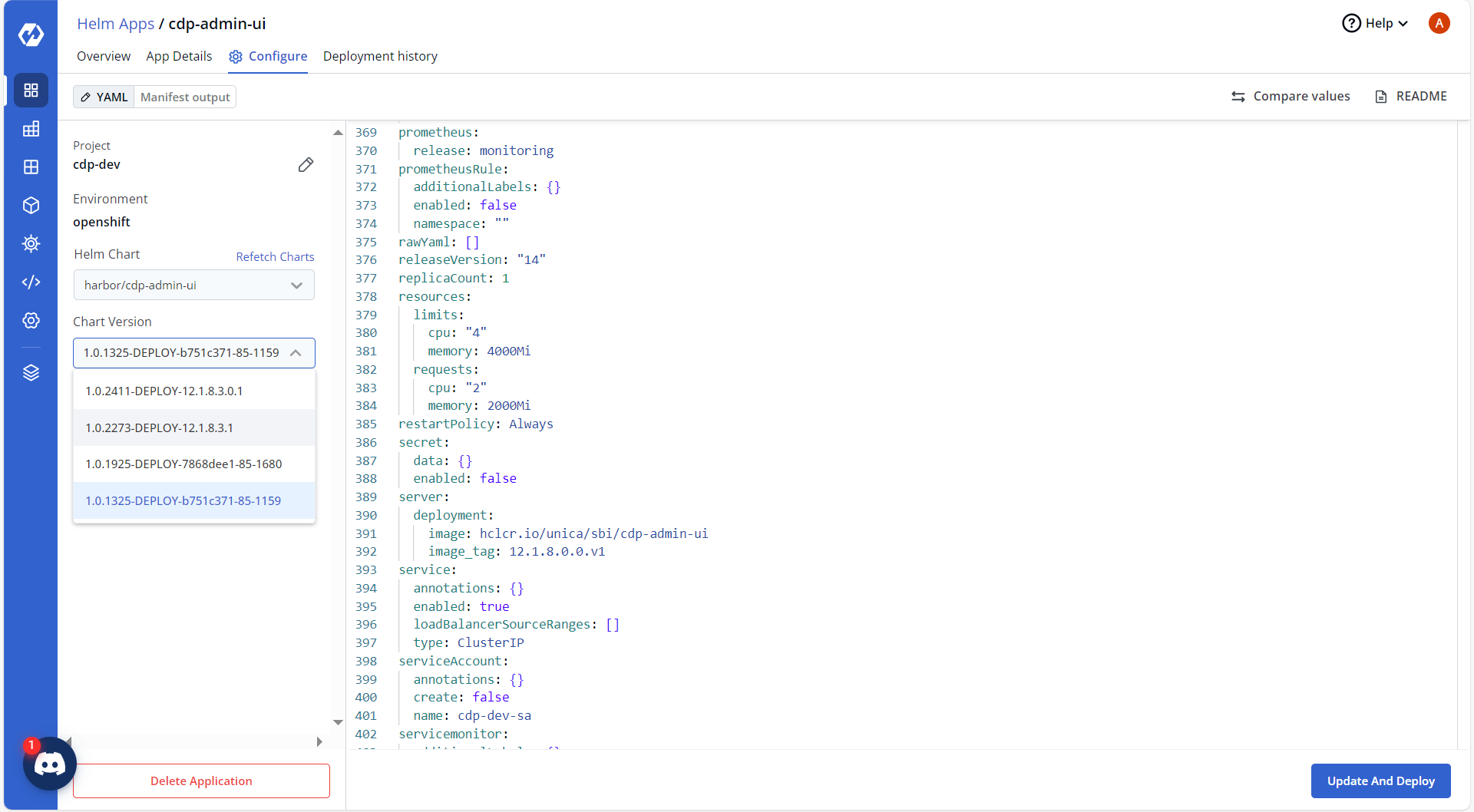
- Select the latest chart version.
- Review and update the chart values to match the desired configuration.
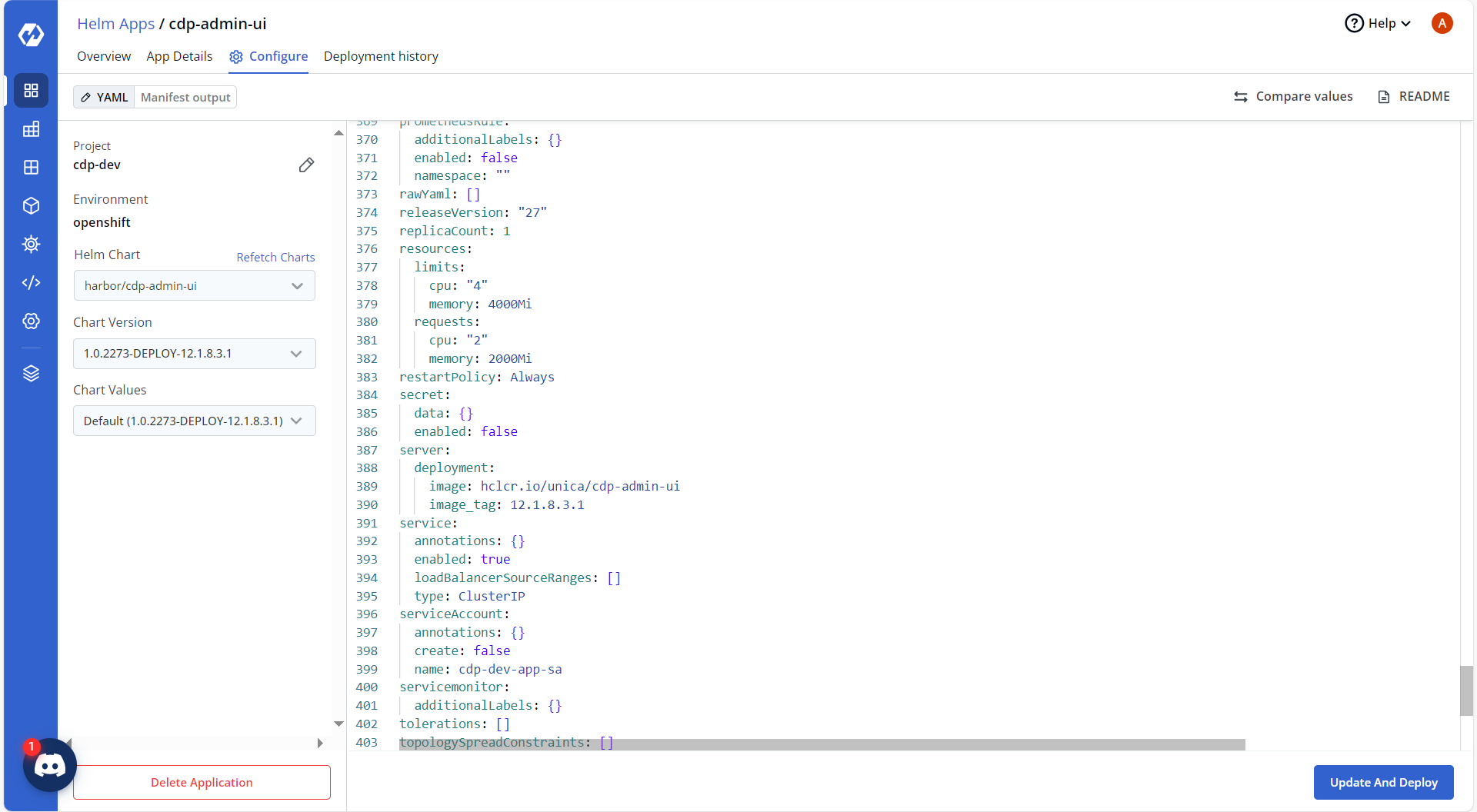
- Update the image repository and tag details as required.
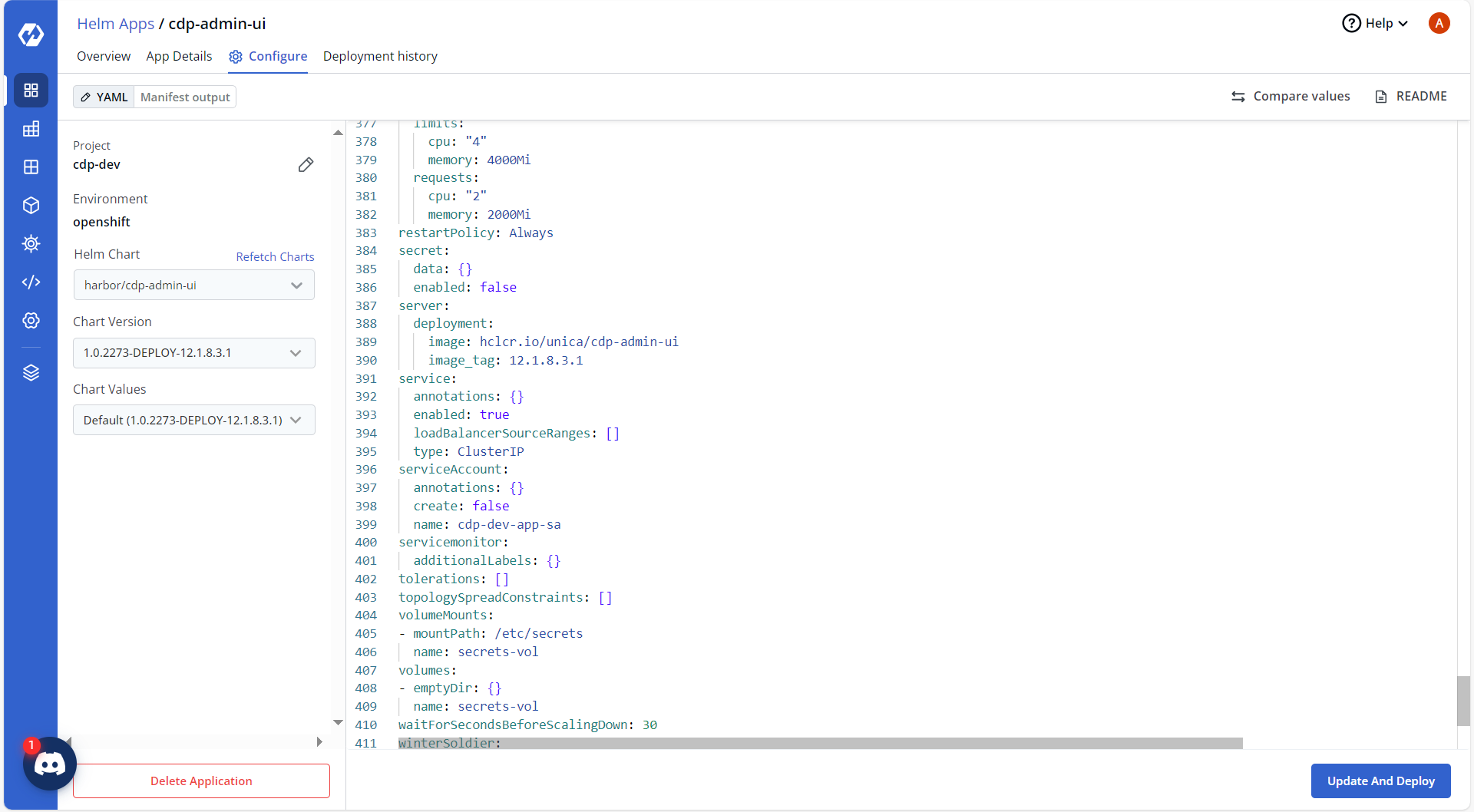
- Update the relevant ConfigMap values to reflect the new settings.
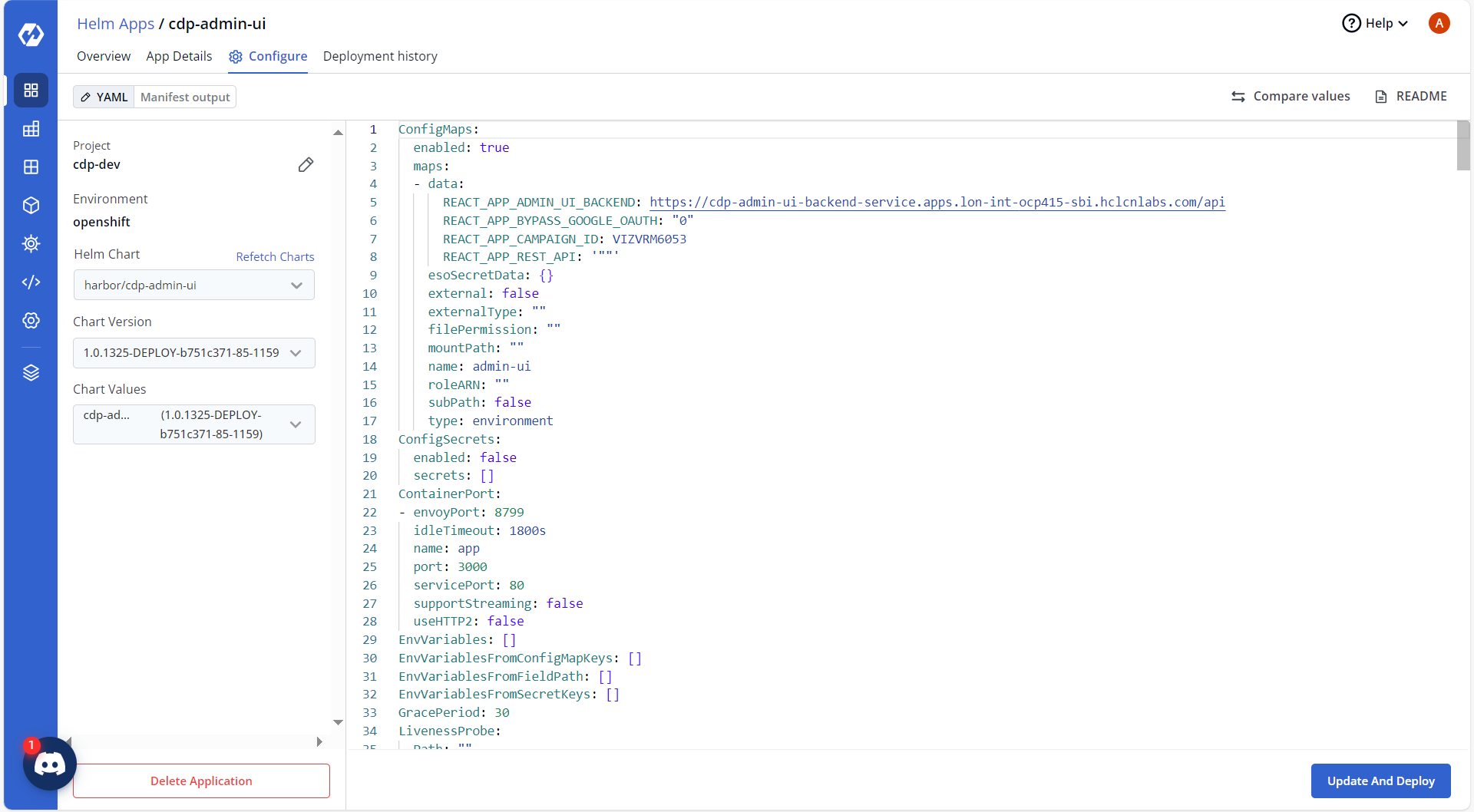
- To deploy the upgrade, click Update and Deploy.
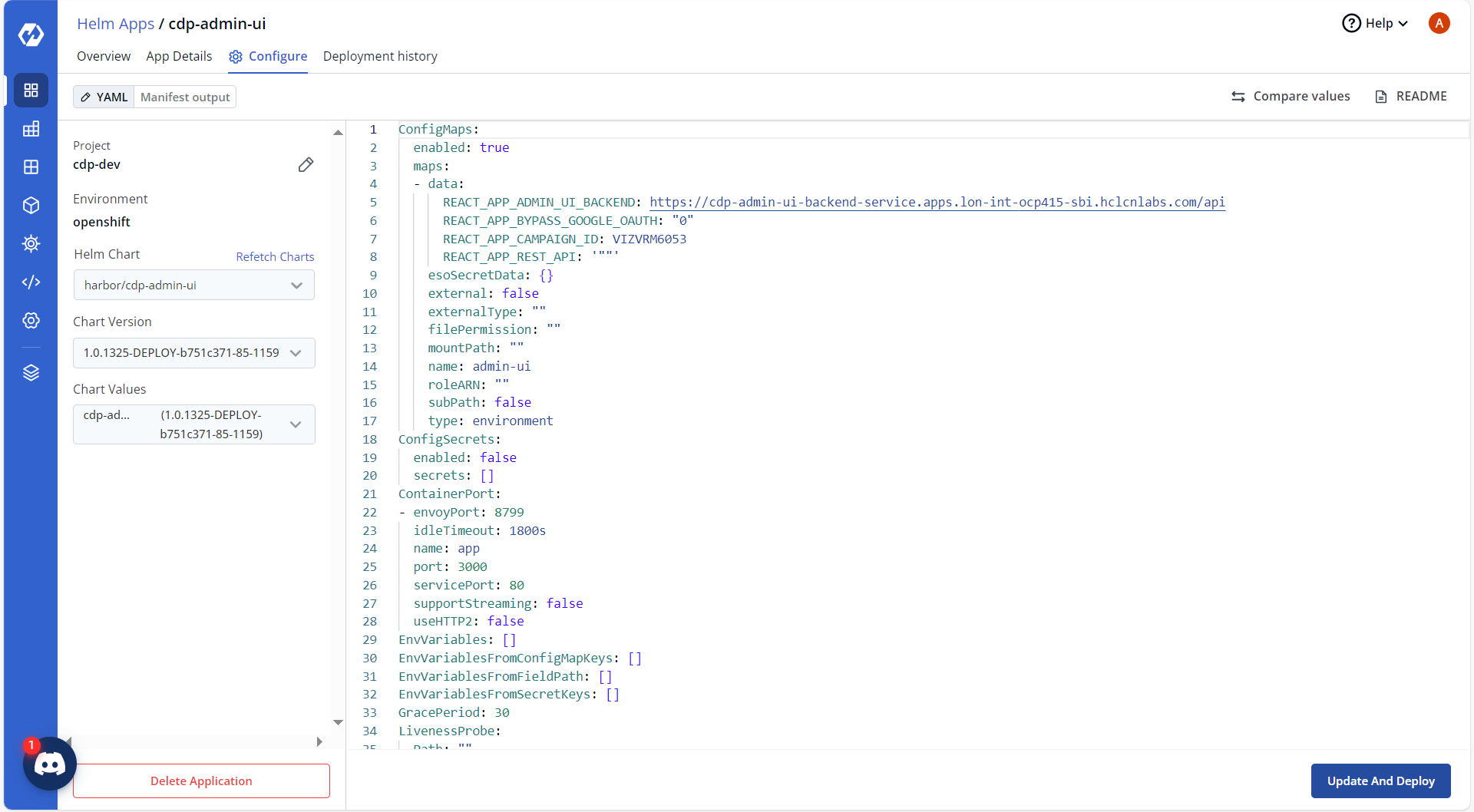
- Confirm that the older pods are terminated and new pods are running successfully.
Upgrade via Helm Command
To upgrade the helm charts via helm command, follow the steps below:
- Update the values.yaml file to modify the image repository, image tags, and any specific configuration values.
- Run the following Helm Command to upgrade the charts:
In the above command, replace <release-name> with the name of your existing deployment and <chart-path> with the path to the updated chart directory.helm upgrade <release-name> <chart-path> -f values.yaml