DXClient
DXClient is a command line tool featuring a single, unified interface to all HCL DX automation and CI/CD-related tasks. It helps developers manage several DX tasks such as uploading one or more portlets, Script Applications, and themes. Administrators can manage WCM libraries, PZN rules, shared libraries, etc.
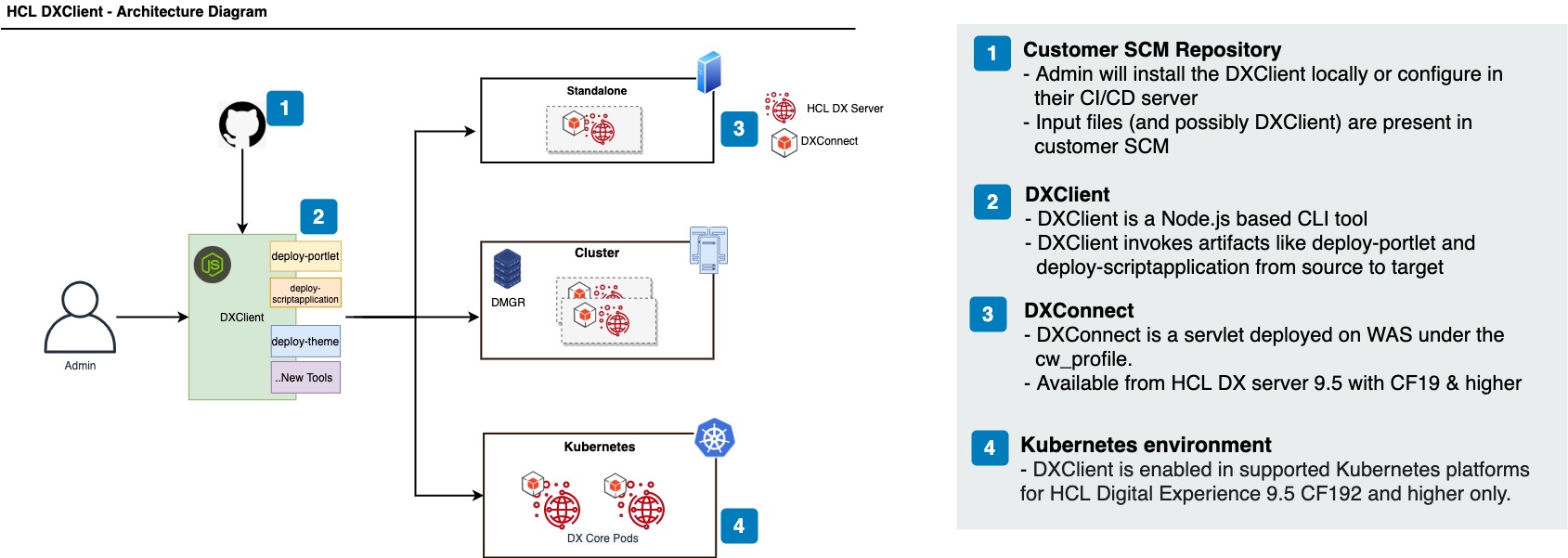
DXClient can take artifacts developed locally and deploy them to HCL DX servers independently of whether these are deployed on-premises platforms in standalone, cluster, or farm-topologies, or in a container environment.
DXClient is meant to be the one-stop, platform-independent solution that lets you integrate HCL DX with any automation infrastructure of your choice.
DXClient comes with two deployment options:
-
The default deployment option is the DXClient container package. DXClient is packaged as a container that can be run using OCI-based runtimes such as Docker or Podman. It is available as a container image from HCL DX 9.5 CF196 and later releases. See the DXClient installation for more details.
-
For backward compatibility, we also still offer DXClient Javascript source codes. Customers who want to rely on this deployment option need to install their own Node.js and npm runtime environment in the correct version and must install necessary dependencies as needed.
Architecture
The following image illustrates the DXClient Architecture diagram:
Installing DXClient using the container package
The container package provides a fully packaged OCI-compliant container that contains everything to successfully run DXClient. You may use any container runtime that implements OCI Runtime Specification (for example, Docker or Podman).
In addition, the package includes scripts for all operating systems that make it simpler to work with the container image. These scripts handle the storage for the container and sync input files with the container itself.
Note
When you upgrade to use the container image DXClient, you must first uninstall the Node.js DXClient.
-
Navigate to the
<working-directory>folder where you wish to use the DXClient from. -
Download the DXClient.zip file (DXClient_VX_XXXXXXXX-XXXX.zip) to a local directory on the local workstation from your HCL Digital Experience 9.5 CF196 or higher entitlements on the HCL Software License Portal.
Note
If you are upgrading from the node to container image version of DXClient, you must first uninstall or unlink the current version using the following command before installing the newer version.
Syntax for Linux and Apple macOS platforms:
make unlinkSyntax for Microsoft Windows platforms:
make_unlink.bat -
Extract the DXClient.zip file.
Note
The default OCI runtime for DXClient is docker. If you wish to use any other OCI runtime, run the following command before proceeding further.
export CONTAINER_RUNTIME=<YOUR_CONTAINER_RUNTIME> For example: export CONTAINER_RUNTIME=podman -
Run
docker load < dxclient.tar.gz -
Optional: Add DXClient to your PATH. Open terminal and add path to the DXClient bin directory to your PATH variable to be able to call DXClient from any directory. If you plan to run multiple versions of DXClient on the same system in parallel, you may want to skip this step.
export PATH=<working-directory>/bin:$PATHFor Microsoft Windows platforms:
Open command prompt, add
dxclient.batscript in the bin directory to the PATH variable, to call DXClient from any directory.set PATH=<working-directory>\bin;%PATH%Note
You will lose these changes by closing the terminal/command prompt. If you set in system path permanently, kindly take the necessary steps to remove it.
-
Set appropriate permissions.
chmod xxx <working-directory>/bin -
Run
dxclient -Vto verify that the required version of DXClient command line is installed. -
A folder named
storewill be created in your working directory. This is the shared volume location of your container. If you require to create a new volume directory for a different configuration, set theVOLUME_DIRto the desired directory name and run your task. For example,export VOLUME_DIR=storeForScriptApplication -
You can find the configuration, logger, output, and sample files under location
<working-directory>/store.Common command arguments can be pre-configured inside the config.json file available under the
<working-directory>/storefolder. A sample configuration file that can be used on on-premises platforms in standalone, cluster (default-config.json) or kubernetes (default-config-kube.json) platforms is also available under/store/samples/sample-configurations for reference. If you want to override any of the parameters in the config.json, add them in your command line. -
Refer to the sample pipeline provided to find out how to integrate the container image directly (without bin script) in the automation server.
-
By default, the logs will be available in UTC format. If needed, synchronize your local timezone from host to container using an environment variable as shown in the example below.
Example Usage:
For Microsoft Windows platforms:export Timezone=Asia/KolkataSET Timezone=Asia/Kolkata -
The attribute
-dxConnectHostnamehas been deprecated and removed and must be replaced with-hostnamewherever necessary.
Installing DXClient using the source code package
Note
You are encouraged to use the DXClient container image package from CF196 onwards for easier installation.
-
Complete the following steps to install the DXClient tool in your local development workstation or automation server.
Note
If you are upgrading from CF19, CF191, or later releases, you should first unlink the current version using the following command before installing the newer version.
Syntax for Linux and Apple macOS platforms:
make unlinkSyntax for Microsoft Windows platforms:
make_unlink.bat -
Ensure that Node.js version 12.18.3 or later version is installed to the local workstation. The DXClient tool is supported on Microsoft Windows, Linux, and Apple macOS workstations and automation servers.3. Download the DXClient.zip file (DXClient_VX_XXXXXXXX-XXXX.zip) to a local directory on the local workstation from your DX 9.5 CF19 or later entitlements on the HCL Software License Portal. Reference the Docker topic for the latest list of HCL DX 9.5 files available for download.
-
Extract the DXClient.zip file.
-
From the extracted folder, run the following command.
For Linux and Apple macOS platforms:
make installFor Microsoft Windows platforms:
make_install.bat -
Optional: Run the following command to link your application to the local npm module in your machine. Refer to the following Notes section before you proceed.
For Linux and Apple MacOS platforms:
make linkFor Microsoft Windows platforms:
make_link.batNote
- Avoid using this command when scripting deployments from an automation server (for example, in pipelines) as there is a chance of picking up the wrong dependencies during tool version upgrades.
- If the
linkcommand is not used (such as on automation servers), then use the following command to run the application:
For Linux and Apple MacOS platforms:
./bin/dxclientFor Microsoft Windows platforms:
node bin/dxclient
Uninstalling DXClient using the source code package
-
To uninstall the DXClient tool, perform the following commands:
For Linux and Apple MacOS platforms:
make cleanFor Microsoft Windows platforms:
make uninstall.bat -
Optional: To unlink the DXClient tool, perform the following commands:
For Linux and Apple MacOS platforms:
make unlinkFor Microsoft Windows platforms:
make_unlink.bat
Verifying your DXClient installation
Successful installation of the DXClient tool can be checked by using the "dxclient -V" command, which should show the version of the DXClient tool installed.
Once installed, commands can be executed using the DXClient tool to perform CI/CD actions on HCL DX 9.5 servers.
Note
Refer to the list of features that were released in the following HCL DX 9.5 Container releases:
-
HCL DX 9.5 CF210 release: **V1.19.0
- Removed paramaters deprecated during CF201 & CF202 deployment.
- Exporting and Importing WCM libraries
-
HCL DX 9.5 CF209 release: **V1.18.0
-
HCL DX 9.5 CF208 release: **V1.17.0
-
HCL DX 9.5 CF207 release: **V1.16.0
- Support to set different Container Runtimes.
-
HCL DX 9.5 CF202 release: **V1.11.0
-
Deprecated parameter
dxConnectHostname. It is recommended that you start using the replacement parameter-hostnamestarting from CF202 wherever necessary.
-
-
HCL DX 9.5 CF201 release: **V1.10.0
-
An optional parameter
requestIdadded to Deploy theme, Deploy application, Restart DX Core server, and Manage virtual portals. -
Retrieve feature added to the Resource environment provider.
-
Note that a few parameters are deprecated and replaced with new parameters in the DX Core configuration reports. For information, see DX Core server configuration report.
-
-
HCL DX 9.5 CF200 release: **V1.9.0
-
HCL DX 9.5 CF199 release: **V1.8.0
-
HCL DX 9.5 CF198 release: **V1.7.0
-
HCL DX 9.5 CF197 release: **V1.6.0
-
HCL DX 9.5 CF196 release: **V1.5.0
-
HCL DX 9.5 CF195 release: **V1.4.0
-
HCL DX 9.5 CF193 release: **V1.2.0
-
HCL DX 9.5 CF192 release: **V1.1.0
- Undeploy script applications
- Deploy theme (EAR and WebDAV based)
-
HCL DX 9.5 CF19 release: **V1.0.0
Configuring DXClient
Common command arguments can be pre-configured inside the config.json file available under dist/src/configuration folder. A sample configuration file that can be used on on-premises platforms in standalone, cluster (default-config.json), or kubernetes (default-config-kube.json) platforms is also available under
{
    "name":"config.json",
    "desc":"The attributes in this file are used for configuration purpose and those must not be deleted.",
    "dxProtocol": "",
    "dxConnectProtocol": "https",
    "hostname": "",
    "dxPort": "",
    "dxSoapPort": "10033",
    "dxConnectPort": "10202",
    "dxContextRoot":"/wps",
    "contenthandlerPath": "/wps/mycontenthandler",
    "projectContext": "",
    "virtualPortalContext": "",
    "xmlConfigPath": "/wps/config",
    "damAPIPort": "",
    "ringAPIPort": "",
    "damAPIVersion": "v1",
    "ringAPIVersion": "v1",
    "dxConnectHostname": "",
    "dxConnectUsername": "",
    "dxConnectPassword": "",
    "dxUsername": "",
    "dxPassword": "",
    "dxProfileName": "",
    "dxProfilePath": "",
    "dxWASUsername": "",
    "dxWASPassword": "",
    "enableLogger": true,
    "enableBackup": "false",
    "lastModifiedAfter": "",
    "restoreAsPublished": false,
    "targetHostname": "",
    "targetDxConnectPort": "",
    "targetDxConnectUsername":"",
    "targetDxConnectPassword":"",
    "targetDxProfileName": "",
    "targetServerHostname": "",
    "targetServerPort": "",
    "targetServerUsername":"",
    "targetServerPassword":"",
    "targetServerProfileName": "",
    "vaultUsername": "",
    "vaultPassword": "",
    "wcmContentName": "",
    "wcmContentId": "",
    "wcmContentPath": "",
    "wcmSiteArea": "",
    "wcmLibraryId": "",
    "wcmLibraryName": "",
    "wcmProjectName": ""
}
DXClient commands
Command syntax conventions:
dxclient [command] [options]
Use the following command to execute the deploy portlet action:
dxclient deploy-portlet [options]
Use the following command to execute the undeploy portlet action:
dxclient undeploy-portlet [options]
Use the following command to execute the xmlaccess action:
dxclient xmlaccess [options]
Use the following command to execute the pull script application action:
dxclient deploy-scriptapplication pull [options]
Use the following command to execute the push script application action:
dxclient deploy-scriptapplication push [options]
Use the following command to execute the undeploy script application action:
dxclient undeploy-scriptapplication [options]
Use the following command to execute the restore script application action:
dxclient restore-scriptapplication [options]
Use the following command to execute the deploy application action:
dxclient deploy-application [options]
Use the following command to execute the DX Core restart action:
dxclient restart-dx-core
Use the following command to restart DX Core pods in a Kubernetes deployment:
dxclient restart-core-pods [options]
Use the following command to execute manage-subscriber action:
dxclient manage-subscriber -h
Use the following command to execute manage-syndicator action:
dxclient manage-syndicator -h
Use the following command to execute the deploy theme action:
dxclient deploy-theme [options]
Use the following command to execute the undeploy theme action:
dxclient undeploy-theme [options]
Use the following command to execute the manage-syndicator get-syndication-report action:
dxclient manage-syndicator get-syndication-report [options]
Use the following command to execute the shared-library action:
dxclient shared-library [options]
Use the following command to execute the delete DAM schema action:
dxclient delete-dam-schema [options]
Use the following command to list all DAM schemas present:
dxclient list-dam-schemas [options]
Use the following command to export the personalization rules from the target server:
dxclient pzn-export [options]
Use the following command to import the personalization rules into the target server:
dxclient pzn-import [options]
Use the following command to manage virtual portal tasks in the DX server:
dxclient manage-virtual-portal [options]
Use the following command to register subscriber:
dxclient manage-dam-staging register-dam-subscriber [options]
Use the following command to deregister subscriber:
dxclient manage-dam-staging deregister-dam-subscriber [options]
Use the following command to trigger manual sync:
dxclient manage-dam-staging trigger-staging [options]
Use the following command to create credential vault slot in the DX server:
dxclient create-credential-vault [options]
Use the following command to create the syndication relation between syndicator and subscriber in DX server:
dxclient create-syndication-relation [options]
Use the following command to create, update, delete, export or import a custom property from an existing Resource Environment Provider:
dxclient resource-env-provider [options]
Use this command to export WCM libraries:
dxclient wcm-library-export
Use this command to import WCM libraries:
dxclient wcm-library-import
Use the dx-core-configuration-reports command to get a summary of the configurations of a single DX server or both source and target DX servers, which users can use to compare.
dxclient dx-core-configuration-reports [OPTIONS]
DXClient command line help
The following commands show the Help documents for DXClient command usage.
Use the following commands to display the Help document for DXClient:
dxclient
dxclient -h, --help
Use the following command to display the DXClient version number:
dxclient -V, --version
Use the following command to display the detailed help for a specific command:
dxclient help [command]
Related information
- How to translate WCM library content using export and import WCM with DXClient
- DXClient Artifact Types
- Troubleshooting DXClient
- DXConnect
- Sample Pipelines for use with HCL DXClient and Automation servers
- Using DAM staging
- Create or update credential vault slot
- Personalization rules
- Portlets
- Themes
- Script applications
- Resource environment provider