DXConnect
DXConnect is a servlet-based application deployed on top of IBM WebSphere Application Server in the HCL DX 9.5 CF19 and later deployments, under the Configuration Wizard profile - cw_profile. DXConnect enables the DXClient tool to connect over an HTTP or HTTPS connection from a client development machine or remote server to a source or target HCL DX 9.5 server to execute certain tasks requested via DXClient commands.
For supported on-premises platforms with HCL DX 9.5 CF19 and later releases, the DXConnect application needs to be installed (refer to DXConnect) and started under the Configuration Wizard (cw_profile) on target servers. For more information on starting the Configuration Wizard, refer to Accessing the Configuration Wizard.
DXConnect is pre-configured in container environments.
DXConnect has to be installed manually on on-premise environments.
Note
Configuration Wizard Administrator credentials are required to access the DXConnect application.
Authentication
DXConnect requires the cw_profile Administrator security role to access the application servlet APIs.
DXConnect Installation (only applicable for on-premises installations)
To install DXConnect under Configuration Wizard server, you must issue the command to the ConfigEngine script present under 'wp_profile'. Navigate to the ConfigEngine script location under 'wp_profile':
cd /opt/HCL/wp_profile/ConfigEngine/
To install DXConnect, use the command below:
./ConfigEngine.sh install-dxconnect-application
This task not only installs the DXConnect application, but it also creates the "DXC_ConfigSettings" WAS Resource Environment Provider and creates two custom properties in that REP:
DXCONNECT_MAX_MEMORY_SIZE_MB
DXCONNECT_MAX_FILE_SIZE_MB
To remove DXConnect, use the command below:
./ConfigEngine.sh remove-dxconnect-application
To re-install DXConnect, use the command below:
./ConfigEngine.sh reinstall-dxconnect-application
Note
In on-premise environments setups, you must run the ConfigEngine task under the wp_profile to have DXConnect installed in the correct location. A restart of the cw_profile server may be required.
To verify if DXConnect is installed on a given HCL DX Server 9.5 with CF19 or later, navigate to the Configuration Wizard Admin console and then under Enterprise Applications. The dxconnect application appears on the console as shown in the example below. For more information on accessing and working with the Configuration Wizard, refer to Accessing the Configuration Wizard topics.
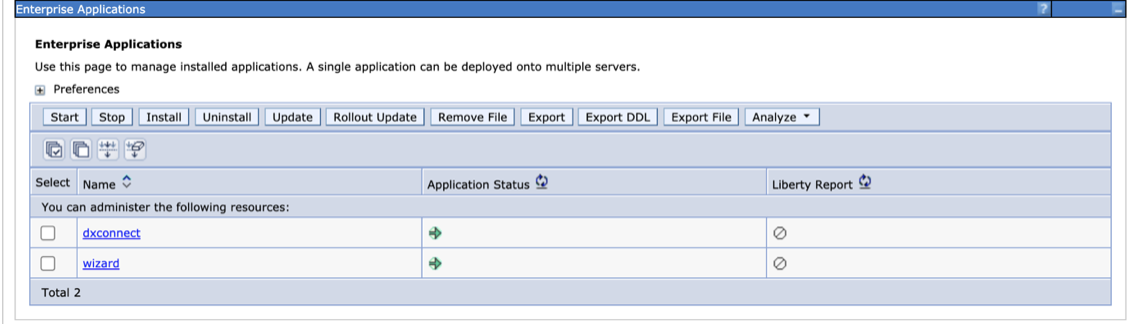
Accessing the Configuration Wizard admin console in a container environment
You can access the ConfigWizard admin console in a container environment from your local system. For more information, refer to Accessing the ConfigWizard admin console in a container environment.