Connecting to HCL Volt MX Foundry through Digital Data Connector (DDC)
This section provides the steps on using DDC for HCL Portal framework to integrate data from HCL Volt MX Foundry (integrated external data sources) on your portal pages by using HCL Web Content Manager presentation components.
Prerequisite
Ensure that the your Volt MX Foundry application is configured correctly according to this guide.
Create a mapping for the DDC plug-in for the List-rendering profile
This section describes how to define the set of attributes available in the beans that are contained in bean lists that a DDC plug-in generates in List-rendering profile.
Note
-
Following API end point and response are used to create this sample document.
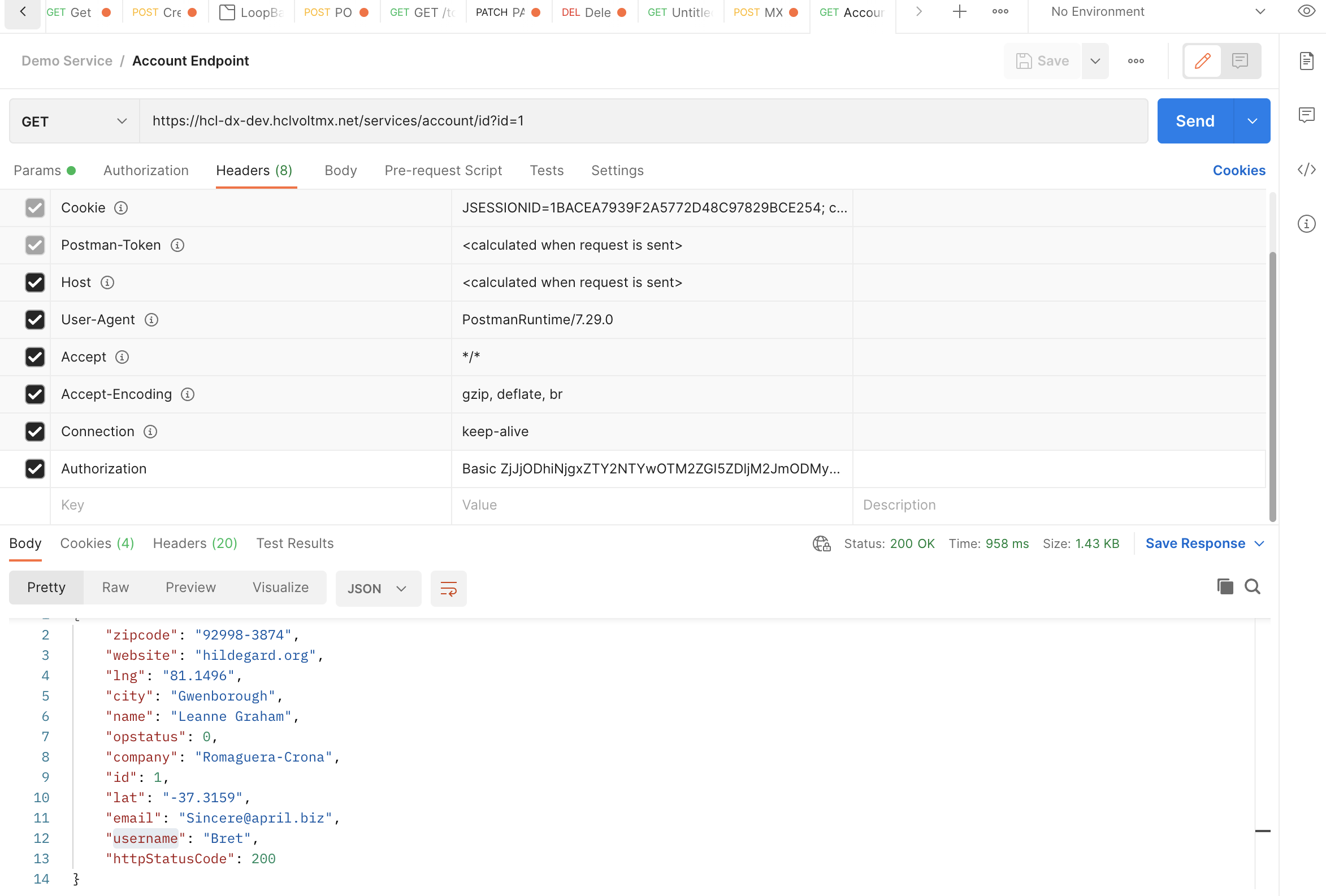
Steps to create the list rendering profile are as follows:
-
Log in to the WAS console.
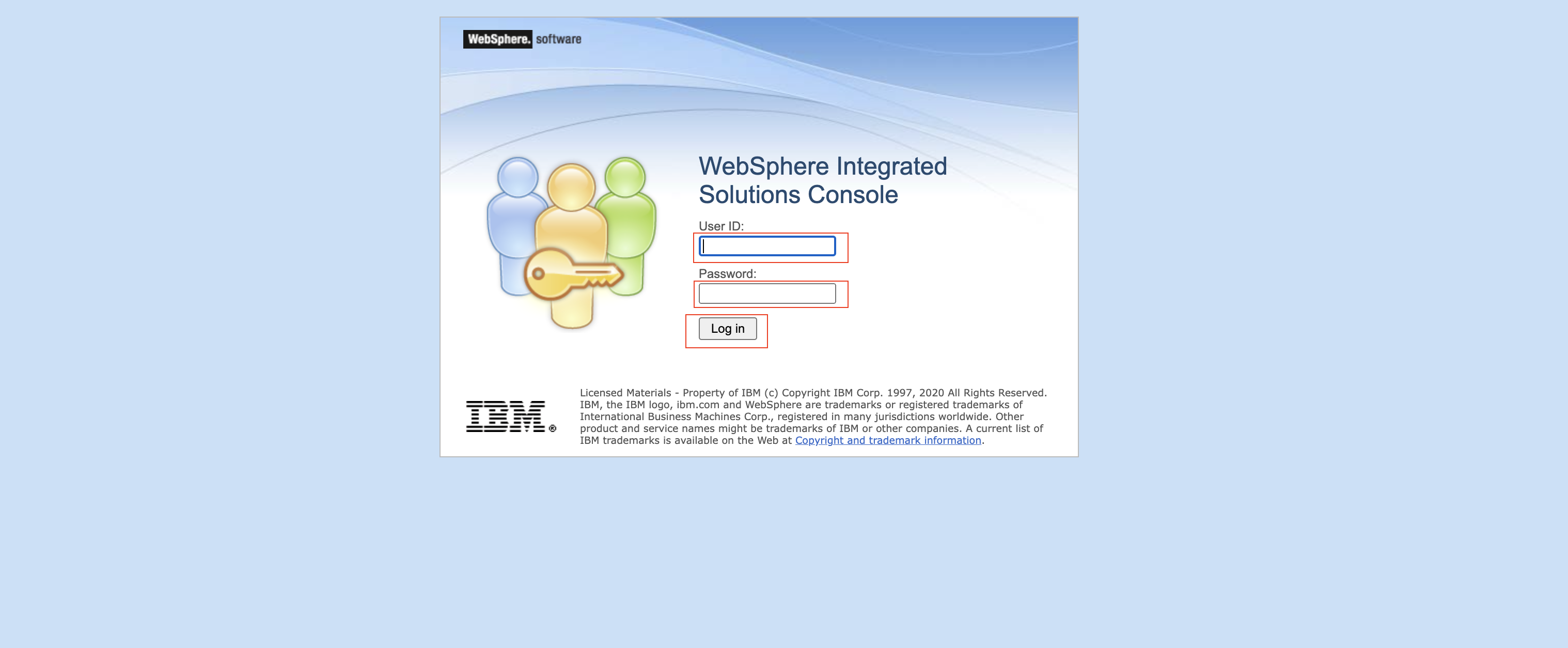
-
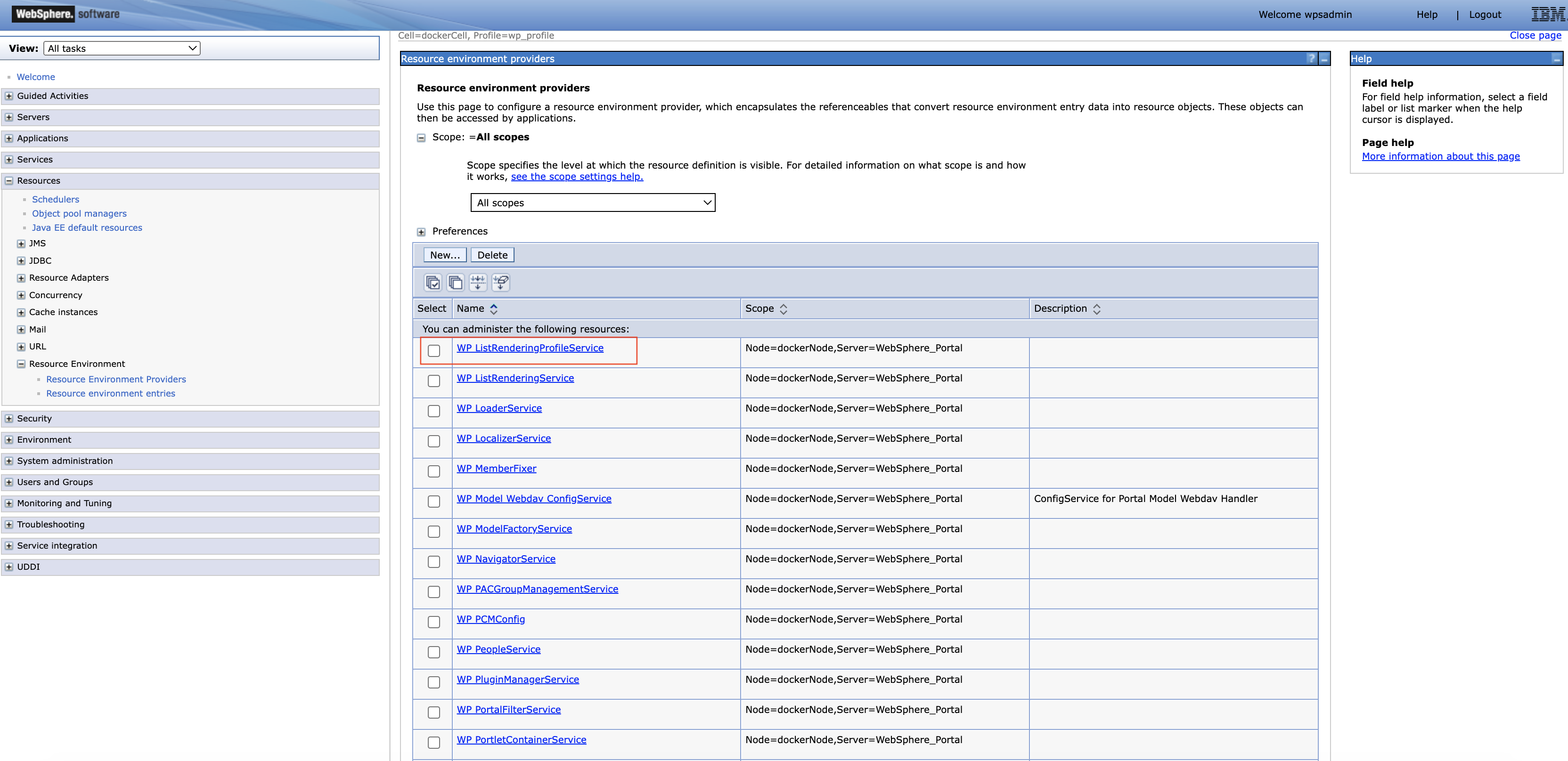
Click Resources from side navigation. Then, click Resource Environment, then Resource environment providers.
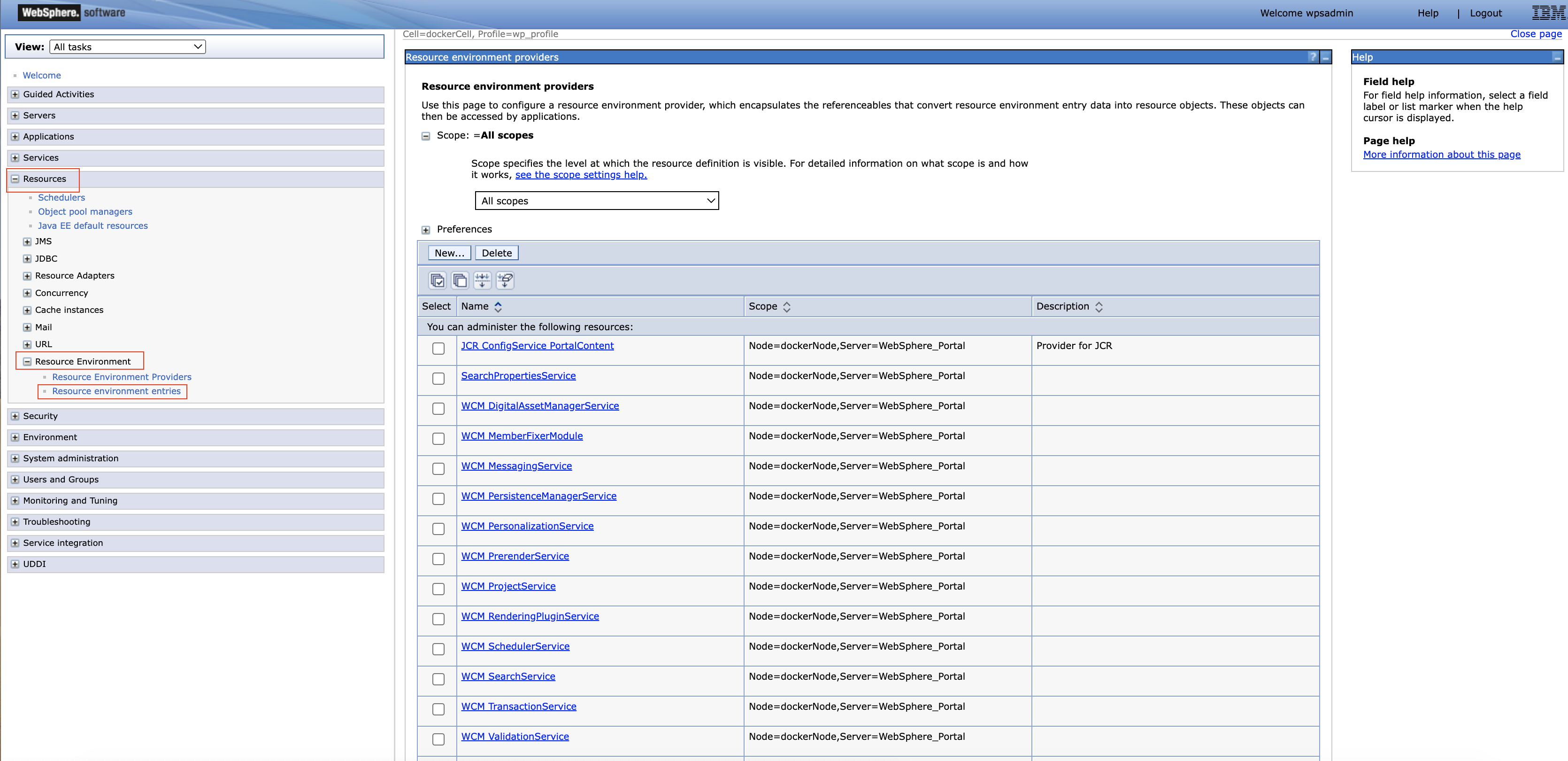
-
From the list of resources, find WP ListRenderingProfileService and click.
-
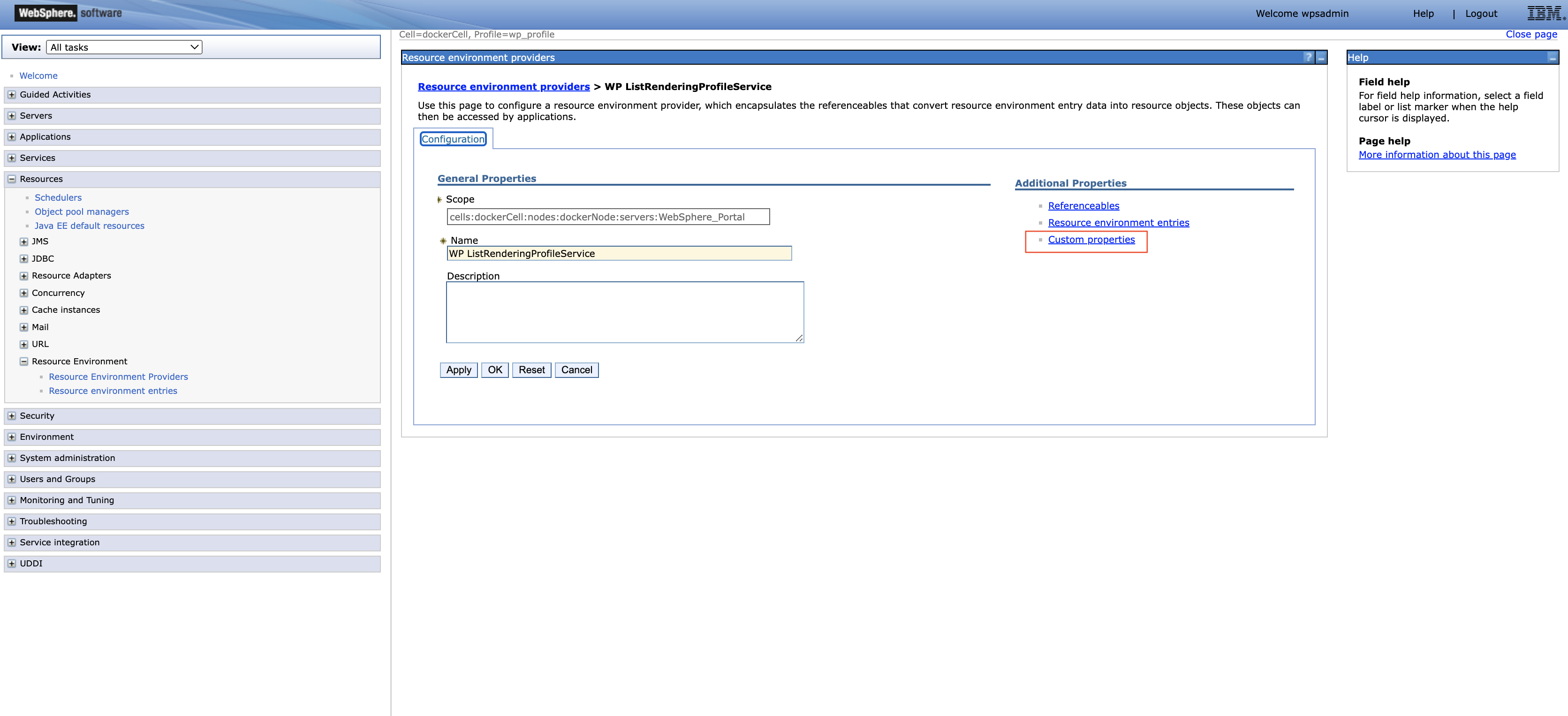
Click Custom properties From the Additional Properties on right side.
-
Click on New and add your unique profile (e.g. ddcDemo) and it's properties by entering name-value pairs like in the sample below. Click Apply then OK
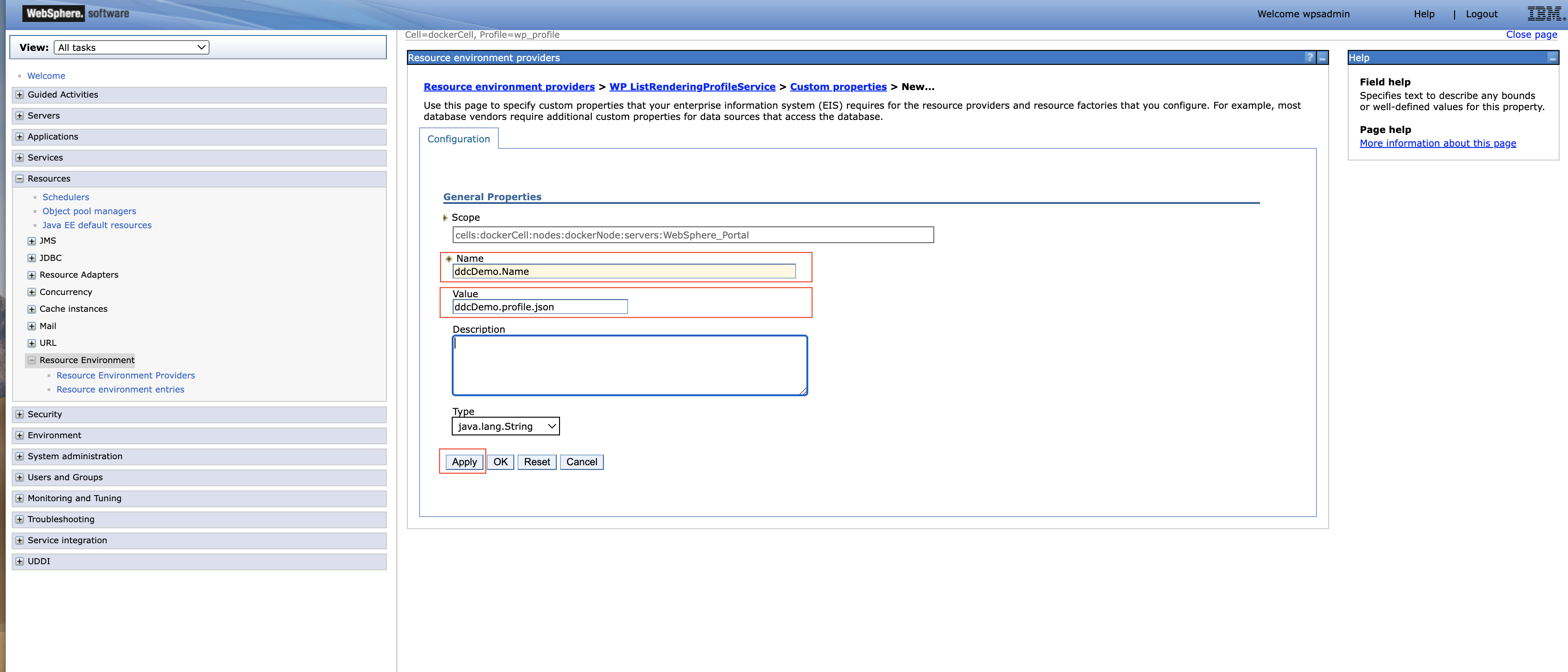
Name Value Type Description ddcDemo.Name ddcDemo.profile.json String The unique name of the list-rendering profile ddcDemo.BeanListProviderID ibm.portal.ddc.json String The name of the used DDC plugin ddcDemo.ItemAttribute.id id Integer This should be mapped to a unique identifier per record ddcDemo.ItemAttribute.fullname name String Mapping the name provided by the datasource to fullname in the list-rendering profile ddcDemo.ItemAttribute.email email String Mapping a simple field ddcDemo.ItemAttribute.username username String Mapping a simple field ddcDemo.ListItemSelection . String Provides the root node of the JSON response ddcDemo.Type BasicJSONSelection String Specifies that dot notation is being used by the plugin to access the fields Note
Instead of using the generic DDC json plugin you can create and deploy your own DDC plugin best suited for your business needs.
Note
{profile}.ItemAttribute.idis always required but it could point to any attribute from the external data source. In the sample above, the HCL Volt MX account API used is having an ID for every account. So you're using the ID attribute in the ID. If your API does not provide any unique field, you might want to use the function{profile}.ComputedItemAttribute.{any}. -
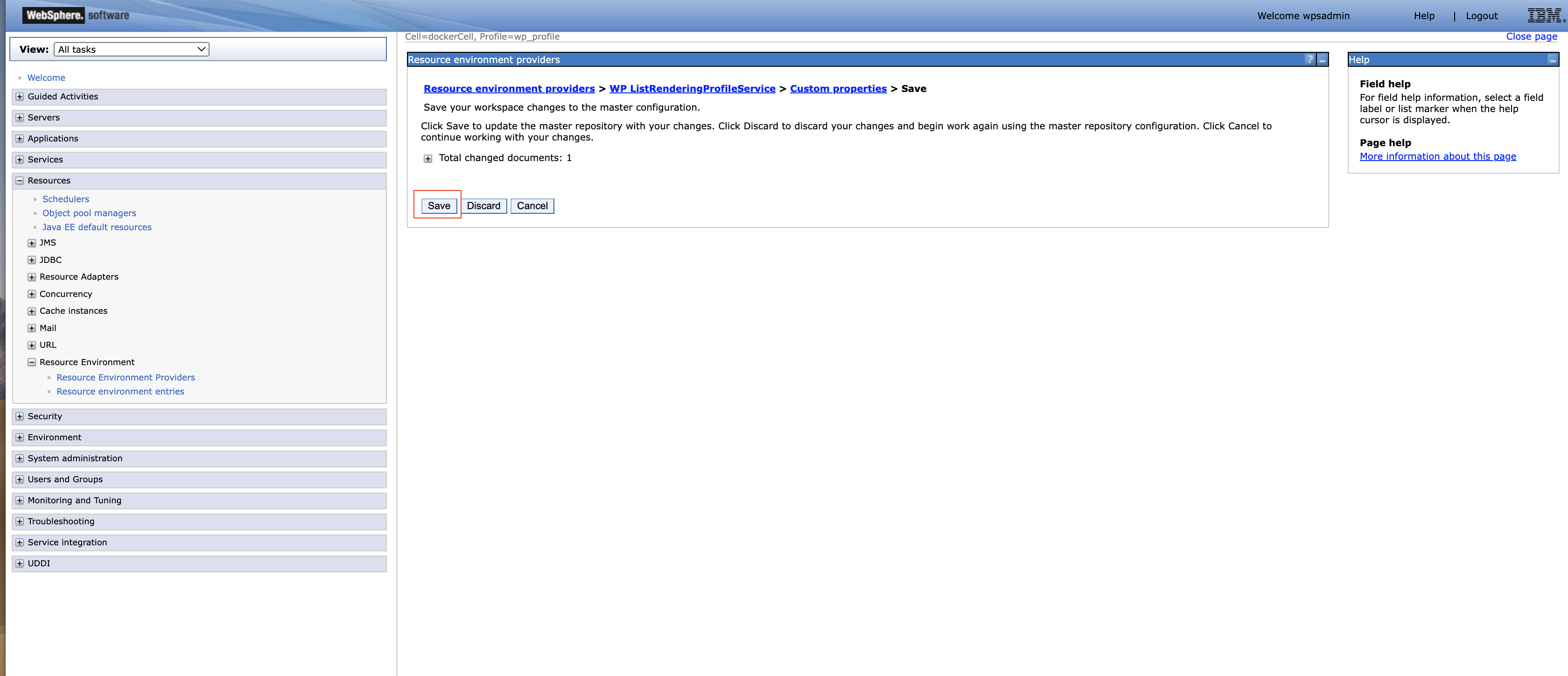
Review and save the changes in the master configuration.
-
Restart WAS server.
WCM presentation components
You may create your components under a new library with default items such as site area and workflow. Once the library is ready (new or existing), you will have to create WCM artifacts under 4 folders: Content, Components, Authoring Templates and Presentation Templates.
Note
Refer to Creating web content libraries
Create List Appearance
-
Go to the Library Explorer, here you will see default items
Content,Categories,Components,Authoring Templates,Presentation Templates,Workflow ItemsandSegments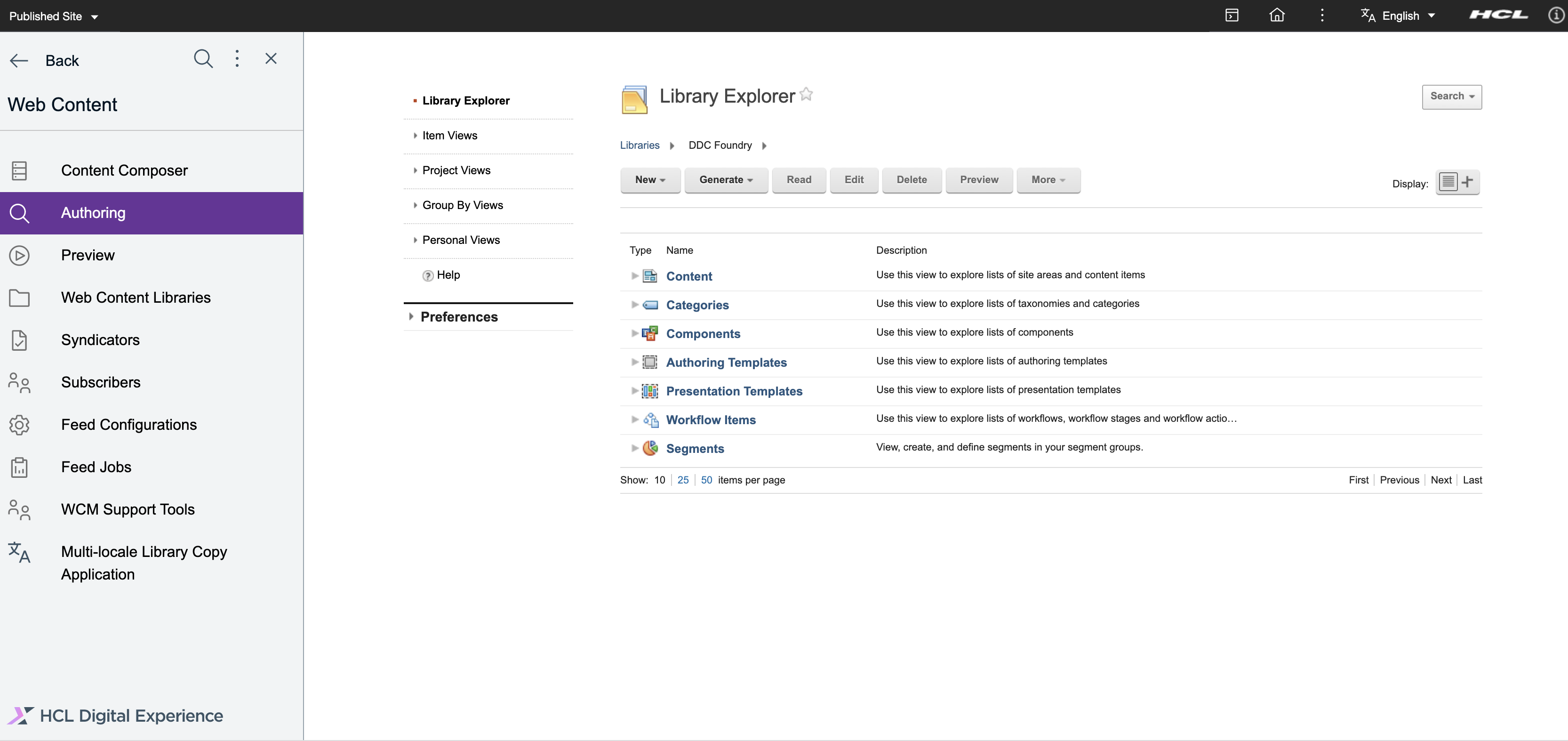
-
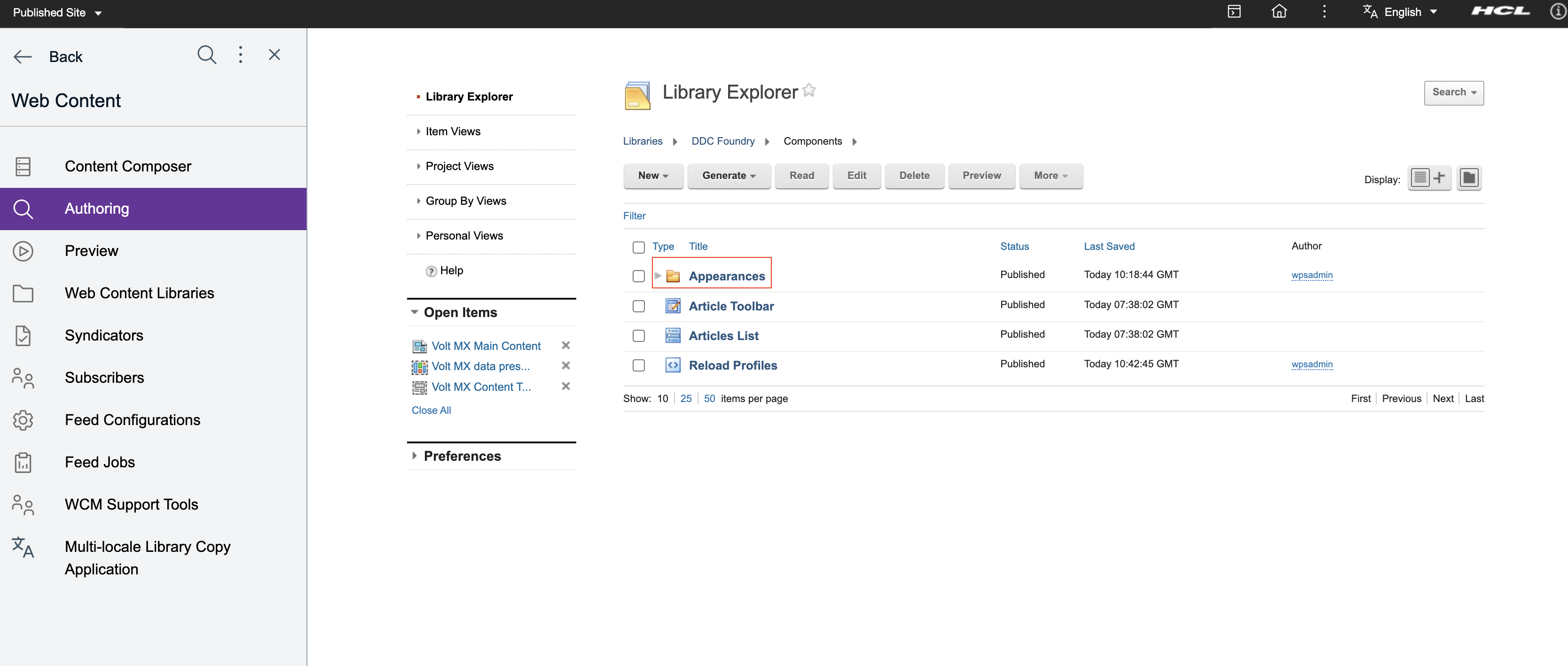
Create an Appearances folder under Components. This is only so that your personalization components that uses the DDC selection rule Select pluggable resources can be found easily in one place.
-
Under Appearances folder, create a new Personalization component.
-
Click on
Newbutton. Then, clickComponent, thenPersonalizationcomponent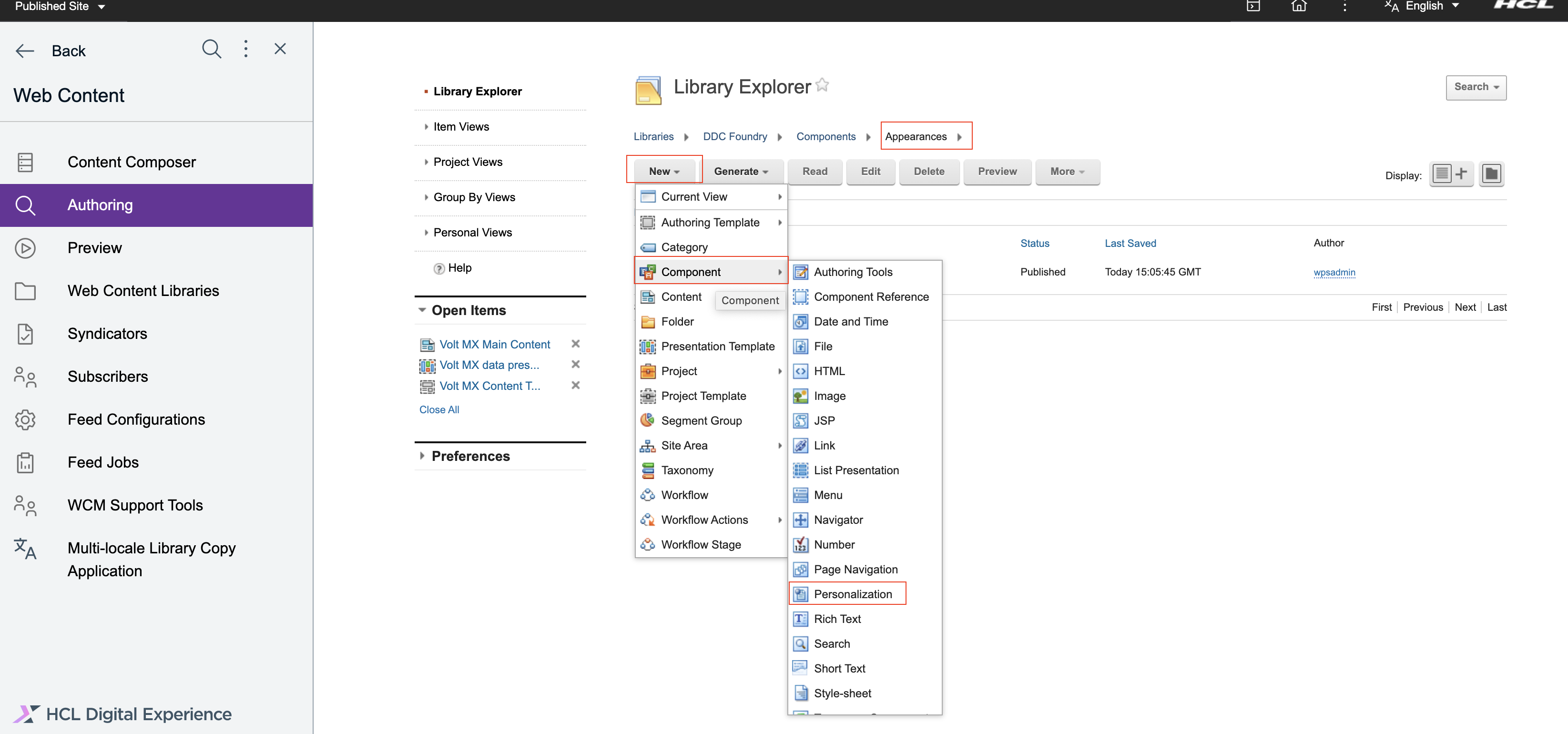
-
Enter the name and title. Suggested name:
DDC Volt MX List Appearances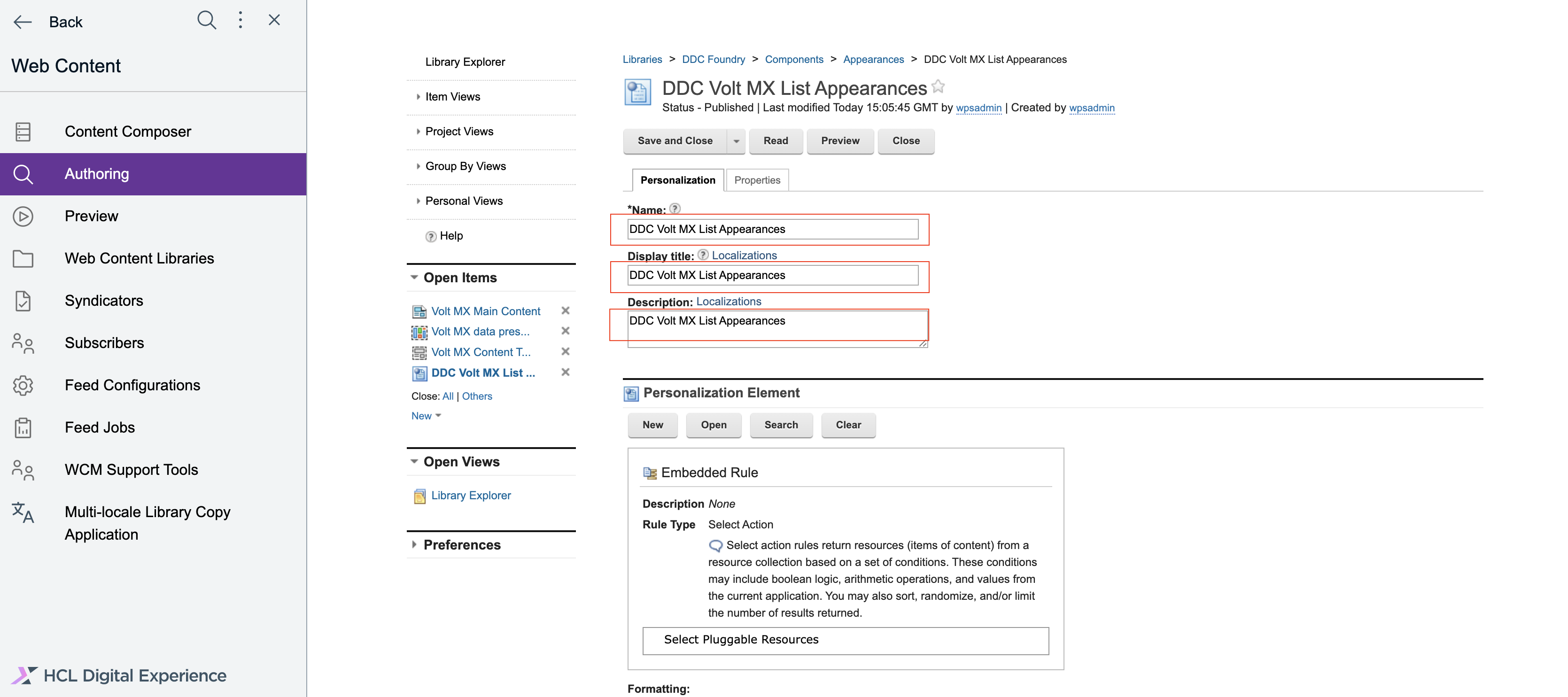
-
Under
Personalization Element, clickNew. As aNew Rule, instead ofSelect Web Content, click on theWeb Contentphrase and selectPluggable Resourcesinstead and clickSave.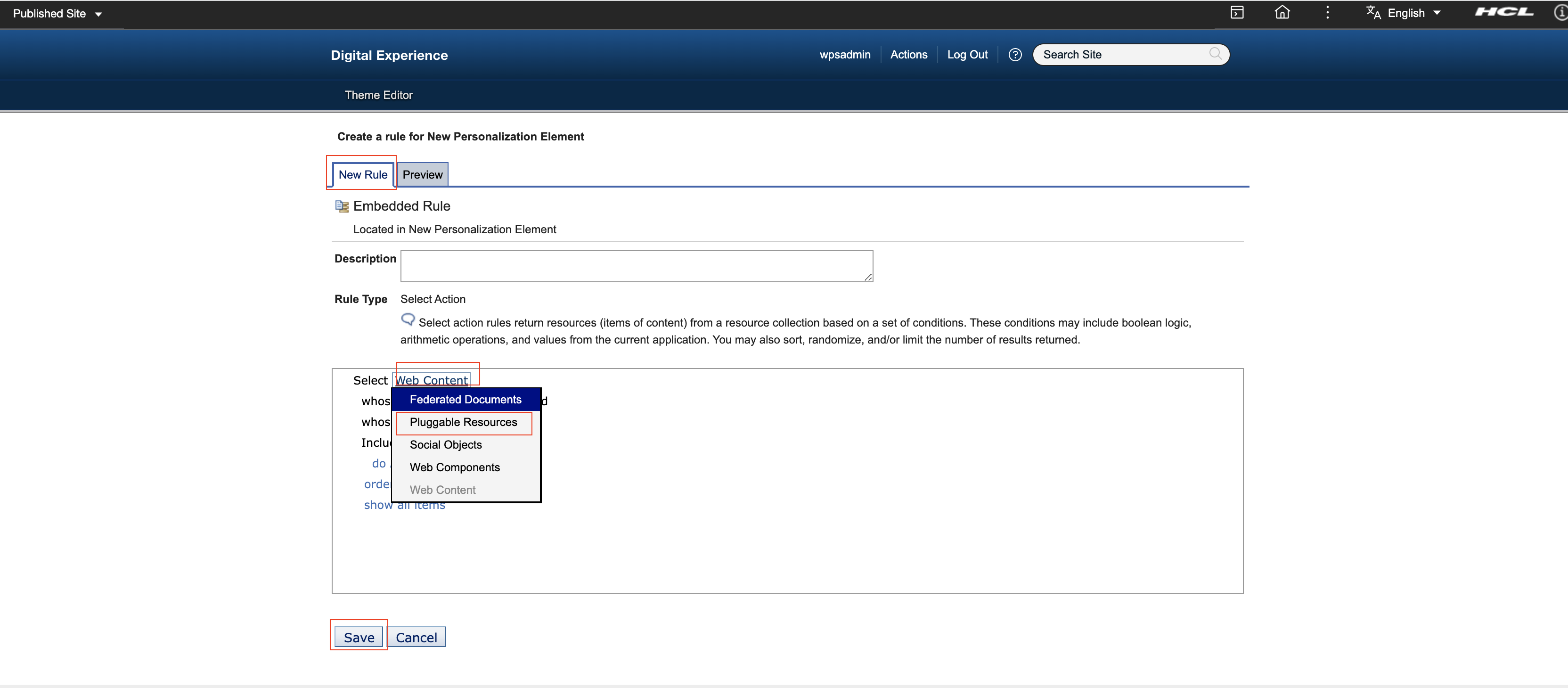
-
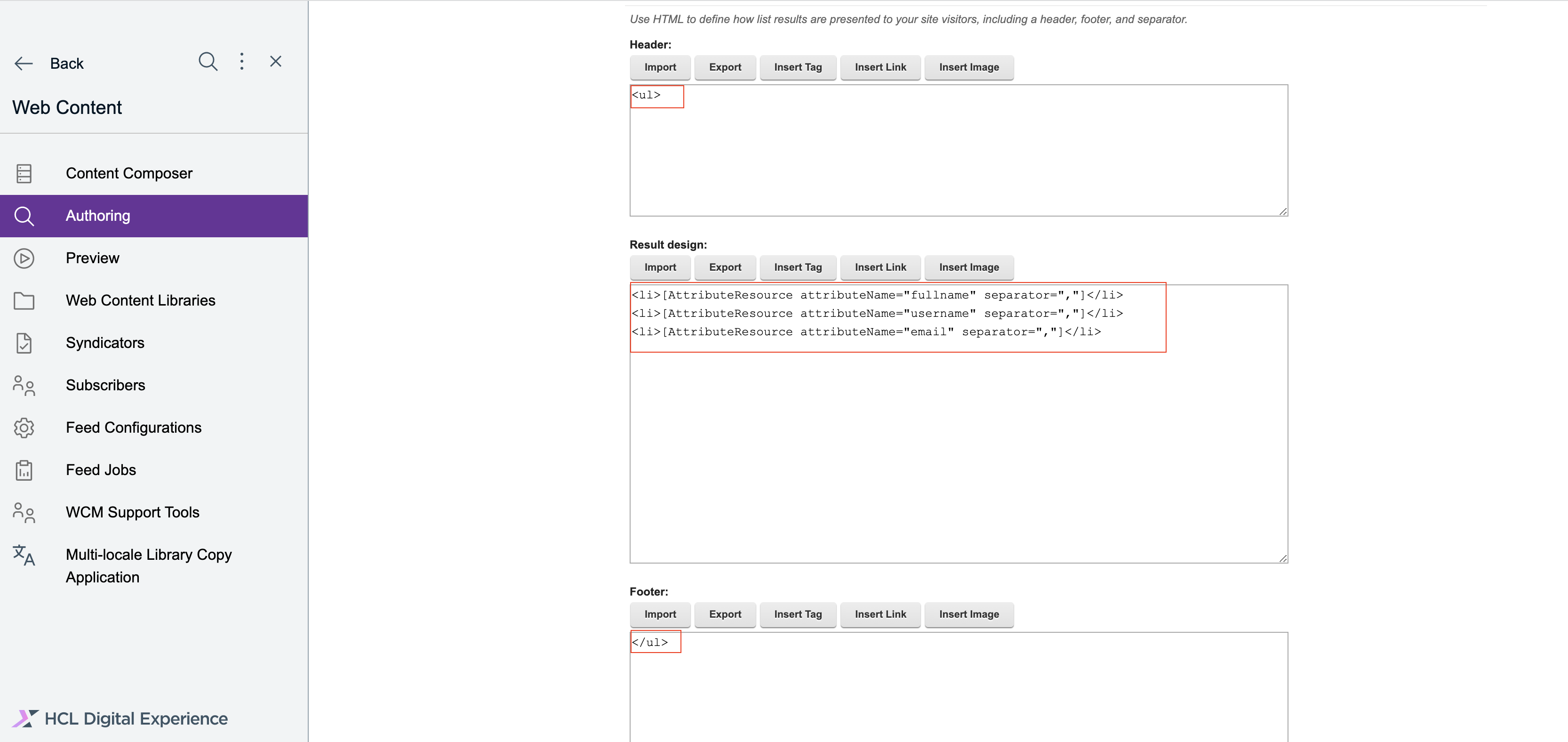
In the List Presentation Markup, add the following:
- Header:
<ul> - Body:
<li>[AttributeResource attributeName="fullname" separator=","] <li>[AttributeResource attributeName="username" separator=","] <li>[AttributeResource attributeName="email" separator=","] - Footer:
<\ul>
- Header:
-
Click
Save and Close.
-
Create Reload Profiles under Components:
This is a convenient way to ensure the List Rendering Profile custom properties you have added or may have updated since are reflected without restarting the server. Although, if all else fails, restart server is always there as an option.
-
Under Components, click on
Newbutton. Then, clickComponent, thenHTMLcomponent.
-
Enter the name
Reload Profilesand in the markup, add the following:[Plugin:ListRenderingContext key="id" action="reloadProfiles"]
-
Click
Save and Close. -
Preview.
Note
This preview rendering step triggers the reload of the profiles
Create a Presentation Template
Set the context of the DDC content.
Steps to create Presentation Template are as follows:
-
Create a new presentation template with suggested name
Volt MX data presentation templateand under presentation template options, add the following:[Plugin:ListRenderingContext action="set" attribute="source=[Element context='current' type='content' key='sourceuri']" profile="[Element context='current' type='content' key='profile']" extension-id="[Element context='current' type='content' key='provider']"] [Component name="ddc foundry/appearances/ddc volt mx list appearances" compute="always"]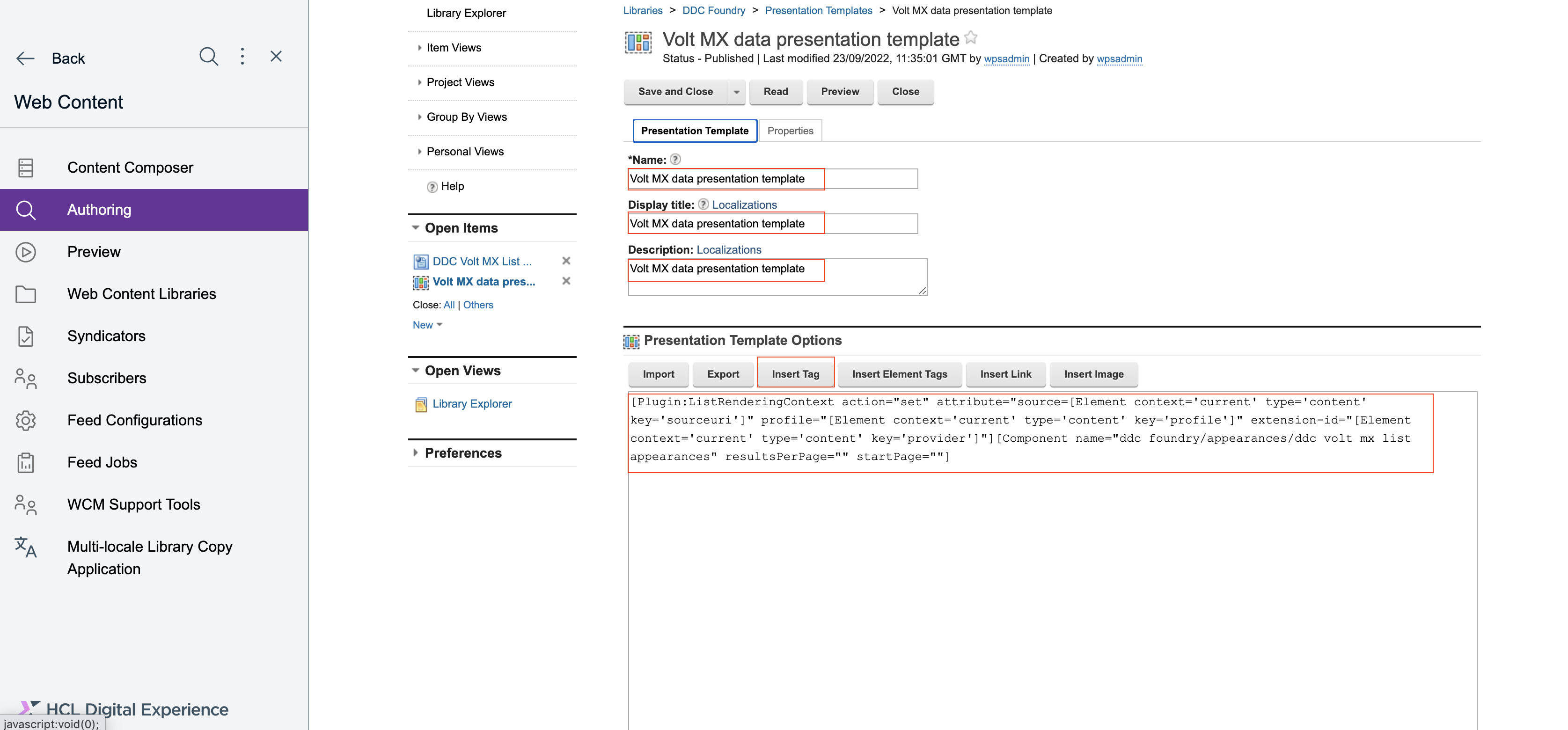
- Under
attribute, define the datasourceendpoint. The content field set in this example issourceuri, where you saved the endpoint in the content item. profilerefers to the List-Rendering Profile which was saved earlier in the WAS console. The content field that is set in this example is alsoprofile, which is saved in the content item with theddcDemo.profile.jsonvalue.extension-idrefers to the DDC plugin ID. The content field set in this example isprovider, which is saved in the content item with valueibm.portal.ddc.json.- Save and close.
- Under
Create a Content Template
Under Authoring Templates, create a Content Template.
-
Click on
Newbutton. Then, clickAuthoring Template, thenContent Templatecomponent -
Add
Name,Display titleandDescriptionwith suggested nameVolt MX Content Template. Then select the presentation template that was created earlier as the default presentation templateVolt MX data presentation template.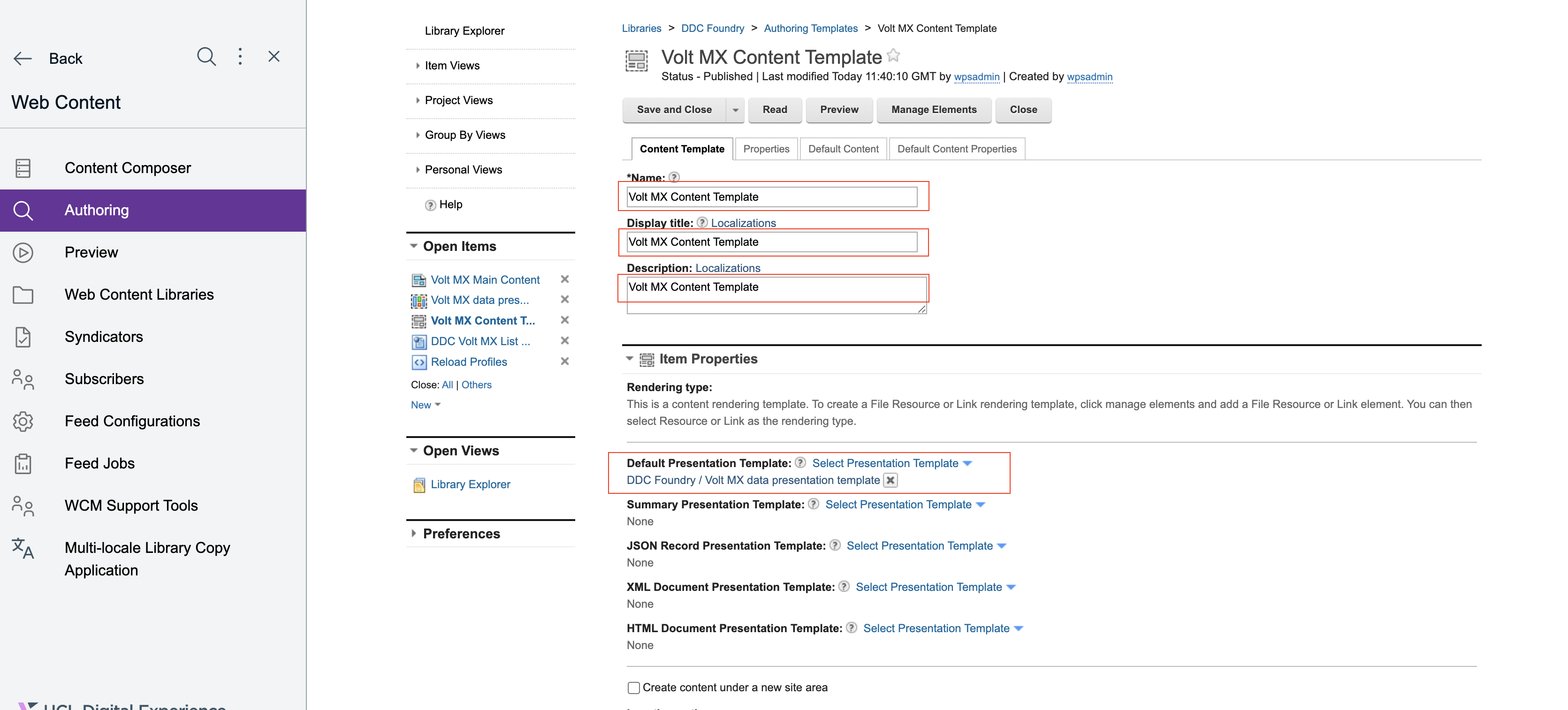
-
Click on
Manage Elementand add the following elements to the content template as follows.Element type Name Display title Component Reference appearance Appearance Short Text sourceuri Data Source URI Short Text profile List Rendering Profile Short Text provider DDC Plugin 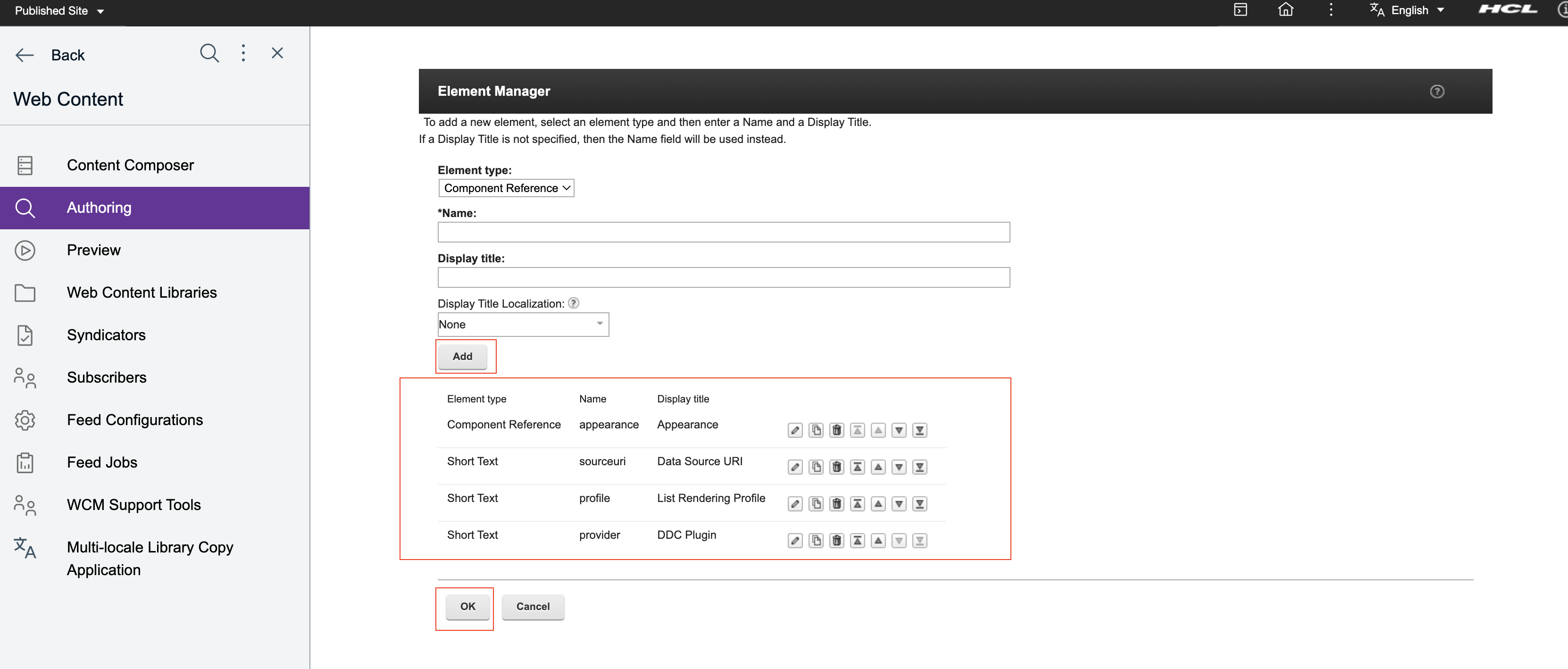
-
Click on
Default Content Propertiesand addExpress workflow.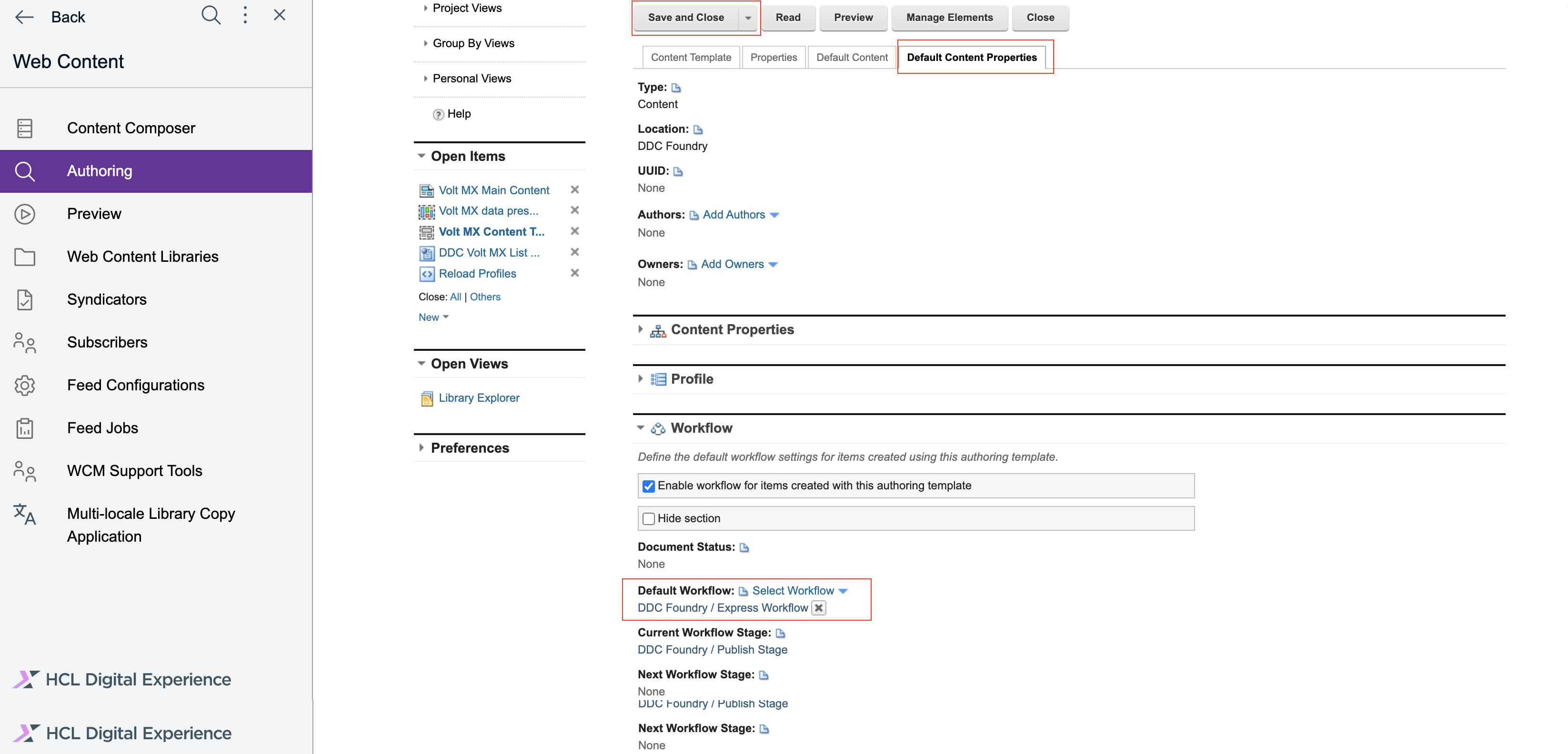
-
Save and close.
Create a Content item.
-
Under your libraries, click
Content, then clickArticles, and create a new Content from the Content Template that you created earlier.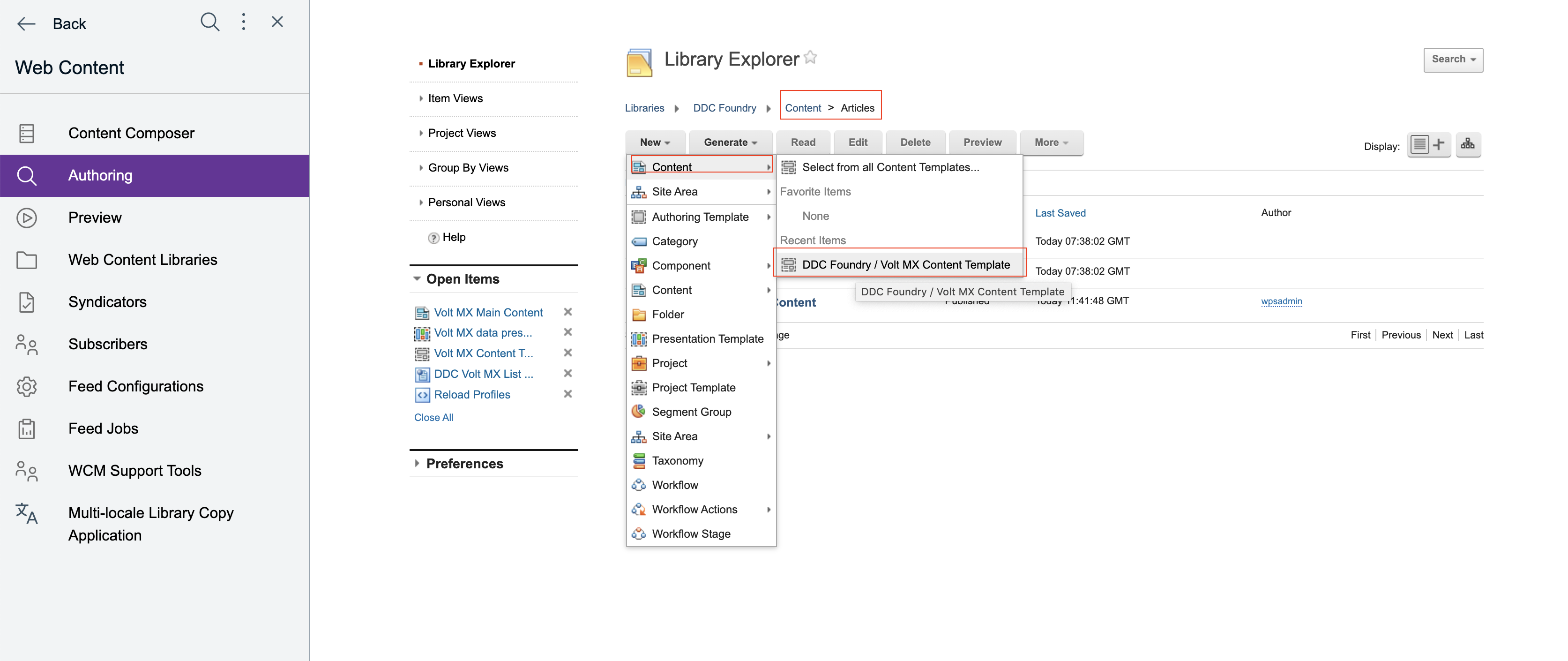
-
Add
Name,Display title, andDescriptionwith suggested nameVolt MX Main Content, and in the content fields / elements, provide the following inputs:Content field title Value Appearance appearance Data Source URI https://hcl-dx-dev.hclvoltmx.net/services/account/id?id=1 List Rendering Profile ddcDemo.profle.json DDC Plugin ibm.portal.ddc.json 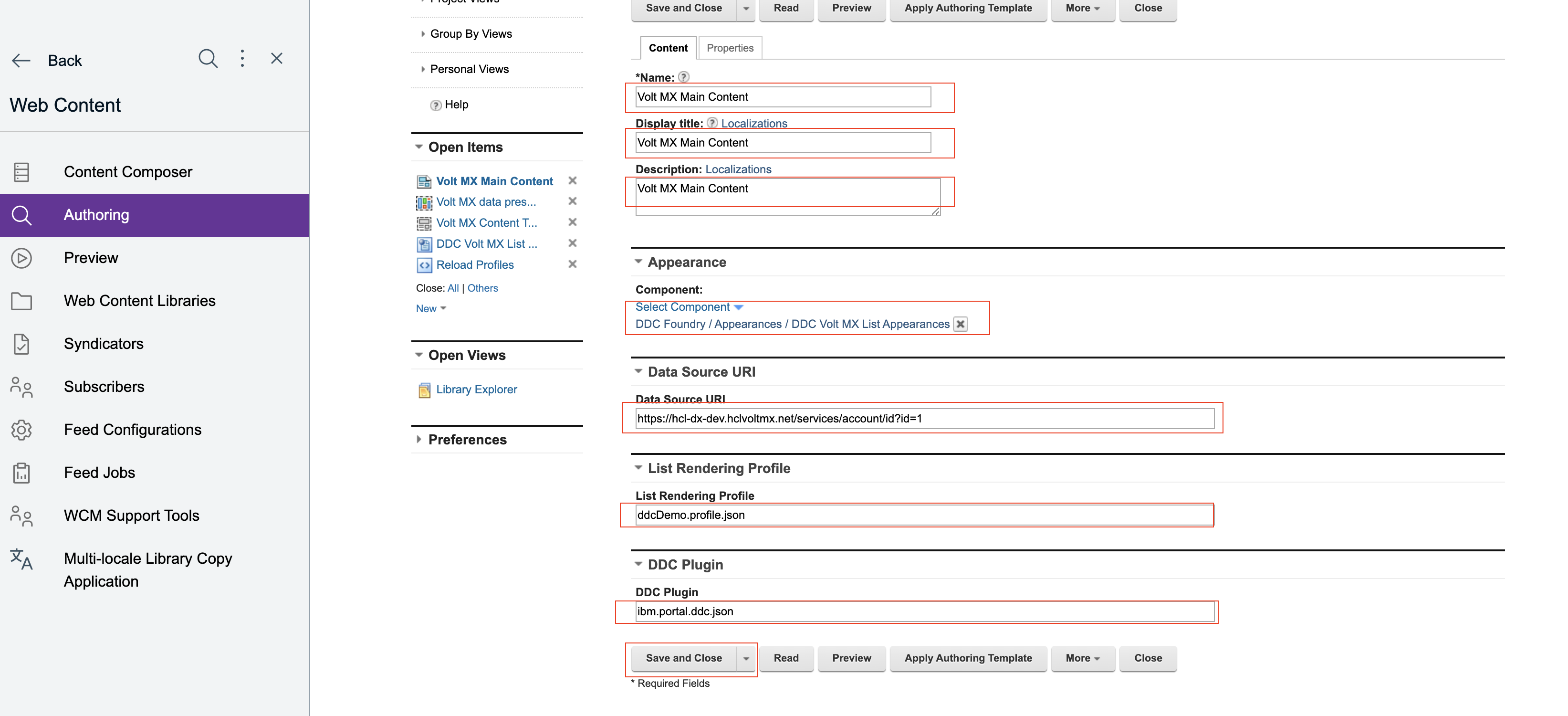
-
Save and close.
Use in Portal Page
Now you can use all the WCM artefacts that you created on a portal page.
-
Under
Administration>Site Management>Manage Pages, create a new page underContent Root(e.g.Volt MX DDCpage). -
Go to the page
Volt MX DDC, and enableEdit mode.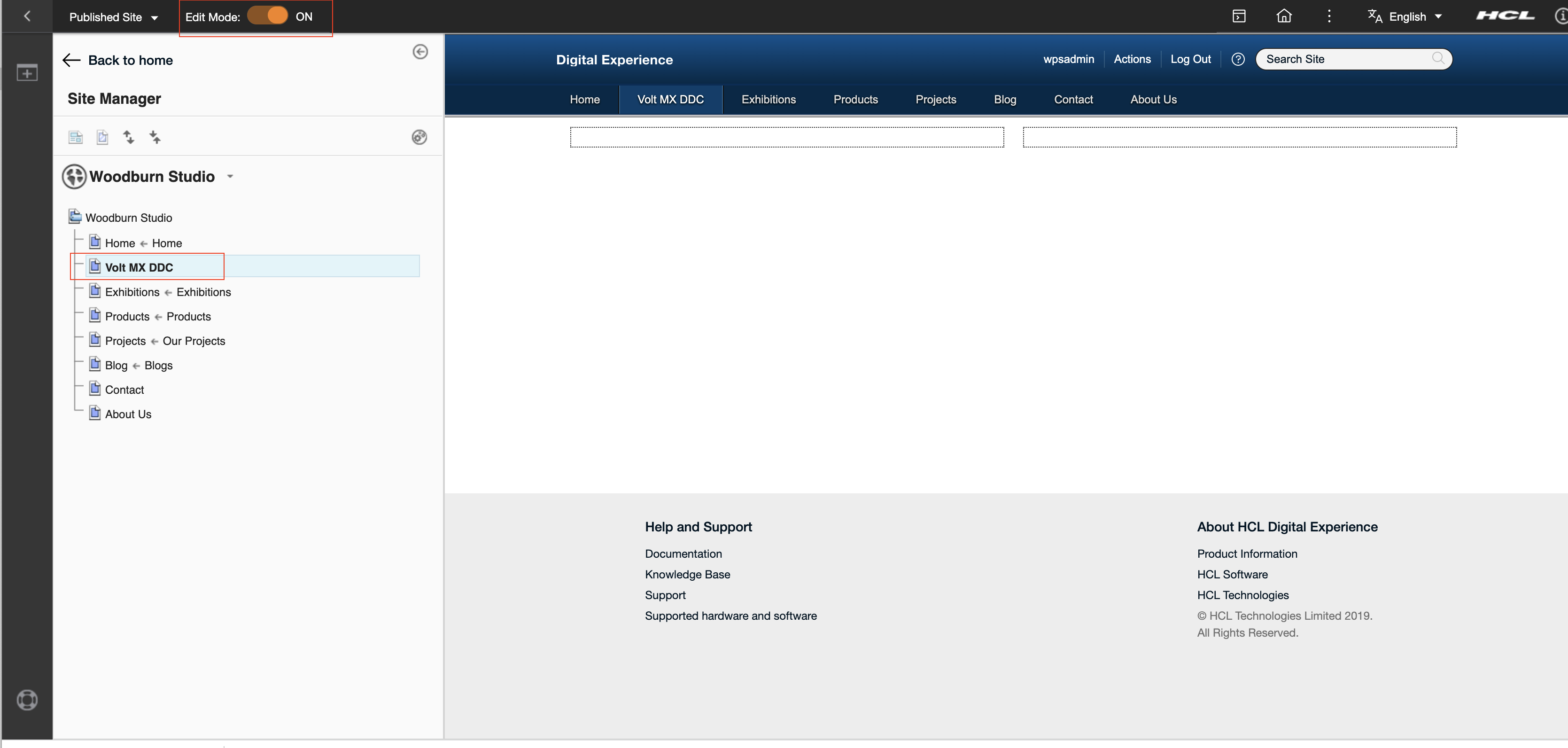
-
Choose the
layoutandstyleof the page.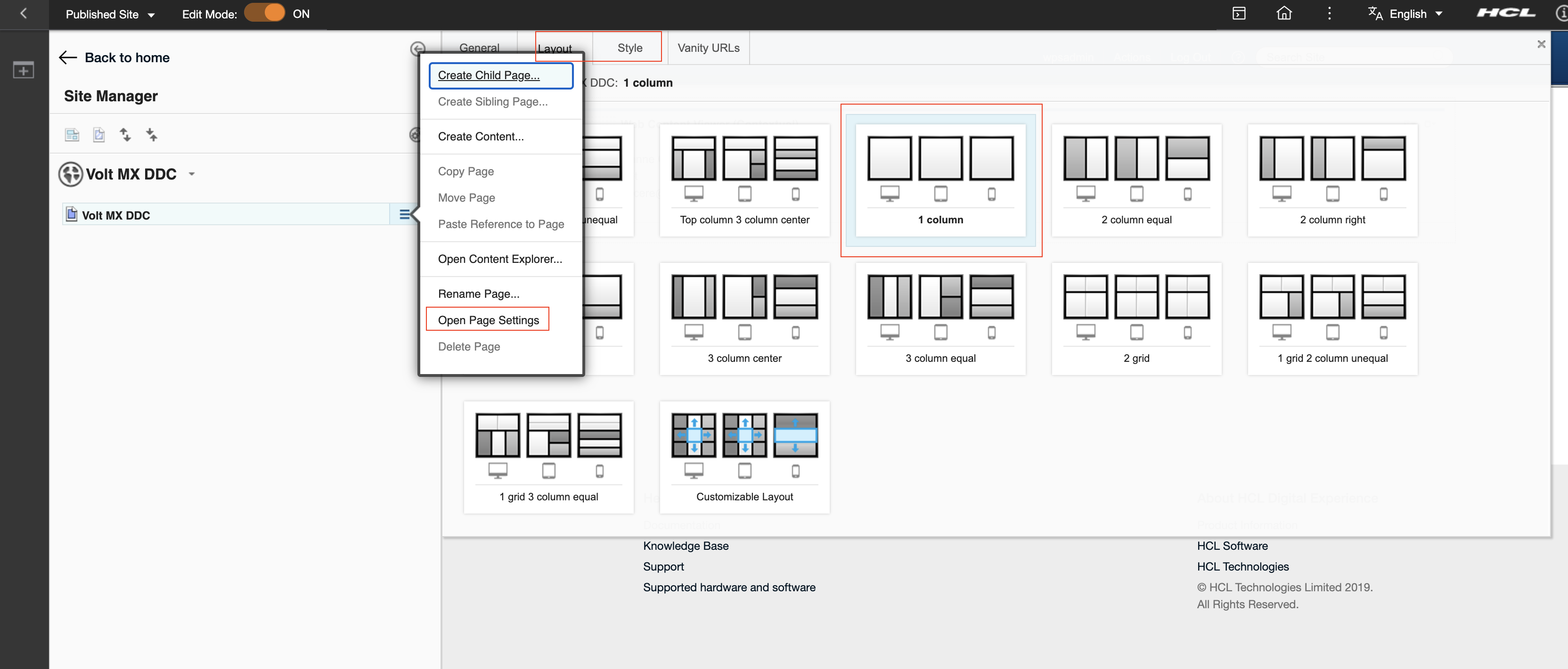
-
Click on
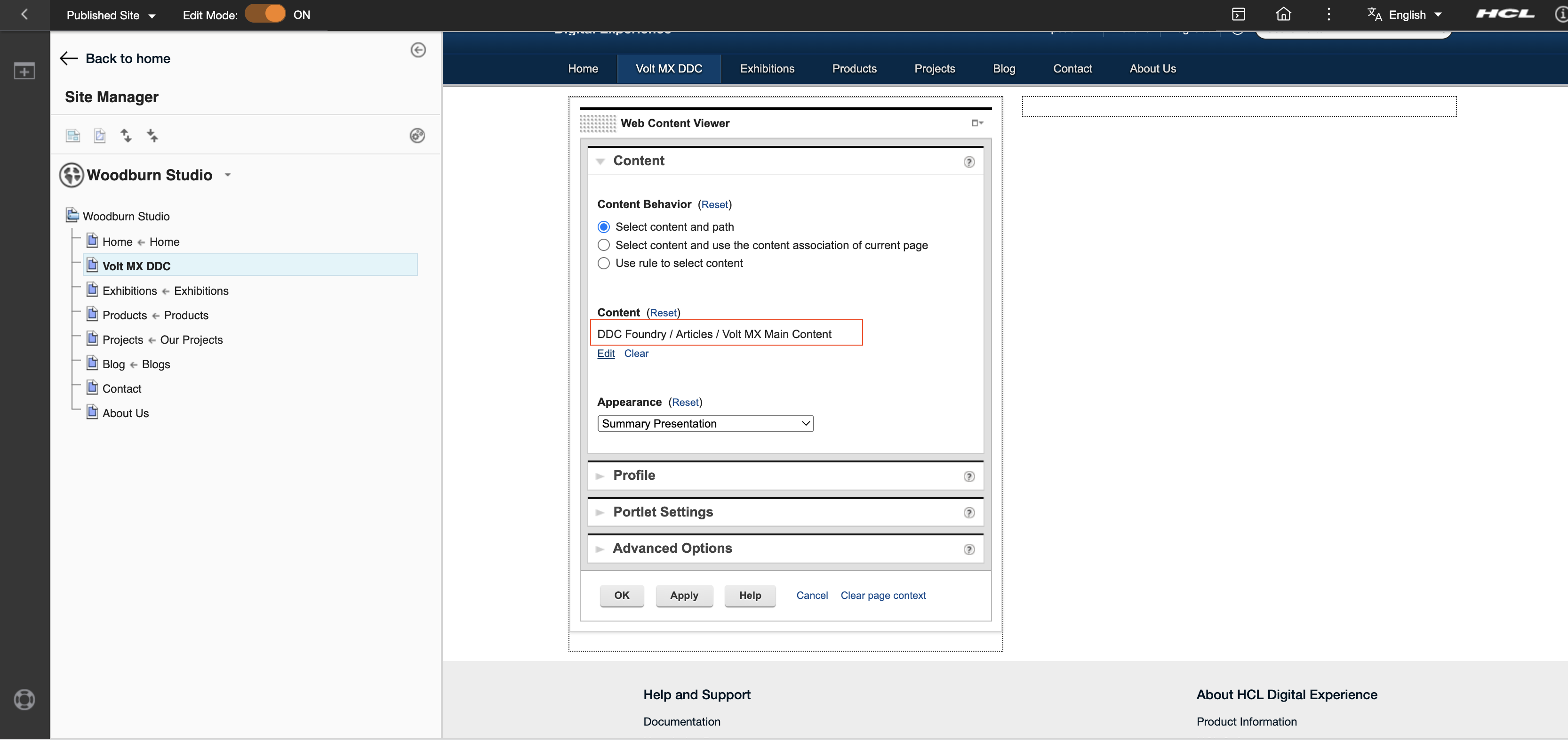
plusicon in left navigation panel. Then click onApplicationsand add aWeb Content Vieweron the page.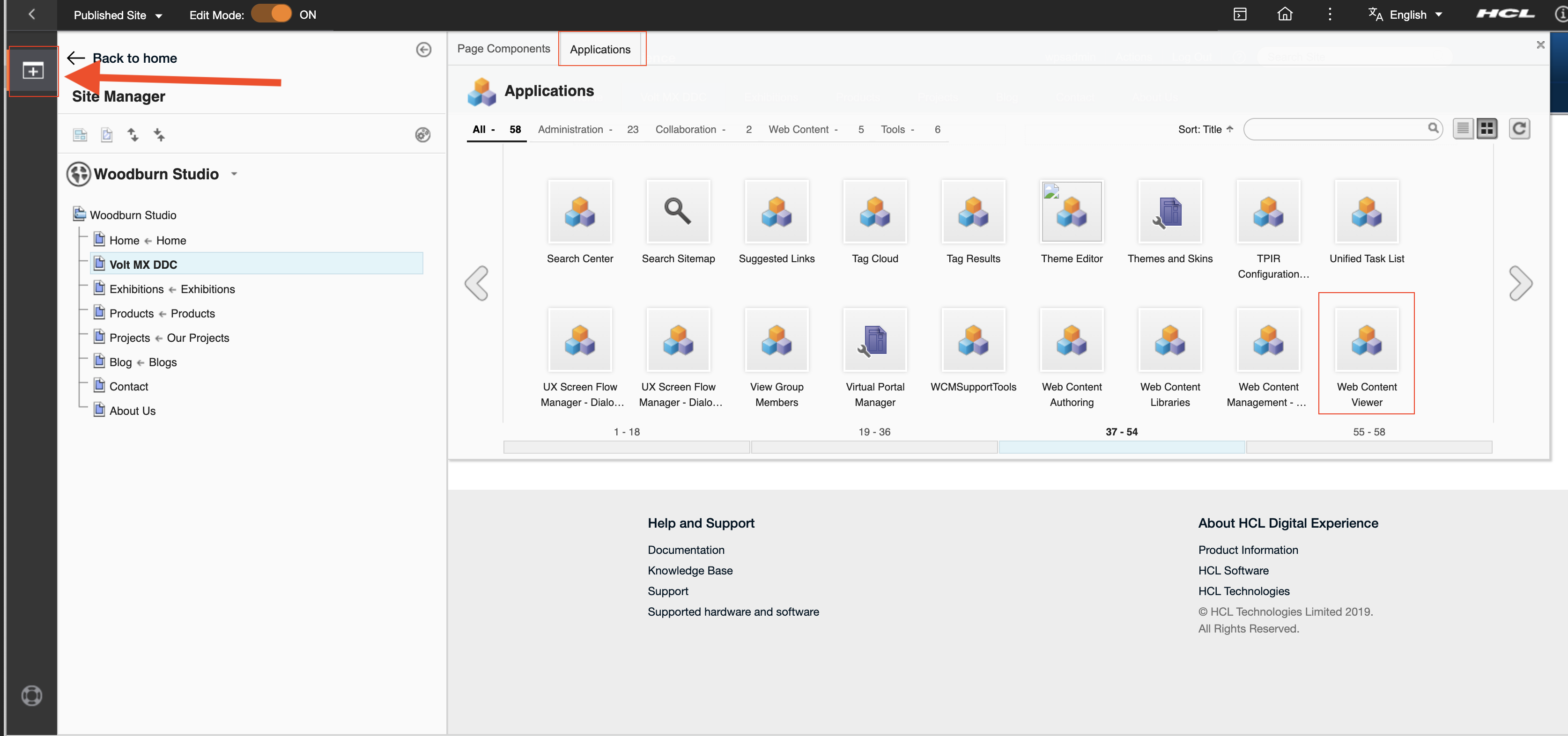
-
Inside the
Web Content Viewer, click on the upper right dropdown button and selectEdit Shared Settings.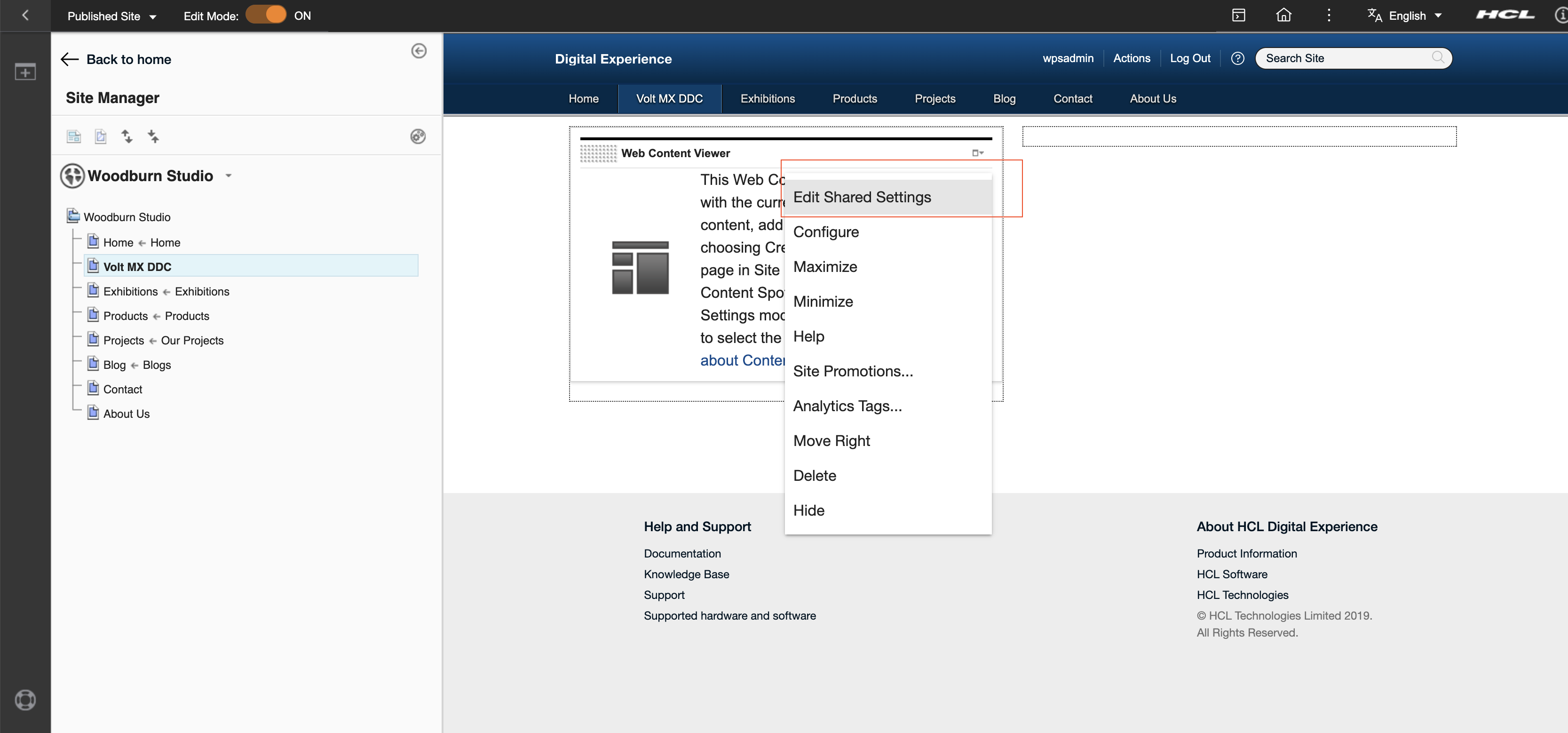
-
Under Content, change the mapped content to the Content Item you created above.
-
Click
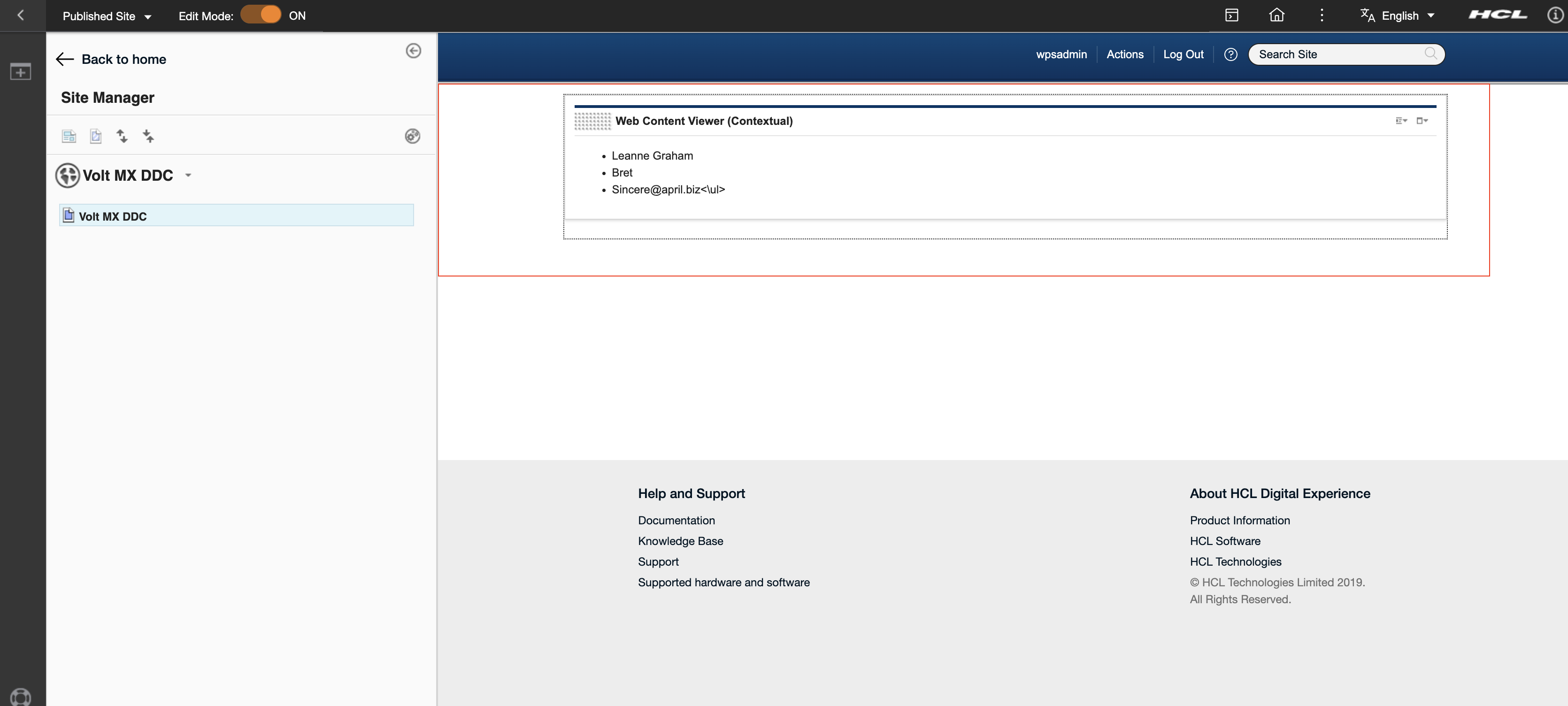
OK, and the following output page will be displayed.