User elements
User elements are components that you can drag, drop, and edit directly on the canvas. This section covers the available element types and how to use them in Presentation Designer.
Element source
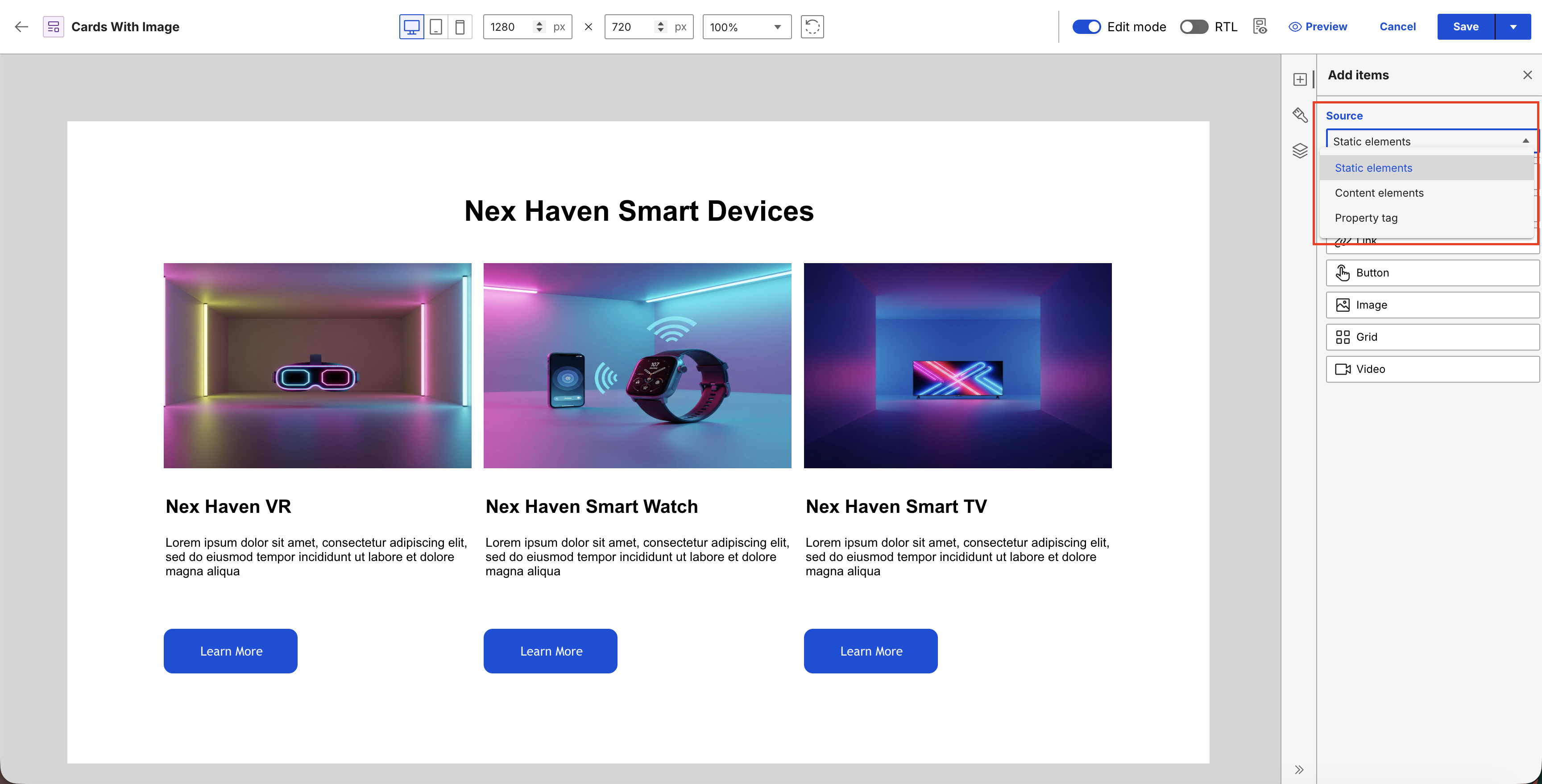
By default, the Add items panel displays static elements. To change the component source, select your preference from the Source dropdown menu.
Element actions
Hover over or select an element on the canvas to view its name and available actions:
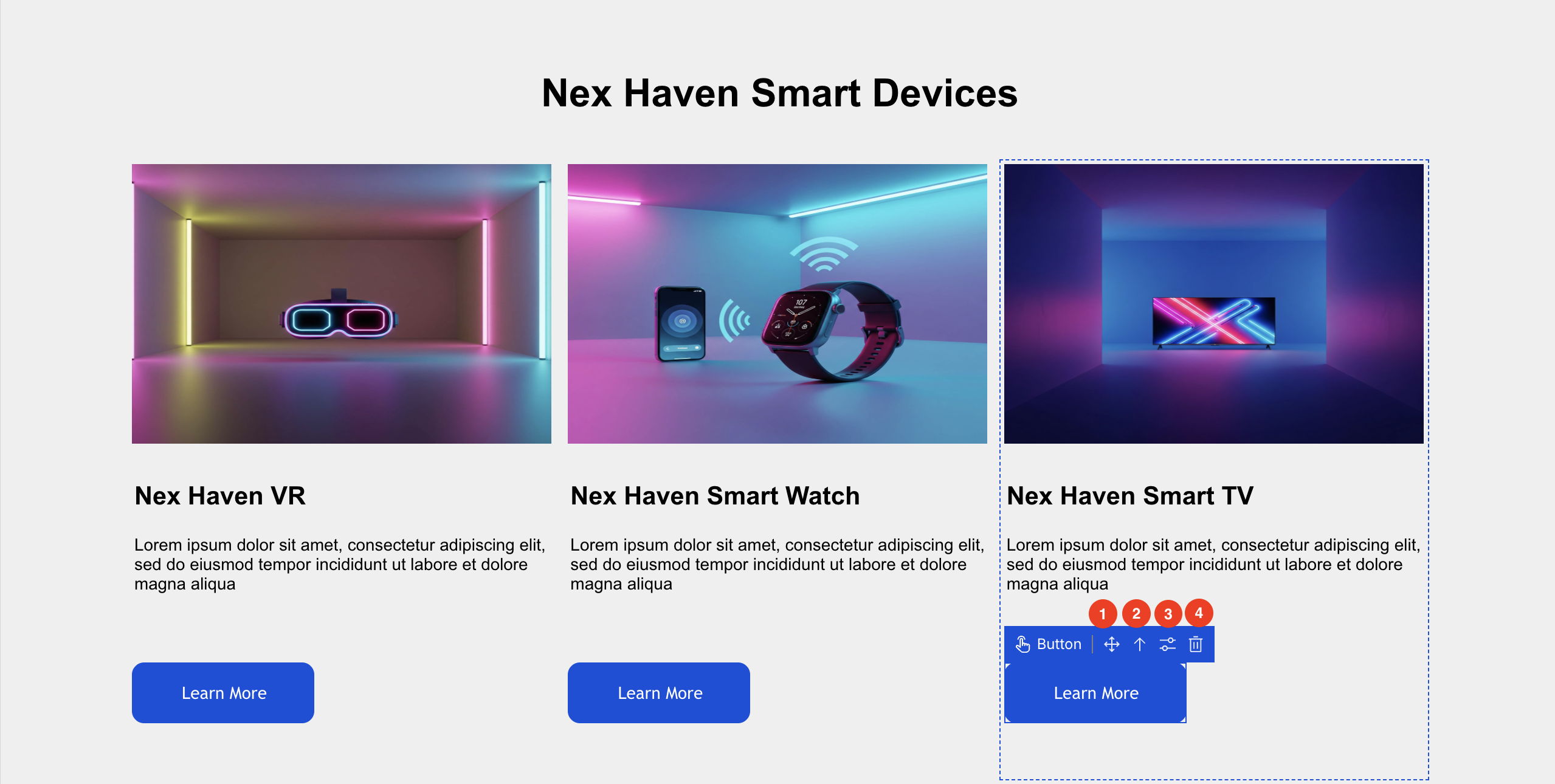
- Move icon: Rearrange the elements on the canvas through drag-and-drop.
- Arrow Up icon: Automatically select the parent of the current element.
- Configure icon: Display additional configuration options for the element.
- Trash icon: Delete the element from the canvas.
Element types
User elements are divided into five categories:
- Static elements
Structural components and layout blocks, such as containers, grids, or static text, that do not require a dynamic content source to render. - Content elements
Dynamic fields that map directly to and retrieve values from the associated content item, such as rich text or image elements. - Property tags
Tags used to retrieve and display standard metadata and system properties, such as the item title, description, or publish date. - Generic element tags
Customizable tags that dynamically render element values based on specific parameters or context rather than a predefined element type. - Generic tags
Specialized tags used to render components, execute plugins, or generate URLs for the presentation layout.