Canvas settings
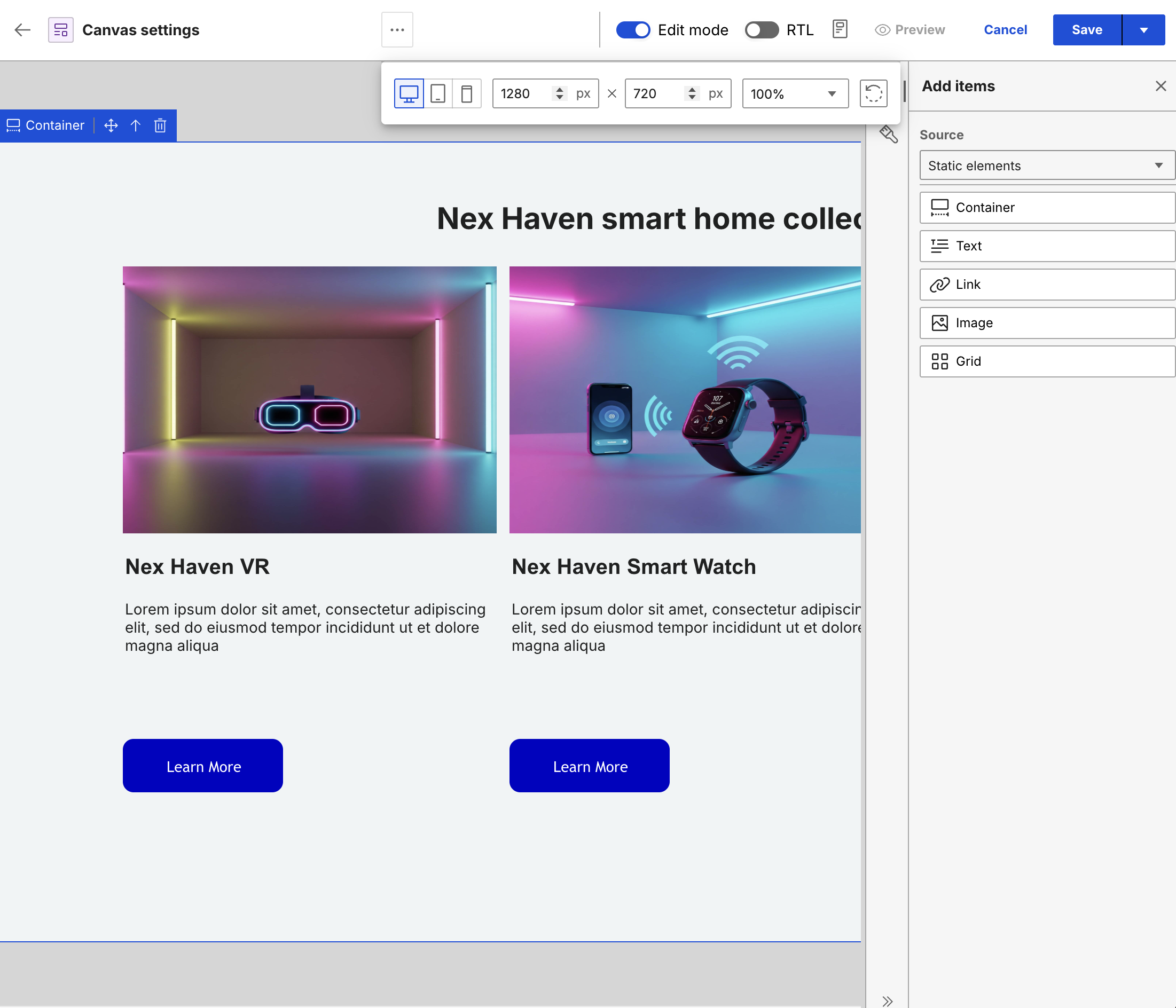
Canvas settings configure the width, height, zoom level, orientation, and language direction of the presentation workspace.
To access Presentation Designer and understand its user interface, refer to Access Presentation Designer.
To learn how to use the different user elements in Presentation Designer, refer to User Elements in Presentation Designer.
Canvas dimensions
Canvas dimensions adjust the workspace size to meet specific layout requirements. Predefined sizes such as Desktop, Tablet, and Mobile are also available.
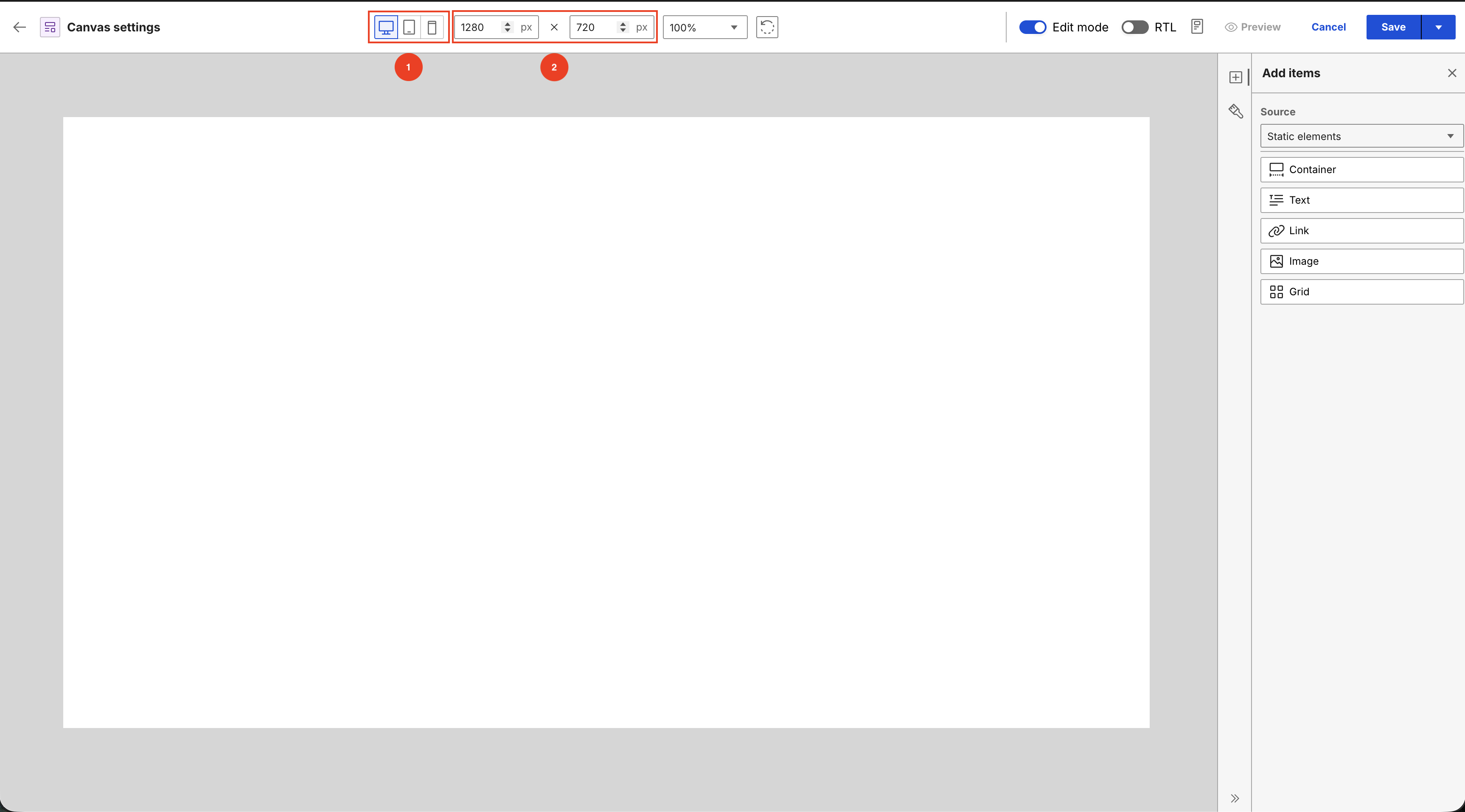
- Predefined sizes: Sets the workspace to standard Desktop, Tablet, or Mobile resolutions.
- Width and Height: Sets custom pixel dimensions for the workspace boundaries.
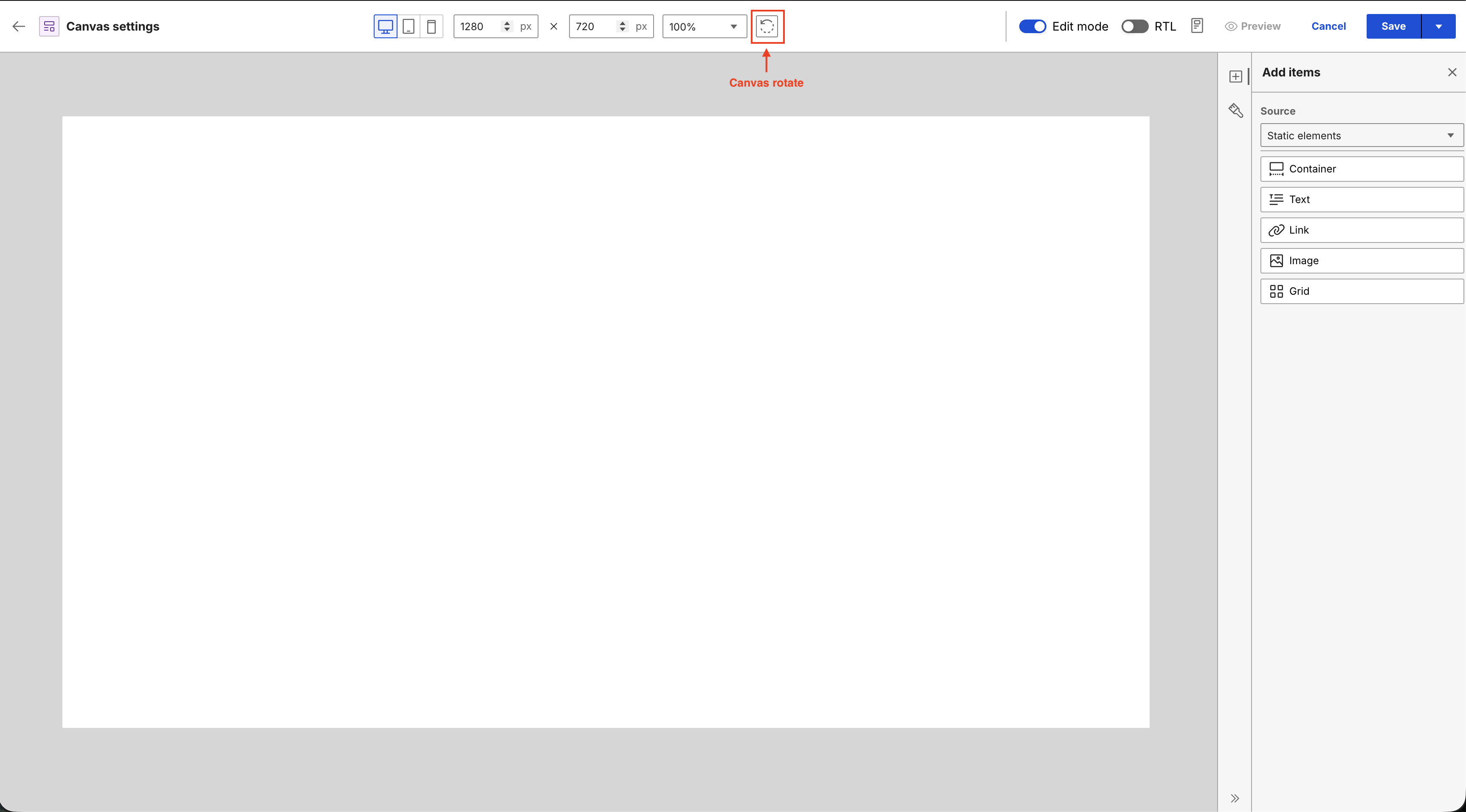
Rotate
The Rotate button switches the canvas layout between portrait and landscape orientations.
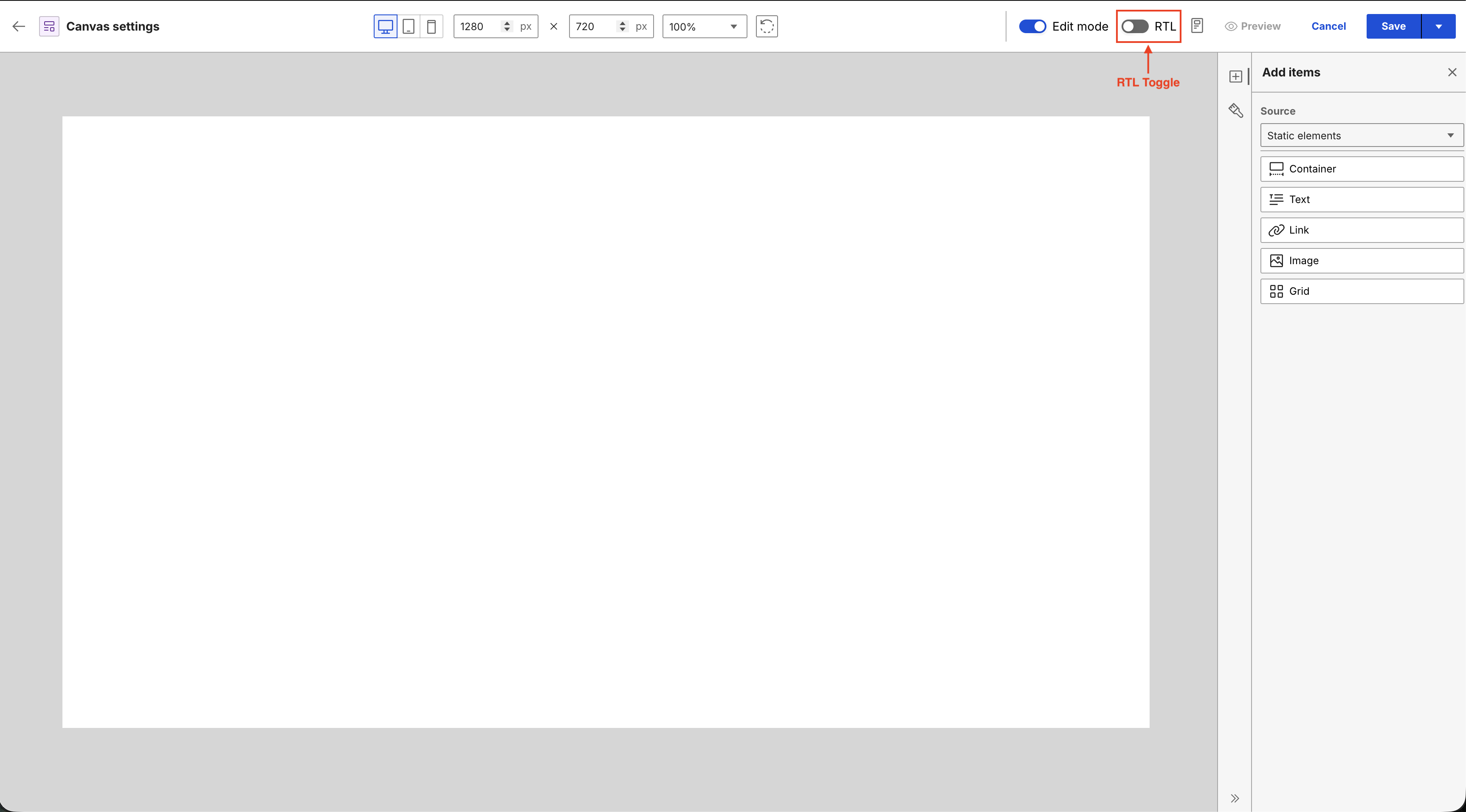
RTL toggle
The RTL toggle switches the canvas layout orientation between left-to-right (LTR) and right-to-left (RTL) text paths.
Zoom
The Zoom field scales the workspace magnification level between a minimum of 50% and a maximum of 200%.
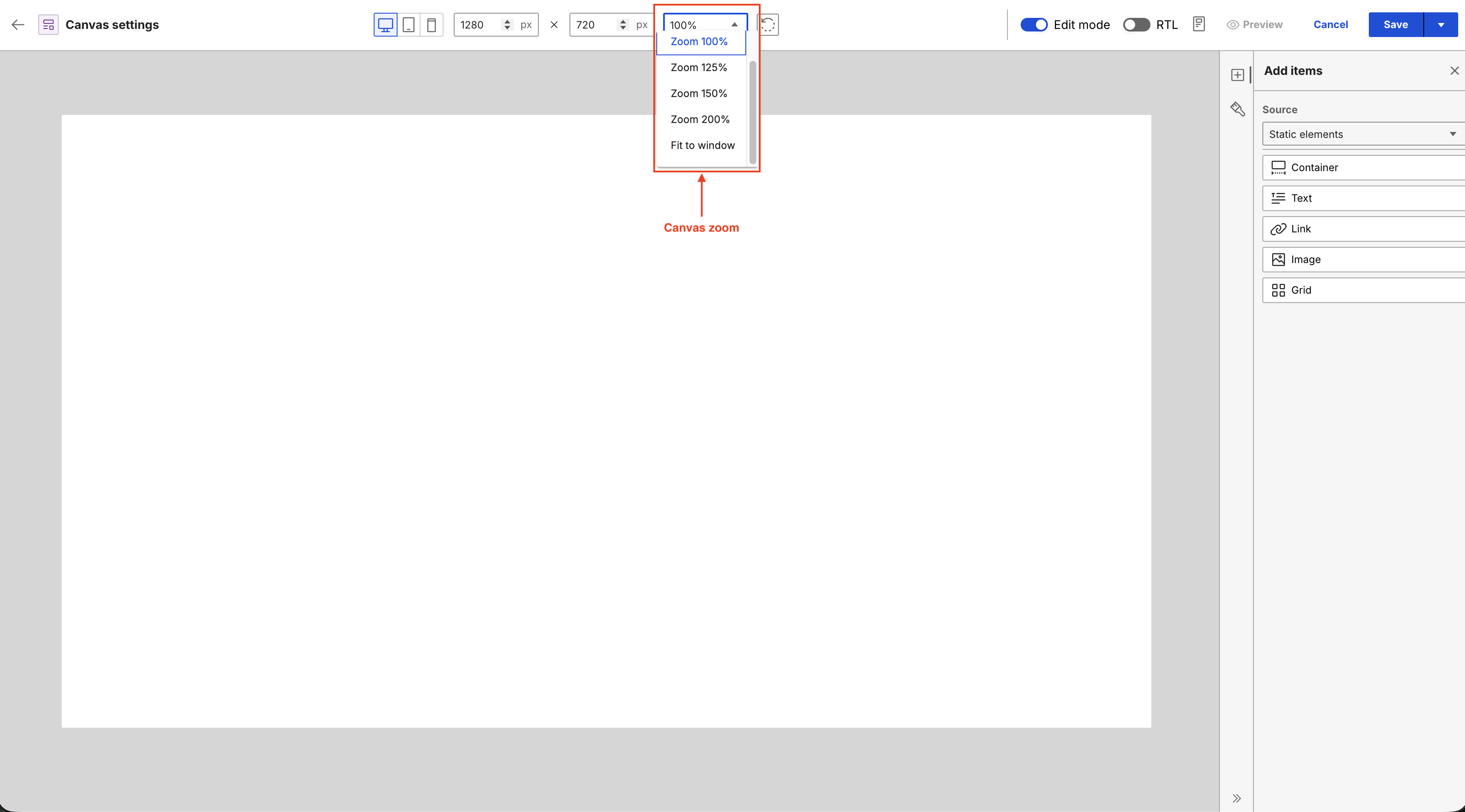
The Fit to window option automatically scales the active canvas view to match your current browser window boundaries.
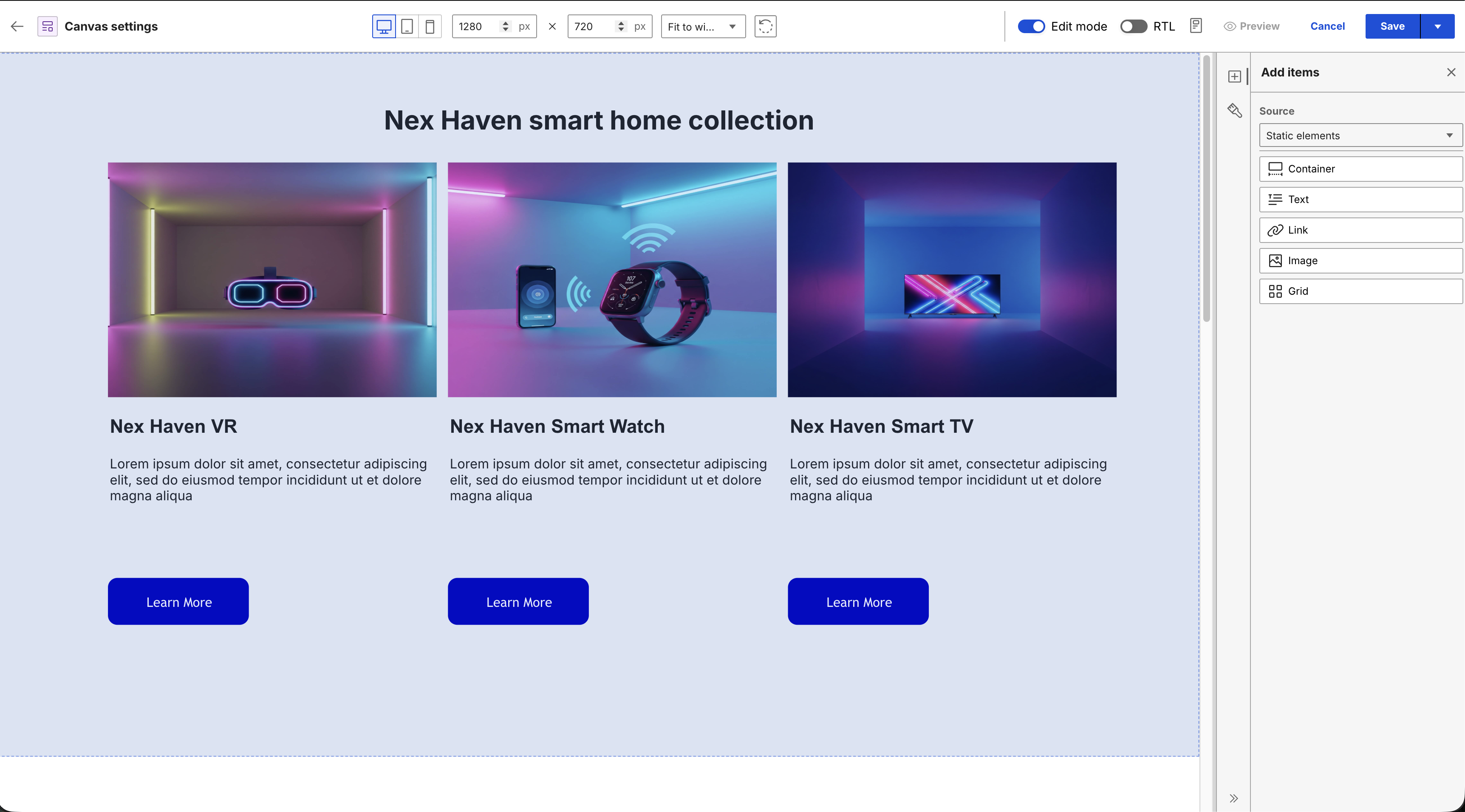
Responsive Canvas setting
The Presentation Designer Header automatically responds to changes in browser window widths to preserve workspace usability.
-
For widths below 1280 pixels, an ellipsis button (...) replaces individual header controls.
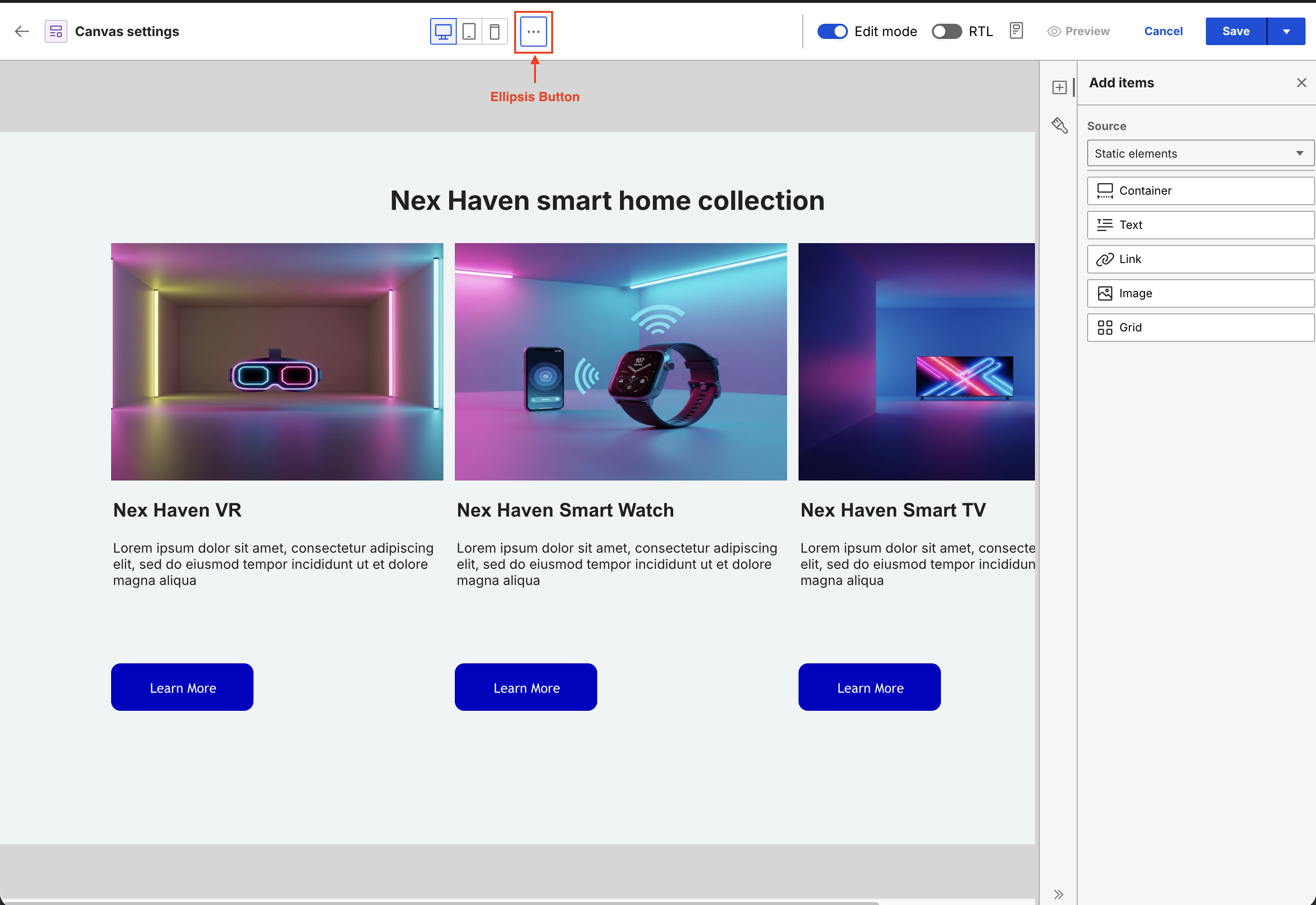
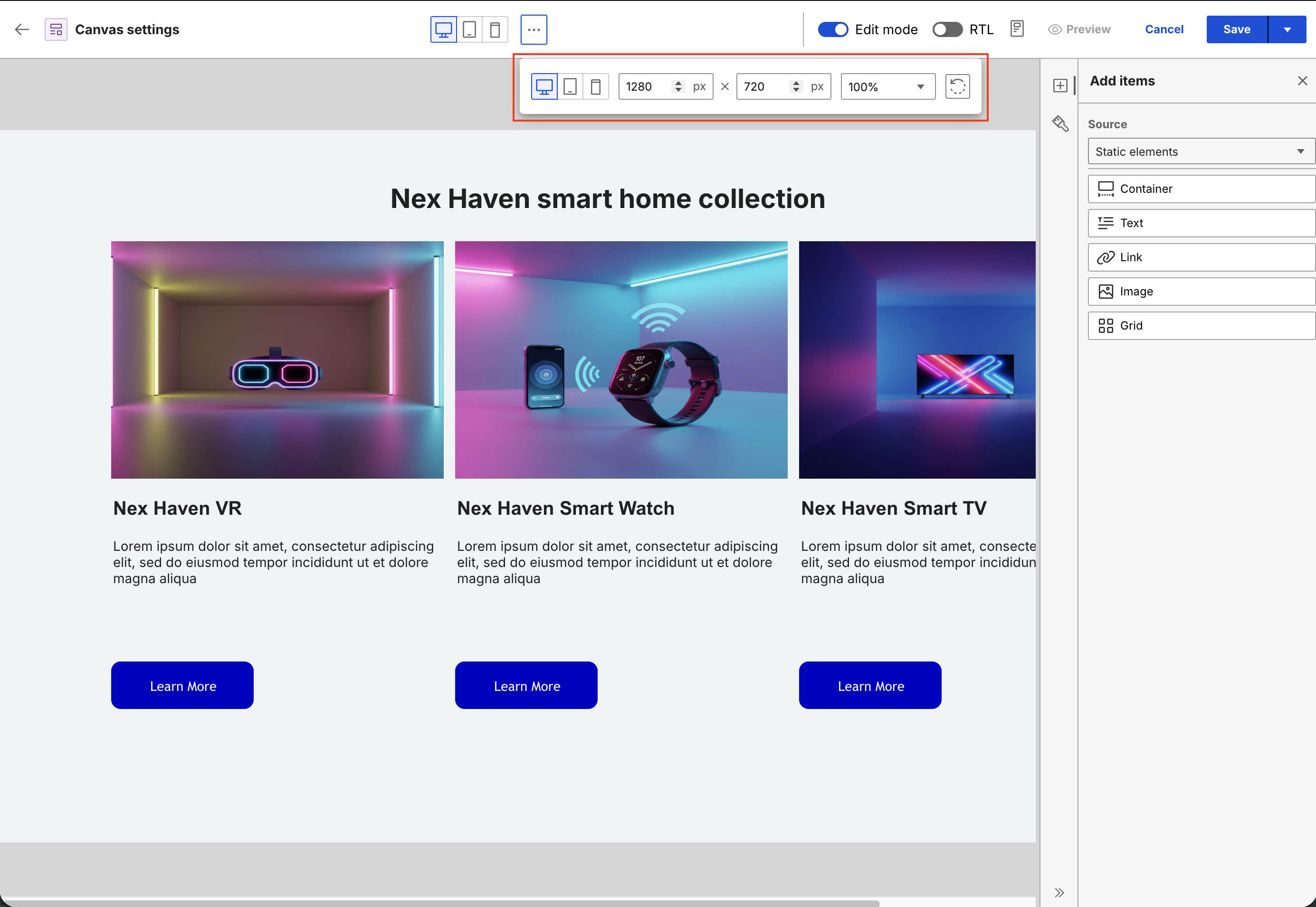
Clicking this button opens a menu containing the width, height, zoom, and rotate parameters.
-
Predefined Desktop, Tablet, and Mobile resolutions also move inside the ellipsis menu.
-
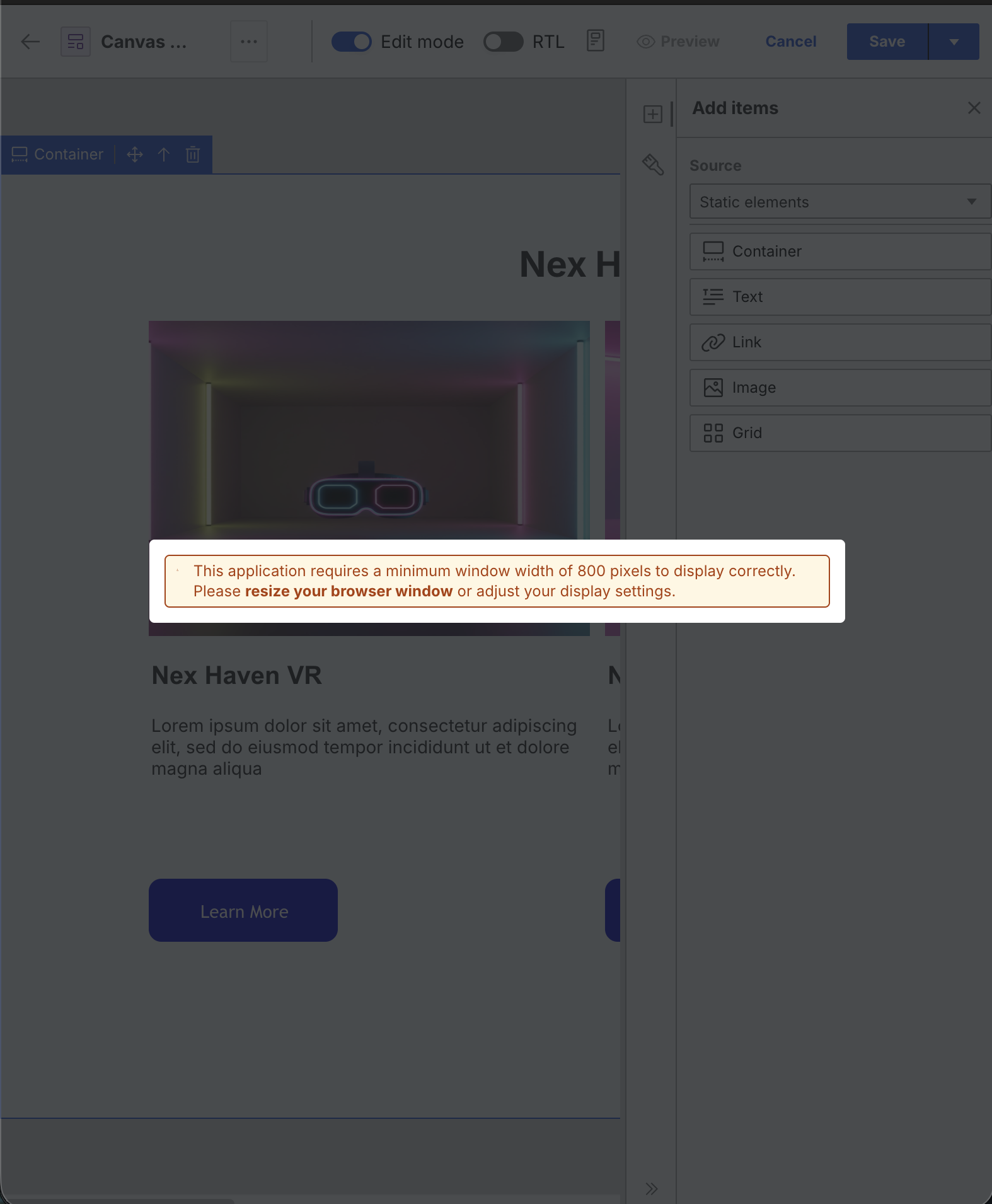
For widths below 800 pixels, a modal warning message overlays the screen prompting you to resize the browser window.