Entitlement checking in the FlexNet software delivery portal
This topic provides information on how you can check your entitlements in the FlexNet software delivery portal.
Prerequisites
Make sure you have the following elements before configuring the HCL Digital Experience (DX) Cloud Native V9.5 entitlements to be deployed on supported Kubernetes platforms using the FlexNet License and Delivery Portal for entitlement checking:
- An HCL Software Account and access to the HCL Software License & Delivery Portal.
- A valid HCL DX Cloud Native 9.5 (Tier 1 – 7) offering part purchased and issued by the HCL Software licensing team.
-
Your DX Cloud Native 9.5 (Tier 1 – 7) entitlements are mapped to your HCL Software License portal instances. For example:

See the How to check your entitlements and Map entitlements sections for guidance in locating and mapping your entitlements to your deployments.
-
A plan to deploy or update to HCL DX 9.5 Container Update CF207 or to a later release, if currently using a prior version.
Review the architecture that presents the License Manager component of HCL DX v9.5 Container Update software, which follows in the next section.
Architecture
The License Manager component communicates with the HCL FlexNet server. This is to validate license entitlement at set periods for HCL Digital Experience Cloud Native V9.5 Tier 1 – 7 software after you configuring the DX Cloud Native 9.5 deployment through the Helm chart. The License Manager component also transmits user session consumption from your production DX Cloud Native 9.5 deployments to their specific FlexNet entitlements dashboard.
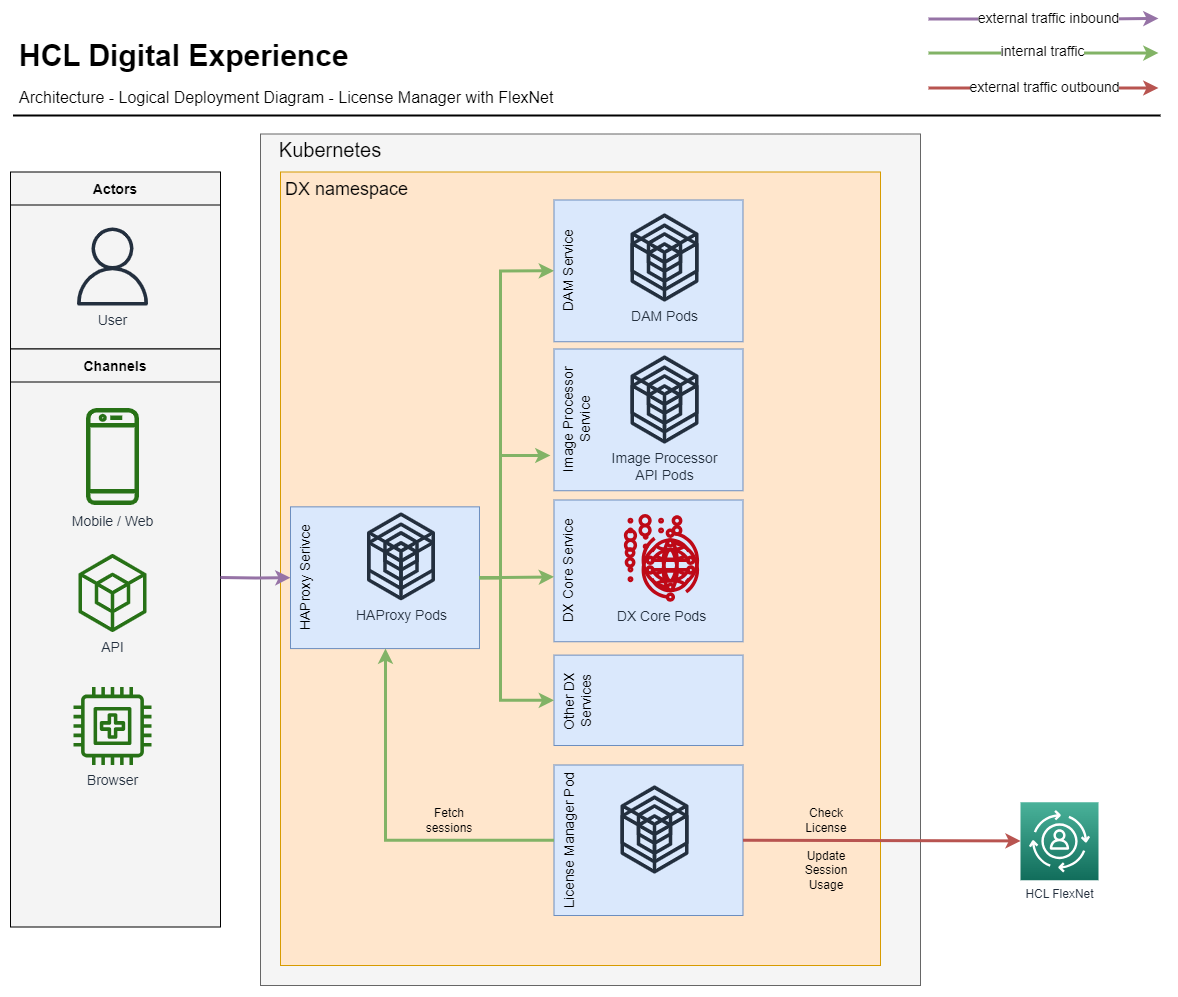
Follow the configuration steps in before you deploy a new or update an existing DX 9.5 Container deployment. By completing these steps, you configure the DX Cloud Native 9.5 Tier 1 – 7 deployment using a Helm chart and enable the License Manager entitlement-checking functions.
Configuring the DX Cloud Native V9.5 entitlement
-
Get access to the HCL License and Delivery Portal for your organization. In the HCL License and Delivery Portal, you can download the Flexnet entitlement server software and manage your FlexNet entitlement user names, passwords, and device IDs. Entitlement verification is performed against the HCL-hosted FlexNet entitlement server.
Important
For remote entitlement checks to succeed, ensure that your system and network firewalls allow for outbound connections to
hclsoftware.compliance.flexnetoperations.com. -
Configure your HCL DX Cloud Native 9.5 software for entitlement checks by editing your HCL DX deployment Helm chart. You can make these adjustments to a new or existing deployment.
-
Look for the following information to configure in the DX 9.5 Container Update CF207 or later Helm chart to enable License Manager and FlexNet entitlement checking:
Configure the following properties to your entitlements to the applicable DX Cloud Native 9.5 Tier 1 – 7 offering parts that you have previously mapped to your HCL Software server devices defined on the HCL Software License Portal. See the Prerequisites section for instructions.
# License Manager Configuration Controls which application is deployed and configured
applications:
# License Manager
# If using the HCL DX 9.5 Cloud Native Tier 1 – 7 software and licensing you are required to set this to true.
# The License Manager service manages the license requirements for your DX deployment.
licenseManager: <boolean>
configuration:
# License Manager Configuration
licenseManager:
    # Configures if this environment is a production environment.
    # For non production environments user sessions are not counted but the license
    # must still be validated.
    productionEnvironment: true
    # Flexnet License Server ID
    licenseServerId: "LICENSE_SERVER_ID"
    # Flexnet License Server URL
    licenseServerUri: "LICENSE_SERVER_URI"
    # Flexnet License Server's Configured Features
    licenseFeatureNameWithVersion: "LICENSE_SERVER_FEATURE_WITH_VERSION"
    # Flexnet License Username
    licenseManagerUser: "LICENSE_USERNAME"
    # Flexnet License Password
    licenseManagerPassword: "LICENSE_PASSWORD"
By using entitlements and device properties that you defined through the mapping process, configure those properties to your Helm chart to validate the entitlement period for your software. After configuring the properties, your DX 9.5 Container Update 207 and higher deployments verifies the entitlement period is valid for your HCL DX Cloud Native 9.5 Tier 1 – 7 subscription entitlements.
-
Configure the following items of your DX 9.5 Container Update CF207 or later Helm chart according to the DX Cloud Native 9.5 entitlements (Tier 1 – 7) that you are entitled to and have mapped to your HCL FlexNet Server instance:
productionEnvironment:true- Set totrueif this deployment will be used to support a Production deployment. See the HCL DX 9.5 license document for the definitions of production and non-production deployments.licenseServer ID– Set to your HCL FlexNet Software licenseServer ID.licenseServer URL– Verify your connection to the HCL FlexNet Server URL. Ensure that your system and network firewalls allow outbound connections tohclsoftware.compliance.flexnetoperations.com.licenseFeatureNameWithVersion– Configure this variable according to the HCL DX Cloud Native 9.5 Tier 1 – 7 offering part your organization has acquired and that is mapped to your HCL FlexNet server instances. See HCL DX Cloud Native 9.5 Tier 1 – 7 Parts and FlexNet License Server Feature Name table for more information.licenseManagerUser– Configure this variable with the user name of the administrator who is authenticated to manage your HCL Software License Portal entitlements.licenseManagerPassword– Configure this variable with the password associated with the user name of the administrator to manage your HCL Software License Portal entitlements that you defined in the previous step.
HCL DX Cloud Native 9.5 Tier 1 – 7 Parts and FlexNet License Server Feature Name
HCL Digital Experience Cloud Native 9.5 Part Description Part Number Part Number Feature Name HCL Digital Experience Cloud Native Tier 1, 12 Month Term License & S&S, 1-500K User Sessions TN100928Y01 DXPN_CloudNative_Tier1_500K@9.5 HCL Digital Experience Cloud Native Tier 2, 12 Month Term License & S&S, 500K-2M User Sessions TN100929Y01 DXPN_CloudNative_Tier2_2M@9.5 HCL Digital Experience Cloud Native Tier 3, 12 Month Term License & S&S, 2M-6M User Sessions TN100930Y01 DXPN_CloudNative_Tier3_6M@9.5 HCL Digital Experience Cloud Native Tier 4, 12 Month Term License & S&S, 6M-12M User Sessions TN100931Y01 DXPN_CloudNative_Tier4_12M@9.5 HCL Digital Experience Cloud Native Tier 5, 12 Month Term License & S&S, 12M-24M User Sessions TN100932Y01 DXPN_CloudNative_Tier5_24M@9.5 HCL Digital Experience Cloud Native Tier 6, 12 Month Term License & S&S, 24M-60M User Sessions TN100933Y01 DXPN_CloudNative_Tier6_60M@9.5 HCL Digital Experience Cloud Native Tier 7, 12 Month Term License & S&S, 60M-120M User Sessions TN100934Y01 DXPN_CloudNative_Tier7_120M@9.5 See the following sample values configured to an HCL DX Cloud Native 9.5 deployment Helm chart:
configuration:
# License Manager Configuration
licenseManager:
    # Configures if flexnet license checking is enabled
    productionEnvironment: true
    # Flexnet License Server ID
    licenseServerId: "Q8A6YCZ3A4GH"
    # Flexnet License Server URL
    licenseServerUri: "https://hclsoftware.compliance.flexnetoperations.com"
    # Flexnet License Server's Configured Features
    licenseFeatureNameWithVersion: "DXPN_CloudNative_Tier1_500K@9.5"
    # Flexnet License Username
    licenseManagerUser: "admin"
    # Flexnet License Password
    licenseManagerPassword: "mypassword"
Important
Configure these properties to your Helm chart before you install the environment. If you are changing the environment, configure the properties before you start the DX 9.5 Container Update 207 or later Helm upgrade to your HCL Digital Experience Cloud Native 9.5 production or non-production deployment. For more information about the Helm configuration steps to manage DX 9.5 Container Update upgrades, see Upgrade the Helm deployment to the latest version.
-
(Optional) Create and upload a public/private key pair. The License Manager uses a default key when no custom key is configured.
Validating the DX Cloud Native 9.5 deployment entitlement
Your HCL DX Cloud Native 9.5 environments are configured for entitlement checks that will validate that your deployment software remains in the purchased timeframe.
Ensure that your entitlement checks succeed by viewing your HCL DX 9.5 Container Update Server License Manager pod logs.
Use kubectl logs for the license manager pod. For example, in a namespace dxns, run the following command:
kubectl logs pod/<release-name>-license-manager-0 -n <namespace>
See the HCL DX Cloud Native 9.5 entitlement-check scenarios and how to manage them in HCL Digital Experience Cloud Native 9.5 entitlement check scenarios.
Entitlement checking to ensure that the entitlement period for the DX Cloud Native 9.5 part is valid for the purchased term is initiated at deployment start, upgrade, or configuration-change processes. Entitlement checking also occurs once per day for active deployments.
Refer to Configuring a local HCL Flexnet entitlement server for additional configurations needed to enable connectivity to a local license server.
Securing license server communication for the License Manager application
Secure communication between HCL DX and the HCL License Server (cloud or local) involves signed content that uses a public and private key pair. HCL DX signs licensing requests with the private key and the License Server verifies signatures with the corresponding public key.
Note
The License Manager expects the public key to be uploaded to the License Server beforehand and the private key to be passed as a secret in the Helm values. However, if the private key is not provided, the default key is used and uploaded automatically.
Generating a public/private key pair
If you want to have your own key, you must generate a public/private key pair for secure communication. The following list shows the required formats:
- The key pair must be in “RSA 2048-bit” format.
- The private key must be in “PKCS8” format.
- The public key must be in “DER” format.
Various third-party tools are available for generating this key pair. See the documentation supplied with the third-party tool for instructions. The following is an example of key pair generation by using OpenSSL:
# Generate private key
openssl genrsa -out portal_private_key.pem 2048

# Get the public key.
openssl rsa -in portal_private_key.pem -pubout -outform DER -out portal_public_key.der

# Convert private key to pkcs8 format to use it with HCL Portal
openssl pkcs8 -topk8 -inform PEM -outform PEM -in portal_private_key.pem -out portal_private_key_pkcs8.pem -nocrypt
Uploading the public key
The following instructions show you how to upload the public key to your License Server by using the provided command line tool.
-
Get the Bearer Authentication from FlexNet by using authorize endpoint:
curl --location 'https://hclsoftware.compliance.flexnetoperations.com/api/1.0/instances/<instance ID>/authorize' \
--header 'Content-Type: application/json' \
--data-raw '{"password":"XXXXXXX","user":"XXXXXXX"}'
Response from authorize endpoint:
{ "expires": "2023-12-19T05:39:28.850Z", "token": "eyJ0eXAiOiJKV1QiLCJhbGciOiJIUzUxMiJ9.eyJzdWIiOiJhZG1pbiIsImlzcyI6IlE4QTVZQ1ozQTRHSCIsImlhdCI6MTcwMjg3Nzk2OCwiZXhwIjoxNzAyOTY0MzY4LCJyb2xlcyI6IlJPTEVfQURNSU4sUk9MRV9EUk9QQ0xJRU5ULFJPTEVfUkVBRCxST0xFX1JFU0VSVkFUSU9OUyIsInhzcmZUb2tlbiI6IjRmOWRjMGFkLWQ1MGMtNGZhZi05YmE0LTc0N2ZmMjJjODQ0MiJ9.mvuXXJNfew-WzJ7CX8Y8yH339zX3SNpaX79jMTu-shanE8nHPfZRA240EAsVO64nMxFAPyr_8gP7JOLRQ2XOeA" } -
Upload the public key to the FlexNet server:
curl --location 'https://hclsoftware.compliance.flexnetoperations.com/api/1.0/instances/<instance ID>/rest_licensing_keys' \
--header 'Authorization: Bearer eyJ0eXAiOiJKV1QiLCJhbGciOiJIUzUxMiJ9.eyJzdWIiOiJhZG1pbiIsImlzcyI6IlE4QTVZQ1ozQTRHSCIsImlhdCI6MTcwMTk0NTY5NCwiZXhwIjoxNzAyMDMyMDk0LCJyb2xlcyI6IlJPTEVfQURNSU4sUk9MRV9EUk9QQ0xJRU5ULFJPTEIOPKLVBRCxST0xFX1JFU0VSVkFUSU9OUyIsInhzcmZUb2tlbiI6IjI0MjRiOTgwLWY2ZDEtNGViYi04NWQ5LTI3YmQzMTJmYzIwZiJ9.JR0fnMZyyMY4wwPtE9kMWD2kvbxLgBplq2X-wgmYpe7COFW-5IVvdLmdaRvb0AydSKHf3DKPDGVrd2dubr9Lbw' \
--header 'Content-Type: application/octet-stream' \
--data '@/Flexnet-release/portal_public_key.der'
Response from FlexNet server:
{
    "publicKey": "MIIBIjANBgkqhkiG9w0BAQEFAAOCAUUUIPHJnjgPOMnbqsjqsL29p313tvMpV0QjIDT03traV3v4UnUuIrIYmYPerzQJsVzoKZHU0IYA9FZTLXP4uJMPTwNJhDVtbki5Fbx4h9U2c7h78QCFne07kdtAeBh0keReFklpj7CJbOi4RhqSX6uaZ/gBOg+RMT6/q9Oxkry31WvqISNWlAXmyfNQTo/GMUe4dKpbEBGPOLKRESHlBXnqrqPw+EqlrJDiJSr/TIfLokm8qFLSzBwYahhi6L0gnLmnuEPPfkxFwhjaSjdb336dVGzkRc1AsS9L0TDTtQBzUxkL6cIW+EzxXOyWnT2ekcFMripuyXBG80UkhXKTVpRwj/nXeXQIDAQAB"
}
Enabling the the private key in HCL DX License Manager
This section provides instructions on how to configure the Helm chart to enable the private key in HCL DX License Manager.
-
Create your secret using a private Key:
kubectl create secret generic <secret name> --from-file=privateKey=portal_private_key_pkcs8.pem -n <namespace> -
Refer to the secret in Helm values in yaml:
security:
licenseManager:
    customFlexnetLicenseManagerPrivateKeySecret: <secret name>
Note
For multiple instances that run with the same entitlement and license server, all instances must conform to one of the following criteria:
- They use the same private key.
- They do not have a private key configured.
Revoke the public key in FlexNet
If you have to revoke the public key in FlexNet, perform the following steps. To complete the revocation process, you must provide the Bearer Authentication token to authenticate the request. Without the token, the revocation process cannot be completed.
-
Get the Bearer Authentication from FlexNet by using authorize endpoint:
curl --location 'https://hclsoftware.compliance.flexnetoperations.com/api/1.0/instances/<instance ID>/authorize' \
--header 'Content-Type: application/json' \
--data-raw '{"password":"XXXXXXX","user":"XXXXXXX"}'
Response from authorize endpoint:
{ "expires": "2023-12-19T05:39:28.850Z", "token": "eyJ0eXAiOiJKV1QiLCJhbXXXYYYUzUxMiJ9.eyJzdWIiOiJhZG1pbiIsImlzcyI6IlE4QTVZQ1ozQYUPLFWNUISQACIsImlhdCI6MTcwMjg3Nzk2OCwiZXhwIjoxNzAyOTY0MzY4LCJyb2xlcyI6IlJPTEVfQURNSU4sUk9MRV9EUk9QQ0xJRU5ULFJPTEVfUkVBRCxST0xFX1JFU0VSVkFUSU9OUyIsInhzcmZUb2tlbiI6IjRmOWRjMGFkLWQ1MGMtNGZhZi05YmE0LTc0N2ZmMjJjODQ0MiJ9.mvuXXJNfew-WzJ7CX8Y8yH339zX3SNpaX79jMTu-shanE8nHPfZRA240EAsVO64nMxFAPyr_8gP7JOLRQ2XOeA" } -
Use DELETE endpoint to revoke the public key:
curl --location --request DELETE 'https://hclsoftware.compliance.flexnetoperations.com/api/1.0/instances/<instance ID>/rest_licensing_keys' \
--header 'Authorization: Bearer eyJ0eXAiOiJKV1QiLCJhbGciOiJIUzUxMiJ9.eyJzdWIiOiJhZG1pbiIsImlzcyI6IlE4QTVZQ1ozQTRHSCIsImlhdCI6MTcwMzQ5ODg0MywiZXhwIjoxNzAzNTg1MjQzLCJyb2xlcyI6IlJPTEVfQURNSU4sUk9MRV9EUk9QQ0xJRU5ULFJPTEVfUkVBRCxST0xFX1JFU0VSVkFUSU9OUyIsInhzcmZUb2tlbiI6IjJlYTNjM2U3LWQ3MDEtNDFjMS05NWQ2LWEyOTMzZjBlNTQwNyJ9.u8ZAF4SpBoLucxPA0WaEtcDkuQVT3ZCGx-qAtHYbcZDD%YYBBzqvYWkxN3fTRHjNRKE0idV8bh5Zs75KSvU9A'
Expected status:
410 Gone
Accessing FlexNet usage reporting dashboard
Access the Reports section of the HCL Software License and Download Portal server.
-
In the HCL Software License and Download Portal server, go to Usage > Usage Report.
-
Select your account and then click Search.
-
Select Digital Experience Cloud Native 9.5 from the list of your account entitlements. Results are displayed and are similar to the following example.
Note
The results might show an overage percentage amount in parentheses which does not apply to this informational dashboard report.
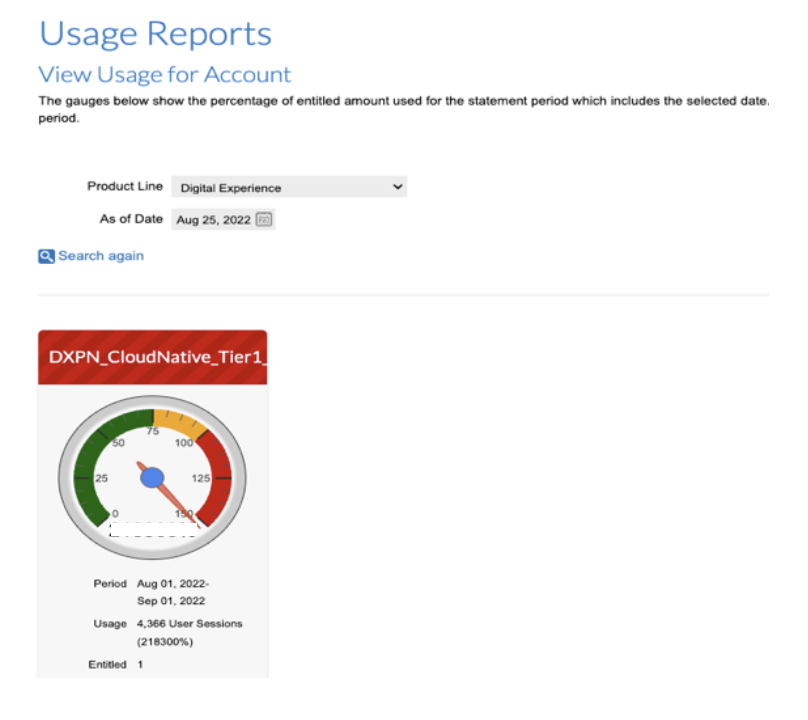
The Usage report shows the following information:
- Period: The period of the report results.
-
Usage: The number of user sessions that ran on your DX 9.5 Container Update deployment that is mapped to this entitlement and that has the ProductionEnvironment variable enabled and set to
True. See the user session details in the HCL Digital Experience Cloud Native 9.5 license on the HCL Software License Agreements site.Note
Only user-session data totals per month for the calendar year of purchase are transmitted to the customer's FlexNet/MHS dashboards for their viewing and monitoring purposes. No personal or personally identifiable information (PII) data is transmitted.
-
Entitlement: Amount will equal one, which is equivalent to your HCL Digital Experience Cloud Native 9.5 Tier 1 – 7 purchased part.
The FlexNet dashboard Usage data might show a data percentage amount in parentheses. This overage percentage amount does not apply to HCL Digital Experience Cloud Native 9.5 Tier 1 - 7 entitlement checking and informational user-session consumption reporting and can be disregarded.