Generating Deployment audit report
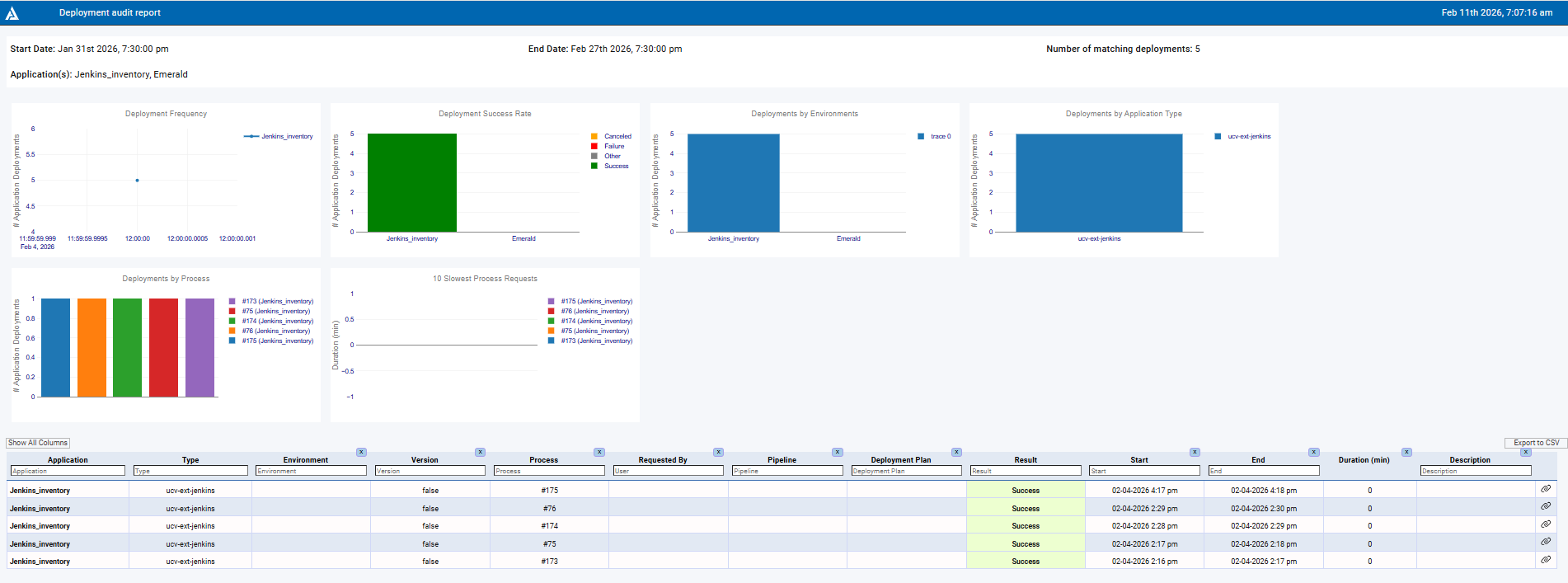
The Deployment audit report displays a summary of deployments.
Before you begin
Note:
You
must use Handlebars Reporter plugin version 2.0.5 or later to get accurate metrics
in Individual Measures section.
About this task
The Deployment audit report page provides comprehensive details about deployment frequency, success rate, and deployments by application type, environment, and process.
Procedure
- Click .
-
Select the Deployment audit field under the
Report Templates heading on the left side of the
page.
Note:When the Deployment audit field is selected, a vertical blue bar is displayed on the left side of the field to indicate that it is the report to run.
- Click Run Report to open the RUN REPORT window.
-
Enter the following information:
- Start date - Start date and time for the report.
- End date - End date and time for the report.
- Pipelines - Select the pipeline.
- And / or pick applications - Select the application that you want to include in the report.
- Timezone - Select the time zone.
- Click Confirm to run the report.
Results
The Deployment audit report page displays the following information about the report:
- Date: Shows the date, time, and email address of the user who ran the report.
- Status: Shows the color-coded status: Orange = STARTED, green = COMPLETE, and red = FAILED.
The following elements provide detailed information about the report:
- View log: When you click View log, the log details of the report are displayed.
- View parameters: When you click View parameters, the VIEW PARAMETERS OF EXECUTION window opens and displays the details used to run the report.
- Share: When you click Share, the URL is copied so you can share the report.
- Results: When you click Results, the Deployment audit report page is displayed. You must then click Export to CSV to export the deployment audit report.
A sample deployment audit report page is shown as follows: