
Lesson 8: Visualizing the movement of dots in the value stream
You can learn about the functionality of Jira, GitHub, and Jenkins in the value stream and visualize the movement of dots from the backlog to build stages within the value stream.
Procedure
-
Perform the following steps to move the dot from Backlog stage
to In Progress stage in the value stream page:
- Log in to Jira account by using login credentials.
- In the kanban board, move the Jira issue (App 1) from the Backlog to In Progress.
-
Open the value stream page in HCL DevOps
Velocity (Velocity). The dot
representing the Jira issue (App 1) is moved from the Backlog
stage to the In Progress stage.

- Click the dot representing the Jira issue (App 1) to view the work history.
-
Perform the following steps to move the dot from In Progress
stage to In Review stage in the value stream page:
- Log in to Jira account by using login credentials.
- In the kanban board, move the Jira issue (App 1) from the Backlog to In Progress.
- Log in to GitHub account by using login credentials.
- Navigate to the desired repository, edit the file, and then click Commit
changes....
The Commit changes dialog is displayed.
- Select Create a new branch for this commit and start a pull
request, and then click Propose changes.
The Open a pull request page is displayed.
- Important: Type the Jira issue ID in the Add a
description field. For example, App 1.Note: You can also add comments followed by the Jira issue in the Add a description field. For example, App 1 update.
- Click Create pull request.
- Open the value stream page in Velocity. The dot
representing the Jira issue (App 1) is moved from the In
Progress stage to the In Review stage and the
pull request is linked to the Jira issue.

- Click the dot representing the Jira issue (App 1) to view the work history. You can view the commit history in the related item section.
-
Perform the following steps to move the dot from In Review stage
to Merged stage:
- In the kanban board, move the Jira issue (App 1) from the In Review to Done.
- In the GitHub repository, close the pull request that you have created in step 2.g.
-
Open the value stream page in Velocity. The dot
representing the Jira issue (App 1) is moved from the In
Review stage to the Merged stage.

- Click the dot representing the Jira issue (App 1) to view the work history.
-
Perform the following steps to move the dot from Merged stage to
Build stage:
- Sign in to your Jenkins application with valid login credentials.
- Open the Build_input job that you have created in Lesson 6: Setting up the build and deployment jobs in Jenkins.
- Click Build with Parameters.
- In the build number filed, enter the build number. For example, 1.
-
Open the value stream page in Velocity. The dot
representing the Jira issue (App 1) is moved from the Merged
stage to the Build stage.

- Click the Pipeline tab. You can see the build number under the Input stage.
-
Perform the following steps to move the dot from Build stage to
DEV stage:
-
Click the Value stream tab. The dot representing the Jira
issue (App 1) is moved from the Build stage to the
DEV stage.

-
Click the Value stream tab. The dot representing the Jira
issue (App 1) is moved from the Build stage to the
DEV stage.
-
Perform the following steps to move the dot from DEV stage to
QA stage:
-
Click the Value stream tab. The dot representing the issue
Jira issue (App 1) is moved from the Build stage to the
QA stage.

-
Click the Value stream tab. The dot representing the issue
Jira issue (App 1) is moved from the Build stage to the
QA stage.
-
Perform the following steps to move the dot from QA stage to
PROD stage:
-
Click the Value stream tab. The dot representing the Jira
issue (App 1) is moved from the Build stage to the
PROD stage.
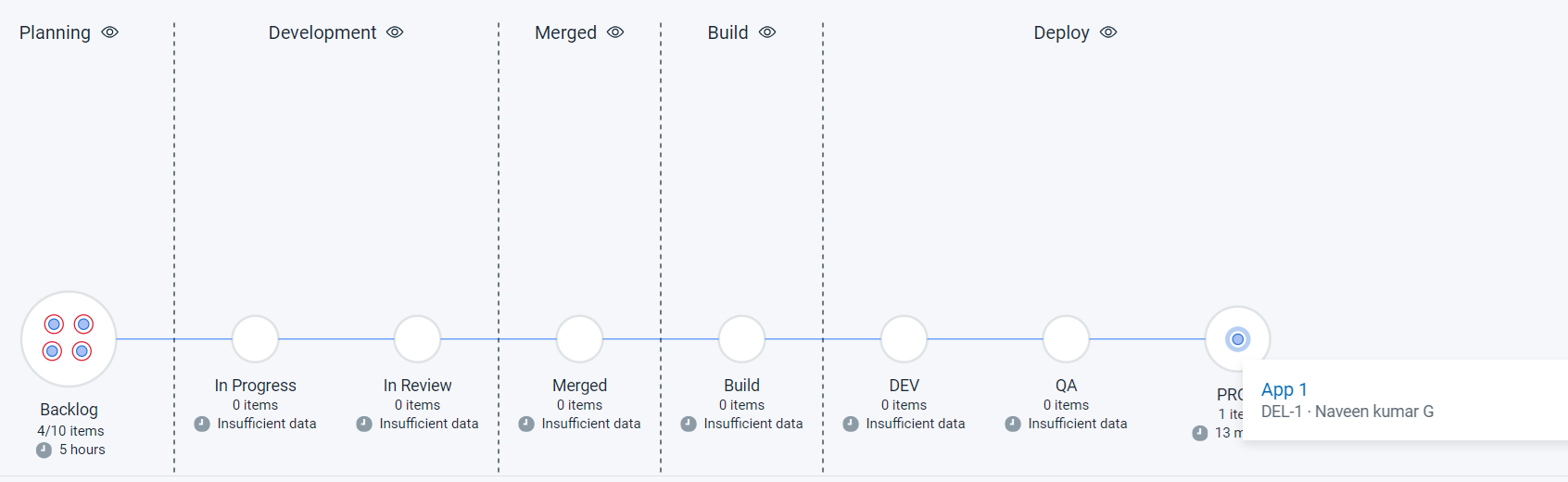
In this lesson, you have learned the functionality of Jira, GitHub, and Jenkins in the value stream and visualize the movement of dots from the backlog to build stages within the value stream. -
Click the Value stream tab. The dot representing the Jira
issue (App 1) is moved from the Build stage to the
PROD stage.