
Lesson 3 Integrating GitHub into a value stream
Provide GitHub repository data to the value stream.
Before you begin
To complete this lesson, you need a GitHub personal access token.
About this task
In this lesson you integrate a Git repo into the tutorial value stream.
To modify the tutorial value stream, complete the following steps:
Procedure
- Click .
-
On the Plugins tab, click Add Integration for the
GitHub plug-in.
Integrations can be defined in several ways. You can define them directly in the value stream's JSON file
"integrations"array. You can also define an integration on the Plug-in page, and then reference it in the JSON file. In this lesson, we configure the integration on the Plug-in page. In a later lesson, we will associate the GitHub integration to the tutorial value stream. -
On the Add GitHub integration window, configure an integration by
completing the following steps:
The integration is listed on the Integrations page. If the integration is successful, the Status field displays
Online. If the status is notOnline, use the View log option to troubleshoot the integration. You can increase the logging level in the integration configuration if you need more troubleshooting information. - On the Value Streams page, select the value stream that you created earlier in the tutorial.
-
Click .
The helloWorld-vsm.json file is downloaded to your computer.Note: After you modify the default value stream map file, the downloaded file name will reflect the name of the value stream.
-
In your text editor, open the helloWorld-vsm.json file, and then add the
Jira integration to the
integrationsarray in the JSON file.Because you already defined the Jira integrations, you can add it to the value stream by referencing its name, as shown in the following example:
Of course, use the name you assigned to the integration in Step 3."integrations": [ { "name":"GitHub tutorial" } ], - In the helloWorld-vsm.json file.
-
On the helloWorld value stream page, select , and then select the JSON file that you modified.
 After the file uploads, refresh the helloWorld value stream page. A particle with the Jira status of
Backlogappears in the Backlog stage, as shown in the following figure:Figure 1. Customized value stream 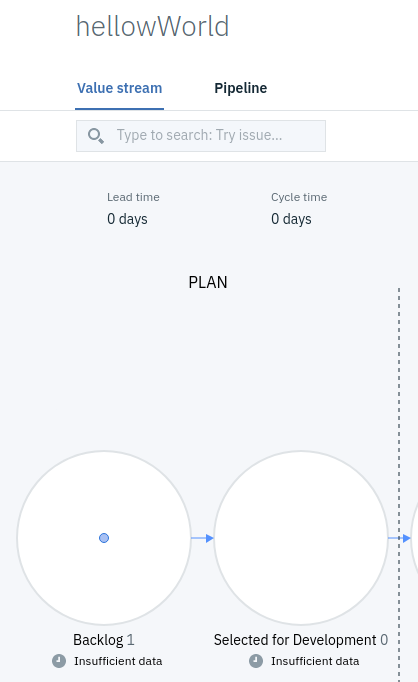
If your Jira project has more than one issue with the status of
Backlog, corresponding dots for all of them appear in the Backlog stage.Select the particle to display a card with information about the particle, including its history. Links to the associated Jira issue are provided.Figure 2. Particle information 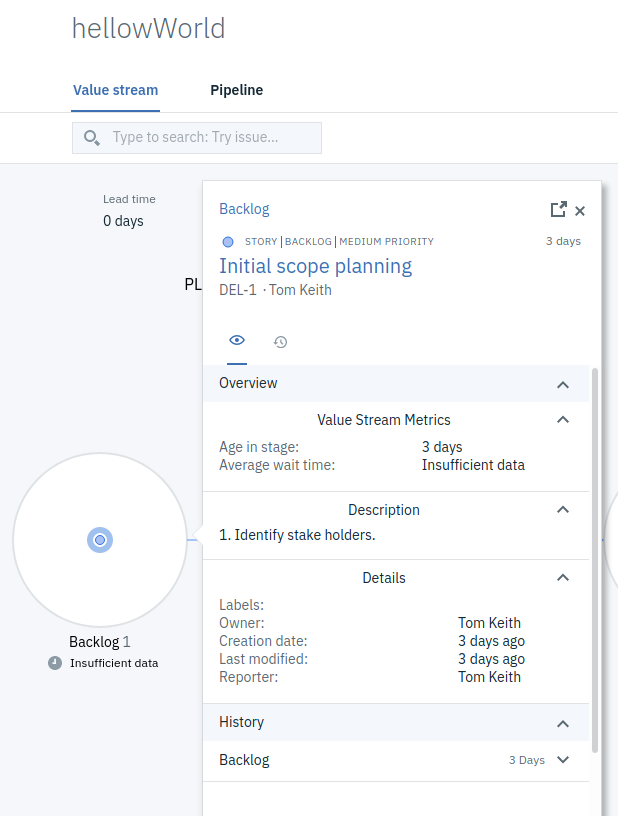
Results
In this lesson, you integrated the external tool Jira into your value stream and used a DQL query to display data.