
Running a single Web UI test on multiple browsers and devices simultaneously
Rather than run a Web UI test on one browser at a time, you can run a single Web UI test on multiple browsers simultaneously. Doing so can significantly speed up your test effort. You can also extend your test coverage by adding mobile devices to the test run. You can run the test from HCL DevOps Test UI (Test UI), from the command line, or from Engineering Test Management. This topic describes how to run a test from the UI Test perspective.
Procedure
- Double-click the test to open it from the Test Navigator view.
- Click Run Test in the Test Editor to open the Run Configuration window.
-
Select Run on several devices and browsers in
parallel.
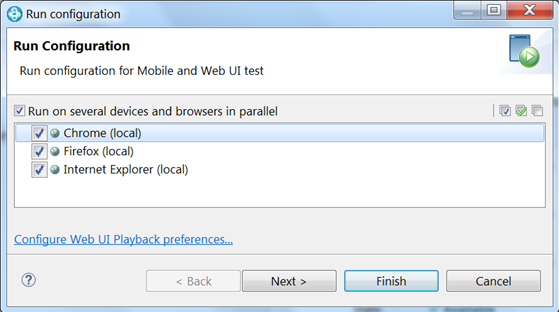
You can now choose to run the test in parallel using any or all browsers, devices, and emulators that are listed. All supported web browsers that are installed on your computer are displayed. To run a test on a mobile device or emulator, the device must be connected and must be in passive mode.
- Click Finish.