
User interface
You can find an overview of the HCL DevOps Loop user interface.
Login page
The login page provides an option to sign in to the DevOps Loop platform.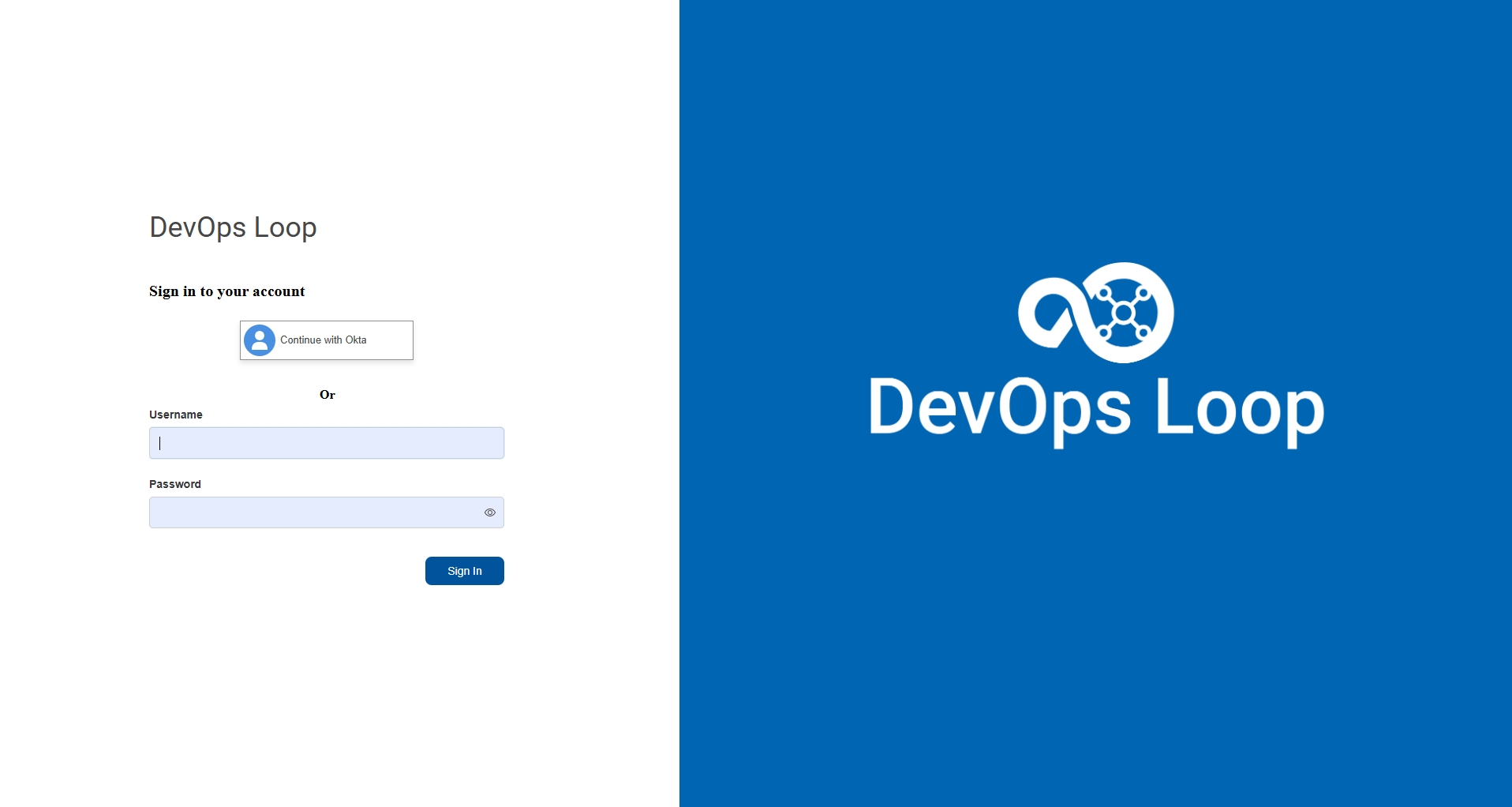
Home page
After logging in, the Home page provides an option to create Teamspace. You must create a
Teamspace before start using DevOps Loop. See Teamspace management. 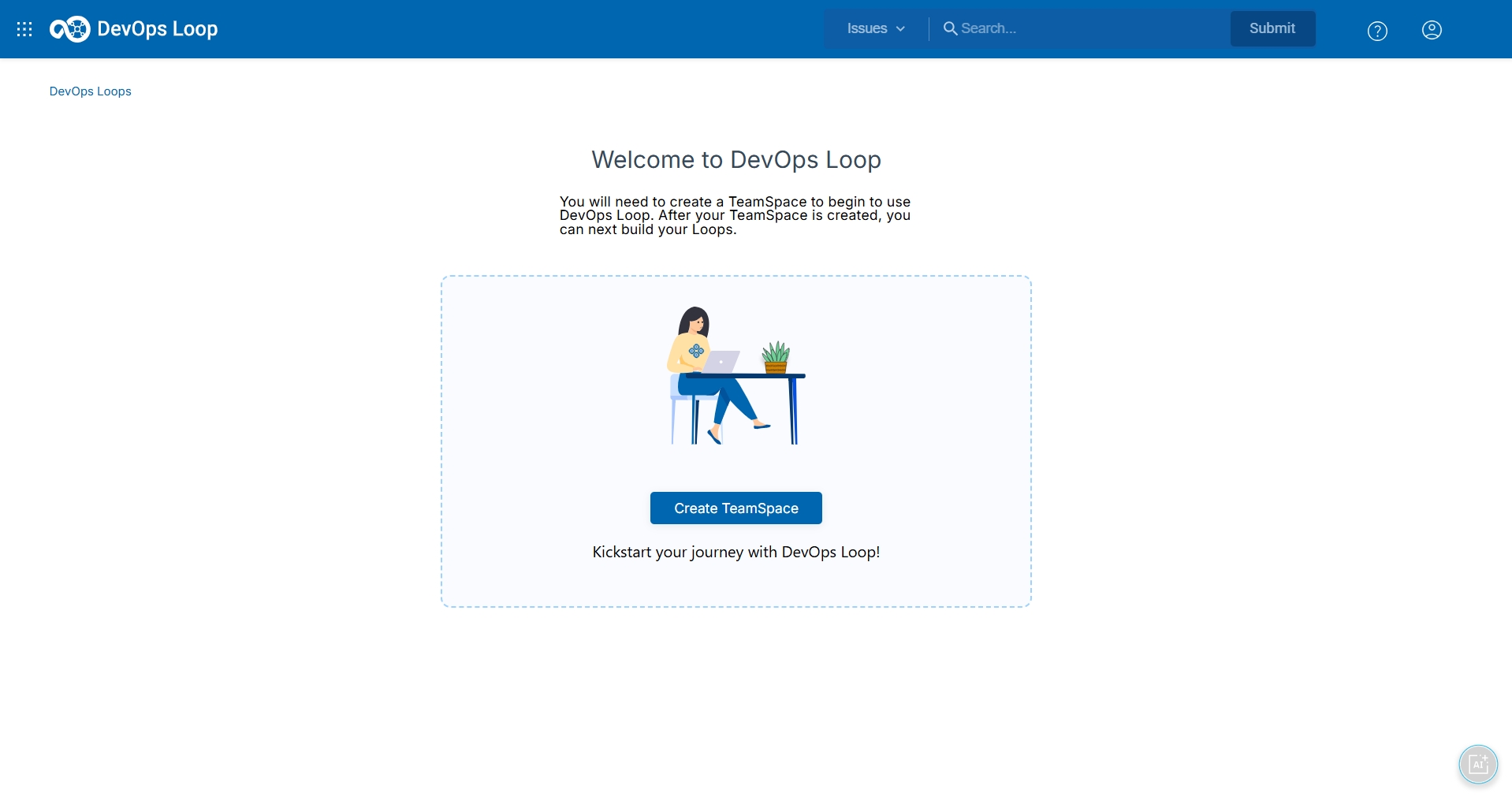
Within your Teamspace, you can create a loop to begin setting up your DevOps workflow.
See Loop management.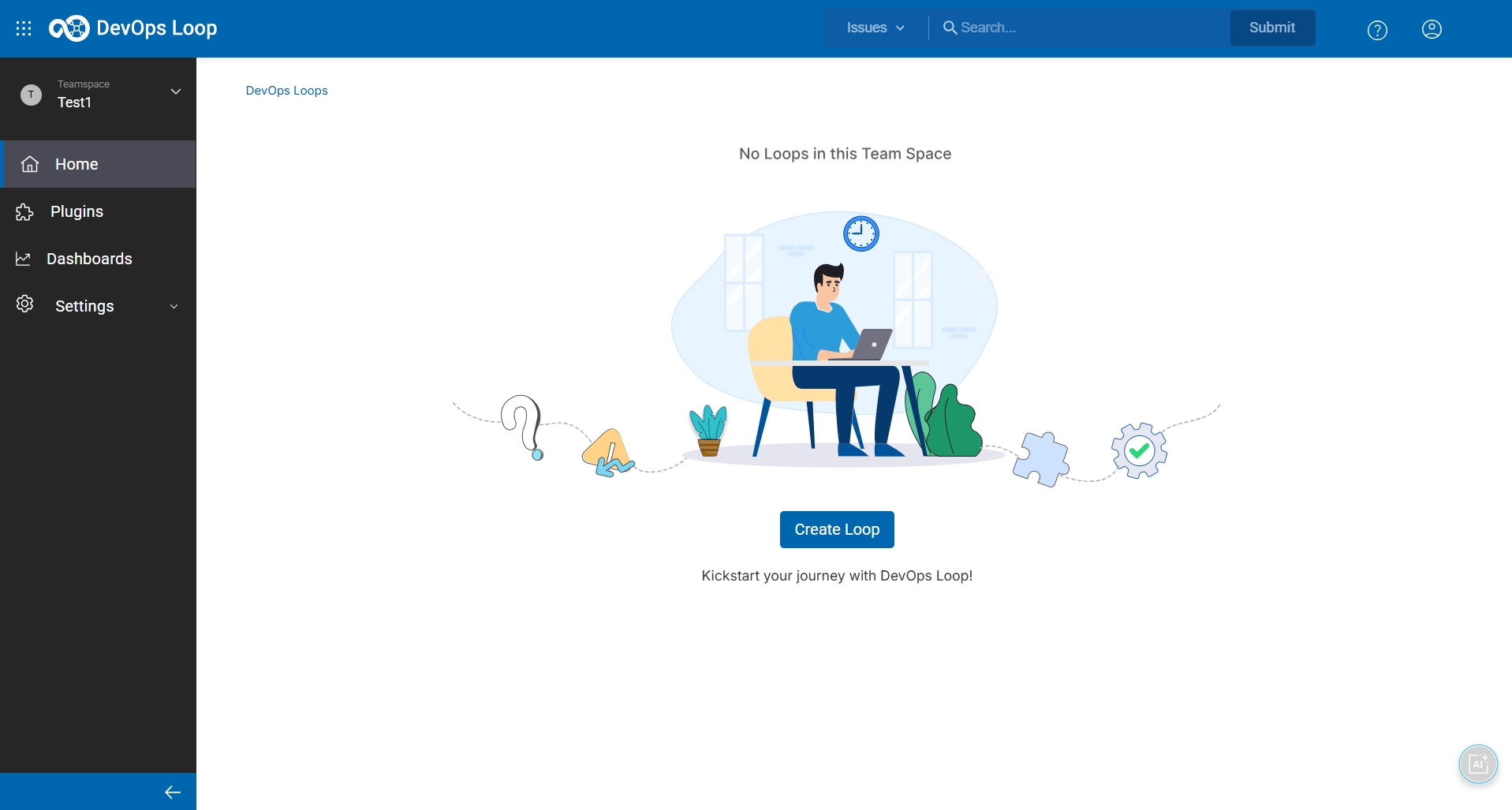
Capability selector
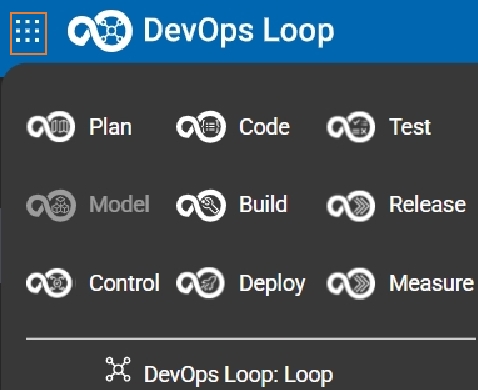
By using the capability selector icon  , you can quickly access all DevOps Loop capabilities, such as Plan,
Code, Test, Build, Release , Control, Deploy, and Measure from a single menu.
, you can quickly access all DevOps Loop capabilities, such as Plan,
Code, Test, Build, Release , Control, Deploy, and Measure from a single menu.
Plugins
The sidebar provides the  option for you to navigate to the Toolchain Engineering
page that lists the Featured plugins and All
plugins sections. You can choose a plugin that is required for a
specific solution from the All plugins section and click
option for you to navigate to the Toolchain Engineering
page that lists the Featured plugins and All
plugins sections. You can choose a plugin that is required for a
specific solution from the All plugins section and click  to download the plugin.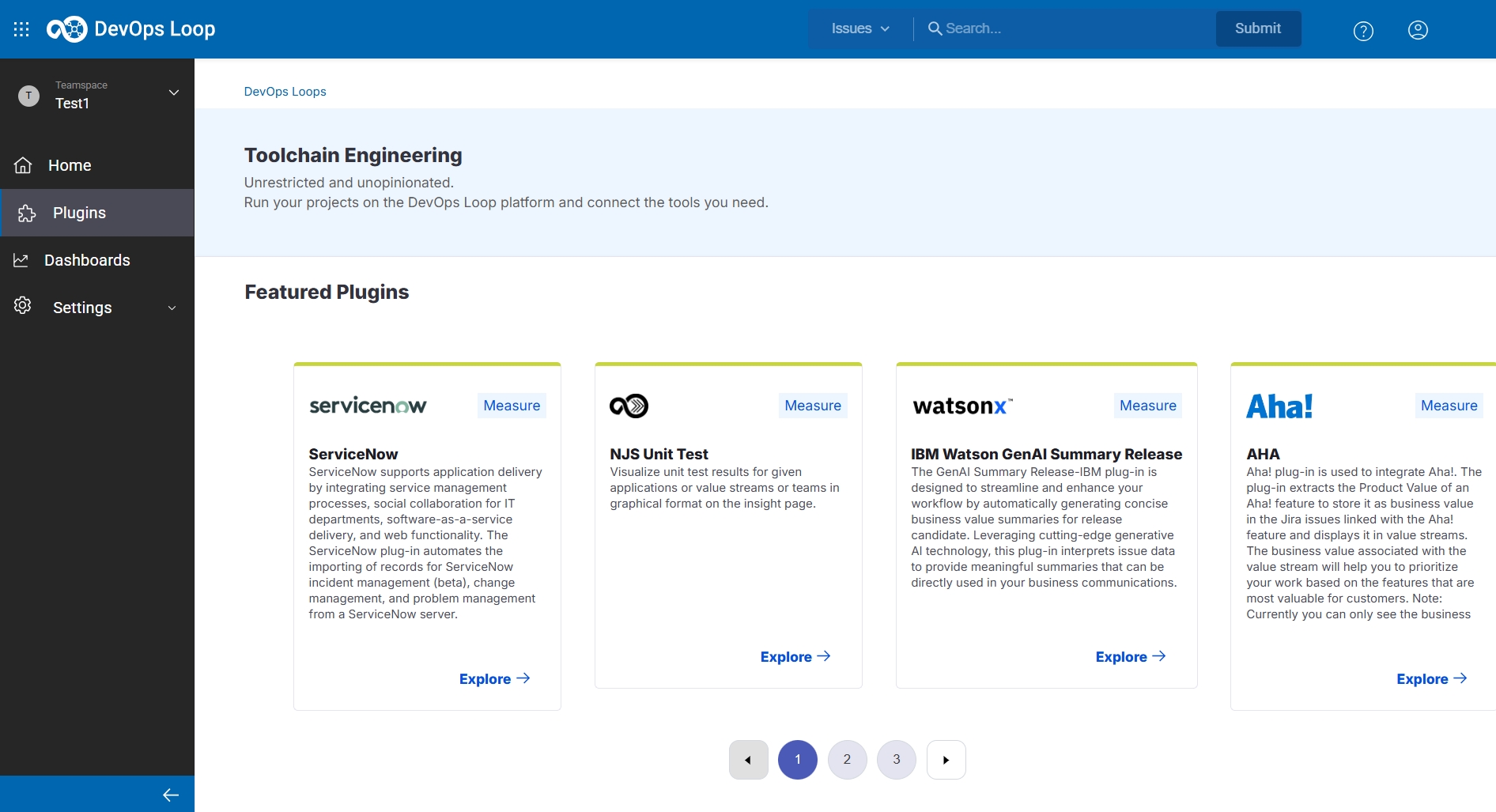
Dashboards
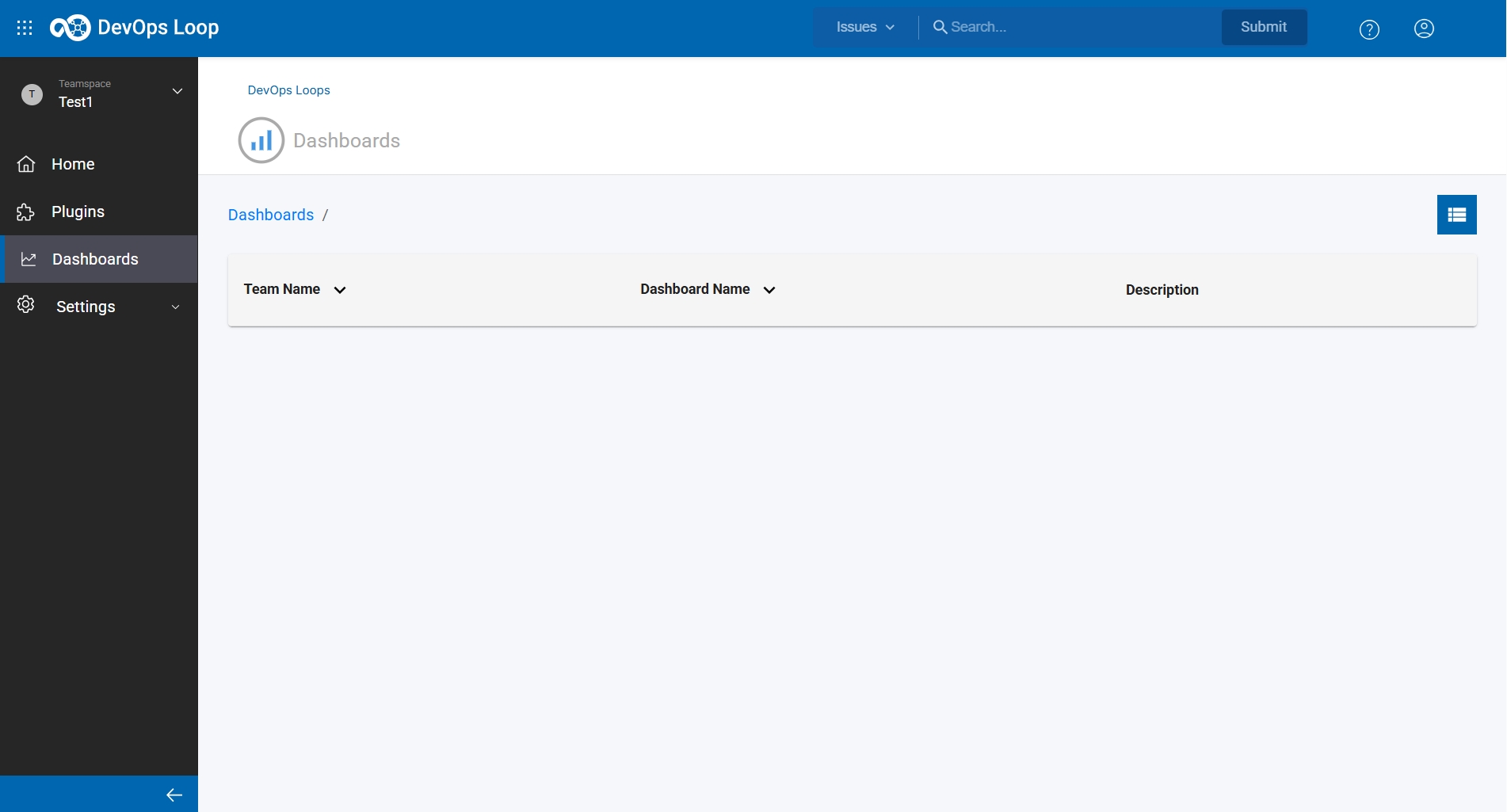
The Dashboards page provides a centralized view where teams can access, filter, and manage all their DevOps Loop dashboards.
Settings
The sidebar provides you the  option to administer users through the User Administration
page and manage integrations through the Integrations page. See
Revoking a license and AI provider integration for Loop Genie - Tech Preview.
option to administer users through the User Administration
page and manage integrations through the Integrations page. See
Revoking a license and AI provider integration for Loop Genie - Tech Preview.
Help
You can click the Help icon  to quickly access the product information and documentation
resources.
to quickly access the product information and documentation
resources.
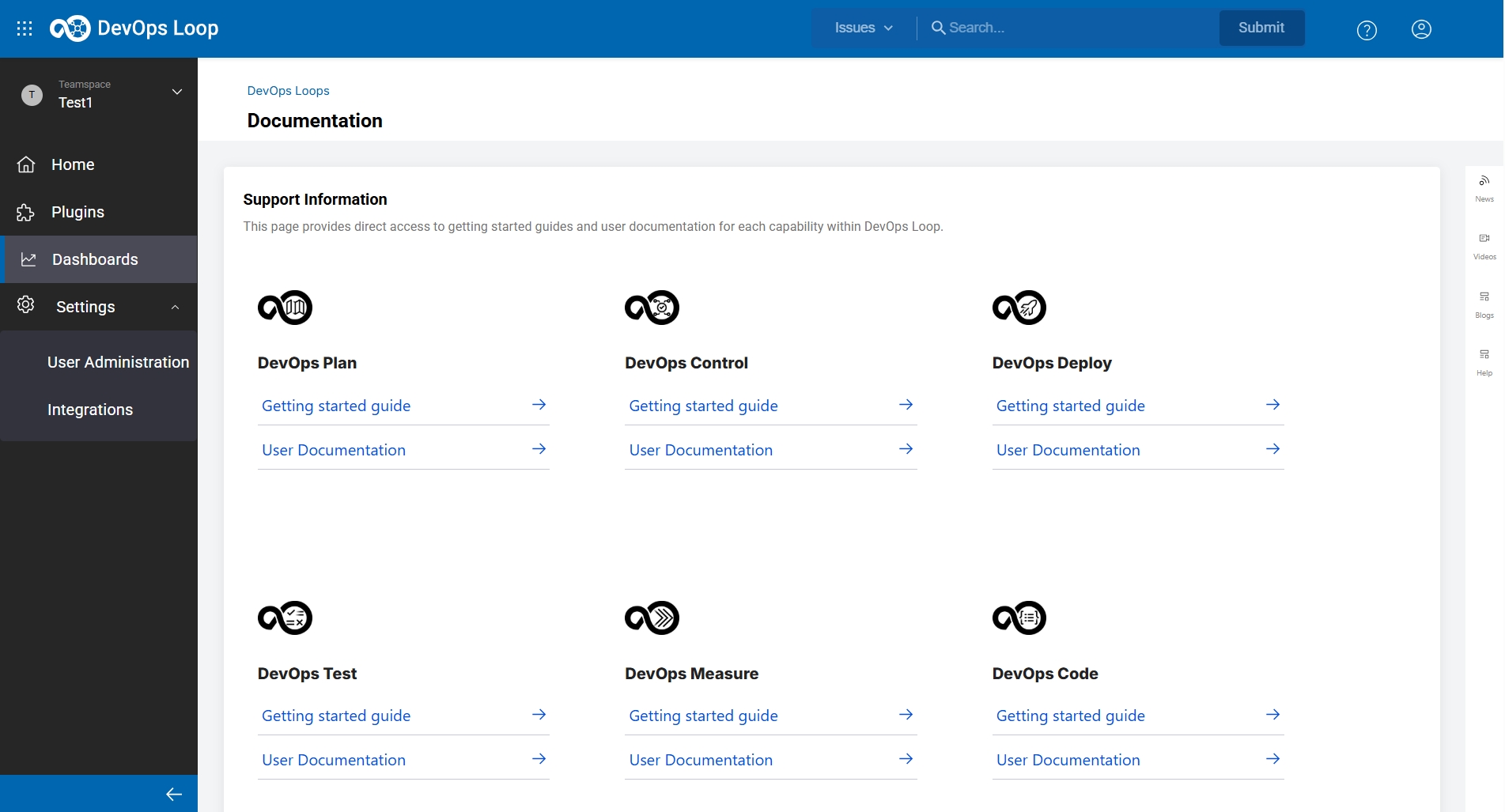
You can select Documentation option in the Help menu to view getting-started guides and detailed user documentation for every capability within DevOps Loop.
Profile
The Profile
 displays the logged-in user’s information and provides the option to log out of
DevOps Loop.
displays the logged-in user’s information and provides the option to log out of
DevOps Loop.
To log out, you can click the profile icon , and then click Logout. The following logout page is
displayed.
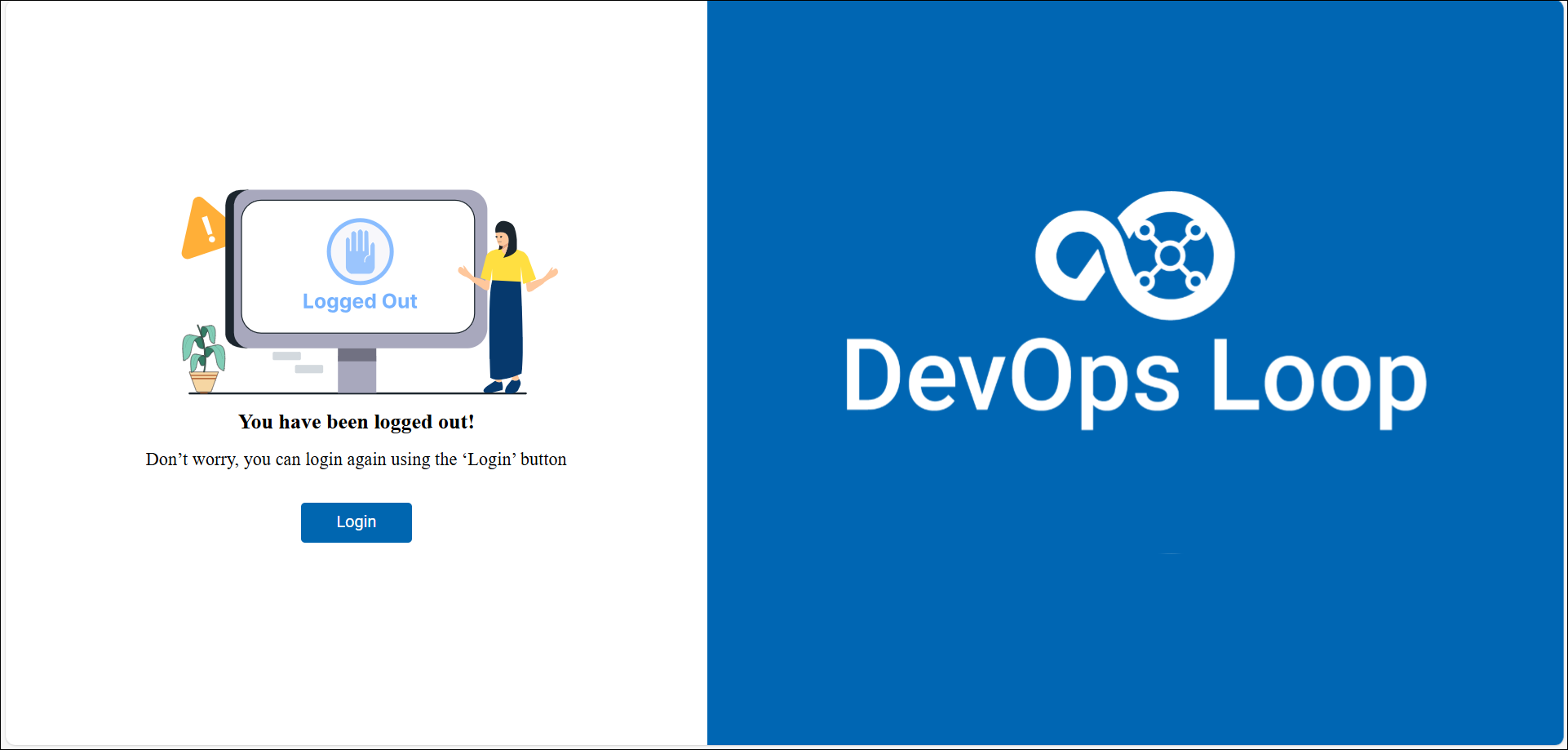
You can click Login to log in again.