Migrating the HCL Commerce Version 9.1 offline database
Before you can migrate your live HCL Commerce Version 9.1 database to your HCL Commerce+ Transaction Server environment, you must migrate an offline version of your HCL Commerce Version 9.1 database, so you can perform the necessary testing of your migrated HCL Commerce Version 9.1 assets. The offline HCL Commerce Version 9.1 database is the HCL Commerce Version 9.1 database that you restored to your HCL Commerce+ Transaction Server environment.
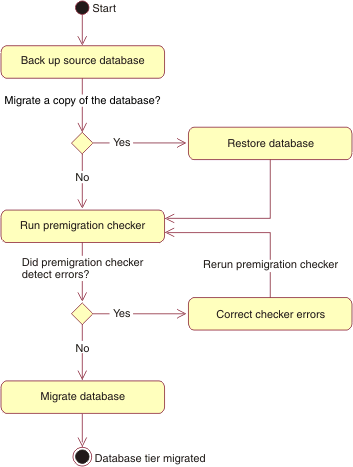
The following diagram depicts the database migration flow.
Before you begin
- Ensure that the data in your KEYS table is valid. In particular, ensure that any rows you added for custom tables have valid data.
About this task
Procedure
-
Run the premigration database check.
-
Check the database by running the following command:
wcim_ant.sh -tier db -action check -from 91 -instanceName instance_name
                    -isStaging false [-defaultTablespace yes | no] [-logLevel Error | Warning | Info
                    | Verbose | Debug] [-dbSslEnable true | false]
Where:- tier
- (Optional) Specifies the tier of your Commerce+ Transaction Server
topology that you are migrating. The only available option is
db.
The value for tier defaults to db if left unspecified.
- action
- Specifies the action to perform when the command runs. The supported actions
are as follows:
- check
- Runs the database premigration checker to check the status of your database before you migrate it. Run the database premigration checker before you migrate the database.
- from
- Specifies the version of the Commerce+ Transaction Server database from which you are migrating. The only available option is 91.
- instanceName
- (Optional) Specifies the name of your HCL Commerce Version 9.1
instance.Note: The
instanceNamemust be demo. This is an Commerce+ Transaction Server default.The value for instanceName defaults to demo if left unspecified.
- isStaging
- Specifies whether you are checking your staging database.
- true
- You are checking a staging database.
- false
- You checking a non-staging database.
 dbSslEnable
- Optional: This parameter determines whether SSL is enabled for the JDBC
database connection. When set, it appends the appropriate SSL configuration to
the JDBC connection string.
- true
- Set this value if the database supports SSL connection.
- false
- Set this value if the database does not supports SSL connection.
- defaultTablespace
- Optional: Specifies whether to use a default table space for your
database.
- yes
- Sets a default table space.
- no
- A non-default table space can be used. You are prompted to pass a table space name later in the migration.
- logLevel
- Optional: Specifies the amount of information about the database tier
migration that is logged. The valid log levels are as follows:
- Error
- Only error messages are logged.
- Warning
- All warning and error messages are logged.
- Info
- All error, warning, and event messages are logged.
- Verbose
- All errors, events, and other information are logged, including all SQL statement information. It requires 1-2 MB of storage for most migrations. Verbose is set by default.
- Debug
- Similar to the Verbose option, but includes some additional debug information. This value is helpful if you encounter errors and need to debug them. It requires 1-2 MB of storage for most migrations.
The following snippet is an example of the database check interactions:/opt/CommerceUtilities/bin>wcim_ant.sh -tier db -action check -from 91 -instanceName demo -isStaging false -logLevel Verbose Database type? db2 Database name? mall Is the database backup completed? [ Yes ] (Yes,No,) Yes Is the database restore completed? [ Yes ] (Yes,No,) YesWhen the check completes successfully, you see the following message:INFO: WCIM has completed the job(s) successfully.
-
Check the database by running the following command:
-
Migrate the database.
-
Migrate the database by running the following command from your utility
container:
wcim_ant.sh -tier db -action migrate -from 91 -instanceName
                    instance_name -isStaging false [-defaultTablespace yes | no] [-logLevel Error |
                    Warning | Info | Verbose | Debug]
Where:- tier
- (Optional) Specifies the tier of your Commerce+ Transaction Server
topology that you are migrating. The only available option is
db.
The value for tier defaults to db if left unspecified.
- action
- Specifies the action to perform when the command runs. The supported actions
are as follows:
- migrate
- Migrates the database to HCL Commerce+ Transaction Server.
- from
- Specifies the version of the Commerce+ Transaction Server database from which you are migrating. The only available option is 91.
- instanceName
- (Optional) Specifies the name of your HCL Commerce Version 9.1
instance.Note: The
instanceNamemust be demo. This is an Commerce+ Transaction Server default.The value for instanceName defaults to demo if left unspecified.
- isStaging
- Specifies whether you are checking your staging database.
- true
- You are migrating a staging database.
- false
- You are migrating a non-staging database.
- dbSslEnable
- Optional: This parameter determines whether SSL is enabled for the JDBC
database connection. When set, it appends the appropriate SSL configuration to
the JDBC connection string.
- true
- Set this value if the database supports SSL connection.
- false
- Set this value if the database does not supports SSL connection.
- defaultTablespace
- Optional: Specifies whether to use a default table space for your
database.
- yes
- Sets a default table space.
- no
- A non-default table space can be used. You are prompted to pass a table space name later in the migration.
- logLevel
- Optional: Specifies the amount of information about the database tier
migration that is logged. The valid log levels are as follows:
- Error
- Only error messages are logged.
- Warning
- All warning and error messages are logged.
- Info
- All error, warning, and event messages are logged.
- Verbose
- All errors, events, and other information are logged, including all SQL statement information. It requires 1-2 MB of storage for most migrations. Verbose is set by default.
- Debug
- Similar to the Verbose option, but includes some additional debug information. This value is helpful if you encounter errors and need to debug them. It requires 1-2 MB of storage for most migrations.
The following snippet is an example of how to run the database migration check:/opt/CommerceUtilities/bin>wcim_ant.sh -tier db -action migrate -from 91 -instanceName demo -isStaging false -logLevel Verbose Database type? db2 Database name? mall Is the database backup completed? [ Yes ] (Yes,No,) Yes Is the database restore completed? [ Yes ] (Yes,No,) YesWhen the database migration completes successfully, you see the following message:INFO: WCIM has completed the job(s) successfully.
-
Migrate the database by running the following command from your utility
container: