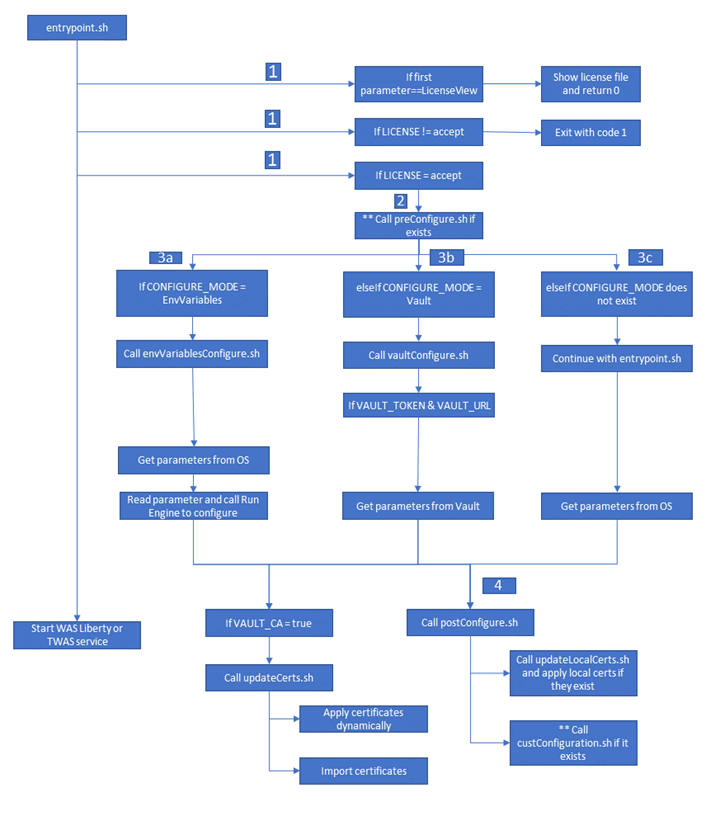
Docker container startup logic for Commerce+ Transaction Server
HCL Commerce+ Transaction Server uses an entrypoint.sh helper script when deploying containers from HCL-provided images. This script manages the startup process by handling configuration, license checks, and environment setup. Understanding this process is important for customizing deployments and building efficient CI/CD pipelines.
Entrypoint.sh fetches settings from environment variables or centralized stores like Vault, ensuring the container starts with the right configuration. The script permits custom pre-configuration, which enables you to adapt the container to specific deployment needs. Since it is a shell script, /SETUP/bin/entrypoint.sh is human-readable and it is recommended that you famliarize yourself with its contents.
Startup sequence
- When you deploy a container from an HCL-provided image, the
entrypoint.shscript is executed. This script determines the configurations to use while starting up the container.- License Acceptance Check
- The script first checks for license acceptance. All containers
require
LICENSE=acceptto be passed in order to start. - Custom Pre-Configuration
- If you need to set any custom configurations before the HCL logic starts, you can create a preConfigure.sh script and save it to the /SETUP/bin/ directory of the Docker image.
- Next, the script determines how to pass Docker startup parameters based on the
CONFIGURE_MODE environment variable. This variable takes
one of two values or can be omitted (see Startup with CONFIGURE_MODE=EnvVariables and Startup with CONFIGURE_MODE=Vault for
detailed configuration instructions).
- Omit CONFIGURE_MODE
- Specify the default configuration by omitting the CONFIGURE_MODE parameter. If you want to quickly deploy an environment with minimal changes, you can specify your values as container environment variables. This method only supports some parameters, so customization is limited.
- CONFIGURE_MODE=EnvVariables
- This is the Environment Variables configuration. Specify this configuration if you do not intend to use Vault. It triggers the /SETUP/bin/envVariablesConfigure.sh script, which pulls parameters from the container environment variables.
- CONFIGURE_MODE=Vault
- Use this value if you set up your parameters in Vault. It triggers the /SETUP/bin/vaultConfigure.sh script, which pulls parameters from your Vault as long as you provide VAULT_TOKEN and VAULT_URL information.
- After the system has determined how to pass Docker environment variables, it will perform certificate configuration if you have configured Vault as a certificate authority. Set VAULT_CA=true to trigger the /SETUP/bin/updateCerts.sh script if Vault is configured as a certificate authority with a PKI backend.
- Next, entrypoint.sh triggers the
/SETUP/bin/custConfiguration.sh script, which provides
two further customizations options for Docker container startup:
- Local Certificate Handling
- If you are handling certificates locally and not using Vault, define your certificate information in a JSON file and save it to /SETUP/certs/custom. custConfiguration.sh invokes the /SETUP/bin/updateLocalCerts.sh script, which looks in the /SETUP/certs/custom directory and loads all JSON files there.
- Custom Startup Logic
- If you want to customize any startup logic scripts, create a /SETUP/bin/custConfiguration.sh script to include your own logic. This is the last script to run during container startup. Any configurations specified in custConfiguration.sh supersede any configurations from previous scripts.
- To add any of your custom files to the Docker image (for example,
preConfigure.sh,
custConfiguration.sh, or *.json),
create a Dockerfile and define a COPY instruction to copy the file into the new
target location of the Docker image. Then use the Dockerfile to build a custom
Docker image.
- Create a Dockerfile. Define a
COPYinstruction to copy custom files into the new target location of the Docker image. An example Dockerfile could be:FROM hcl/commerce:latest COPY preConfigure.sh /SETUP/bin/preConfigure.sh COPY custConfiguration.sh /SETUP/bin/custConfiguration.sh COPY custom-certs.json /SETUP/certs/custom/custom-certs.json - Build the Custom Docker Image. Use the Dockerfile to build the custom Docker image.
- Create a Dockerfile. Define a
Viewing Help and License Information
docker run -it -e LICENSE=accept Docker image help
docker run -it -e LICENSE=accept Docker image LicenseView
docker run -it -e LICENSE=accept -e lang=cs|el|es|in|ja|lt|pt|sl|zh|de|en|fr|it|ko|pl|ru|tr|zh_TW Docker image LicenseView
Starting Containers with Various Configuration Options
- Mandatory Parameters
- Each HCL Commerce+ Transaction Server Docker container has mandatory parameters that must be provided for the container to start.
- Optional Parameters
- You can further customize the container by specifying optional parameters.
HCL Commerce+ Transaction Server Default Configurations
HCL-provided Docker images have embedded default configurations for quick deployment. If you do not use the default host names or database information, ensure that you pass in the necessary parameters during container startup.
Each container is configured with a specific host name and default certificate. For example:
| Docker image | Default host name |
|---|---|
| commerce/crs-app | store |
| commerce/search-app | search |
| commerce/xc-app | xc |
| commerce/ts-app | app |
| commerce/ts-web | web |
| commerce/ts-db Note: This assumes that you
are running a p Docker container. |
postgres |
| commerce/tooling-web | tooling-web |
| commerce/store-web | store-web |
| commerce/nextjs-store-app | nextjs-store |
| commerce/search-nifi-app | nifi |
| commerce/search-query-app |
|
| commerce/search-registry-app | registry |
| commerce/search-ingest-app | ingest |
| commerce/plugin-app | plugin |
| bitnami/zookeeper | zookeeper |
| redis | redis |
| postgres | postgresql |
| Database parameters | Value |
|---|---|
| Database type (dbType) | postgres |
| JNDI |
|
| Database instance name (dbName) | mall |
| Database user (dbUser) | wcs |
| Database user password (dbUserPass) | wcs1 |
| Database host (dbHost) | db |
| Database port (dbPort) | 50000 |