Defining the database schema
In this step, you customize the physical layer by adding tables to contain recipe information in the HCL Commerce database schema.
About this task
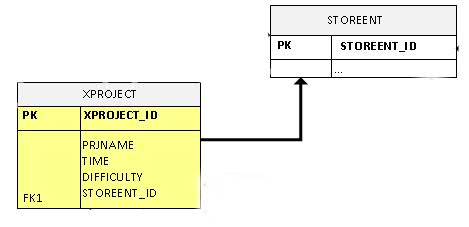
The following diagram identifies the changes to the HCL Commerce database schema. The new tables that you add to the schema in this lesson are highlighted within the image:
Procedure
- Start the HCL Commerce test server.
- Open a new browser window and enter the following URL: http://localhost/webapp/wcs/admin/servlet/db.jsp
-
In the text box, type:
CREATE TABLE XPROJECT (XPROJECT_ID BIGINT NOT NULL, TIME INTEGER , DIFFICULTY INTEGER , PRJNAME VARCHAR(64) NOT NULL, STOREENT_ID INTEGER NOT NULL, OPTCOUNTER SMALLINT, CONSTRAINT P_XPROJECT PRIMARY KEY (XPROJECT_ID), CONSTRAINT F_XPROJECT FOREIGN KEY (STOREENT_ID) REFERENCES STOREENT(STOREENT_ID) ON DELETE CASCADE, CONSTRAINT I_XPROJECT UNIQUE (PRJNAME) ); - Click Submit Query.
-
Add entries to the KEYS table for the newly created tables.
In the text box, type:
INSERT INTO KEYS (KEYS_ID, TABLENAME, COLUMNNAME, COUNTER) VALUES ((SELECT MAX(KEYS_ID)+1 from KEYS), 'XPROJECT', 'XPROJECT_ID', 10000); - Click Submit Query.
Results
- XPROJECT
- This table holds Project information.
Column name Data type Description Constraint (PK, FK) XPROJECT_ID BIGINT NOT NULLThe identifier for the project. PK TIME INTEGERThe time used for the project. DIFFICULTY INTEGERThe difficulty level for the project. PRJNAME VARCHAR(64) NOT NULLThe name of this project. STOREENT_ID INTEGER NOT NULLThe store that the project belongs to. FK to STOREENT table. OPTCOUNTER SMALLINTReserved for HCL internal use.