
Registering the AIX download plug-in
Use the Manage Download Plug-ins dashboard to register the download plug-in for AIX.
Before you begin
- Link your IBM ID to an IBM Customer
Number (ICN) that is assigned to a valid contract. You can link multiple
ICNs to your IBM ID. For linking instructions, see the steps that
described in the announcement at http://www-01.ibm.com/support/icn/. Note: To determine the ICNs associated with your current agreements with IBM, contact your IBM Business Partner or IBM Sales Representative. If you do not have an existing IBM ID or if you require further assistance, see the IBM Support Portal.
- Subscribe to the Patching Support site to gain access to the Manage Download Plug-ins dashboard.
- Activate the Encryption Analysis for Clients analysis, which is available from the BES Support site.
- Activate the Download Plug-in Versions analysis, which is available from the Patching Support site.
- If you want to encrypt endpoints, deploy the Enable Encryption for Clients Fixlet, which is available from the BES Support site.
About this task
When you register the download plug-in on a computer without the plug-in, the plug-in is automatically installed and the configuration file is created.
If a download plug-in is already installed on the computer, the configuration file is overwritten.
Procedure
- From the Patch Management domain, click .
-
From the Servers and Relays table, select the server on which the download plug-in is to be
registered.
Important: You must always register the download plug-in on the BigFix server.
- From the Plug-ins table, select AIX Plug-in.
- Click Register.The Register AIX Plug-in wizard displays.
Figure 1. Register AIX download plug-in wizard 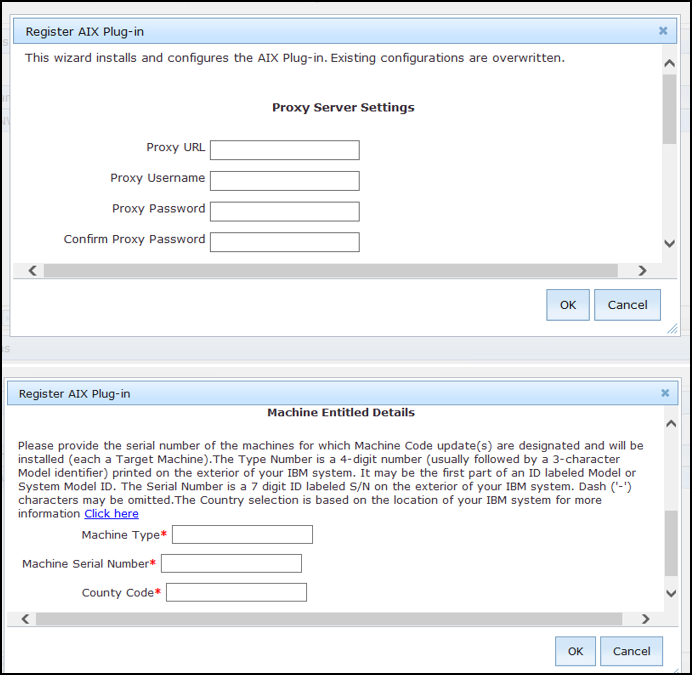
- Enter your IBM ID and password to download the available updates that you are entitled under an applicable warranty or support agreement.
-
Enter the proxy parameters and the machine entitled details if the
downloads must go through a proxy server.
Note: Only basic authentication is supported.
- Proxy URL
- The URL of your proxy server. It must be a well-formed URL, which contains a protocol and
a host name. The URL is usually the IP address or DNS name of your proxy server and its
port, which is separated by a colon. For example:
http://192.168.100.10:8080.
- Proxy Username
- Your proxy user name if your proxy server requires authentication. It is usually in the
form of
domain\username.
- Proxy Password
- Your proxy password if your proxy server requires authentication.
- Confirm Proxy Password
- Your proxy password for confirmation.
Required Parameters:- Country Code
- The Country code selection is based on the location of your IBM system.
- Machine Serial Number
- The Serial number is a 7 digit ID labeled "S/N" on the exterior of your IBM system. Dash ("-") characters may be omitted.
- Machine Type
- The Type number is a 4-digit number (usually followed by a 3-character Model identifier) printed on the exterior of your IBM system. It may be the first part of an ID labeled "Model" or "System Model" ID.
- Click OK.The Take Action dialog displays.
- Select the target computer.
- Click OK.