Learn how to select operating systems, choose applications, and deploy software on
Windows devices with this step-by-step guide.
Perform the following steps to enable Software Install Dashboard in the BigFix console:
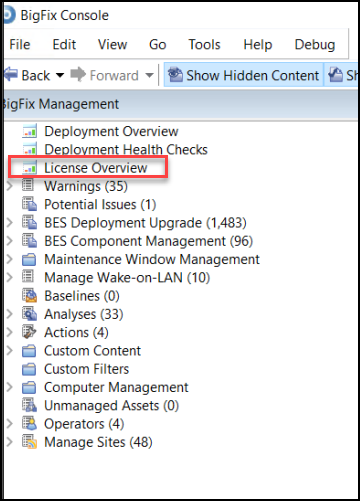
From the BigFix Management domain, click
License Overview dashboard.Figure 1. License Overview
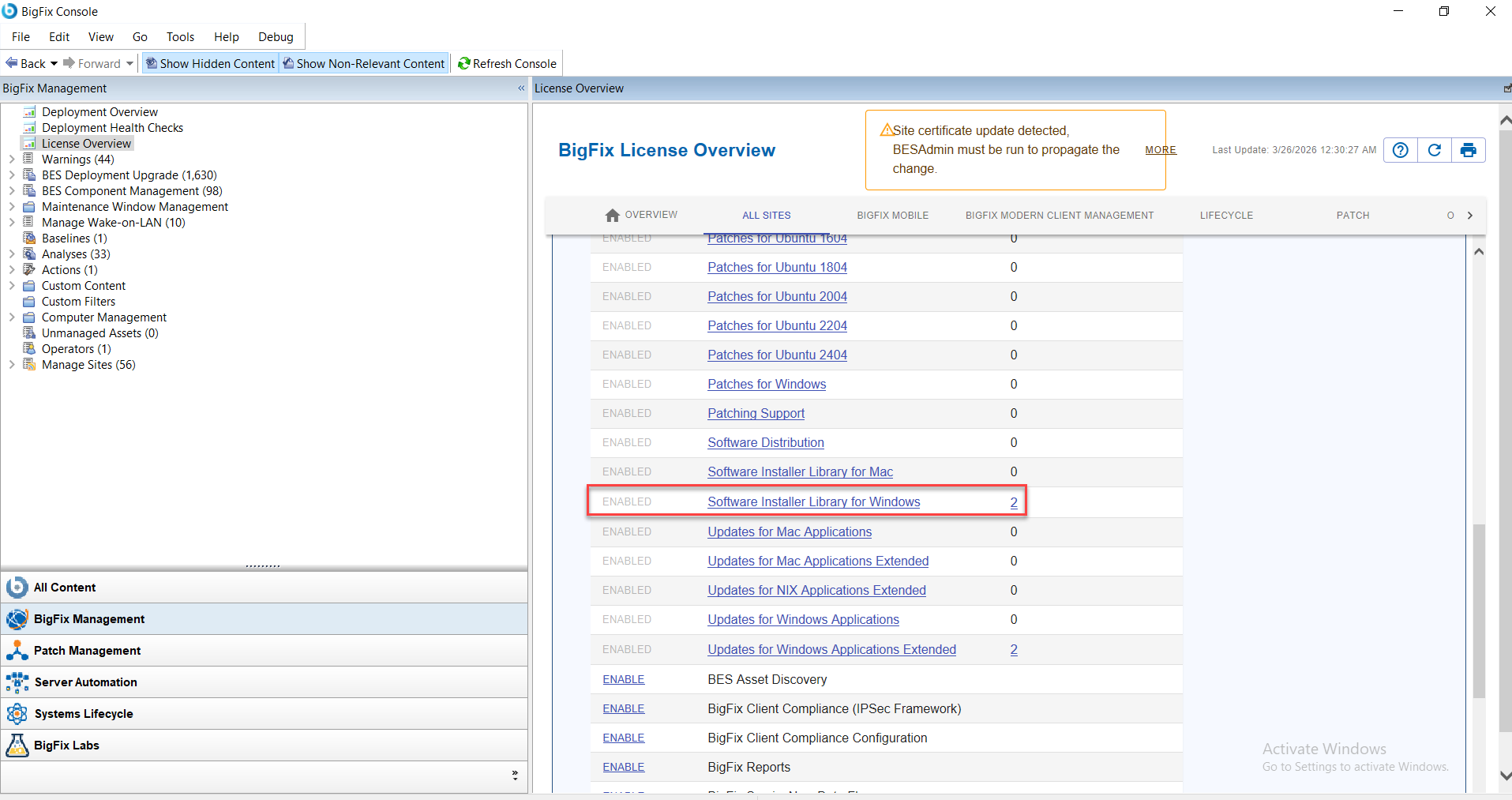
Navigate to the site lists and enable Software Installer Library for
Windows on the License Overview dashboard.Figure 2. Software Installer Library
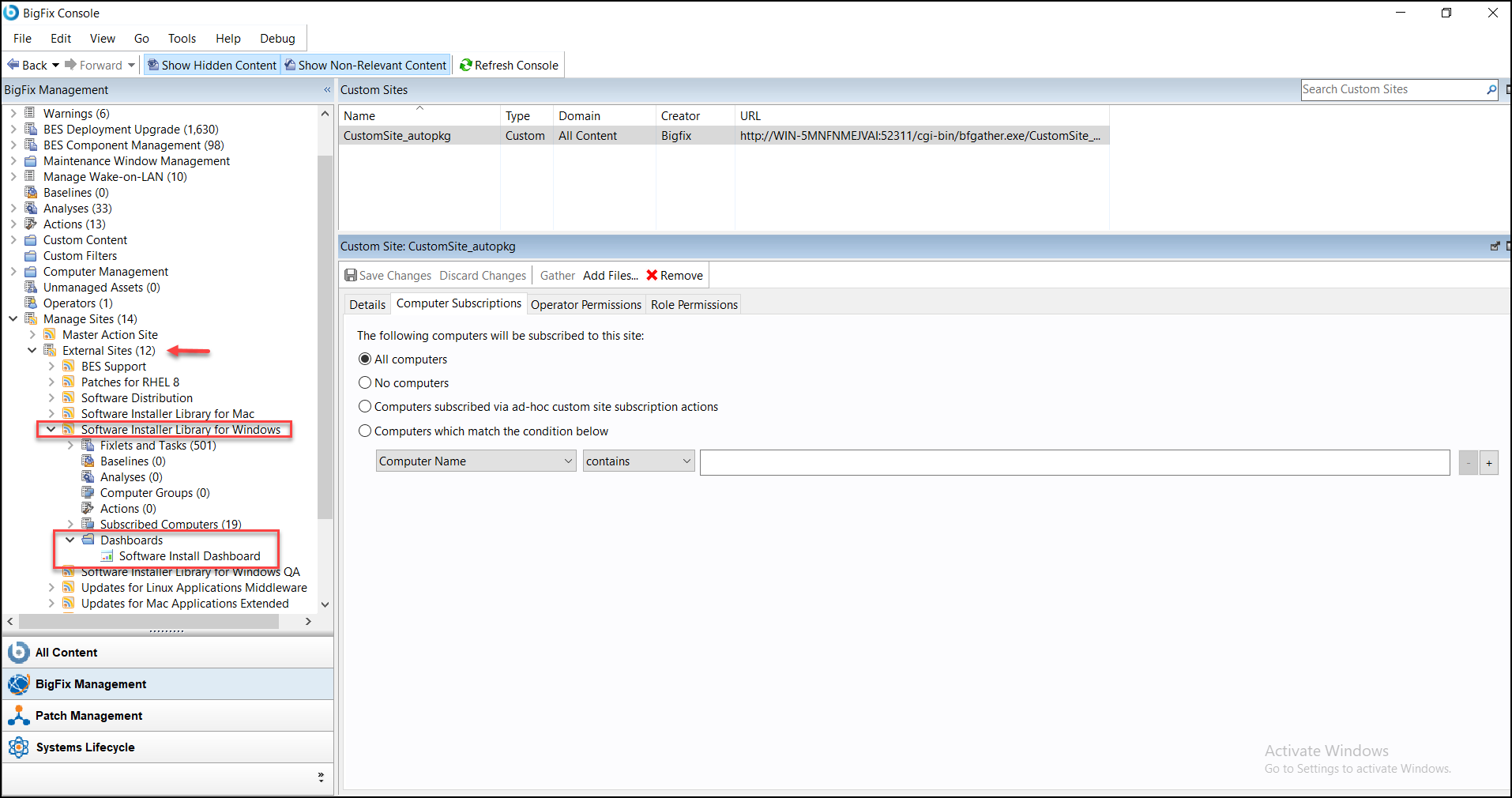
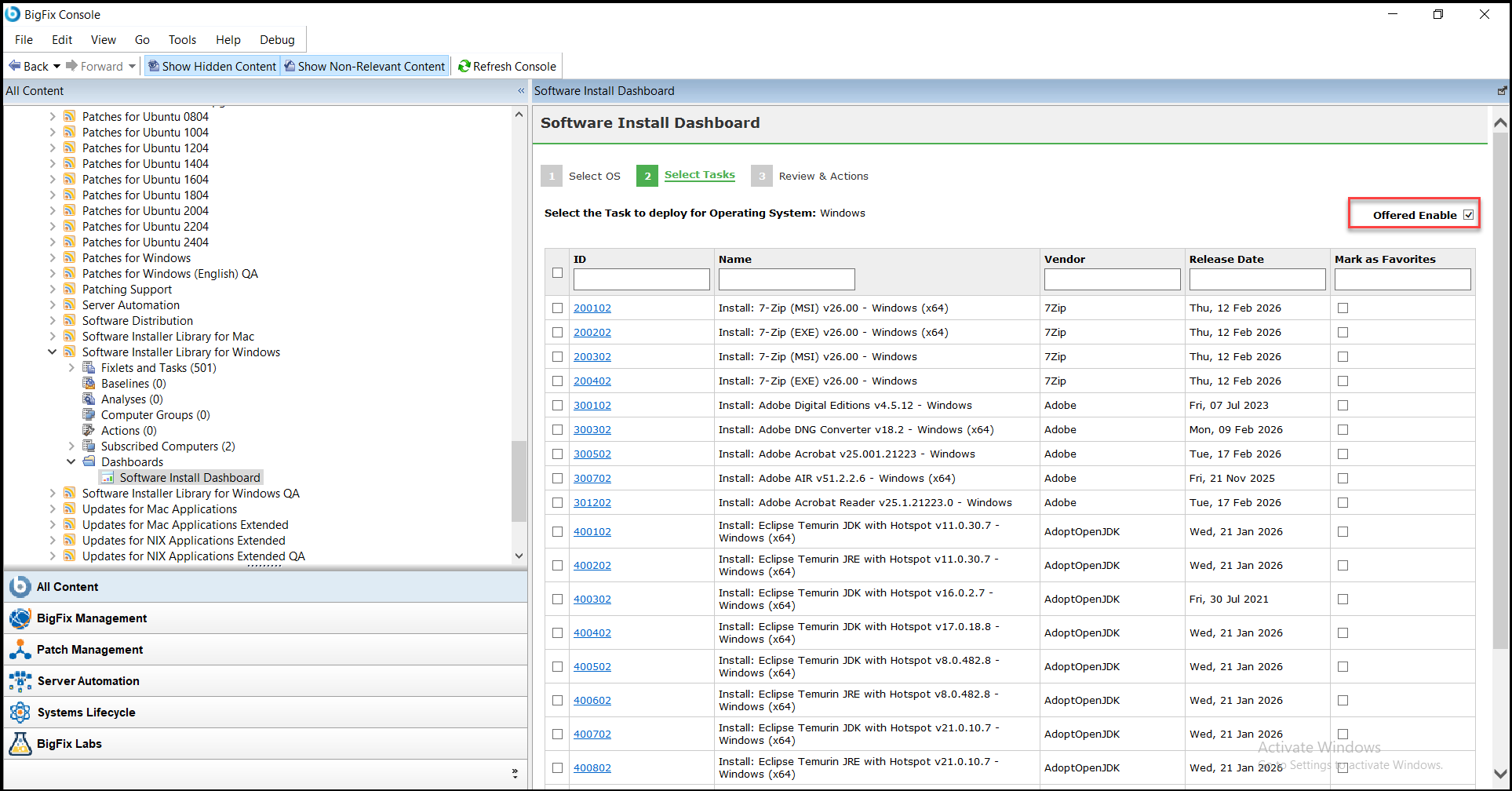
After enabling, navigate to External Sites > Software Installer Library for Windows > Dashboards > Software Install Dashboard to see the Available Options.
Important:Software Install Dashboard options
are not available under Software Installer Library for Mac,
even after enabling the site. To deploy software for Mac endpoints,
you must use the Software Install Dashboard under the Windows site
and then select Mac OS within the dashboard.
Figure 3. Software Install Dashboard
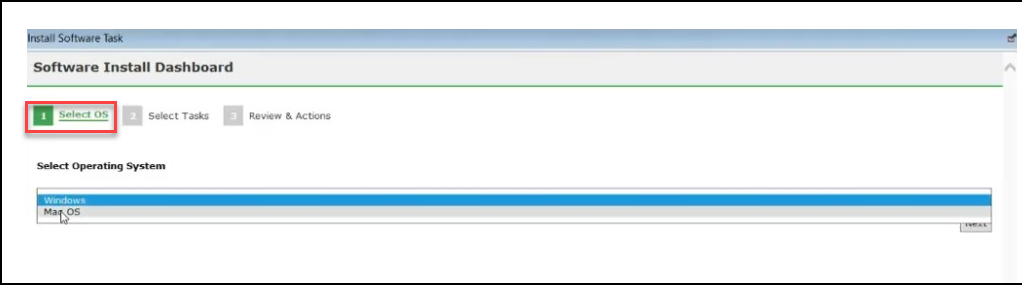
Select Operating System
When you open the Software Install Dashboard, the first step is to select the
operating system.
Available Options:
Windows OS
Mac OS (displayed only if the Mac site is enabled; selection is
done from the Windows Software Install Dashboard)
Figure 4. Select OS
Select Tasks (Applications List)
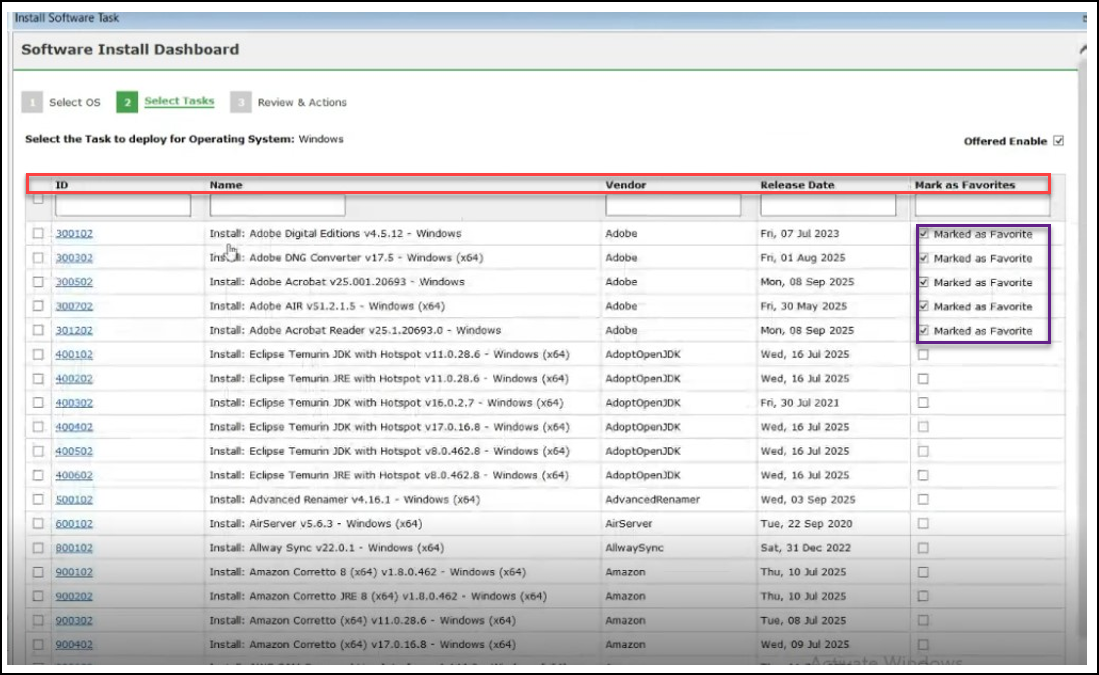
After choosing an OS, the dashboard displays a list of available applications. For
each application, you can view the following details:
ID and Name - Unique identifiers for the software.
Vendor - The software provider.
Release Date - When the version was published.
Mark as Favourite (checkbox option) - You can mark any app as a
Favorite using the checkbox. These apps appear in a dedicated
section for quick access.
Note: Each page is limited to displaying 20 applications
at a time.
Figure 5. Select Tasks
"Offered as Enable" Option
In the top-right corner of the Select Tasks page, you will
find the "Offered as enable" checkbox. This setting dictates
your deployment button availability:Figure 6. "Offered as Enable" Option
Behavior
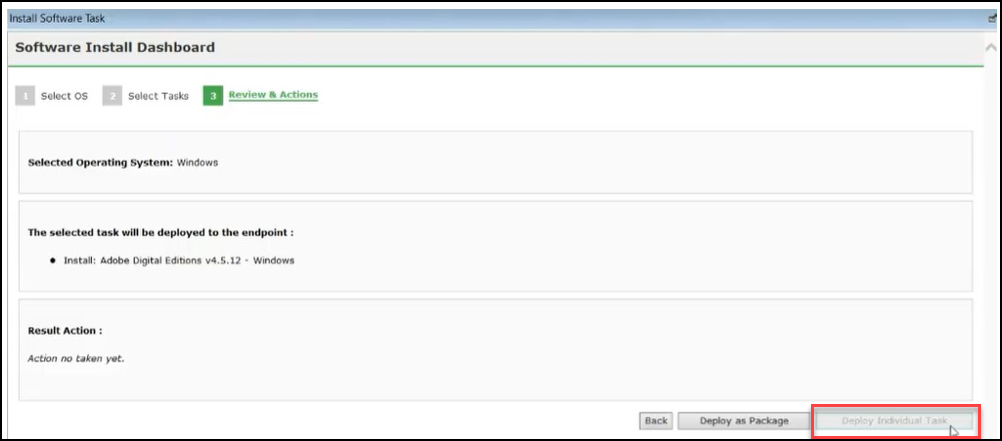
Unchecked:
Deploy Individual Task button is disabled
(greyed out).
Figure 7. Unchecked option
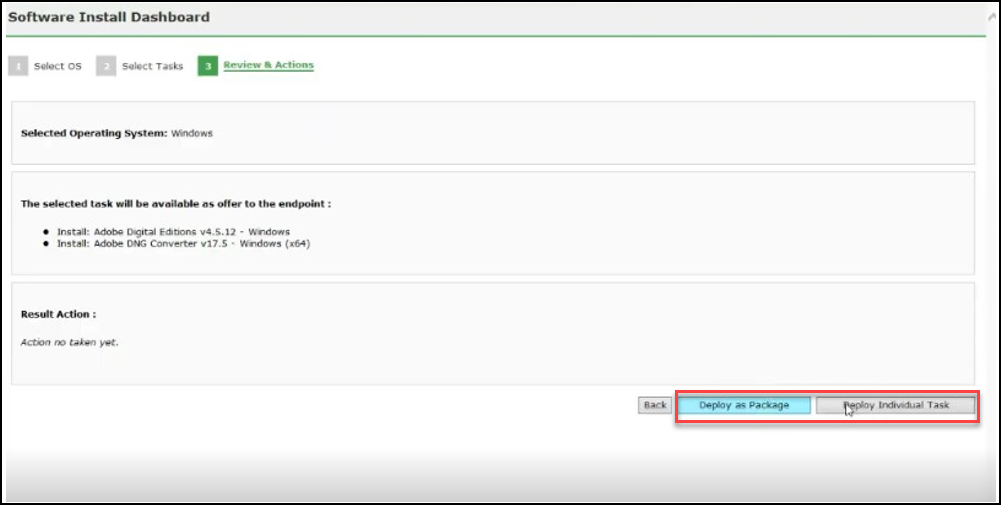
Checked:
Both:
Deploy as Package
Deploy Individual Task are enabled.
Figure 8. Checked option
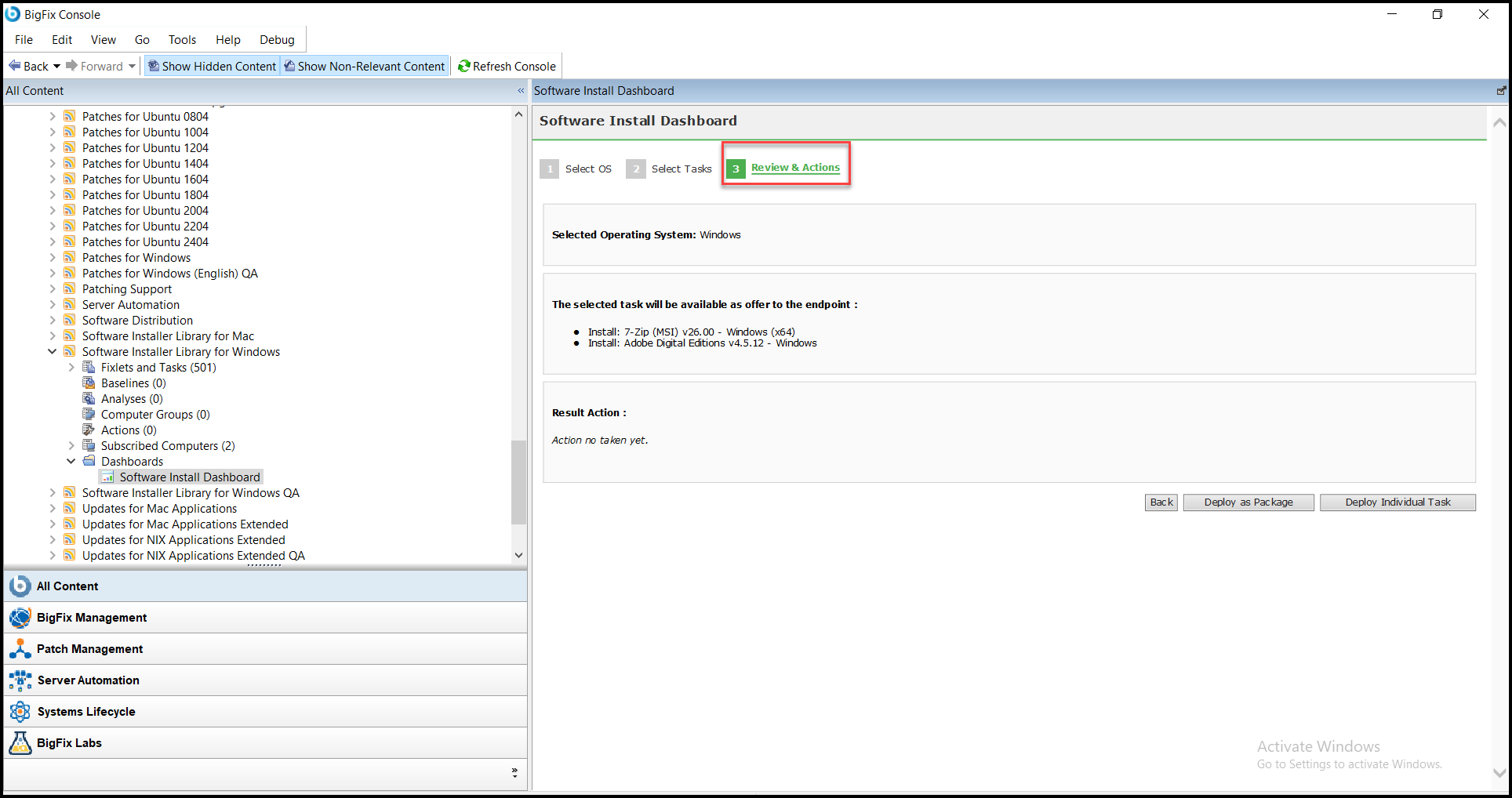
Review and Actions
Once applications are selected, proceed to the Review &
Actions page.
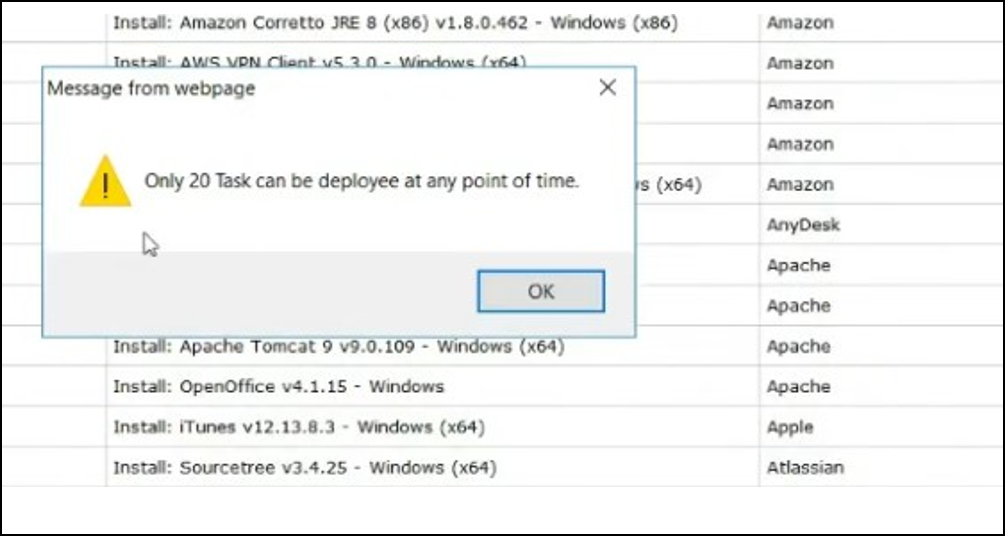
Important:
A maximum of 20 Fixlets can be deployed at one time.
Selecting more than 20 Fixlets will trigger an error message.Figure 9. Review and Actions