
Adding and editing custom attributes
This topic describes how to create, edit and delete custom attributes.
About this task
Use Case: BigFix provides the literal interpretation of the operating system as installed on systems. This is reported through the operating system API and depending on the OS the resulting string may differ slightly. Check out the screenshot below for more details.
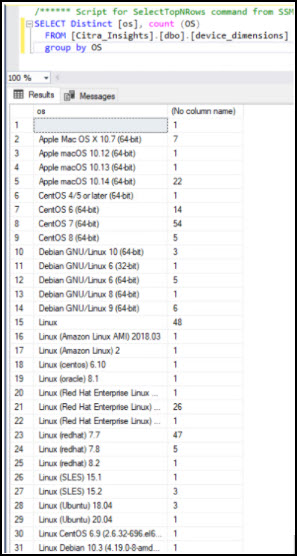
Consider a scenario where you want to provide a rollup count for all given Linux distributions versus the count by individual Linux distributions. This is one of the many use cases where leveraging Custom Attributes can be beneficial.
Observe the data represented below. Note that there are two queries:
- The first query shows the contents of the
custom_attributestable. Notice that the table has been populated with various distributions. - The second query demonstrates how to leverage the table to normalize and group the data accordingly.
Using these two pieces together now enables the primary use case of rolling up operating system for all Linux Distributions.
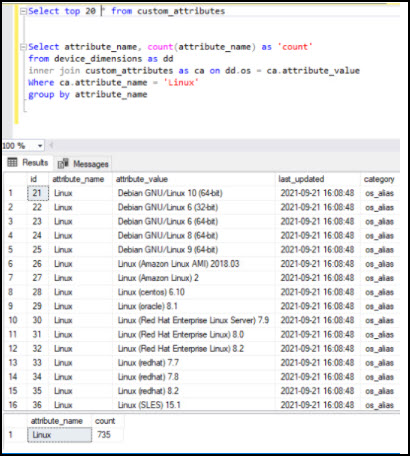
In short, the custom attributes table in combination with the specified query can be used together to normalize data for grouping in this use case. Custom_Attributes are leveraged within several of the BigFix published sample reports.
Assigning permissions to custom attributes
About this task
- Log in to WebUI as a Master Operator.Note: Master Operator permissions are required to assign permissions.
- Navigate to Settings gear and click
Permissions.

- Assign the desired roles access to the Insights app.
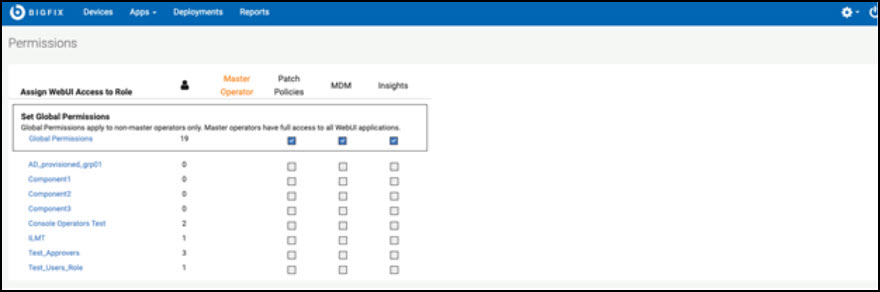
- Once a user has been granted access to the Insights app, the user will see
the Insights app in the WebUI/Apps dropdown.

Adding custom attributes
About this task
- Log in to WebUI.
- Click Apps tab and
click Insights.
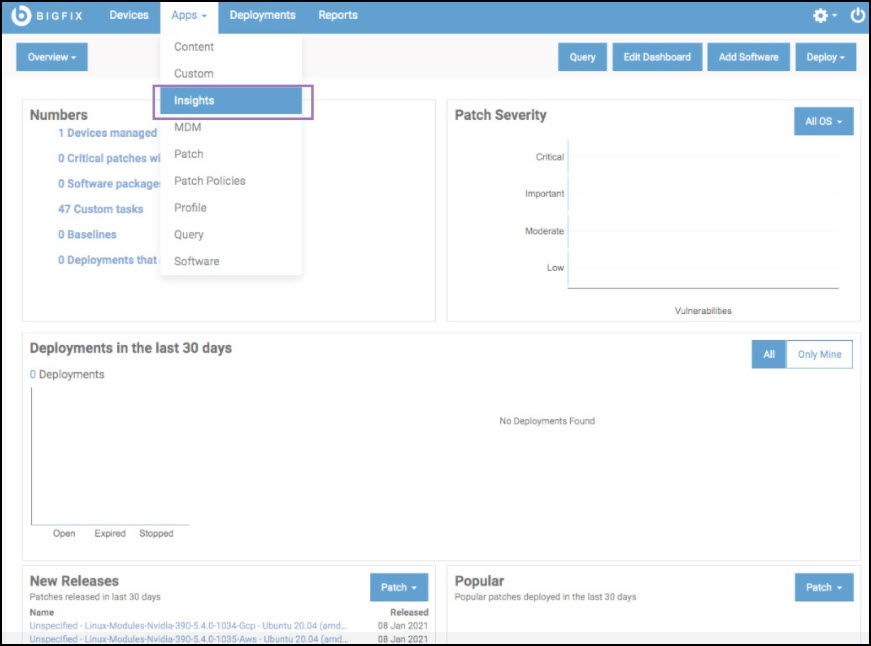
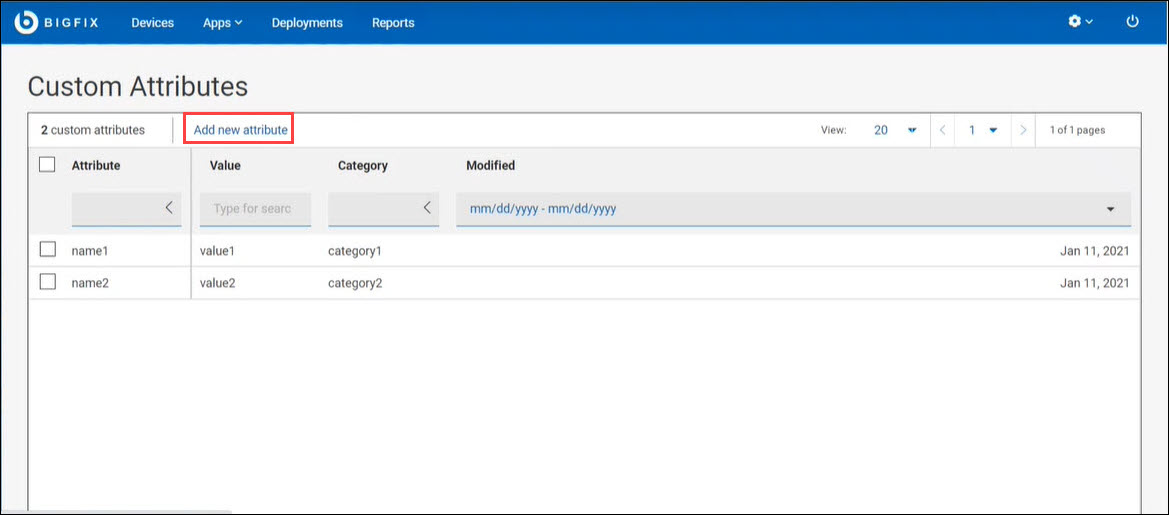
Data grid view enables a quick view of the custom attributes, value, and category lists. Every attribute gives an option to search or filter. You can add, remove, and resize columns.
- Click Add new attribute in the Custom
Attributes page.
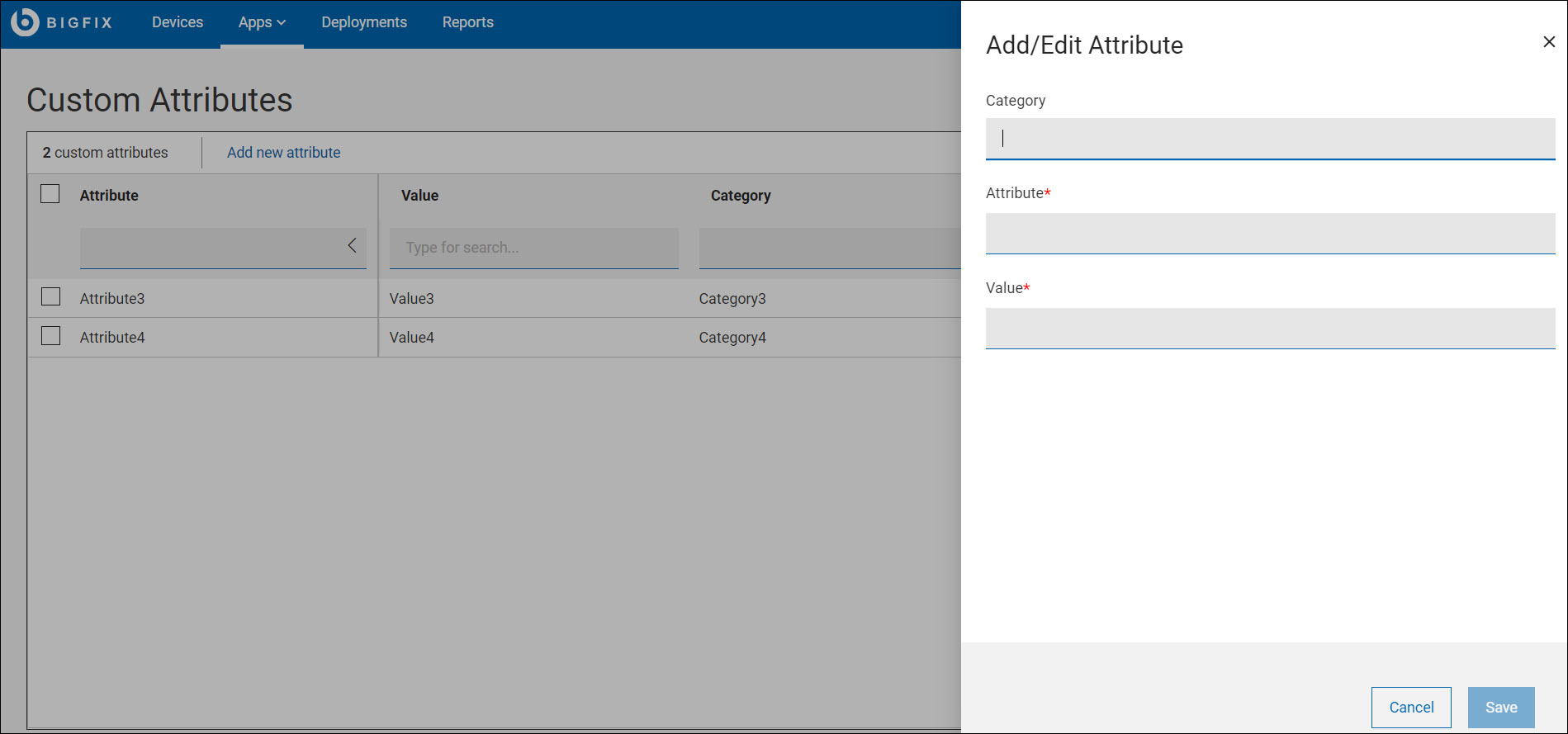
- Enter the Category Name, Attribute
Name, and Value in the Add/edit
Attribute slide out window and
click Save.
Editing custom attributes
About this task
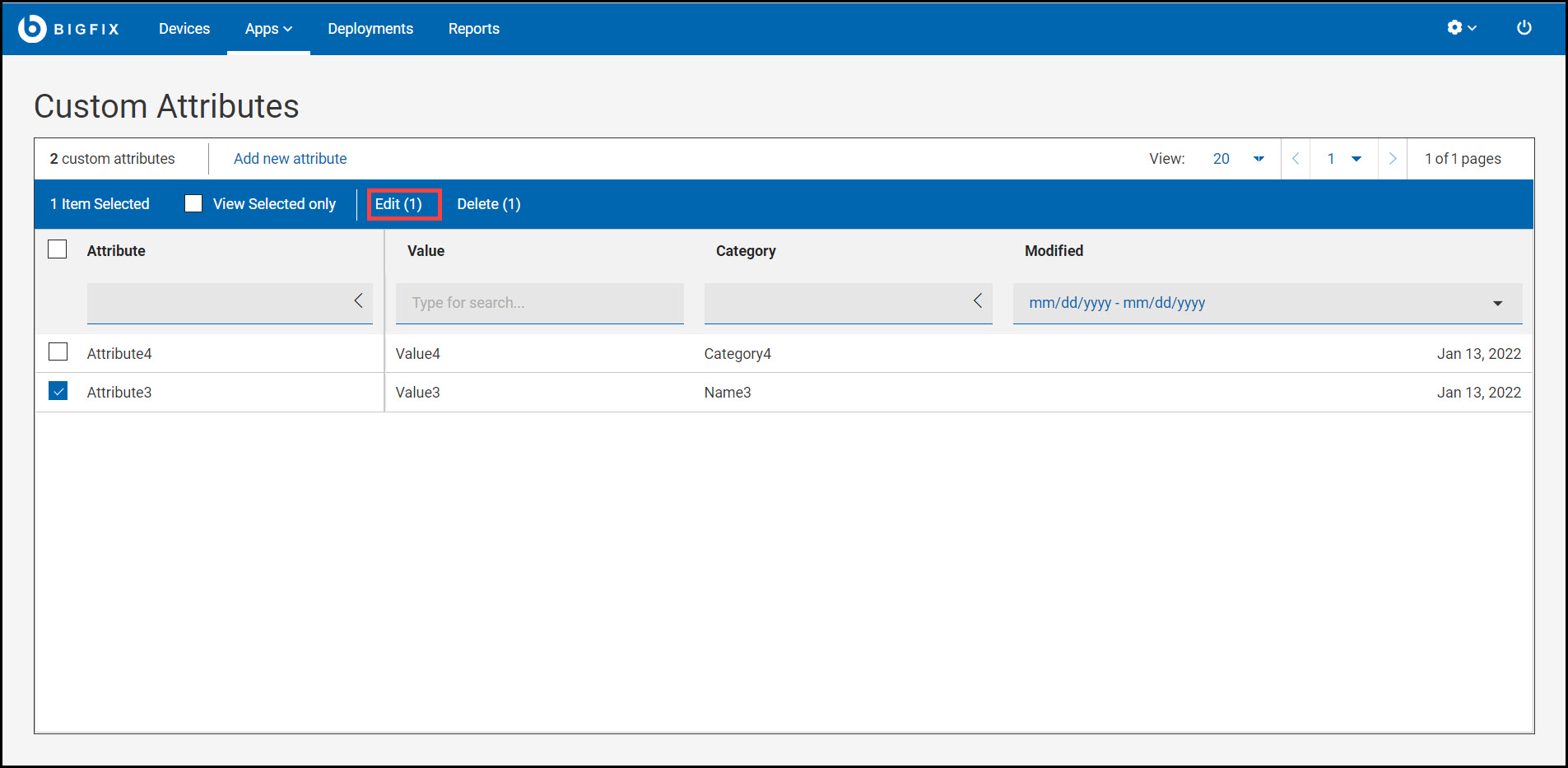
- Navigate to the Custom Attributes page in WebUI.
- Search or select the attribute from the list that you want to edit and click the edit icon.
-
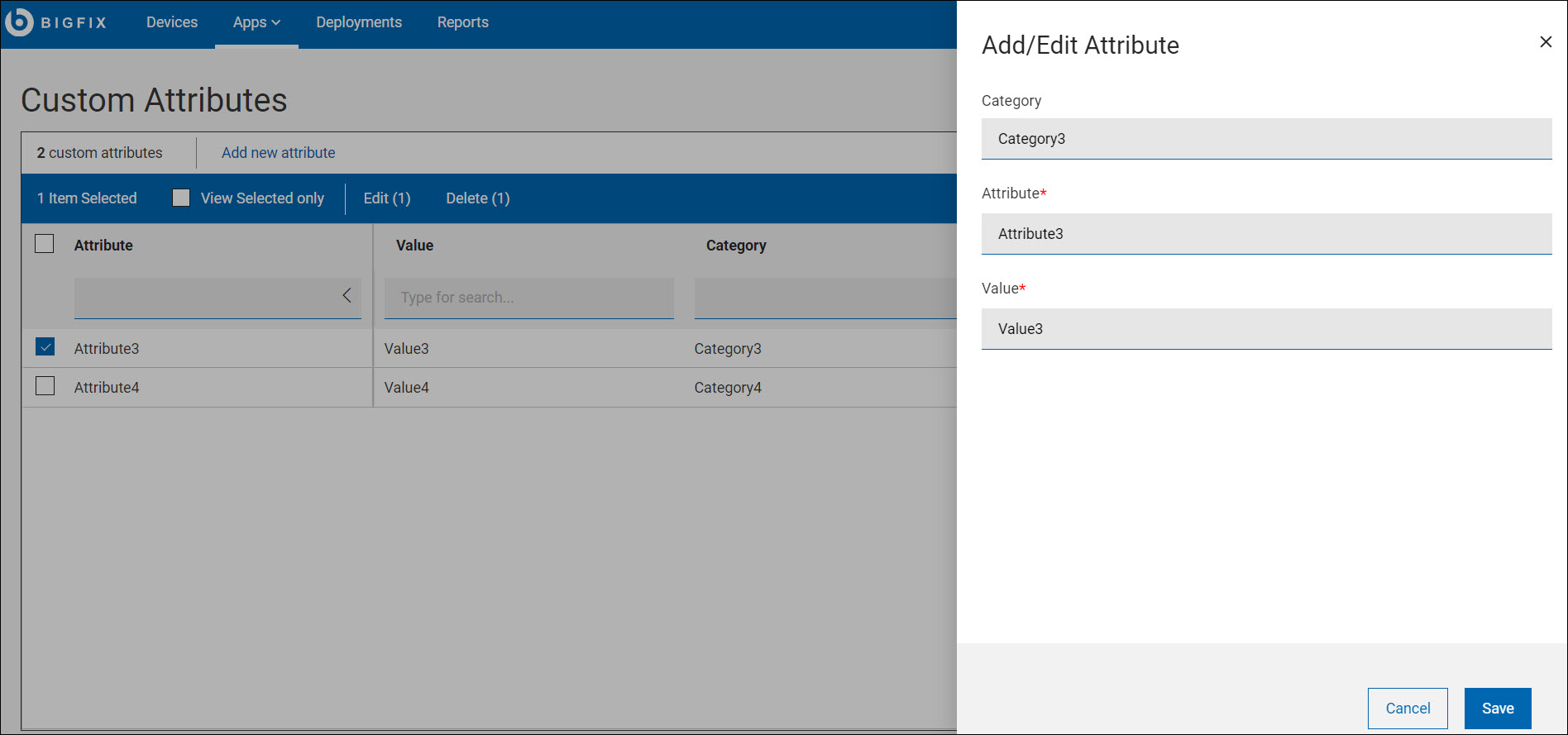
- Edit the Category, Attribute,
and Value and click
Save.
Deleting custom attributes
About this task
- Navigate to the Custom Attributes page in the WebUI.
- Select/search the attribute(s) from the list that you want to delete and
click Delete.
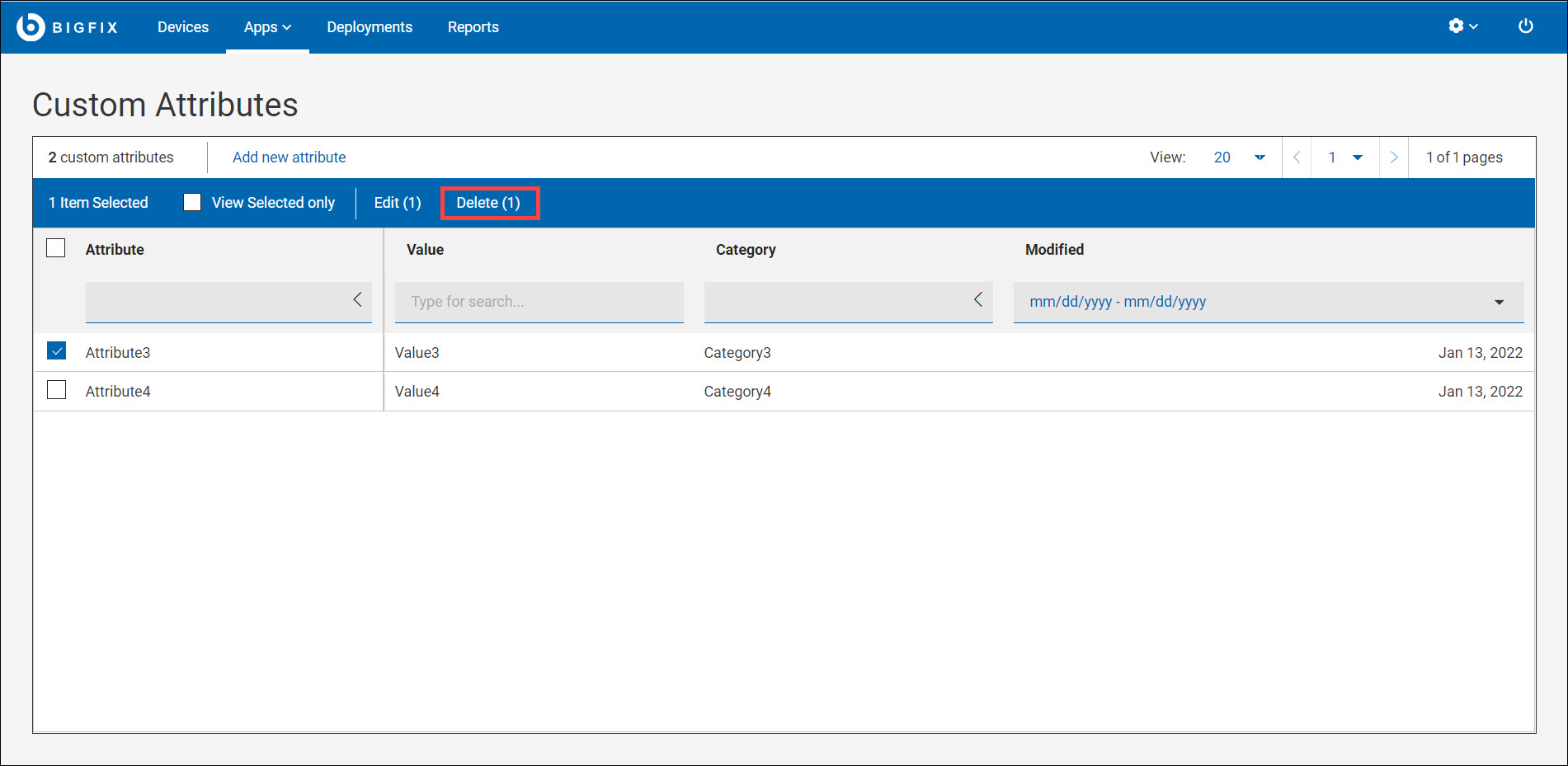
- After you click, a message will pop up asking you to confirm that you want to delete.