Site detail page
The site detail page shows the content and the subscribed devices of a single site. Use it to review the site properties, deploy Fixlets, work with analyses, manage device subscriptions, and add custom content.
To open a site detail page, go to and select a site name. A breadcrumb trail (All sites > site name) at the top of the page returns you to the Sites page. See Sites.
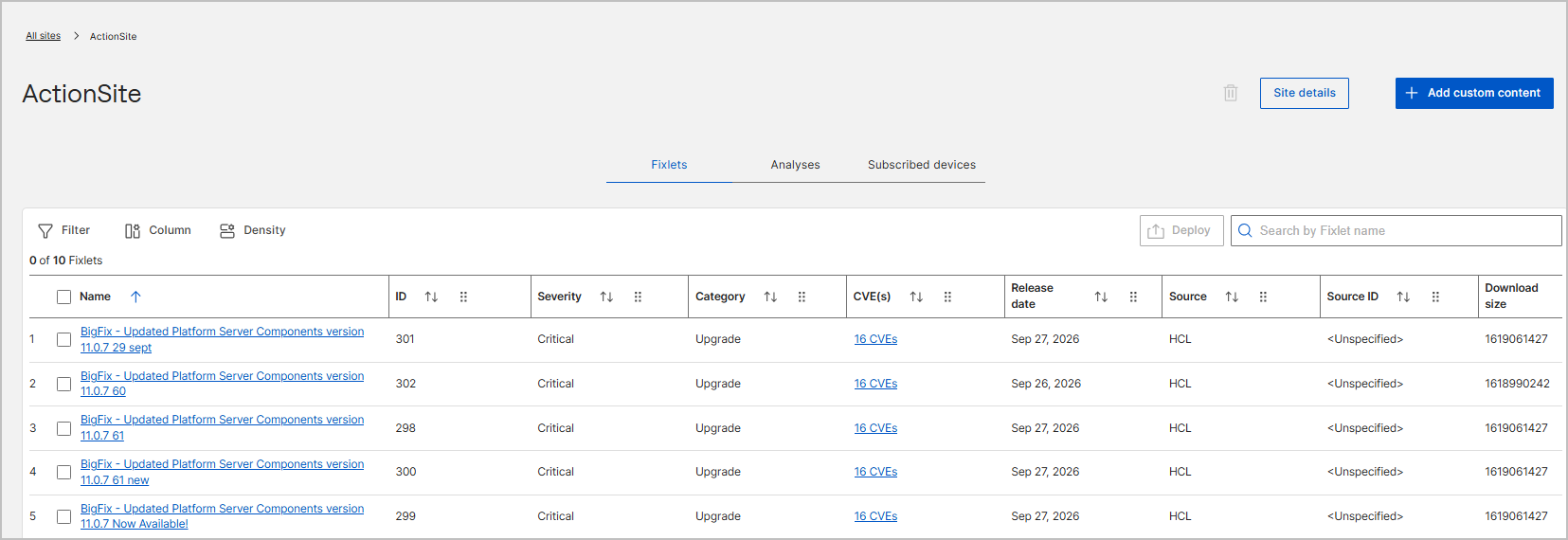
Page header
The header shows the site name and the following controls.
| Control | Description |
|---|---|
| Delete icon (trash can) | Deletes the site. A confirmation dialog opens before the site is deleted. This option is available only for custom sites and requires the appropriate permission. For all other site types, the option is disabled. |
| Edit option | Edits the description of the site. This option is available only for custom sites and requires the appropriate permission. You cannot change the site name. For all other site types, the site details are view-only. See Managing a custom site. |
| Site details | Opens the Site details panel, which shows the site properties. See Site details panel. |
| Add custom content | Opens the Create fixlet wizard to add custom content to the site. This option is enabled only if you have the required access to the site, and your platform permissions allow you to create custom content. See Adding custom content to a site. |
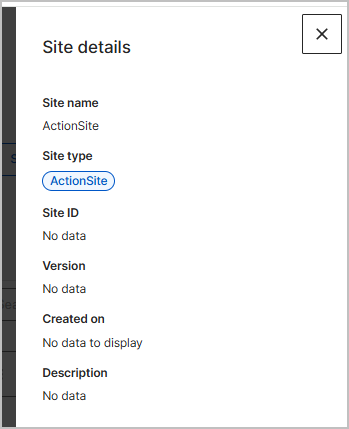
Site details panel
Select Site details to open a panel that shows the following properties. Select the close icon (X) to close the panel.
| Field | Description |
|---|---|
| Site name | The name of the site. You cannot change the name after you create the site. |
| Site type | The site type, shown as a badge, such as ActionSite, External, or Custom. See Site types. |
| Site ID | The unique numeric identifier that BigFix assigns to the site. |
| Version | The current version of the site content. |
| Created on | The date and time when the site was created. This value appears for custom sites only. |
| Description | The description of the site. For a custom site, users with the appropriate permission can edit this value. |
Fixlets tab
The Fixlets tab lists the Fixlets in the site. A counter above the grid, such as 0 of 14 Fixlets, shows how many Fixlets you selected and the total number in the site. The tab provides the following controls.
| Control | Description |
|---|---|
| Filter | Displays a subset of Fixlets based on criteria that you define. |
| Column | Chooses which columns appear in the grid. By default, all columns are selected. Clear the check box of a column to hide it, and then select Apply. |
| Density | Adjusts the row spacing of the grid: Standard (default), Compact, or Comfortable. |
| Deploy | Deploys the selected Fixlets. This button stays dimmed until you select at least one Fixlet check box. |
| Search by Fixlets name | Filters the list as you type a Fixlet name. |
Each column header includes a sort icon. Select a Fixlet name to open its details. The grid contains the following columns.
| Column | Description |
|---|---|
| Name | The title of the Fixlet. Select it to open the Fixlet details. |
| ID | The unique identifier of the Fixlet in the deployment. |
| Severity | The severity that the content author assigned to the Fixlet, such as Critical or Low. If no severity is assigned, the cell shows <Unspecified>. |
| Category | The category of the Fixlet, such as Upgrade, Install, or Setup. |
| CVE(s) | The Common Vulnerabilities and Exposures (CVE) identifiers that the Fixlet addresses. When a Fixlet addresses multiple CVEs, the cell shows a link with the count, such as 16 CVEs. |
| Release date | The date when the source of the Fixlet was released. |
| Source | The origin of the Fixlet content, such as HCL or Internal. |
| Source ID | The identifier that the source assigned to the Fixlet, such as a vendor bulletin number. |
| Download size | The size of the files that the Fixlet downloads when you deploy it. |
| Site ID | The unique numeric identifier of the site that hosts the Fixlet. |
| Type | The type of content, such as Fixlet or Task. |
| Relevant Devices Count | The number of subscribed devices on which the Fixlet is relevant. |
Analyses tab
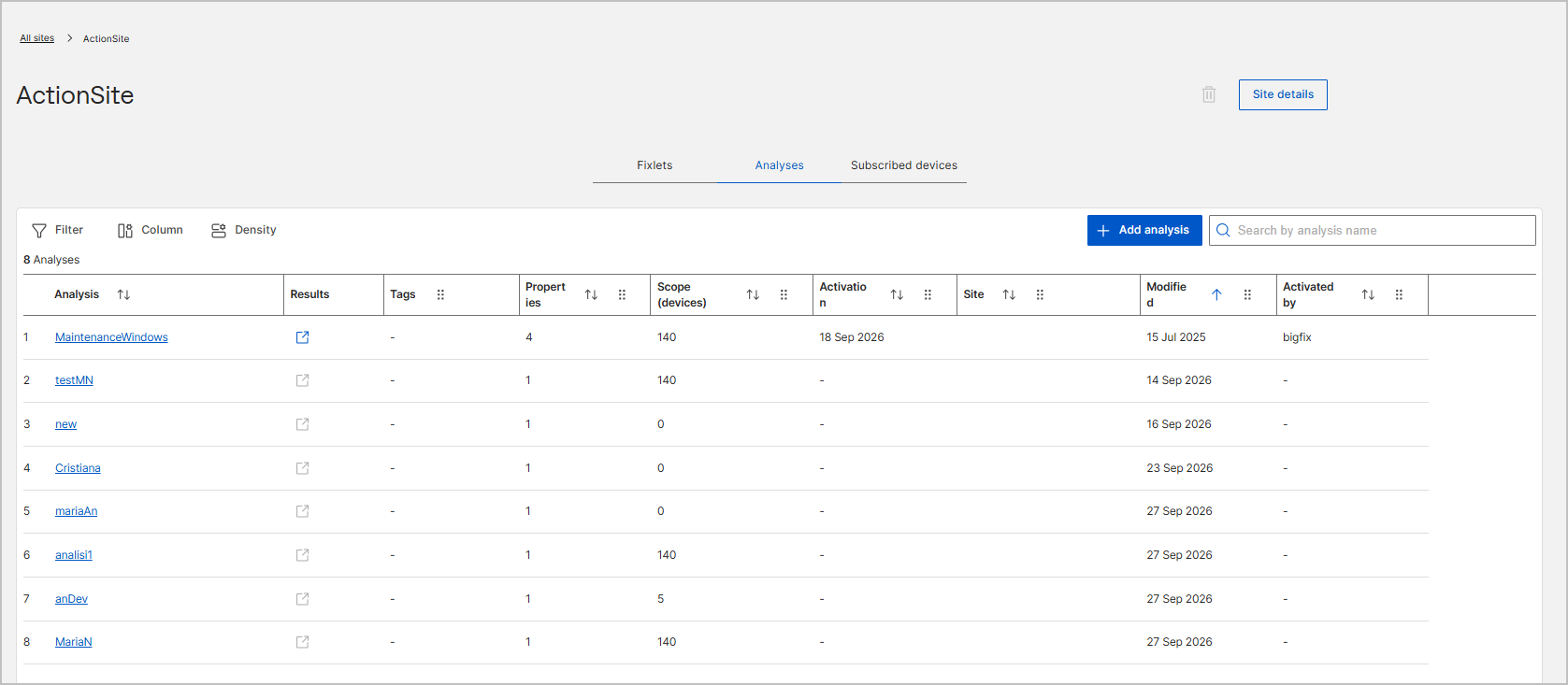
The Analyses tab lists the analyses in the site. The tab provides the same Filter, Column, Density, and search controls as the Fixlets tab. Select an analysis name to open its details page, where you can activate or deactivate the analysis. The grid contains the following columns.
| Column | Description |
|---|---|
| Analysis | The name of the analysis. Select it to open the analysis details page. |
| Results | The results that the analysis reports from the devices on which it is active. |
| Tags | The tags that are assigned to the analysis. |
| Properties | The number of properties that the analysis retrieves from the subscribed devices. |
| Scope (devices) | The devices that are in the scope of the analysis. |
| Activation | Whether the analysis is active or inactive. |
| Site | The site that hosts the analysis. |
| Modified | When the analysis was last modified. |
| Activated by | The user who activated the analysis. |
Subscribed devices tab
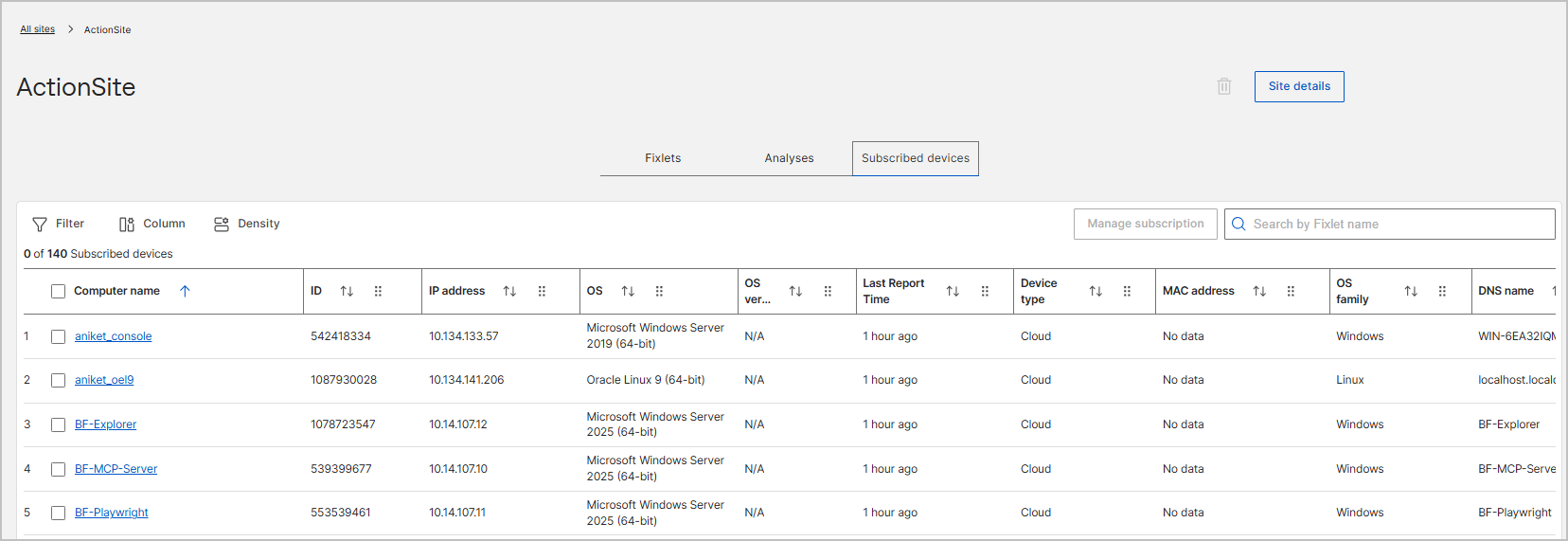
The Subscribed devices tab lists the devices that are subscribed to the site. A counter above the grid, such as 0 of 3 Subscribed devices, shows how many devices you selected and the total number of subscribed devices. The tab provides the same Filter, Column, and Density controls, a search box, and the Manage subscription button. The grid contains the following columns.
| Column | Description |
|---|---|
| Computer name | The BigFix computer name of the device. Select it to open the device details. |
| ID | The unique BigFix identifier assigned to the device. |
| IP address | The IP address that the device reported at its last check-in. |
| OS | The operating system installed on the device, such as Ubuntu 20.04.6 LTS or Windows Server 2022 Standard. |
| OS version | The operating system version number. |
| Last contact | When the device last reported to BigFix. |
| Status | The status of the device. |
| Device type | The type of device, such as Server. |
| MAC address | The MAC address of the device network interface. |
| OS family | The operating system family, such as Windows or Linux. |
| DNS name | The DNS name of the device. |
| Relay | The relay that the device reports through. |
| Relay name of client | The name of the relay that the BigFix client is assigned to. |
| BES Relay Selection Method | How the device selects its relay, either automatically or manually. |
| BES Relay Service Installed | Whether the BigFix relay service is installed on the device. |
| Distance to BES Relay | The number of network hops between the device and its relay. |