Guided templates
Guided templates are pre-built report definitions that you customize instead of building a report from scratch. Each template supplies a data model, suggested fields, and a set of variations that narrow the report to a specific focus.
To use a guided template, open the Report Builder and select Start with templates on the Guided templates card. The Report templates page lists the templates that are available to you.
Guided templates are best for quick report generation, standard analytics, and guided workflows. If you need full manual control over the data set, properties, and chart widgets, use the full custom configuration method instead. See Full custom configuration.
For the procedure, see Create a report from a template.
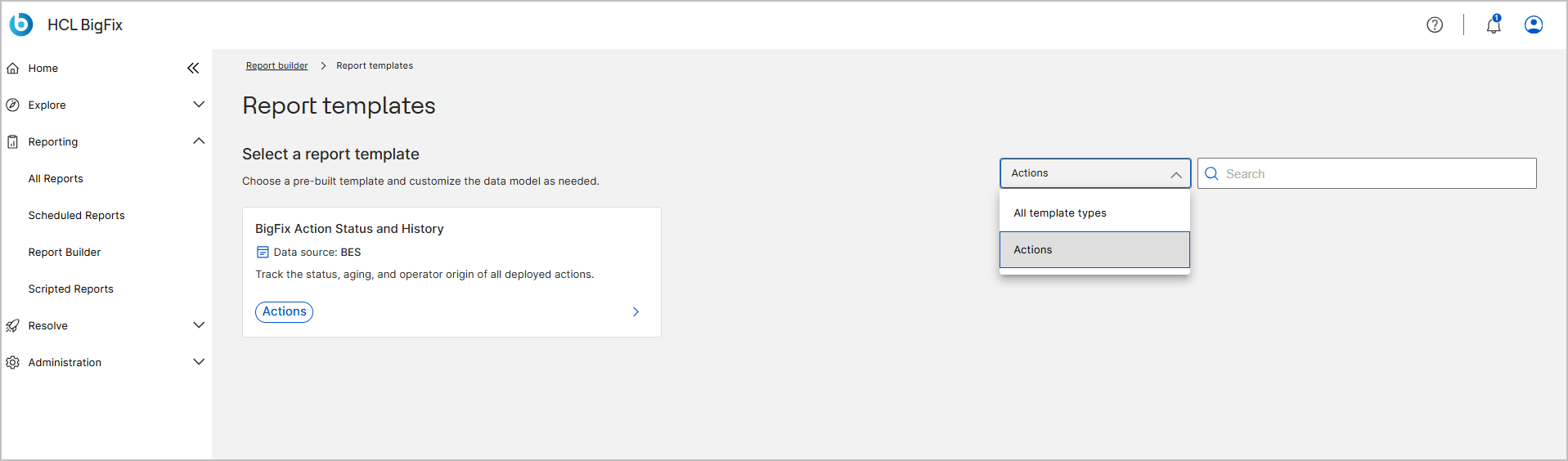
Report templates page
Each template card shows the template name, the data source that supplies the data (for example, BES), a short description of what the report tracks, and a template type chip such as Operations, Security, Compliance, Inventory, or Actions.
To narrow the list, select a type from the template type dropdown list, which is set to All template types by default, or enter text in the Search field.
Template wizard steps
After you select a template, the wizard creates the report in three steps:
- Customize – Review the base fields of the template, add optional properties to the data model, and choose whether the report is actionable. The Schema overview shows the number of base fields, and the collapsible Data model section shows the total number of fields in the schema definition.
- Variations – Choose a sub-template that narrows the report to a specific focus, such as an age range, a state, or an operator type. The number of available variations is displayed on the right of the step, for example 17 available.
- Preview – Review the resulting content list, adjust the columns and the row density, search the list, build a filter, export the data, and save the report with a name and description.
A breadcrumb trail at the top of the page shows Report builder > Report templates > Create report. Use it to return to an earlier page at any point in the wizard.