
ESXi Device Enrollment
Learn how to add VMware ESXi hosts to BigFix Compliance using vSphere and plugin-based discovery.
Before you begin
As per platform requirements, complete the following setup from the BES Support
site:
- Install the BigFix Plugin Portal. This acts as the communication and execution bridge between BigFix and VMware vSphere/ESXi. The communication flow is as follows: . For more information, refer to The Plugin Portal.
- Install the BigFix Plugin for VMware Discovery. This reports ESXi
devices to the BigFix root server. Important: The user account used to install the VMware Plugin must have Read-only access at the vCenter level to retrieve information about ESXi hosts in the data center.For installation details, refer to Installing the VMware plug-in.
- Run the Fixlet 5629 - VMware Plugin: Manage Hosts Discovery and provide the Action Parameter 1 to enable reporting of ESXi hosts. For details, refer to VMware Asset Discovery Plugin Inspectors.
About this task
This task describes how to import and view VMware ESXi hosts and their associated patches within Security and Compliance Analytics (SCA).
Import and Enable Analyses
Procedure
- Navigate to the SCM Reporting Site. Open the .
-
Within the SCM Reporting site, locate the
Analyses section and find Device IDs of ESXi Hosts.
Right-click the Analyses and select
Activate.
Figure 1. Enable Analyses 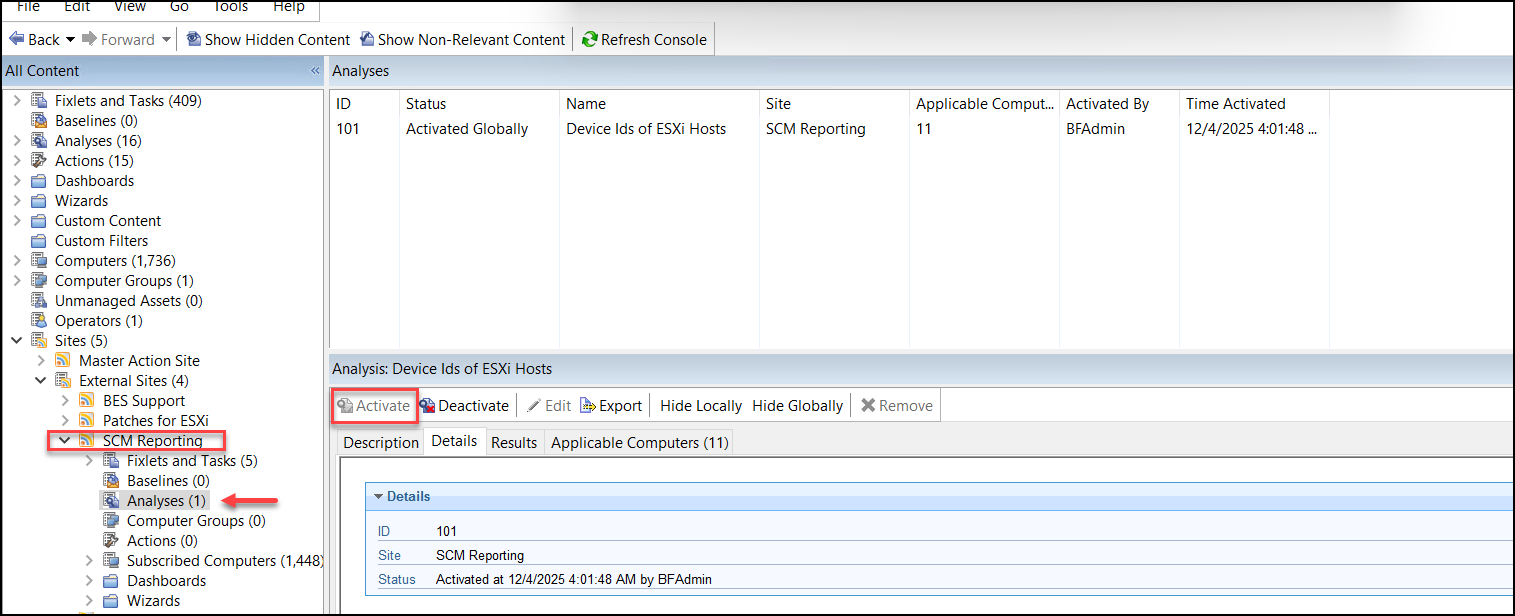
- Once the enrollment is complete, SCA begins importing the ESXi hosts automatically.
Validate and View ESXi Devices
Procedure
-
Log in to the SCA application and navigate to the Computers
section to confirm that the ESXi hosts are listed.
Figure 2. Patch View 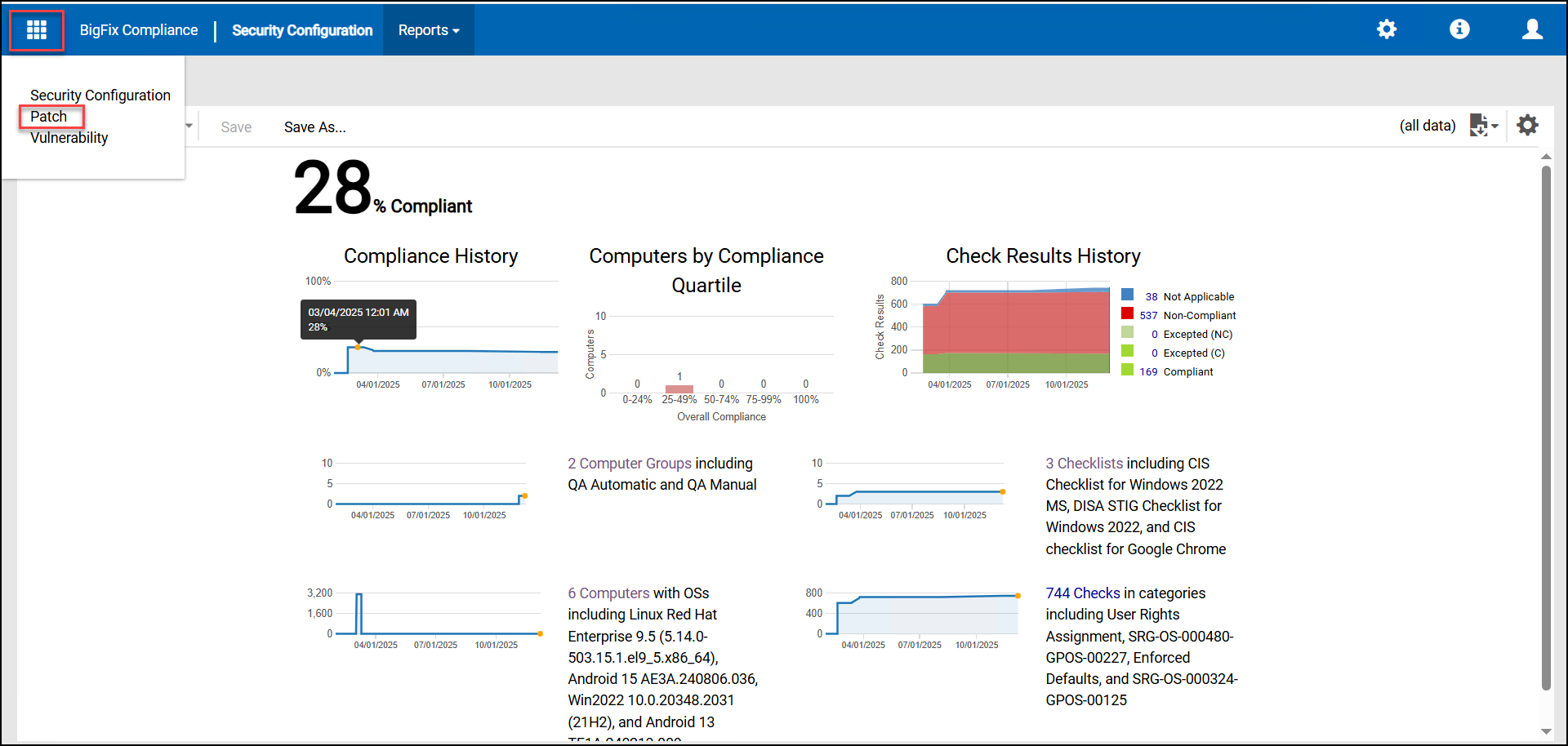
-
Navigate to the Patch section and click See More Patches to
display all available patches.
Figure 3. See More Patches 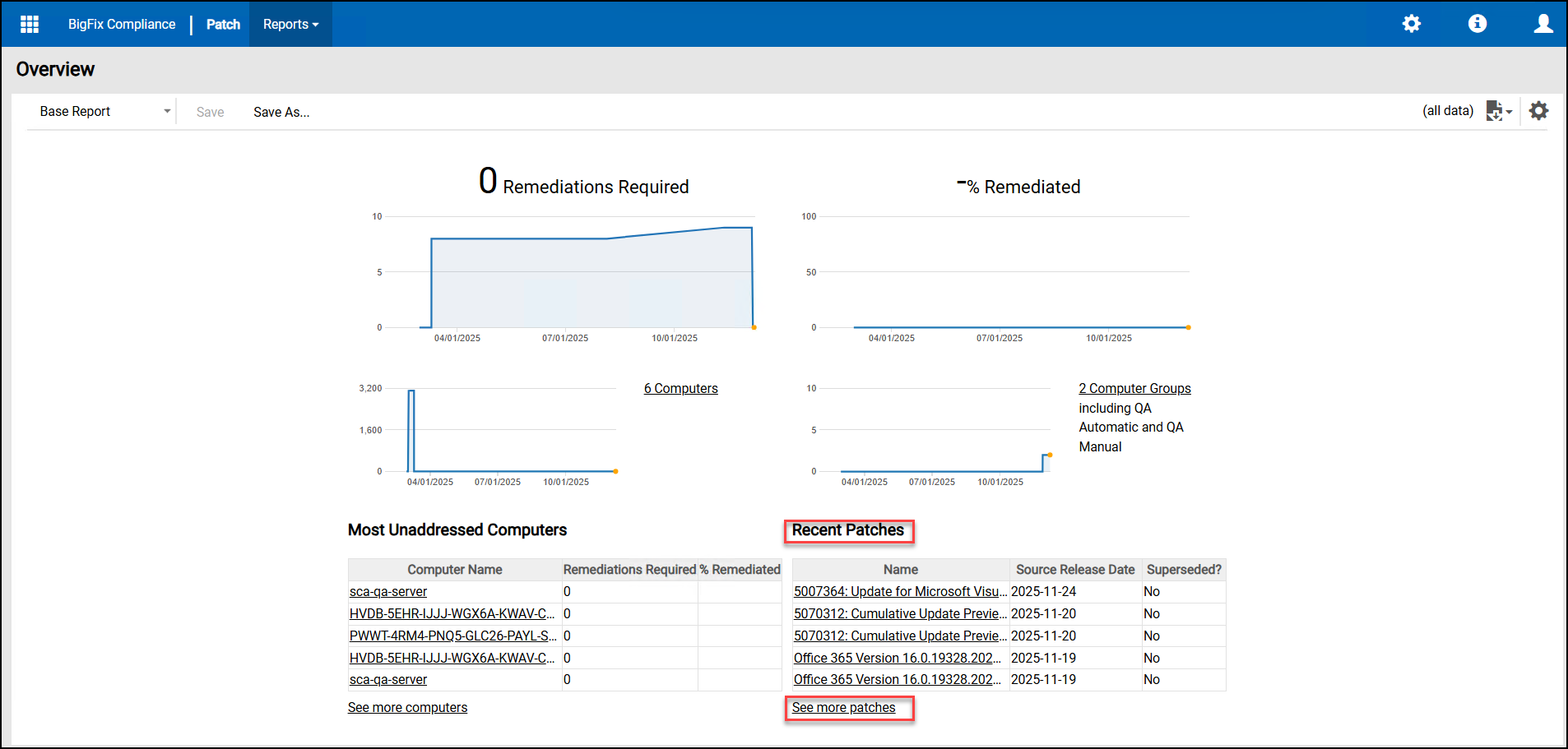
-
In the Patch view, use the Site
Name filter and set the filter condition to Patches for
ESXi filter to show only the available patches specific to ESXi
devices.
Figure 4. Filter Site Name 