Setup and configuration
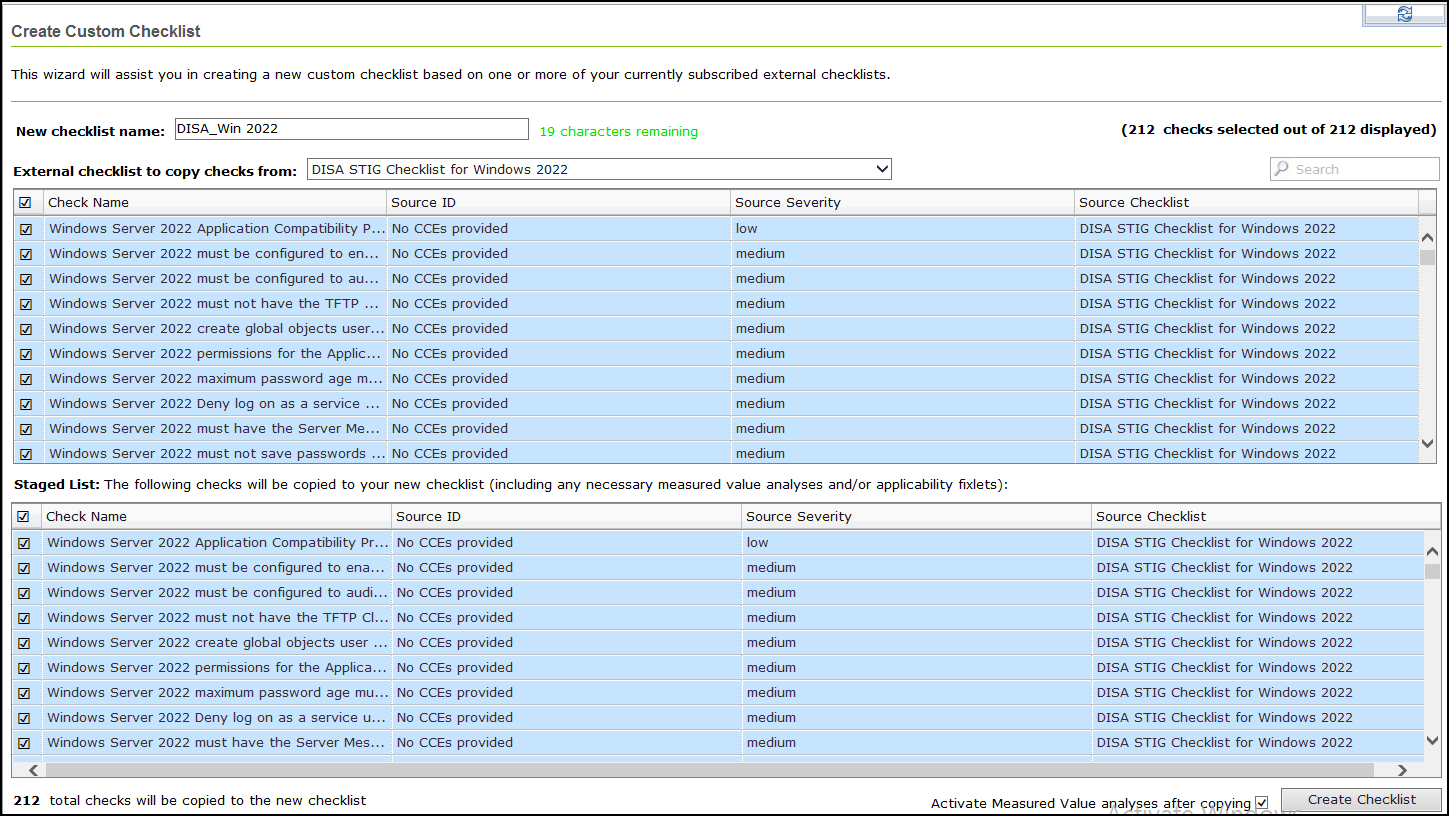
Create custom copies of the Windows™ and Web browser checklist content if you want to modify the checks based on a specific corporate policy. Use the Create Custom Checklist wizard to create copies of the Windows™ and Web browser checklists and save them in a custom site.
Before you begin
You must subscribe to the SCM Reporting external site.
About this task
Setting up your Configuration Management checklist for Windows™ and Web browser checklist involves two basic steps:
Creating your checklist:
Procedure
-
Creating custom checklists by using the Create Custom Checklist wizard:
- From the Security Configuration Domain, go to .
- Enter the name of the new checklist.
- Select the target platform.
- Click the drop-down menu to select which external checklist you copy the checks from. As you select the checks, they are shown in the staged list at the lower part of the window.
- Click the Activate Measured Value analyses after copying check box to activate all analyses that were copied.
- Click Create Checklist.
The console begins copying the checks in the selected lists into your new custom checklist. The process might take several minutes, depending on the number and size of the checklists selected.Use the Create Custom Checklist wizard located in the SCM Reporting site under the wizard section.Figure 1. Create custom checklist 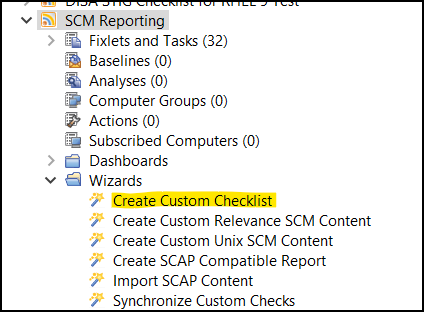
-
Creating custom checklists manually:
Subscribe computers to the custom checklist.Note: Custom checklists do not support site relevance, so take extra precaution when you subscribe computers to custom checklists.
Figure 2. Create custom checklist