AppScan Go! Settings and Help menus
From the AppScan Go! Settings menu, you can authenticate your user account on the AppScan service, check for available updates manually, and turn automatic updating off or on. AppScan 360° users also can allow untrusted connections. The Help menu gives information about AppScan Go! and links to additional information and HCL support resources.
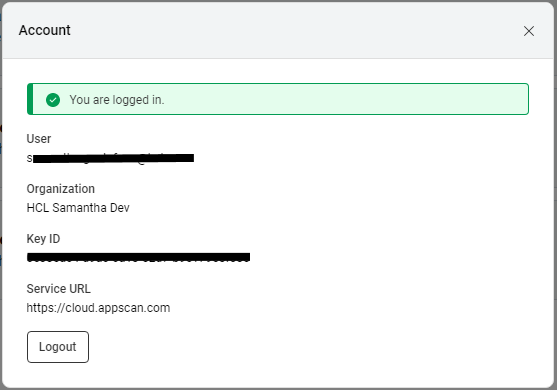
Account information
To access account information, select .
If you are not currently logged in to AppScan 360°, first provide a key ID and key secret. AppScan Go! identifies and populates the Service URL field with the appropriate information.
Check for updates
To access the Check for updates dialog box, select .
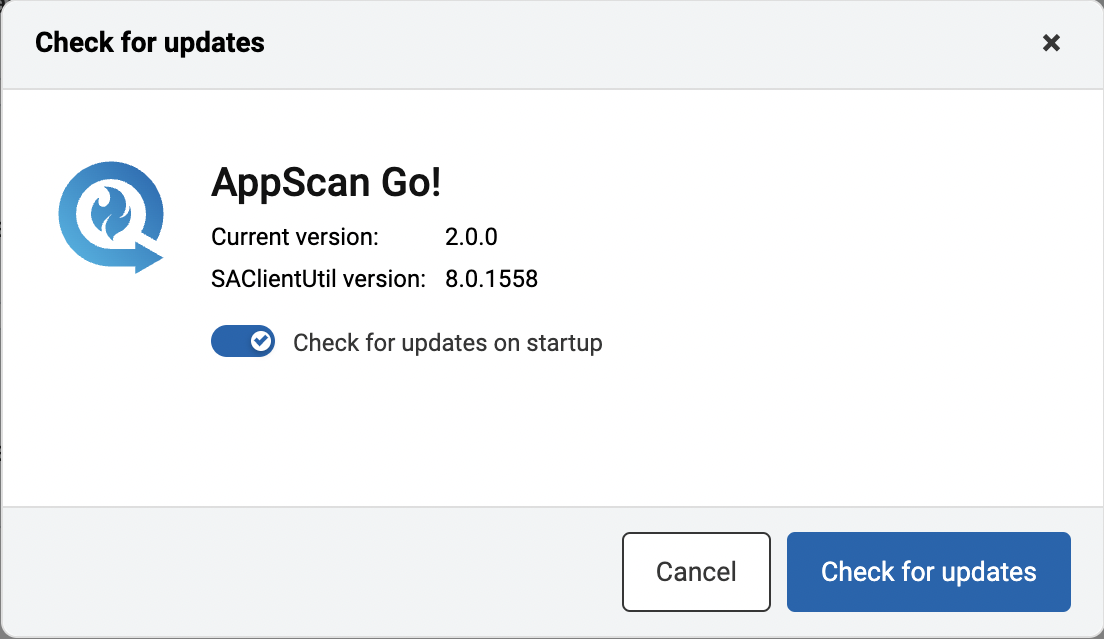
The Check for updates dialog box lists the current versions of AppScan Go! and the Static Analysis client (SAClientUtil).
To check for available updates manually, click Check for updates.
Allow untrusted connections
AppScan 360° users have the option of allowing untrusted connections to their AppScan service.To access the Allow untrusted connections dialog box, select .
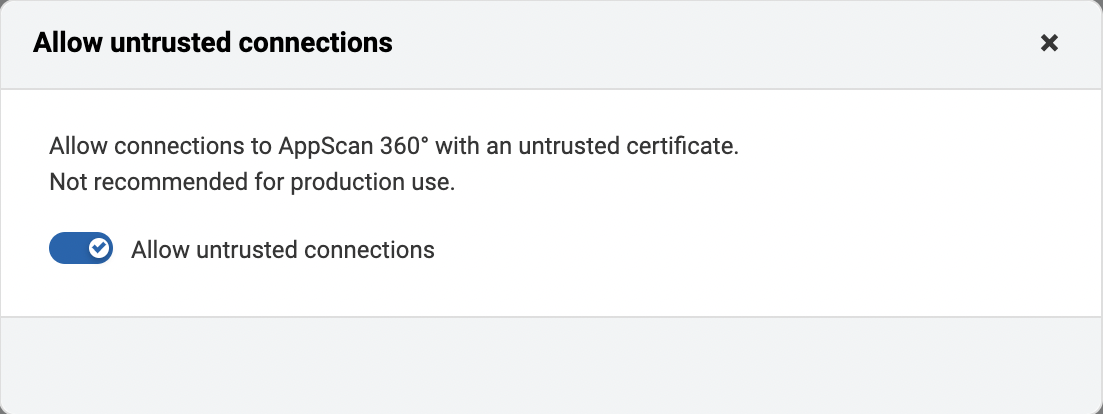
Untrusted connections are not allowed by default. Move the toggle button to allow or disallow untrusted connections with AppScan 360°.
Help menu
The Help menu provides additional information and resources for AppScan Go! users:
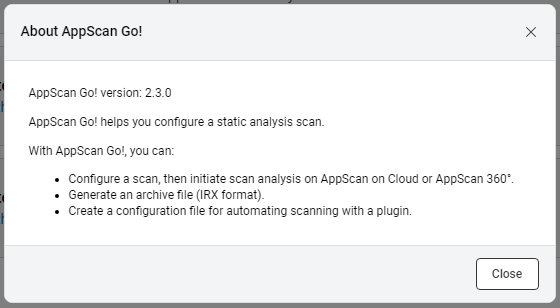
- Select to access the About AppScan Go! dialog box.
- Select to access the FAQ dialog box.
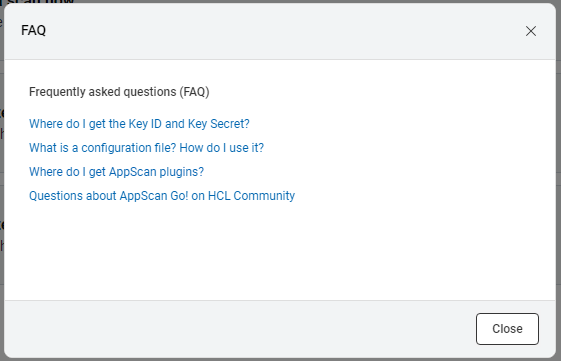
Click on any of the questions to launch the online help in a new browser tab with information answering the question.
- Select to open the HCL Customer Support site in a new browser tab.