
Data Masking
Data Masking Based on Card Numbers and Input Fields Data Masking Based on Custom Regular Expressions
The Z and I Emulator for Web supports the data masking feature, which protects sensitive information such as card numbers by masking the information as per the configurations. The data masking protects the original data from exposure during non-production activities such as software testing, user training, and data analysis.
The data masking is categorized based on:
- The card numbers and input fields
- The custom regular expressions
Key aspects of data masking include:
- Protection: Ensuring sensitive data is not exposed to unauthorized users.
- Usability: Keeping the masked data useful for legitimate purposes.
- Compliance: Adhering to regulatory requirements for data privacy and protection.
Data Masking Based on Card Numbers and Input Fields
To enable data masking, execute the following steps:
Note: If the card number or the input field data does not meet the configurations specified in this section, the masking will not appear.
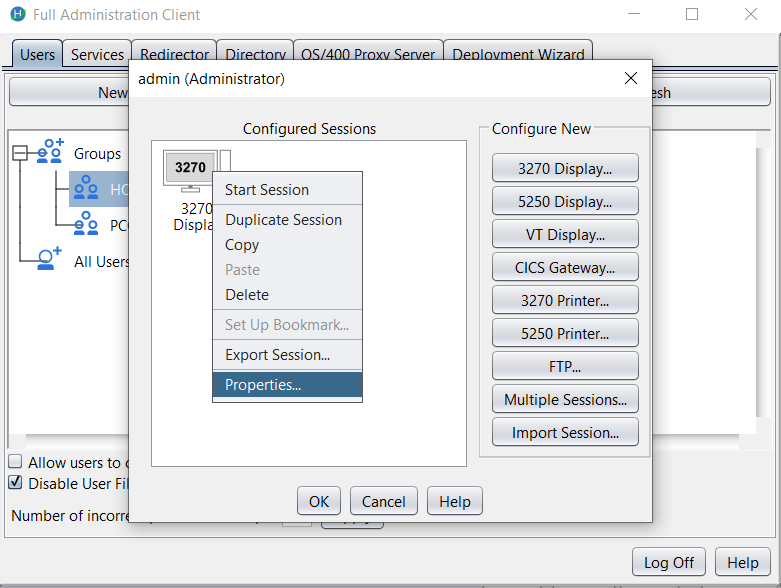
- Right-click on the required session and select Properties.
- Navigate to Screen 🡪 Data Masking.
- The Data Masking screen appears.
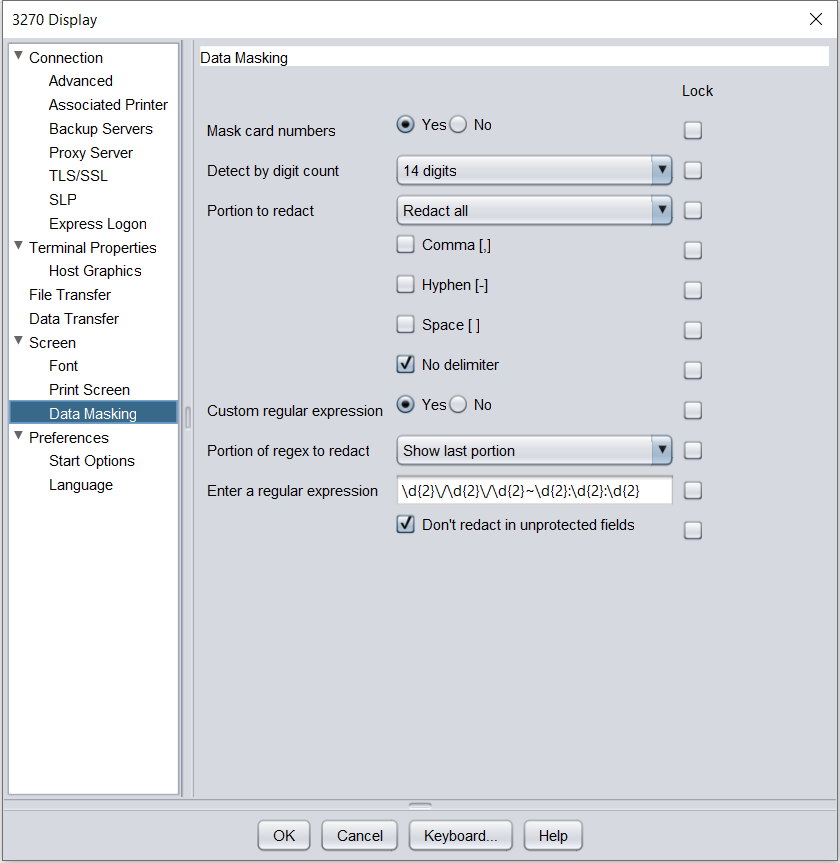
- Select Yes for Mask card numbers option.
Note: The Mask card numbers option detects the card digits pattern based on the option selected under the Detect by digit count and Portion to redact dropdown menu.
- Select any one of the following options from the Detect by digit count dropdown menu:
- 14 digits: This option will mask the 14-digit card number.
- 16 digits: This option will mask the 16-digit card number.
- 13 to 16 digits: This option will mask 13 to 16-digit card numbers.
- Both 14 and 16 digits: This option will mask both 14- and 16-digit card numbers.
- Select the required Delimiter(s) from
the following options:
- Comma [,]
- Hyphen [-]
- Space [ ]
- No delimiter
Note: Delimiter is a character used to separate groups of digits.
If the Mask card numbers option is enabled and none of the delimiters is selected, then No delimiter will be set as default.
- Select any one of the following options from the Portion to Redact dropdown menu:
- Show last four digits:
This option displays only last four digits of the card number.
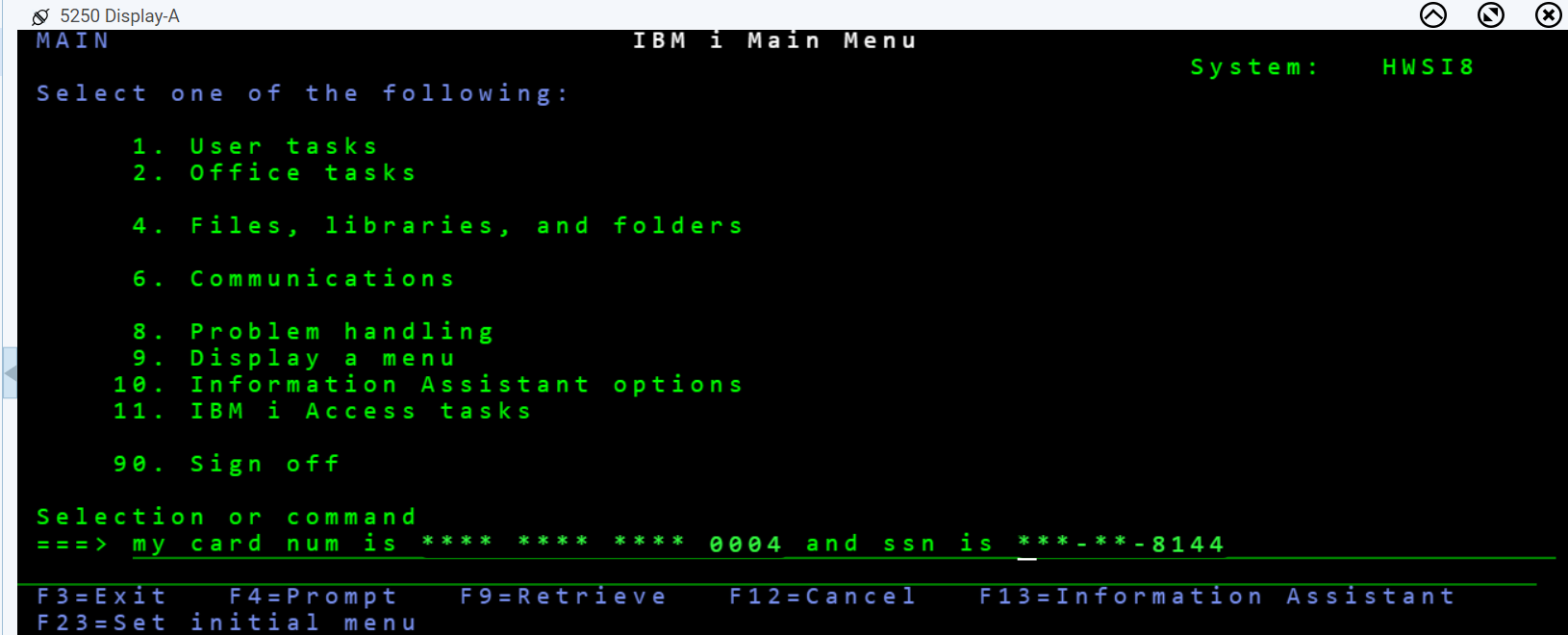
- Redact All: This option redacts all digits.
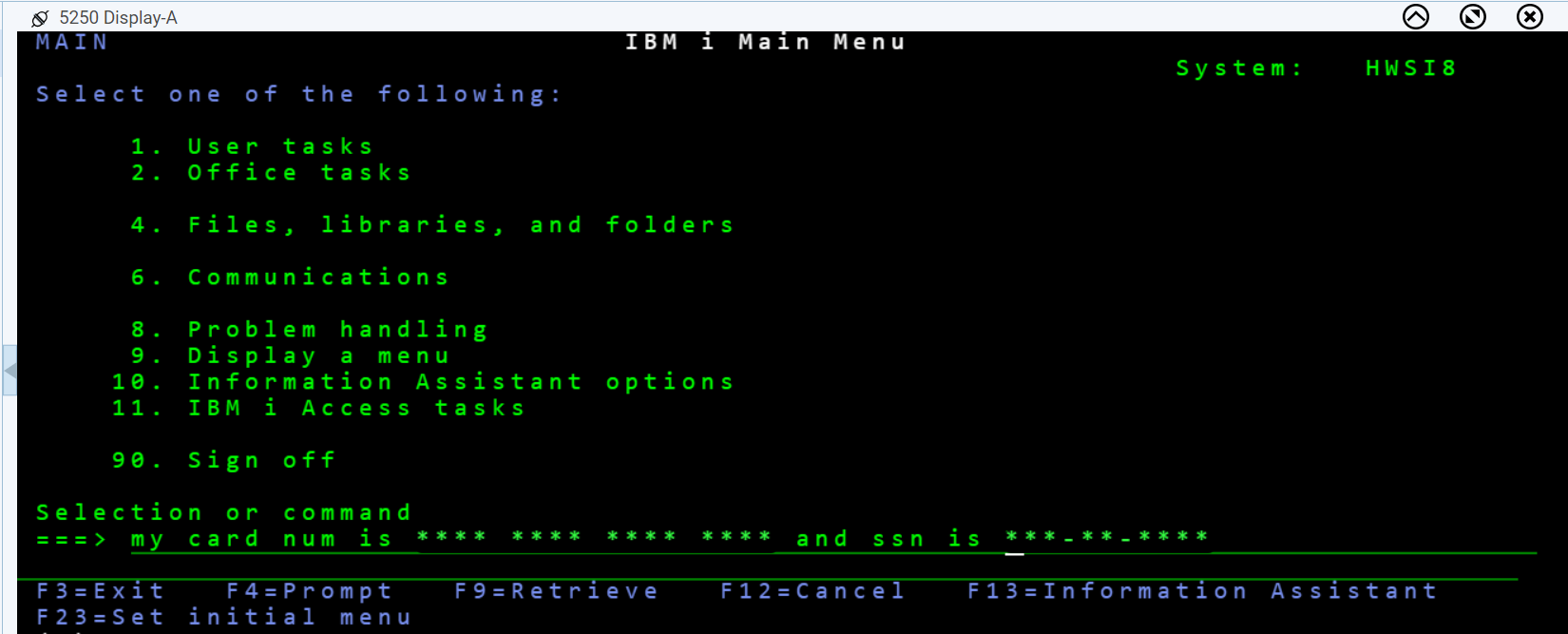
- Show last four digits:
This option displays only last four digits of the card number.
- If required, select the Don't redact in unprotected fields checkbox to disable data masking in the unprotected fields.
Data Masking Based on Custom Regular Expressions
To mask the data based on the custom regular expressions, execute the following steps:
Note: If any card number or the input field data does not meet the configurations specified in this section, the masking will not be applied.
- Right-click on the required session and select Properties.
- Navigate to Screen 🡪 Data Masking.
- The Data Masking screen appears.
- Select Yes for the Custom Regular Expression option.
Note: The data will get masked on the screen based on the regular expression pattern.
- Enter the required expression in the regular expression text
field.
Note: If there is more than one regular expression, separate them using a '~.'
Example: [6-9]\d{9}~\d{4}-\d{2}
Note:
- To update or delete a regular expression, modify or remove it from the regular expression text field.
- Select any one of the following options from the Portion of Regex to Redact dropdown menu:
- Redact All: All digits will be redacted.
- Show Last Portion: If the number of digits in the regex is less than or equal to eight, the last two digits will be displayed, and the rest will be redacted. If the number of digits in the regex is more than eight, the last four digits will be displayed, and the rest will be redacted.
HTML Parameters:
For data masking, the following two HTML parameters have been added:
- enableCardMasking :
This parameter is used to configure card masking. It requires 3 values separated by commas:
a) Card Length Type:
- Card Length 14 = "1"
- Card Length 16 = "2"
- Card Length 13 to 16 = "3"
- Card Length 14 and 16 = "4"
b) Redact Type:
- LIMIT for showing the last four digits
- ALL for redacting all digits
c) Delimiter:
Multiple delimiters can be provided, separated by a pipe (|).
Example: COMMA|HYPHEN|SPACE|NA
Example with values:
enableCardMasking=1,LIMIT,COMMA
- customRegularExpression
This parameter is for custom regular expressions and requires 2 values:
a) First value: Regular expression(s), separated by
~ if there are multiple. No limit on the number of
expressions.
b) Second value: Redact type (LIMIT to show the last
portion, ALL to redact everything).
Example:
customRegularExpression=[6-9]\\d{9}~\\d{4}-\\d{2},ALL
Note: HTML parameters take precedence over session parameters. Config properties are not supported, only HTML parameters.
Note:
- Only 3270 and 5250 sessions are supported in this release.
- If both card and regex data masking are enabled, the first match found will be masked.