As an Administrator, you can view and perform these tasks using the Licenses tab:
Procedure
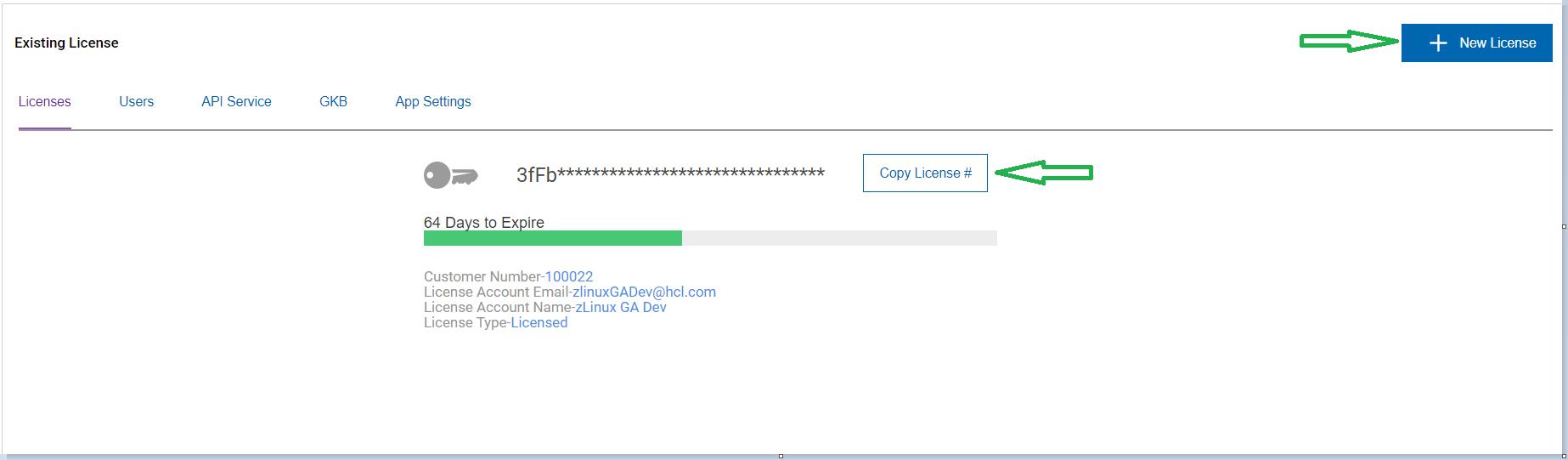
You can check the existing product license details.
The product license key displays the first four characters, and remaining
characters are shown in asterisk (*)
You can copy your product license key and paste it elsewhere, such as on the
provided Swagger UI API authorization page, by clicking on the icon.
The remaining days for an existing product license to expire is displayed along
with a progress bar. Perpetual license holders date referes to the number of
days remaining for your product service and KGB updates.
The 'Customer Number' assigned and the Email address that was provided when
generating your ZAO product license key are displayed.
You can update your product license key by clicking on the
button.
Figure 1. Licenses page
Add or Update ZAO Product License Key
Procedure
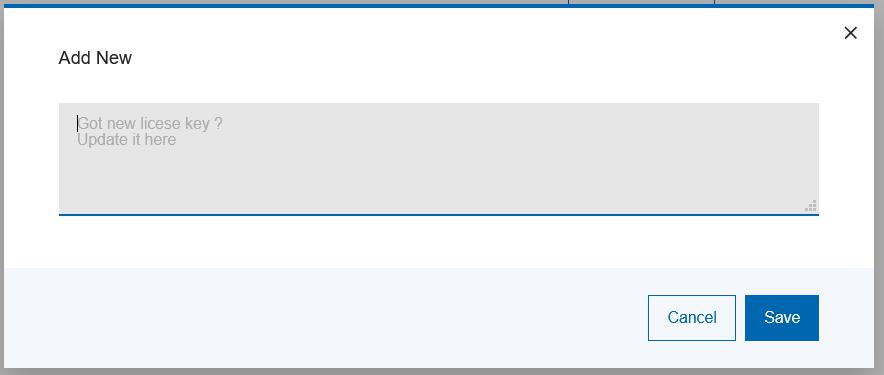
On the Licenses tab, click on New License.
Enter the new key in the field provided.
If the license key is changed or updated, a re-validation is performed.
Click Save to proceed.
Figure 2. Updating product license Once the new or updated product license key is validated, the customer
details and new expiry date is reflected in the license key information
page.
Contact your HCL Software sales representative to request a new
license key when one is required.
 icon.
icon.
 button.