System Deletion
Before you begin
To delete all data associated with an imported system, follow these steps:
Note: Once completed, the system deletion process is
irreversible.
Procedure
- On the Home page, move the cursor to the Utilitiesmenu.
- The options displaying System Deletion, Delete Obsolete Hardware, Usage Deletion, and Define Alternate Product Names appears.
- Click on System Deletion.
- Select the repository.
- This page displays a list of systems associated with the currently selected repository.
- You can delete a system from the repository selected.
-
To delete a System, click on the
 icon
icon
Figure 1. System Delete 
-
Note: Performing this process results in permanent and irreversible removal of the selected system from the repository.A confirmation message appears. ClickDeleteto proceed or Cancel to exit.
Figure 2. Delete confirmation pop up 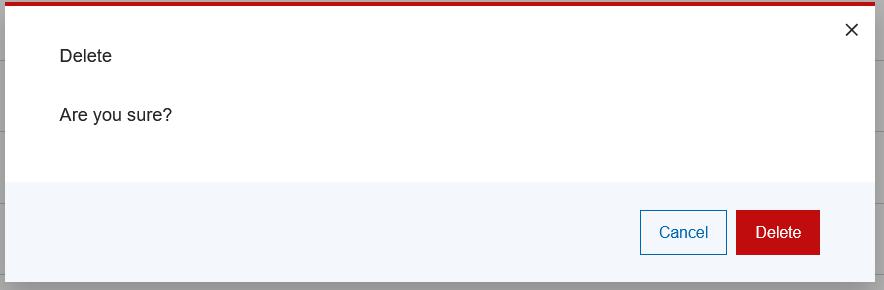
Once the Delete option has been selected, the system deletion process begins, and the system deletion progress screen is displayed:
Figure 3. System deletion in progress 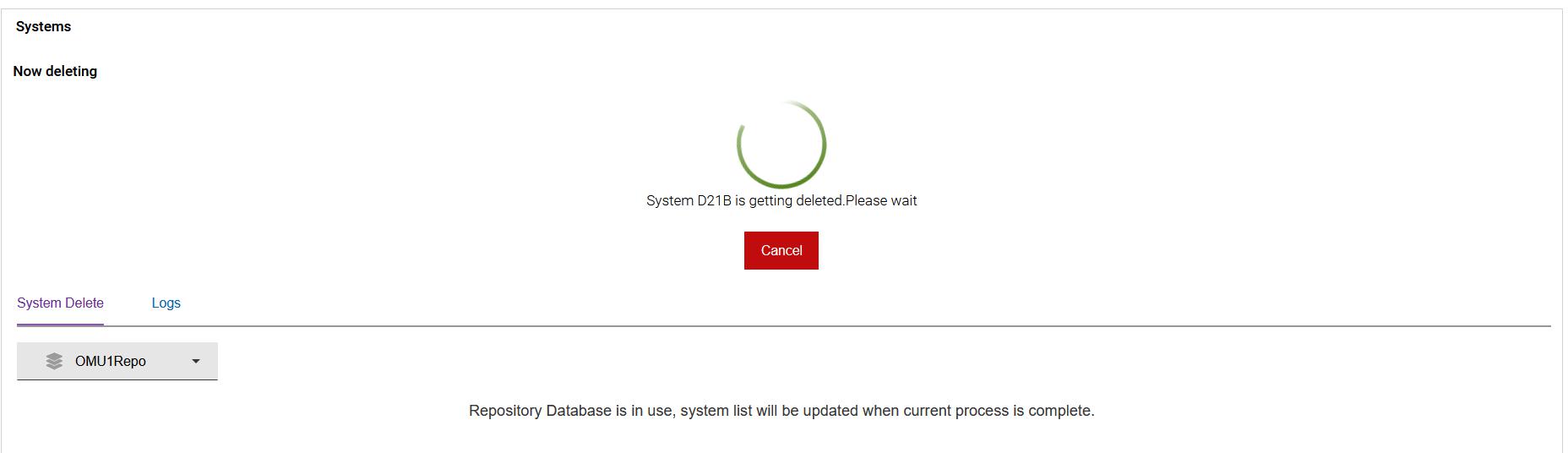
Note: Cancelling the system deletion process at this stage leaves the repository database in an unreliable state, requiring a repository database reset (Administrator only) to correct.If the system deletion processing is successful, the results message will be displayed:
Figure 4. System deleted successfully 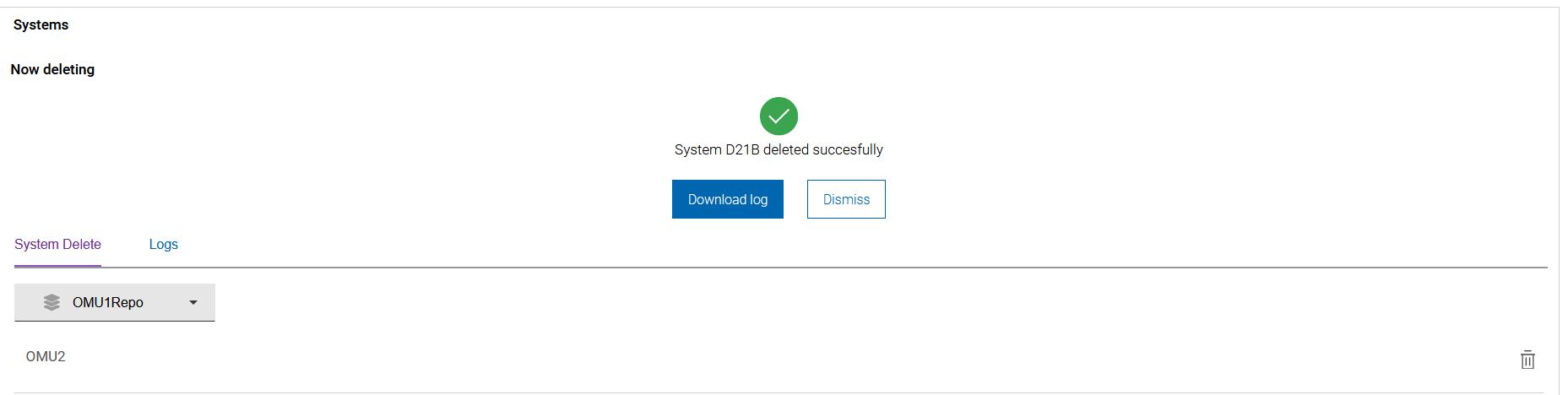
Note: When the system is deleted, you are not able to see the data associated with the deleted system in any of the reports.If the selected system could not be deleted, the Failed to delete system screen appears:
Figure 5. Failed to delete system 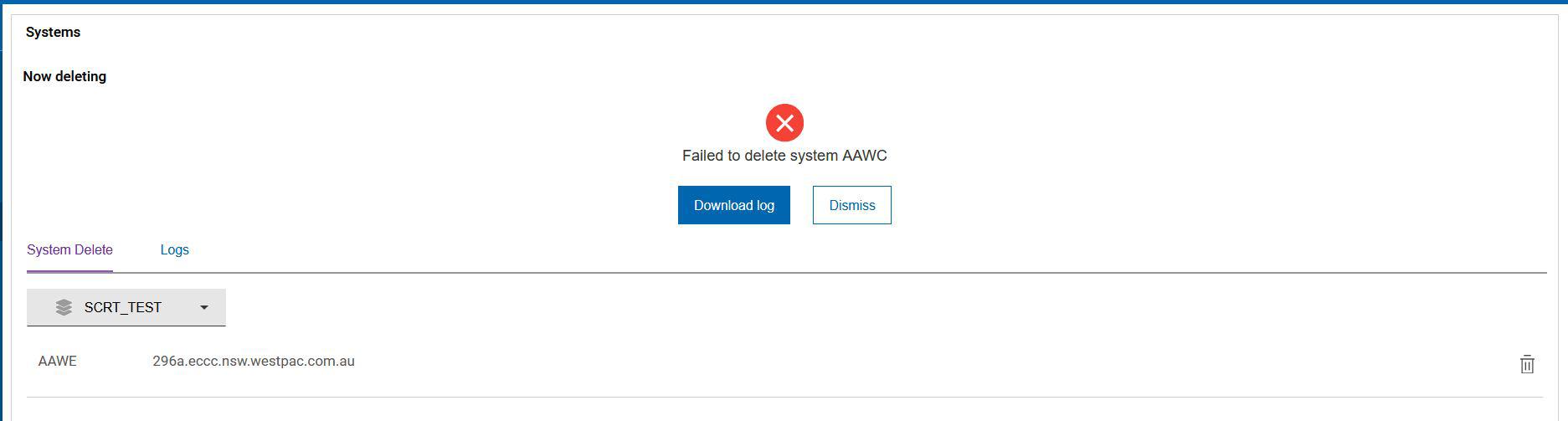
- You can download the latest log file to your local machine for viewing by clicking on 'Download Log' or clicking on 'Dismiss' to remove the latest execution results message
-
Click the
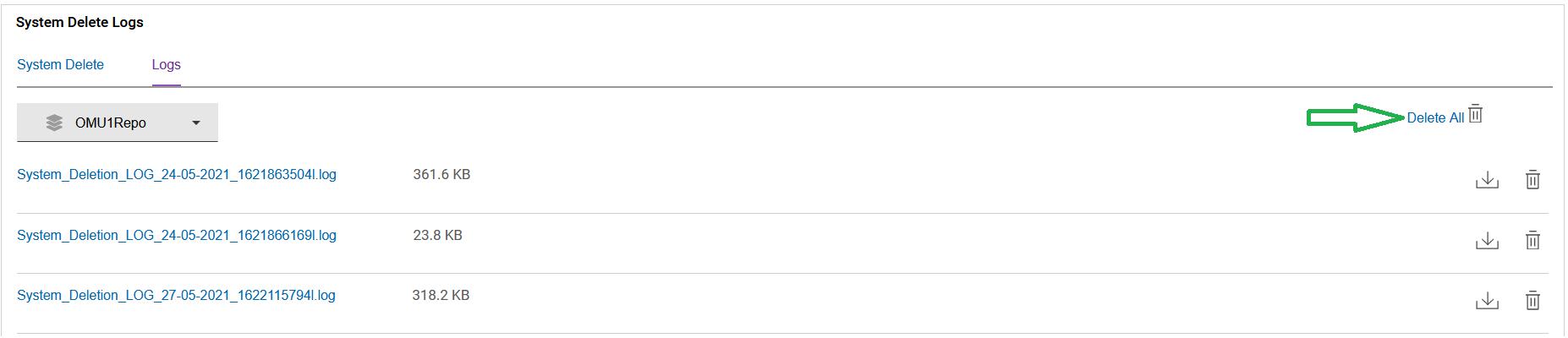
 tab, to see all the log files.
- To download any of the log files under the logs tab, click on the Log file
name.
Figure 6. System Delete Logs 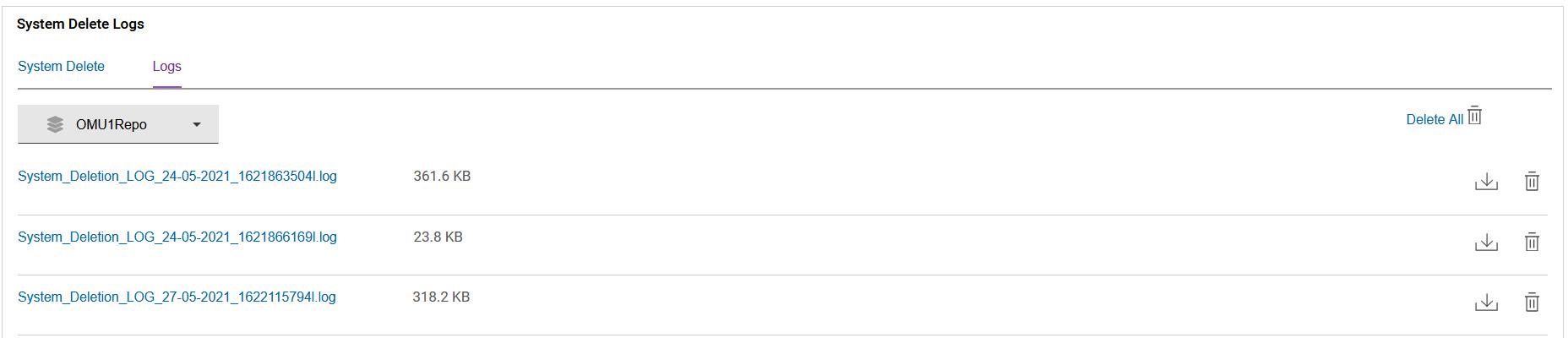
To delete a single file, click the
icon located against the log file
you wish to delete.To delete all the log files, click on the
icon next to the Delete All label. Figure 7. System Delete Logs