
Adding HCL Workload Automation engines to AIDA
How to add HCL Workload Automation engines to AIDA for monitoring purposes.
About this task
From AIDA left-hand sidebar, select Engines to open the Engines page.
As an administrator you can add and manage engines used in the Workload Automation environments.
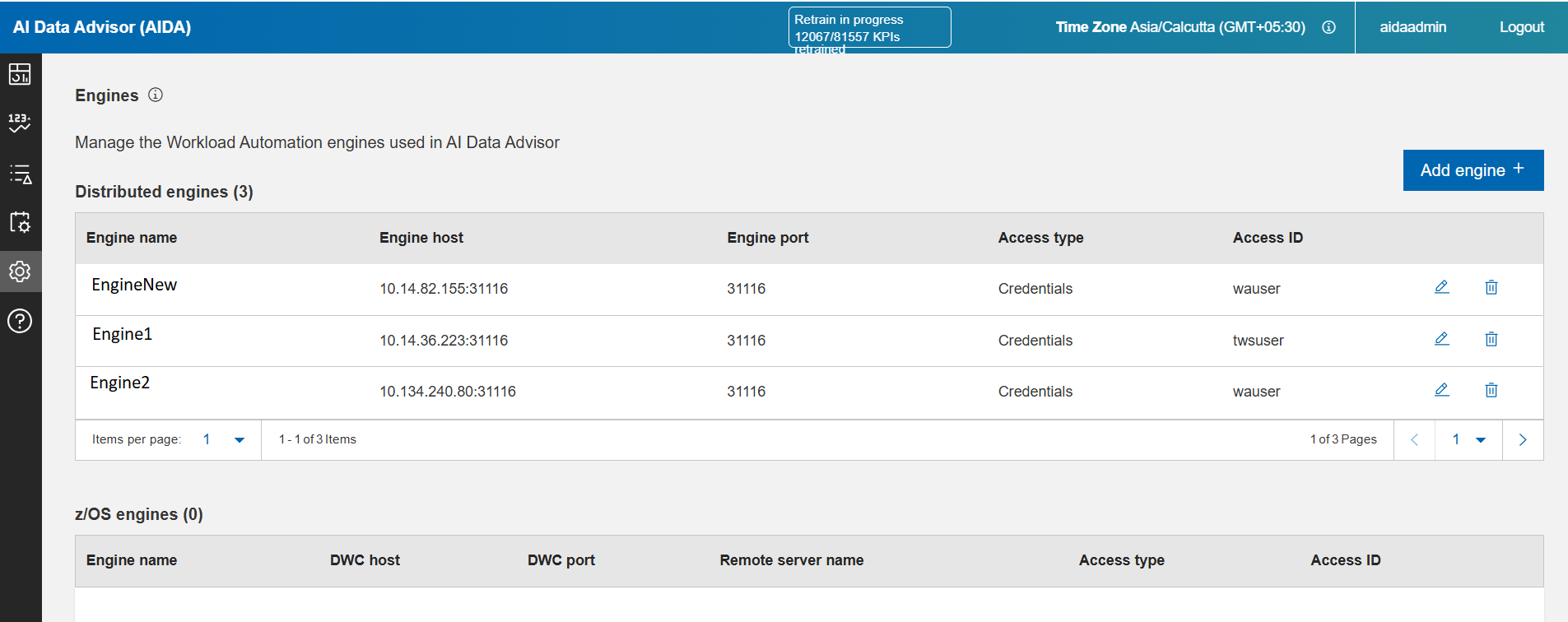
This page shows you the Engines managed by AIDA.
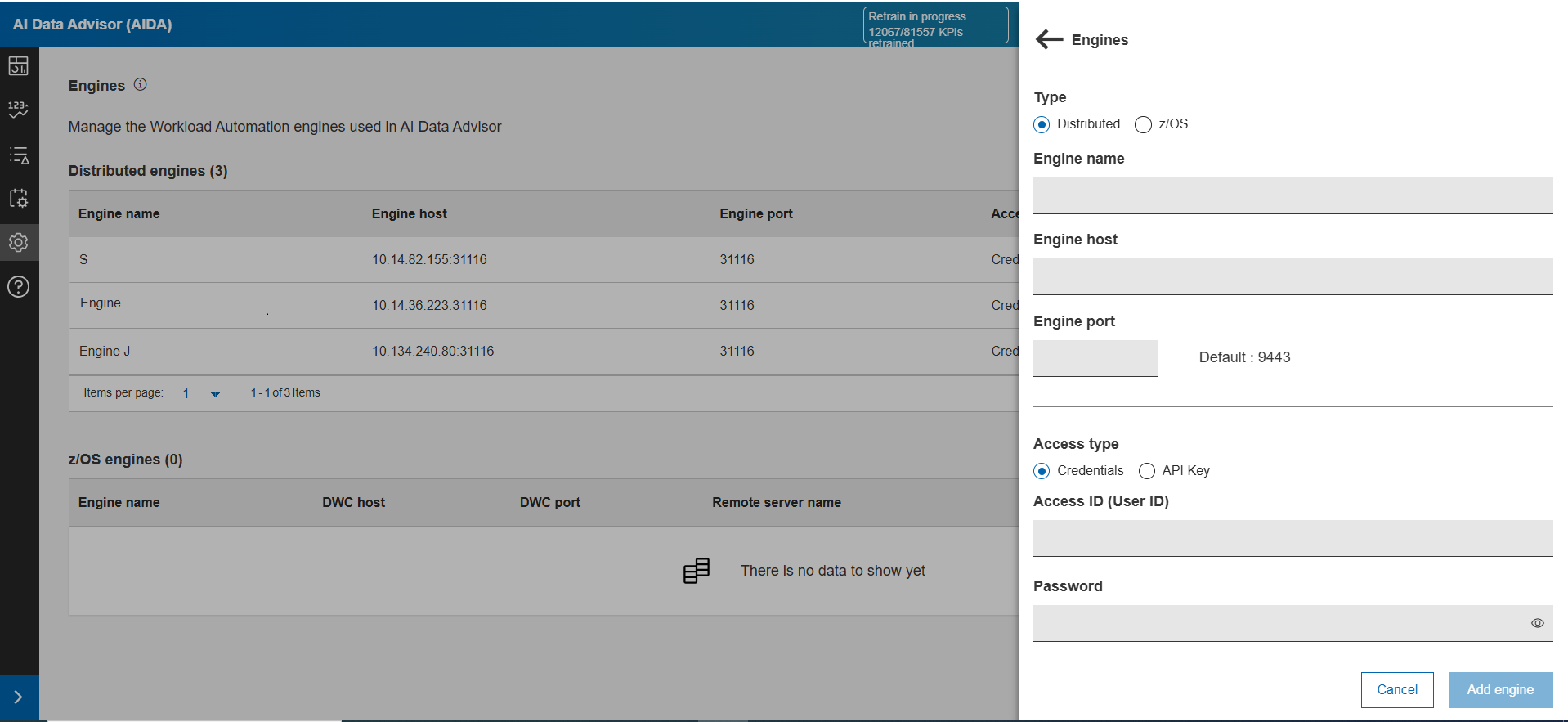
You can add engines for distributed and z/OS environment. To add the engines do the
following:
- Click on the Add Engine buttton. A panel opens containing the list of the
fields.
Property Description Engine name Enter the name of the engine. This is a unique identifier for the engine being added to the system. Engine host (only for Distributed) Enter the host name or the or IP address of the server where the engine is hosted. Engine port (only for Distributed) Enter the port number on which the application server is running. The default port number is 9443. DWC host (only for z/OS) Enter the DWC host name or the or IP address of the server where the engine is hosted. DWC port (only for z/OS) Enter the DWC host name or the or IP address of the server where the engine is hosted. Remote server name (only for z/OS) Enter the name or IP address of the remote server. Access type Supports the following authentication methods to interact with the system: - Credentials: Requires a username and password for user verification.
- API Keys: A unique key assigned to each user or application to authenticate API requests.
Access ID (User ID)(only for Credentials) Enter the user identifier or the username used to access the system. Password (only for Credentials) Enter the password used to access the system. Access ID (API key name) (only for API Key) Enter the unique identifier assigned to the user for API key management and system access. API key (only for API Key) Enter the unique API key assigned to the user for authentication and system access. - Enter the required details, and then click Add engine.
The added engines appears in the Engines page.
- Click the Edit button to modify an engine.
- Click the Delete icon to delete an engine.