
Demo App QuickStart Guide (Building a Sample App – iOS): Generating an Apple Push Notification Service (APNS) Certificate
Generating an Apple Push Notification Service (APNS) Certificate
The Apple Push Notification Service (APNS) certificate is needed for the iOS devices to register with Apple to receive notifications.
To generate an Apple Push Notification Service (APNS) certificate, follow these steps:
The first step to generate an Apple Push Notification Service (APNS) certificate is to generate a certificate request (CSR) file. The certificate request (CSR) file is used to request a development SSL certificate.
-
To generate a
CSR file, launch the Keychain Access application from the LaunchPad.
-
Select the Keychain Access > Certificate Assistant > Request a Certificate From a Certificate Authority ... to create a SSL certificate.

The Certificate Assistant window appears.
-
Under the Certificate Information section enter the following details:
- User Email Address: Enter your email address.
- Common Name: Enter the common name.
- Request is: Select the option as Saved to disk.

-
Click Continue to proceed. The Save As dialog box appears.
-
Save As dialog box: Change the file name extension in the Save As field to .
CSRand click Save.
-
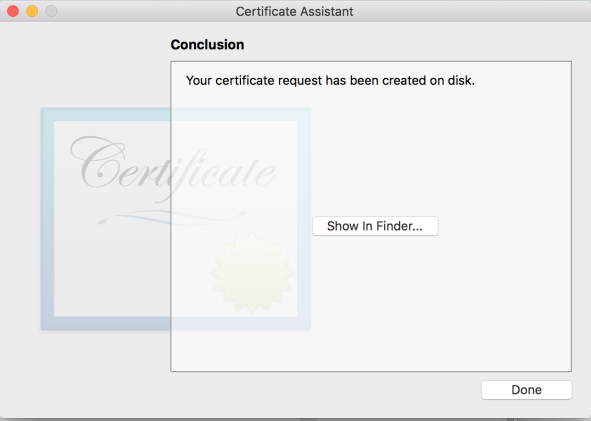
Click Continue to proceed. The Conclusion notification appears.
-
Click Done to create the CSR request and save it on your computer.
-
Log on to the developer.apple.com site with your Apple credentials. If you do not have an Apple developer’s account, register with Apple.

-
Click Sign In to continue.
-
The next step is to create an App ID for push notifications. On the Developer Account page, click Identifiers under Certificates, IDs and Profiles in Program resources.

-
The Certificates, Identifiers and Profiles page appears. Click the + sign next to the Identifiers to create new App ID.

-
The Register new Identifier page appears. Select App IDs and click Continue

-
Select App and click Continue

-
Register an App ID: Enter the details for the following fields:
- Description: Enter the application name.
- Bundle ID:
- Explicit: Enter the bundle Id. Remember the bundle Id as it is used to configure the application in Iris.

-
Ensure that Push Notifications is checked under the Capabilities section. Click Continue to proceed.

The new Identifer will get created.
-
The next few steps discuss the configuration of the app ID for push notifications. Search the newly created App ID in the search bar and Click on (HclOrderExecutionAppID) App ID to Edit.

-
In Capabilities section, Click on Configuration button next to the Push Notifications.

-
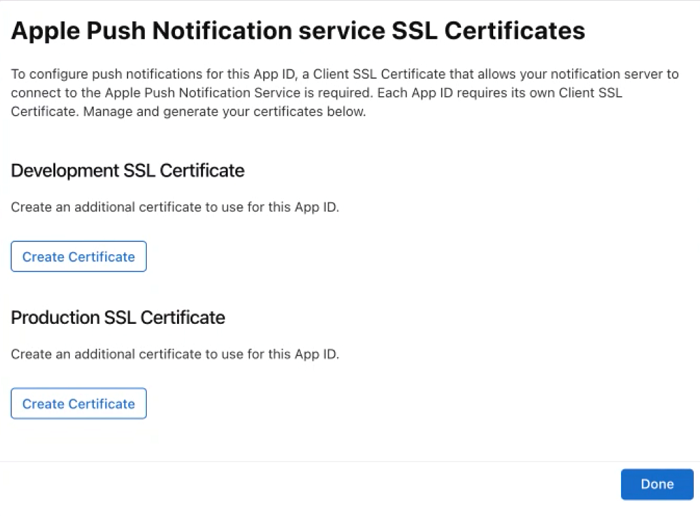
To create a development certificate, click Create Certificate in the Development SSL Certificate section. Click Done.
-
The Create a New certificate page appears. The next step involves choosing the CSR file that was generated earlier. Click Choose File to upload the .
CSRfile.
-
Click Continue after the
CSRfile is selected to complete the certificate creation. -
The Download Your Certificate page appears. click Download to download the certificate.

-
Double click aps_production.cer in the Downloads folder to add it to the Keychain Access application.

-
To view the certificate in the Keychain, launch the Keychain Assistant and search by the certificates category. The push certificate is displayed.

-
Right-click the certificate and click Export Apple Production iOS Push Services:com.voltmx.vmsdemoapplication from the drop-down list to export the certificate.

-
Enter the file name and the location where the file is to be saved and click Save.

-
Enter the password and click OK to continue.

-
Enter your admin password for your computer and click Allow. This ensures that the certificate can be exported to the folder mentioned.