
New Navigation UI
Unica has introduced New UI.
By default, the Unica+ platform uses the Neo UI. Administrators can change the UI experience for individual users.
To change the UI for a user:
- Navigate to Settings > Users.
- Select the user that you want to modify.
- Click Edit preferences.
- In the Preference Settings pane, select Unica Platform.
- From the Unica UI Experience drop-down list, select one of the following
options:
- Classic UI
- Neo UI
- Click Save.
We have introduced new UI for Unica. The Unica landing page provides a centralized hub for accessing your Unica applications and information. It is comprised of three main sections: the Side Menu, the Header Bar, and the Dashboard.
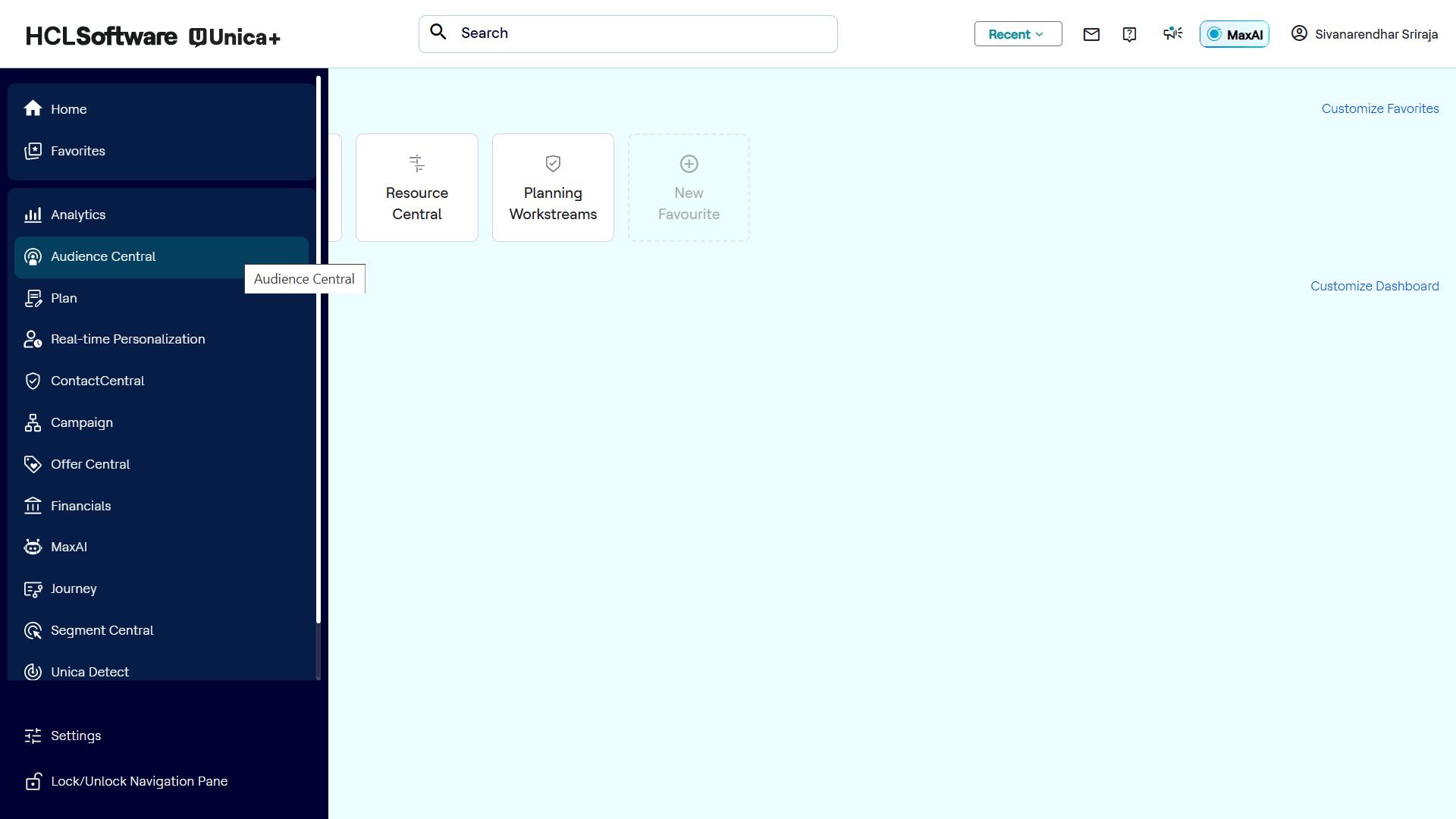
Side Menu
The Side Menu, located on the left side of the screen, allows you to navigate to key
areas of the Unica application. The menu items displayed are dependent on the Unica
products installed in your system.
- Home: Provides access to the main landing page or dashboard.
- Favorites: Displays a personalized list of your frequently accessed pages or features. You can add pages to your favorites for quick access.
- Analytics: Allows you to view various product analytics. The specific analytics available depend on the Unica products installed. For example, if Unica Journey is installed, you will see Journey analytics.
- Unica Products: Lists the Unica products that are installed and configured in your system, providing direct access to their respective interfaces.
- Settings: Provides access to all Unica system settings.
- Lock/Unlock Navigation Pane: This option allows you to lock or unlock the Side Menu for a fixed or collapsible view.
Header Bar
The Header Bar, located at the top of the screen, offers common functionalities
accessible across all Unica products.
- Search: Use the search bar to quickly find and access features or pages within the Unica application. This search functionality is applicable to all installed products.
- Notifications: Displays system notifications and alerts.
- Recent Pages: Provides a list of recently accessed pages or features, allowing for quick navigation.
- MaxAI Button: Opens MaxAI chat window at the bottom of the page to gets insights of the application.
- Help: Access the Unica help documentation.
Dashboard
The Dashboard, located in the center of the landing page, is designed for
personalization and quick access to essential information.
- Favorites/Quick Links: Displays customizable cards for your favorite
items or quick links. You can customize the dashboard to view whatever
insights you prefer.
- Customize Favorites: Click this link to add your products and quick links. By default, quick links are empty. You can navigate to a specific product page and click the star icon at the top of the page to add that page to your quick links.
- Insights: Displays various insights and reports relevant to your
Unica usage and configured products. This area can be customized to show
specific data and reports.
- Customize Dashboard: Click this link to add product-wise widgets to your dashboard.