
Using MaxAI for Approvals
From 25.1.0 release onwards, you can use MaxAI to execute the following approval actions in Plan:
- Listing Approvals
- Creating Approvals
- Assigning Approvals
- Updating Approval Status and Due Date
- Assigning Offers or Offer Lists to Approvals
Accessing MaxAI Assistant
Before you access the MaxAI component, ensure that it is deployed and configured. If you cannot locate or access MaxAI, contact your Administrator to configure it. MaxAI is compatible with HCL Unica+ 25.1.0 version.
- In the header, click the following button:

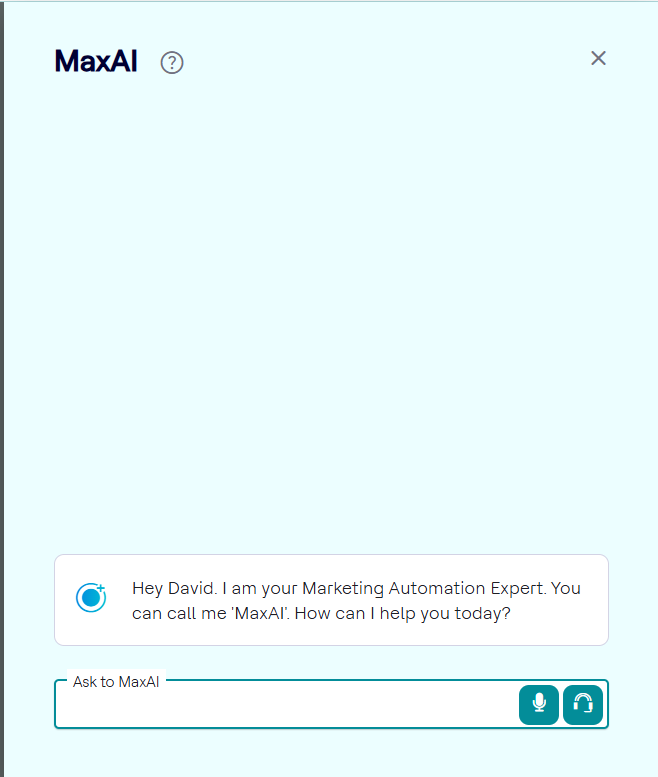
- The MaxAI Assistant panel opens:
- Microphone icon - Click the
Microphone icon to recite your query. You will
need a microphone to input your query via voice. The result appears in the
window.Note:
- Confirm the compatibility and limitations of your browser with your microphone.
- Ensure that you have activated microphone access on your browser.
- Refresh the page after enabling microphone access.
- Headphone icon - Click the
Headphone icon to start a conversation with the
MaxAI Assistant. You will need a headphone or earphone, and a microphone to
input your query via voice and to listen to the response from the MaxAI
Assistant.Note:
- Confirm the compatibility and limitations of your browser with your headphone.
- Ensure that you have activated headphone access on your browser.
- Refresh the page after enabling headphone access.
- For the responses received from MaxAI Assistant, you can select the
Thumbs Up icon or the Thumbs
Down icon.
- Thumbs Up icon - If you select the
Thumbs Up icon, a Help us
improve panel opens. You will see the following
options:
- Factually correct
- Easy to understand
- Informative
- Creative/Interesting
- Well formatted
Based on your experience, select one or more of the earlier provided options. Additionally, you can provide a detailed feedback in the Please feel free to add additional details textbox. Click the Submit button after providing the feedback.
The positive feedback helps MaxAI to remember the correct responses.
- Thumbs Down icon - If you select the
Thumbs Down icon, a Help us
improve panel opens. You will see the following
options:
- Not factually correct
- Didn't follow instructions
- Wrong language
- Poorly formatted
- Generic/Bland
Based on your experience, select one or more of the earlier provided options. Additionally, you can provide a detailed feedback in the Please feel free to add additional details textbox. Click the Submit button after providing the feedback.
The negative feedback helps MaxAI to remember the incorrect responses and ensure such responses do not appear for similar queries posted later by other users.
- Thumbs Up icon - If you select the
Thumbs Up icon, a Help us
improve panel opens. You will see the following
options:
How to Use Prompts?
Use verbs like Create, List, Approve, Assign, and Modify. Provide criteria or details.
Examples for Good Prompt vs Bad Prompt
| Prompt | Good / Bad? | Reason? |
|---|---|---|
| Create approval. | Bad | Missing details. |
| Approve the pending budget approval request. | Good | Clear action + object. |
| Approve. | Bad | No object. |
| Assign Mark as approver for approval Car Loan. | Good | Specific request ID + role. |
Example Queries
| Action | Description | Examples |
|---|---|---|
| LIST | To see a list of available approvals:
|
|
| CREATE | To create a new approval |
|
| ASSIGN | To assign an existing approval to a user or update the due date of an approval. |
|
| UPDATE STATUS | To change the status of an existing approval, including approving the approval or denying the approval. |
|
| OFFERS | To add an offer or offer list to an existing approvals |
|