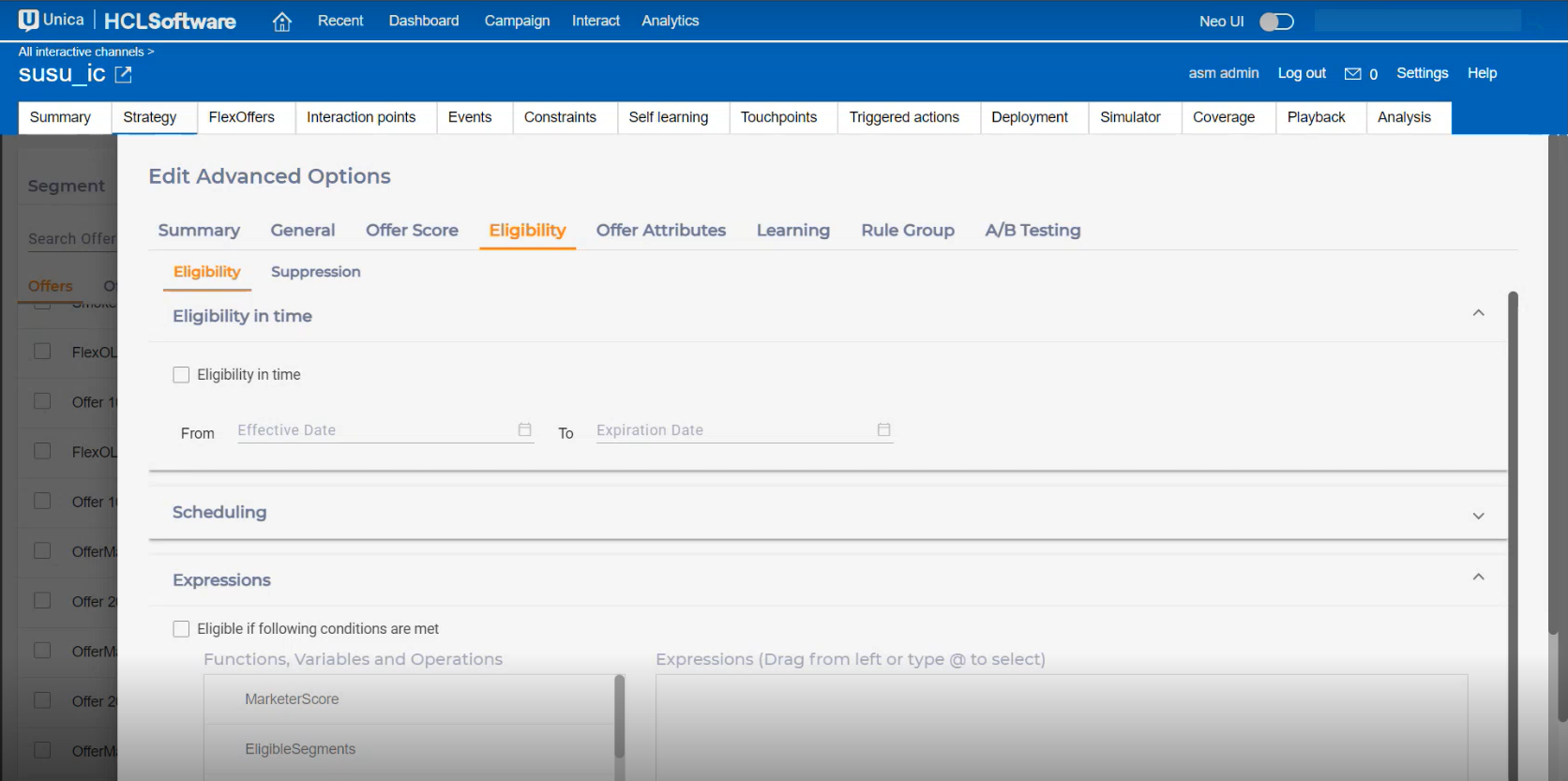
Eligibility tab
Within the Eligibility tab there are two sub-tabs: Eligibility and Suppression.
Under the Eligibility sub-tab, the following fields are available:
- Eligibility in time: It specifies the range of time for which this rule is effective. When left blank for “Effective Date”, this rule is in effect immediately. When left blank for “Expiration Date”, this rule is in effect for as long as this rule is in place. A past date cannot be set as the expiration date.
- Scheduling: Schedule a date and time range for which the rule is effective.
If required, add multiple date and time ranges. Scheduling has the following
fields:
- From: The start date for scheduling.
- Time: The start time, corresponding to the start date. for scheduling.
- To: The end date for scheduling.
- Time: The end time, corresponding to the end date. for scheduling.
- On: The days during the selected date range where the rule is effective. The value you set in this field is applied only if you select an appropriate date range.
- Add: A button to add multiple scheduling options. You can add a maximum of five schedules. If current time does match any eligibility schedule, the rule is not eligible.
Example 1:
If the current date is June 30 2023 and you want to schedule the rule on the first week of July 2023 (July 3rd 2023 to July 7th 2023) only on Monday, Wednesday, and Friday between 10:00 am and 6:00 pm, perform the following steps:- Set From to 07/03/2023.
- Set Time to 10:00.
- Set To to 07/07/2023.
- Set Time to 18:00.
- For the On field, select Monday, Wednesday, and Friday.
Example 2:
If the current date and time is June 30 2023 09:00 and you want to schedule the rule on June 30 2023 between 10:00 am and 6:00 pm, perform the following steps:- Set From to 06/30/2023.
- Set Time to 10:00.
- Set To to 06/30/2023.
- Set Time to 18:00.
- Do not select any value for the On field. Since June 30 2023 is a Friday, you can either select Friday or keep it blank. If you select the an incorrect value, the condition fails and the rule will not execute.
- Eligible if following conditions are met: The eligibility of this offer is calculated in Interact Runtime using the given expression, which has to generate a boolean value. To get more details on how use to Expression Builder to build an expression, see the Predicate and Expression builder topic.
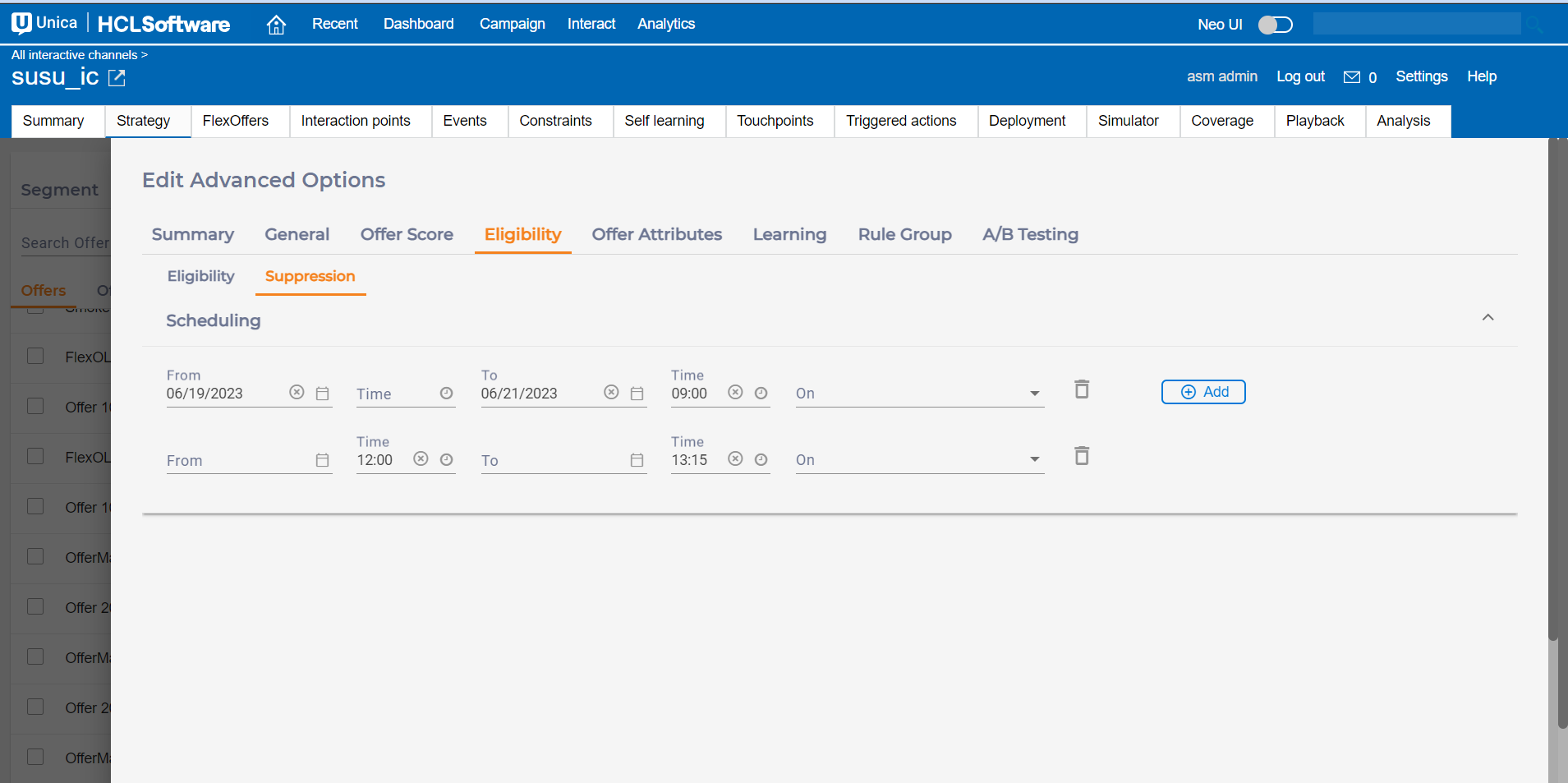
Under the Suppression sub-tab, you will see the Scheduling feature.
You can schedule a date and time range for which the rule is suppressed. If required, add multiple date and time ranges. Scheduling has the following fields:
- From: The start date for scheduling.
- Time: The start time, corresponding to the start date. for scheduling.
- To: The end date for scheduling.
- Time: The end time, corresponding to the end date. for scheduling.
- On: The days during the selected date range where the rule is suppressed. The value you set in this field is applied only if you select an appropriate date range.
- Add: A button to add multiple scheduling options. You can add a maximum of five schedules.