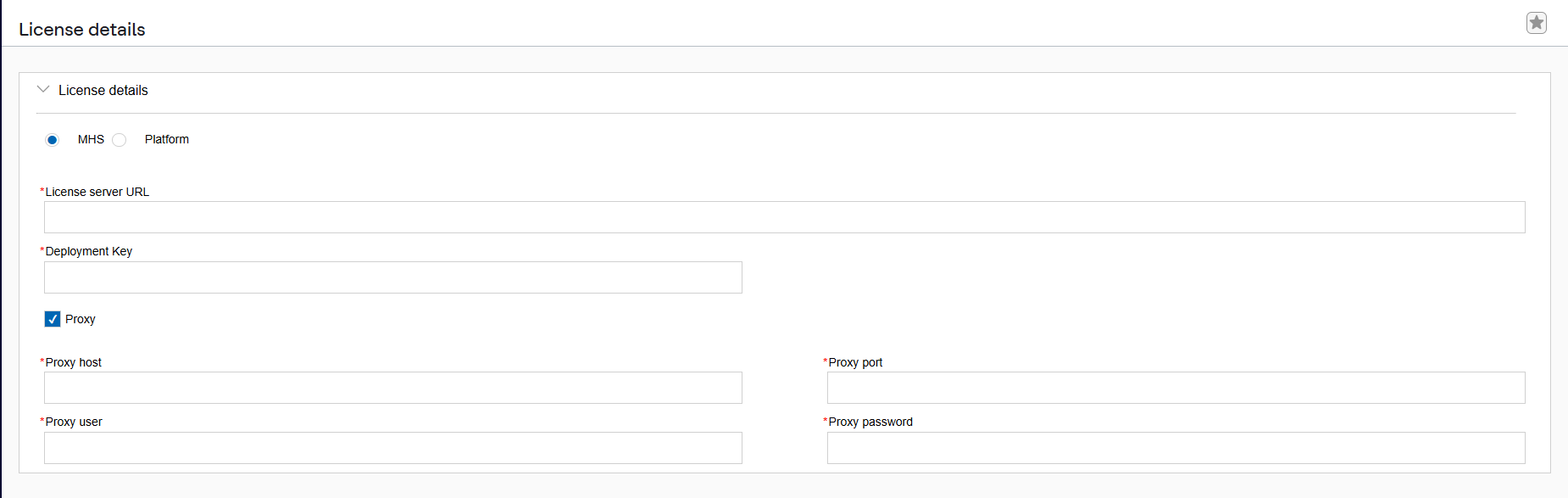
License Configuration
User will need to configure the license with HCL Unica before start using, when users access the Unica Platform login URL – it will get redirected to the license configuration page. The user needs to configure the license details on this page. Unica Platform will validate the license and on a successful license validation, the user will be redirected to the Unica Marketing Platform login screen. There are two radio buttons on the License configuration screen MHS and Platform. MHS button will connect to MHS to consume the license and Platform option is for Master slave configuration. Slave platform will consume the license from the Master platform, so for slave platform user needs to click on the Platform radio button and enter the master platform url and credentials. Once this is done, slave platform will start consuming license from the Master platform, which in turn will consume license from Flexnet.
| License server URL | https://api.hcltechsw.com/ |
| Deployment Key | Deployment key generated in MHS (Refer Chapter 2) |
| Proxy | Use proxy server to connect to MHS and also if you do not have outbound access to MHS. |
| Proxy Host | Proxy server hostname or IP address |
| Proxy Port | Proxy server port |
| Proxy User | Proxy server user |
| Proxy Password | Proxy server user’s password |