You can annotate a flowchart to communicate with other users of the flowchart and
clarify the intention and functionality of processes. Annotations appear as yellow sticky notes.
About this task
Use annotations to ask and answer questions among team members or communicate implementation
details as a flowchart is developed. For example, an analyst can add an annotation to explain
the selection logic for a process and the Marketing Manager can use the annotation to request
changes.
Annotations can supplement the mouse-over information that is provided by the Note field on
the General tab of the process configuration dialog. For example, the Note field might describe
the selection criteria, but an annotation can be added to ask questions.
Each process box in a flowchart can have a maximum of one annotation. A process box that has
an annotation includes a small annotation icon. The icon helps to identify which processes
have annotations if the annotations are hidden.
Procedure
Open a flowchart for editing.
Right-click a process box, and choose Annotations > Add Annotation.
Type the information that you want to convey.
A small annotation icon is added to the process box so you can tell that the process
is annotated, even if annotations are hidden.
When you are done, save the flowchart.
When you save a flowchart, the show/hide state for annotations is retained and any
blank (empty) annotations are removed.
The following table explains how to work with annotations.
Action
Details
Add an annotation
In flowchart Edit mode, right-click a process box and choose Annotations > Add Annotation. You can use a maximum of 1024 characters. Each process box can have
only one annotation. Annotations are not saved until you save the flowchart.
Edit an annotation
In flowchart Edit mode, show the annotation. Click the annotation and make your
changes. An annotation can be edited by anyone who has permission to edit the
flowchart.
Remove an annotation
Use either method in flowchart Edit mode:
Right-click a process box and choose Annotations > Remove Annotation.
When an annotation is showing, use the menu on the annotation to
Remove Annotation.
An annotation can be removed by anyone who has permission to edit the flowchart.
An annotation is automatically removed if its process box is deleted.
Show or hide all annotations
In View or Edit mode, click the Show All Annotations or
Hide All Annotations button in the flowchart toolbar. If you
are in Edit mode, the state is retained when you save the flowchart.
Show or hide a specific annotation
Use either method in flowchart Edit mode:
Right-click a process box and choose Show Annotation or
Hide Annotation from the Annotations menu.
When an annotation is showing, use the menu on the annotation to Hide
Annotation.
The state is retained when you save the flowchart.
Move an annotation
Annotations always appear to the right of the associated process box. If you
move a process box, the annotation is also moved. In View or Edit mode, you can drag
an annotation to a new position but the position is not saved after you exit the
flowchart.
Copy annotations
Annotations are copied in the following situations: a. If you cut/copy/paste a
process box that has an annotation. b. If you save a process box to a template and
paste the template. c. If you copy a flowchart. For method c, the original display
state of the annotations is retained.
Select or resize an annotation
Annotations cannot be selected or resized and are unaffected by Zoom.
Save annotations
You must save the flowchart or annotations will not be retained.
Print annotations
When you print a flowchart, any visible annotations are also printed. Show any
annotations that you want to print. Only annotations that are visible in the workspace
are printed. Annotations that are outside of the screen area might not print.
Example
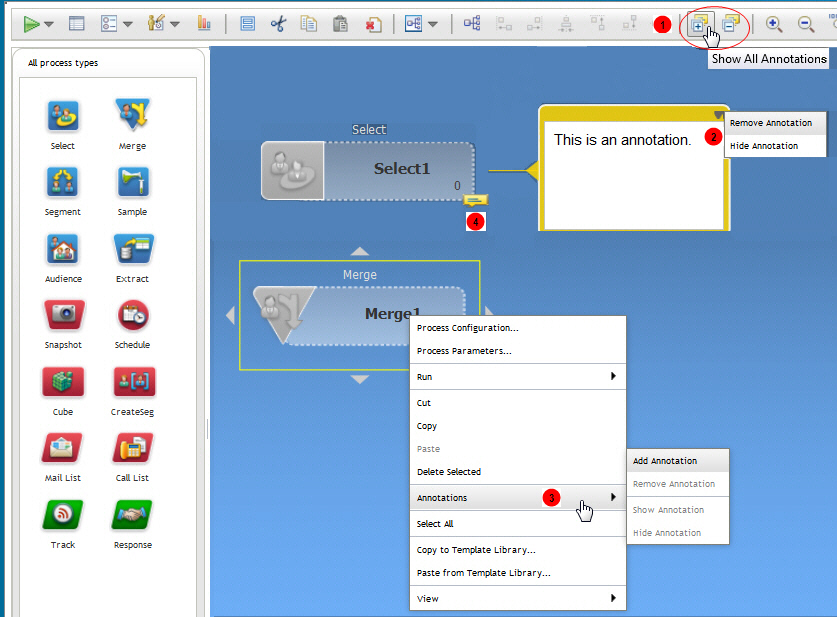
The following image shows the annotation menus and icons.
Item
Description
1
Use the toolbar icons to show or hide all annotations in the flowchart.
2
Use the menu on an annotation to remove (delete) or hide the annotation. To
access the menu, you must show the annotation.
3
Right-click a process and use the Annotations menu to add, remove, show, or hide
an annotation.
4
The annotation icon indicates which processes have annotations.