Upgrading Clara
You can upgrade your Clara installation to V2.0.0.4 in the following ways:
From V1.0.0.6 or V1.0.0.7 to V2.0.0.4
Before upgrading Clara, if you have modified the Knowledge Base of your previous installation by adding custom FAQs and you want to export them, run the following steps:
-
From Clara Administration Console (https://<Clara_machine_IP>/botAdministrator/index.html), export the FAQs into a .csv file by clicking the Export button.
-
Delete all the FAQs except your custom ones and save the file.
Upgrade procedure
Run this procedure if you want to migrate your previously defined Keycloak settings and users:
-
Install Clara V2.0.0.4 by following the installation procedure.
-
Open Keycloak administration console at the link https://<IP:PORT>/keycloak/auth/admin by using the following credentials:
-
userid=admin
-
password=Hclsolutions00
-
-
Modify the login settings:
-
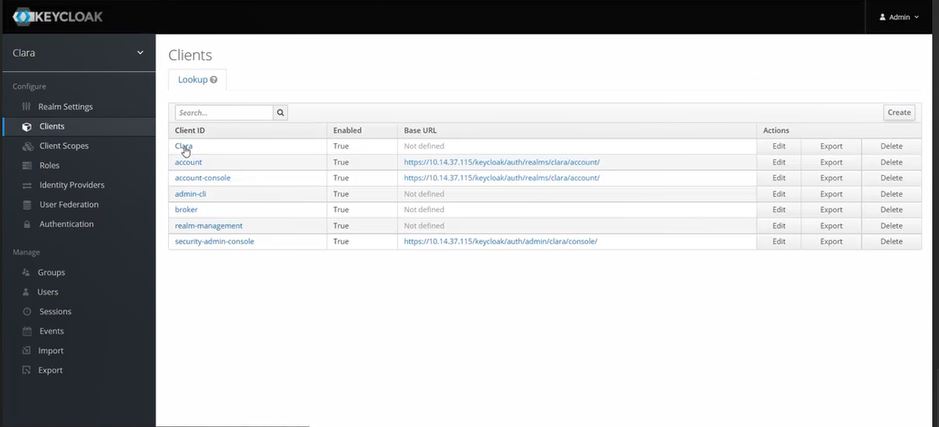
From Keycloak left-hand sidebar, from the Configure section, select Clients.
-
Select Clara as Client ID.
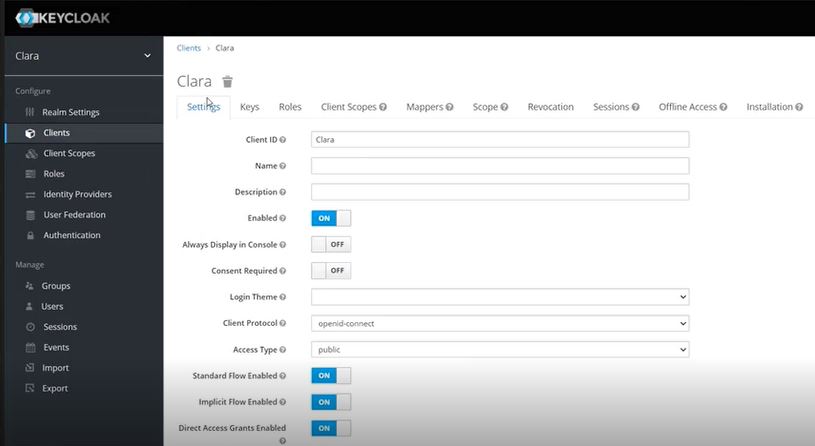
- From the Settings tab, set Access Type to public.
-
-
Modify the login theme:
-
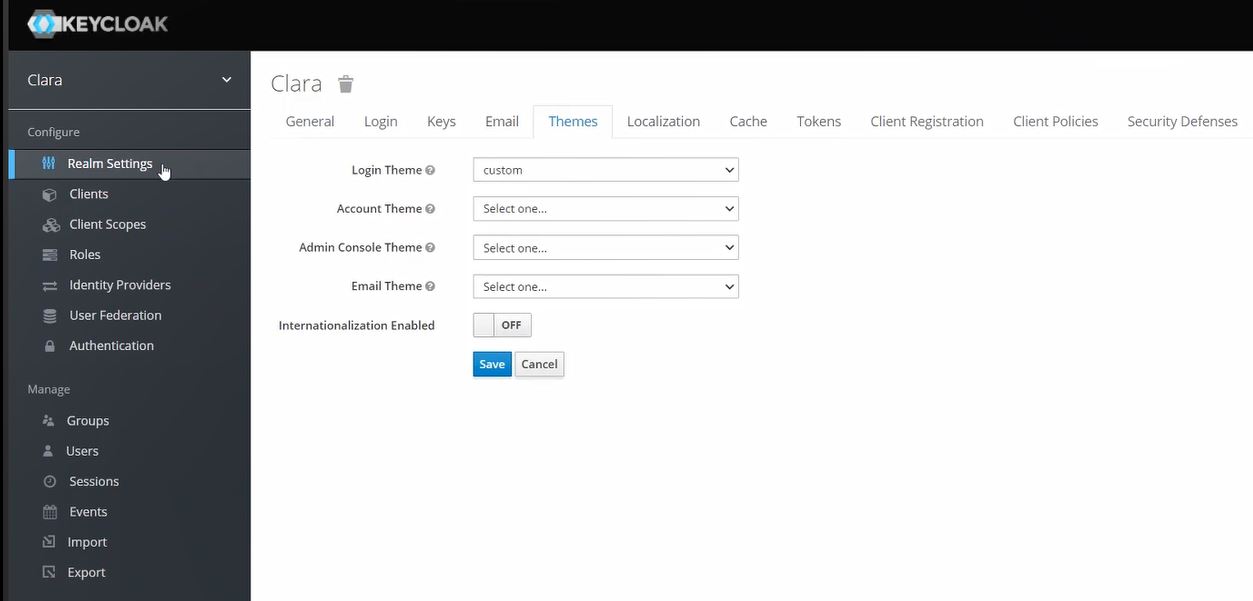
From Keycloak left-hand sidebar, from the Configure section, select Realm Settings.
-
From the Themes tab, set Login Theme to custom.
-
-
Add the new role: clara-admin:
- From Keycloak left-hand sidebar, from the Configure section, select Roles.
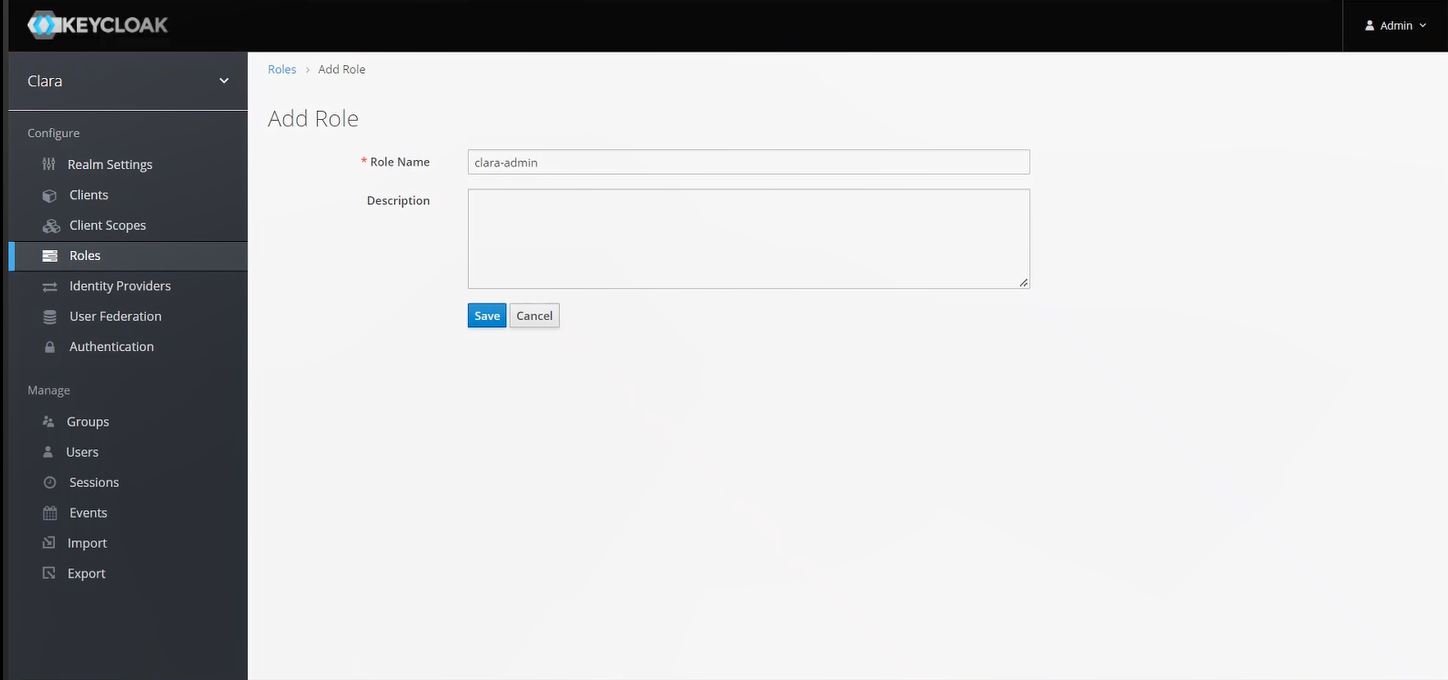
- From the Realm Roles tab, click Add Role.
-
Set Role Name to clara-admin.
-
Click Save.
-
Modify the Realm token:
-
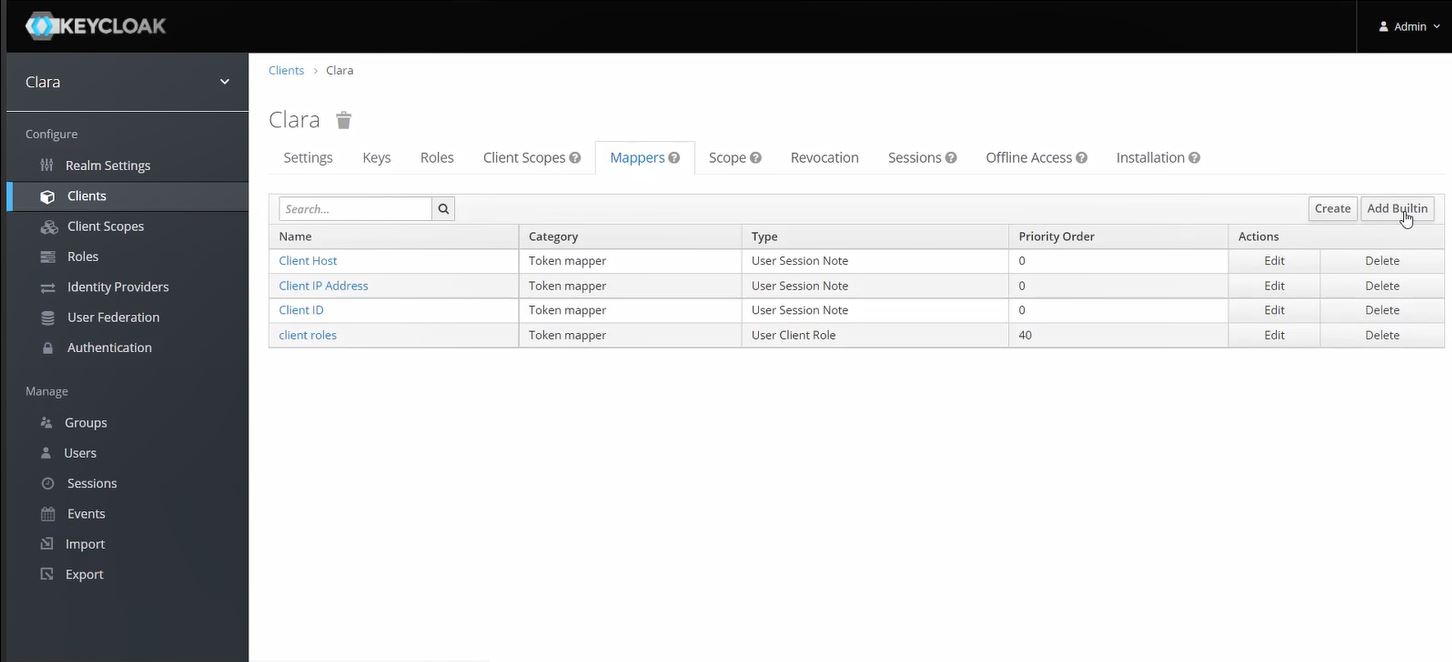
From Keycloak left-hand sidebar, from the Configure section, select Clients > Clara.
-
From the Mappers tab, click Add Builtin.
-
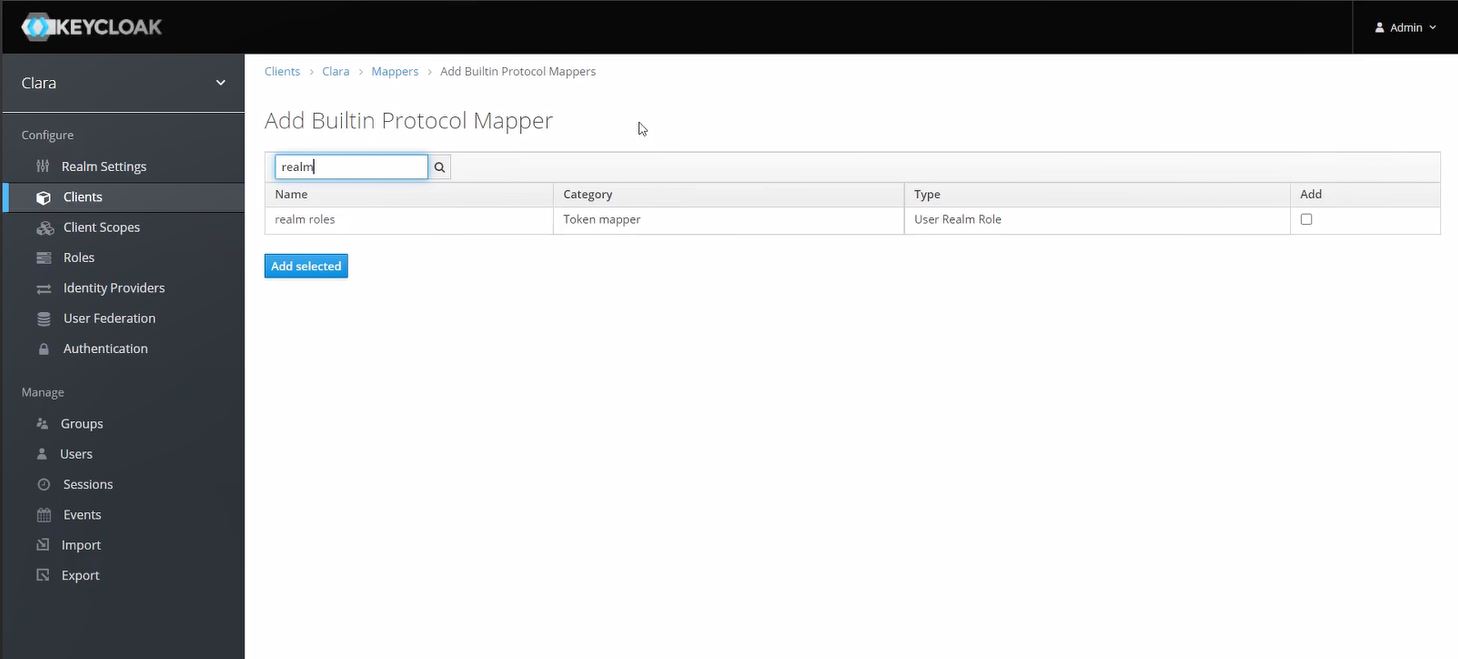
Search for realm roles and click Add selected.
-
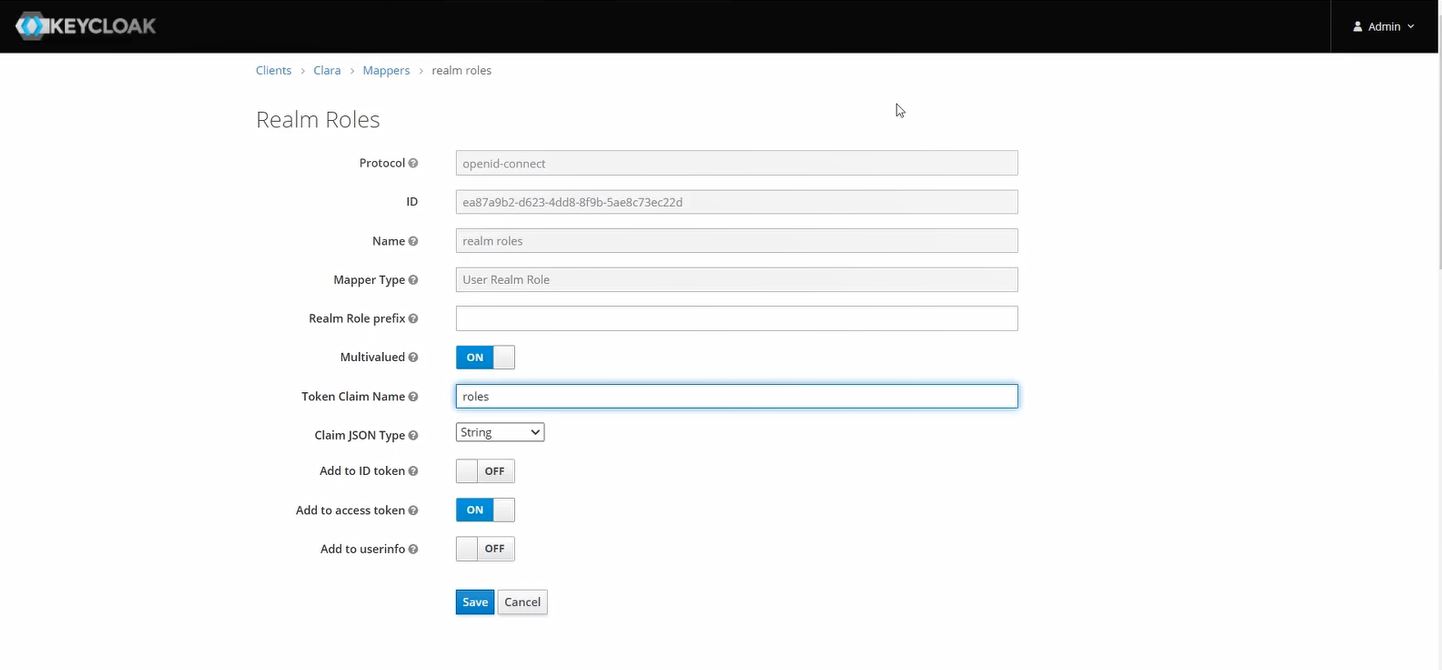
From the Mappers tab, click the Edit action for realm roles.
-
Set the Token Claim Name to roles.
-
-
Assign the new role clara-admin:
-
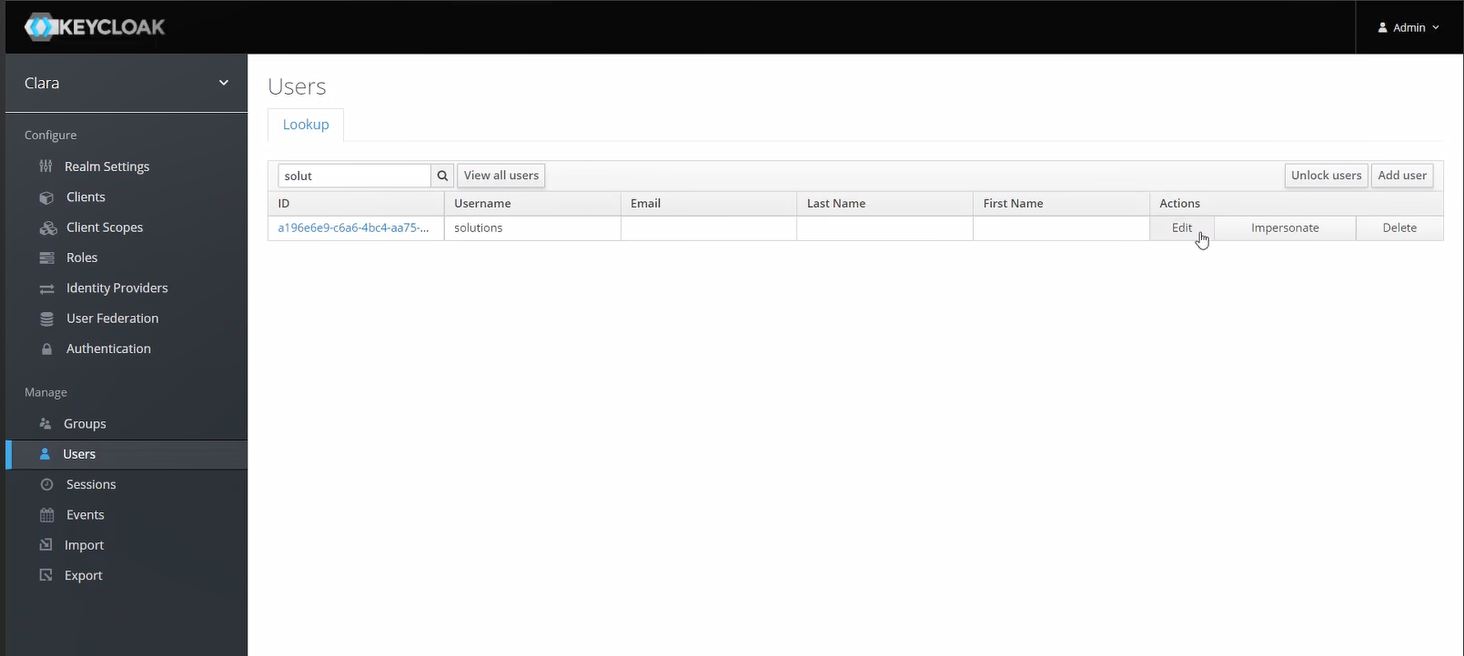
From Keycloak left-hand sidebar, from the Manage section, select Users.
-
Search for the user you want to give the clara-admin role and click the Edit action.
-
From the Role Mappings tab, in the Available Roles list, select clara-admin and click Add selected.
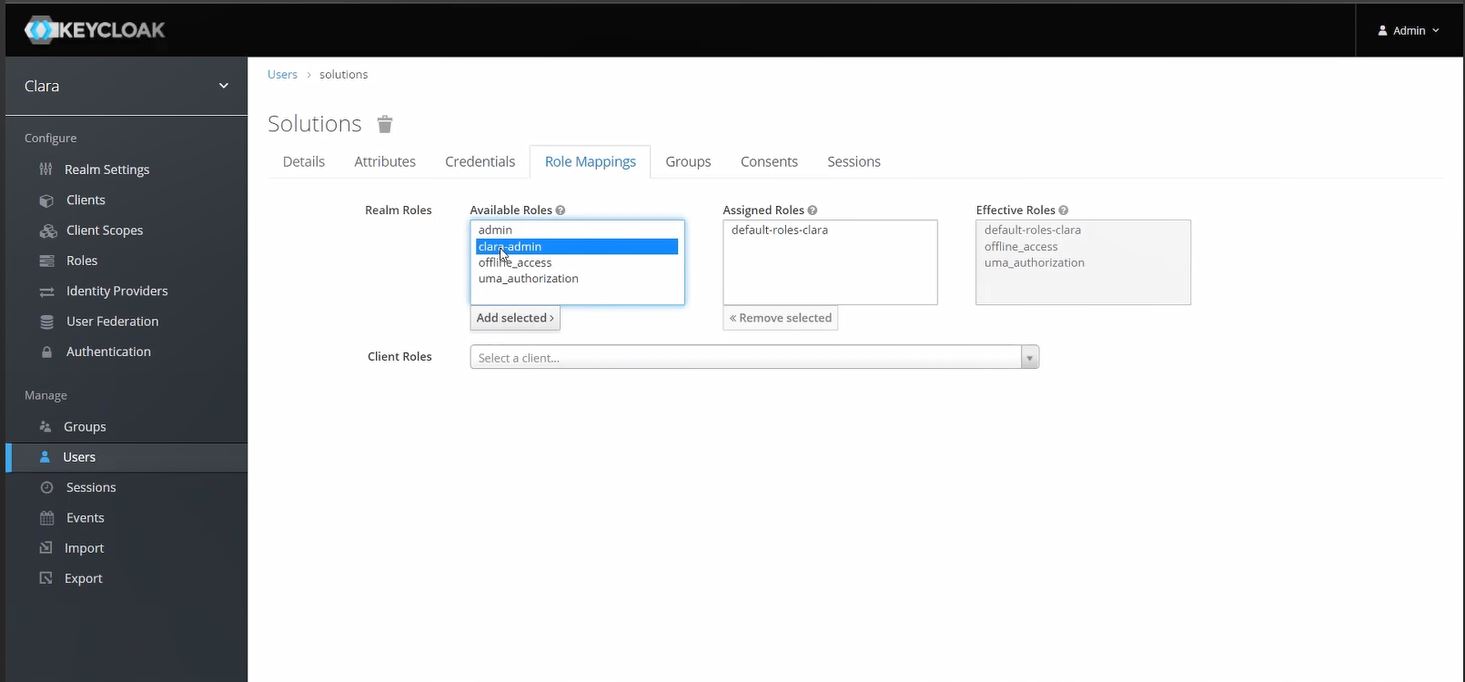
-
-
You can now login to Clara V2.0.0.4 with your migrated users.
After the upgrade, from Clara Control Panel > Intent Manager, you can import the .csv file containing the custom FAQs exported from your previous installation.
The product environments that you defined with Clara V1.0.0.x cannot be migrated to Clara V2.0.0.4. Therefore, you have to add your product environments into Clara V2.0.0.4 through Clara Control Panel > Environments.
From V2.0.0.0 to V2.0.0.4
Before upgrading Clara, if you have added custom intents (Q&As) into Clara Control Panel > Intent Manager, and you want to export them, run the following steps:
-
From Clara V2.0.0.0 Control Panel > Intent Manager, select your custom Q&As.
-
Export them to a .csv file by running the Download action.
For details on how to migrate Keycloak, see Migrating Keycloak.
Upgrade procedure
Run the following procedure:
-
Install Clara V2.0.0.4 by following the installation procedure without removing the volumes you used in V2.0.0.0.
-
Login to Clara V2.0.0.4.
-
From Clara Control Panel > Intent Manager, import the .csv file containing the custom FAQs exported from your previous installation.