Managing the product environments
From Clara Control Panel > Environments page, you, as a Clara administrator, can add, modify, or delete the product environments that you want to manage with Clara.
You can also set a default environment.
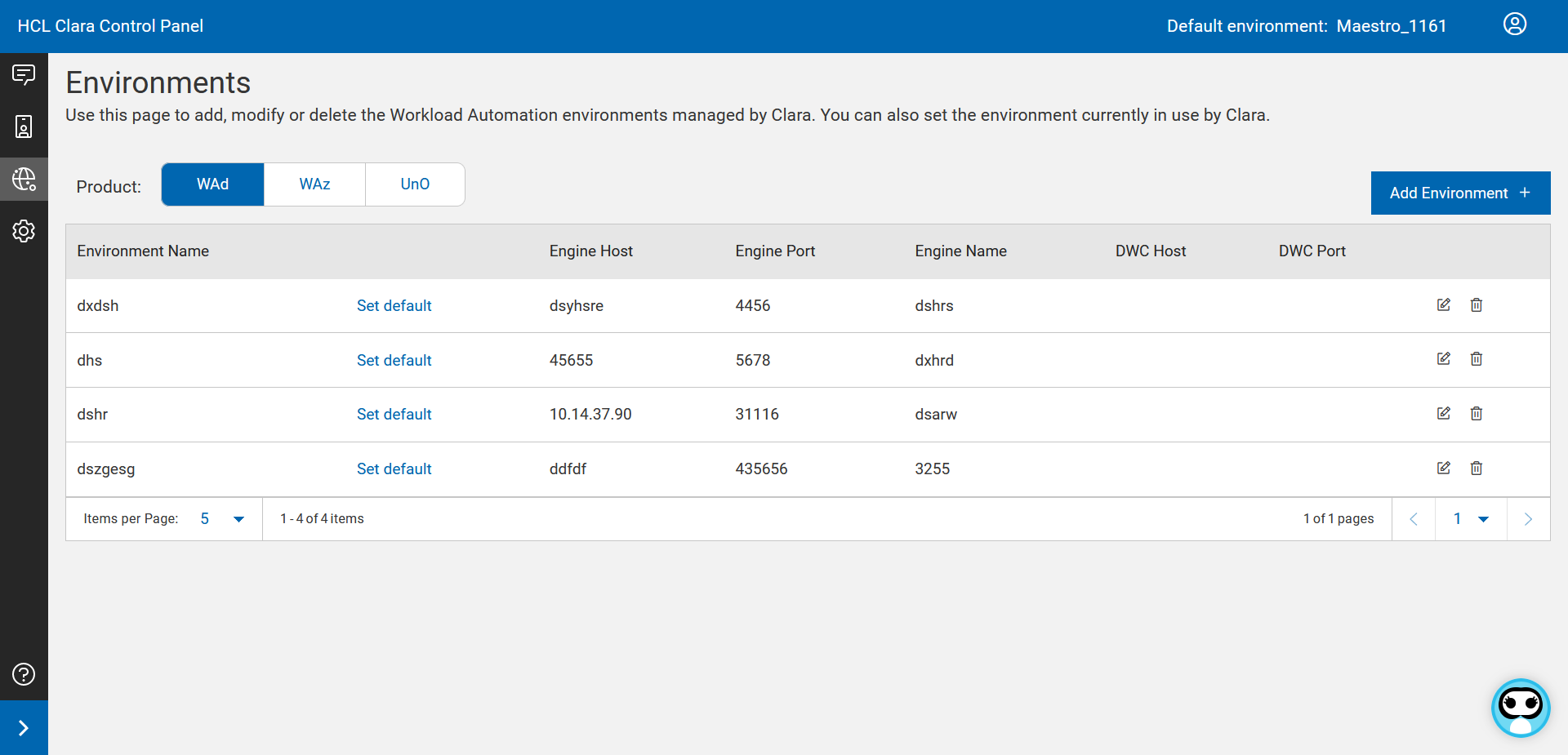
An environment table is available for each product that you want to manage with Clara and you can switch from one to another:
-
WAd table, showing the environments available for HCL Workload Automation (WAd).
-
WAz table, showing the environments available for HCL Workload Automation for Z (WAz).
-
UnO table, showing the environments available for HCL Universal Orchestrator (UnO).
Actions that you can run on each environment are:
-
Set default - to set an environment as default.
-
Edit - to edit the environment parameters.
-
Delete - to delete the environment. You cannot delete the default environment.
Click the Add Environment button to add a new environment.
For each environment that you want to add, specify the following properties:
|
Property |
Description |
Notes |
|
Product |
The product type. It can be: WAd, WAz, UnO. |
|
|
Environment Name |
The name of the environment. |
|
|
Engine Port |
The port to connect the host engine. |
Default: 311116. |
|
Engine Host |
The engine IP address or hostname. |
|
|
DWC Host |
The DWC IP address or hostname. |
Optional, if you want to define a DWC environment within the product environment. (Available only for WAd product environments). |
|
DWC Port |
The Port to connect the DWC. |
Optional, if you want to define a DWC environment within the product environment. (Available only for WAd product environments). |
The credentials or API Keys to access each added environment must be defined in the Control Panel > Access Manager.
Only for WAz environments, after adding a new environment, run the following commands:
- docker exec -it clara-actions sed -i '197s/HWAZ/HWAz/' /app/utils/models.py
- docker exec -it clara-actions sed -i '205s/HWAZ/HWAz/' /app/utils/models.py
- docker restart clara-actions
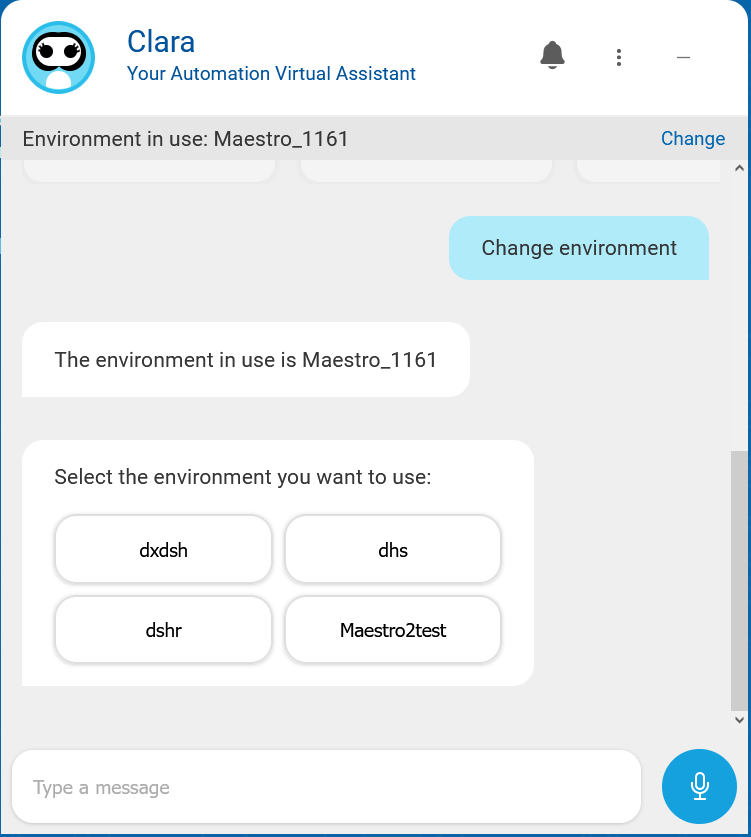
From Clara V2.0.0.2, the support of multiple environments is available: once Clara Administrator has defined a default environment, each user, at any time, can change the environment that he wants to manage with Clara. From Clara chat window, for the enviroment currently in use, click the Change button and select a new environment. For details, see Changing the environment to work with.