Calendar quick reference
This quick reference includes a screen image explaining
the basics in Calendar, as well as tables listing other commonly-used
tasks and shortcuts.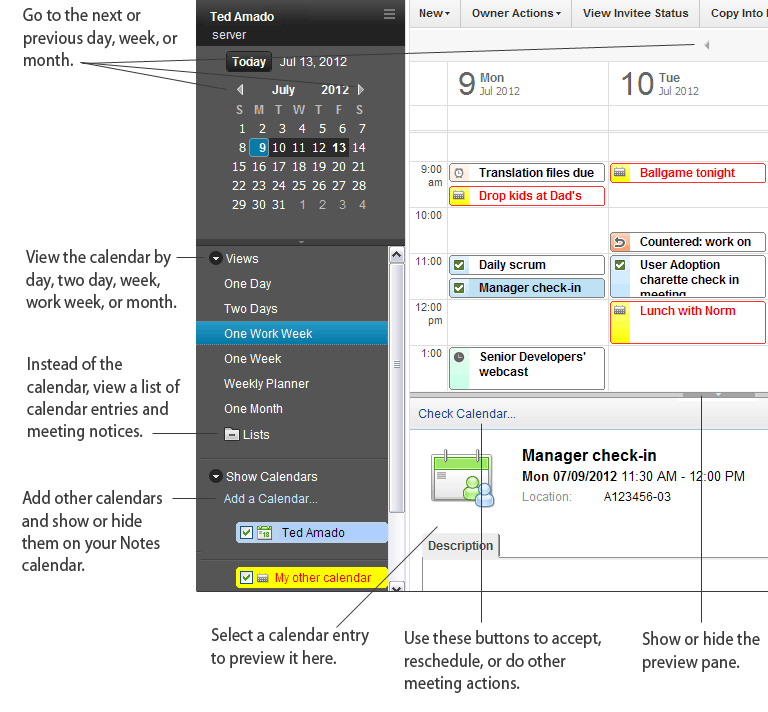
| Task | Action |
|---|---|
Open the calendar |
Click the Open button, and then select Calendar. |
Create a meeting or other calendar entry |
From the calendar, click or another type of calendar entry. Tip: Choose Event
Announcement if you do not want to receive invitee responses
in your email. |
| Task | Action |
|---|---|
Add or remove invitees from a meeting |
Open the meeting invitation, and click Add invitees or Remove invitees. |
Set or cancel an alarm for a meeting |
|
Reschedule, cancel, update, or confirm a meeting |
Tip: If this is a repeating meeting and any invitees
use non-Notes calendar applications, select Just this instance as
non-Notes calendars might not support the other options. |
Mark a meeting as free time in your schedule |
|
Check invitee responses to a meeting |
In your calendar, open the meeting, and click the Invitee Status tab at the bottom of the invitation. |
Send a message to invitees |
Open the meeting, click Owner Actions and then select Send Message to All Invitees, Send Message to Invitees Who Have Responded, or Send Message to Invitees Who Have Not Responded. |
Encrypt a meeting |
Create a meeting invitation, click Delivery Options, and then select Encrypt. |
Propose a new meeting date or time |
Note: To propose a new time for a repeating meeting, you must
first accept the meeting. Then open your calendar, open an instance
of the repeating meeting, and propose a new time for it. |
| Task | Action |
|---|---|
Scroll through your calendar one month, or one week, at a time |
In the navigation pane, select the One
Month view, and then use the following shortcut keys:
|
Filter your calendar to see only entries of a specific type or status, or entries that are private or chaired by a specific person |
Click Show at the top of the calendar, click Filter by, and then click a filtering method. For example, you could click Chair to show only meetings led by a certain person or click Type to show only appointments. |
Show canceled meetings on the calendar in red, or remove them automatically |
Click , click the Calendar and To Do section, click Display, click Views, select Process cancelled meetings automatically, and then select Show as cancelled in calendar or Remove from calendar. |
Show or hide tasks on the calendar |
Click , click the Calendar and To Do section, click Display, click Views, and then select or clear Display To Do Entries. |
Change the color of calendar entries |
Click , click the Calendar and To Do section, click the Colors tab, and then specify background and text colors for the entry type, or for calendar categories. |
Display the calendar in time slots or summaries |
Click Show at the top of the calendar, and then click Summary (Notes Basic client users: Click Formatting, then click Summarize) to show summaries, or Time slots to show time slots. |
When you propose a new time for a meeting, leave a placeholders on the calendar for the original time |
|
Update other meeting participants when invitees are added or removed |
|
| Task | For Windows | For Macintosh |
|---|---|---|
| Open Calendar Note: To enable this shortcut,
click . |
Ctrl+2 | Ctrl+2 |
| Open selected calendar entry | Enter | Enter |
| Get help for the current feature | F1 | Help or Command + ? |
| Enlarge selected text to the next point size | F2 | N/A |
| Reduce selected text to the next point size | Shift + F2 | N/A |
| Undo last action | Ctrl + Z | Command + Z |
| Refresh the view | F9 | F9 |
| Close the current calendar view or calendar entry | Esc | Esc |
| See a list of available shortcuts | Ctrl+ Shift + L | Ctrl+Shift+L |