
Solution
- Open HCL IEM Web URL and login with Admin credentials.
Create Entity
- Click the customer onboard section, for customers click on customer action edit section.
- Click on the Entity page, Entity records for the selected customer will be
displayed in the grid view as shown.
Figure 1. Entity Page 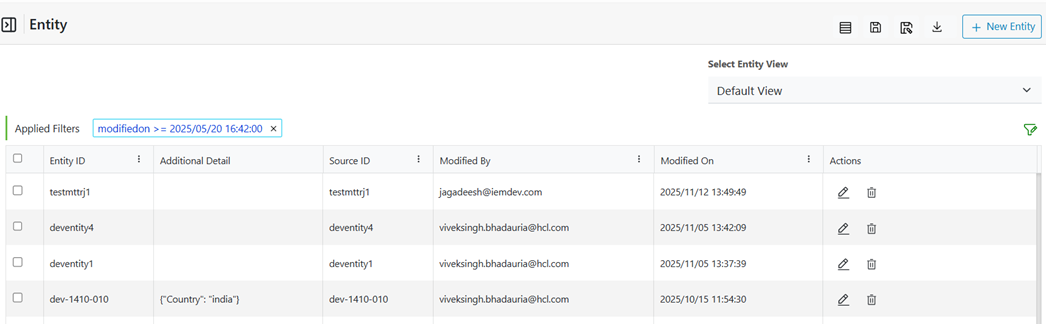
- Click +New Entity.
- Click on Get Data Icon and select the Upload CSV option as shown.
Figure 2. Uploading csv file for Creating an Entity 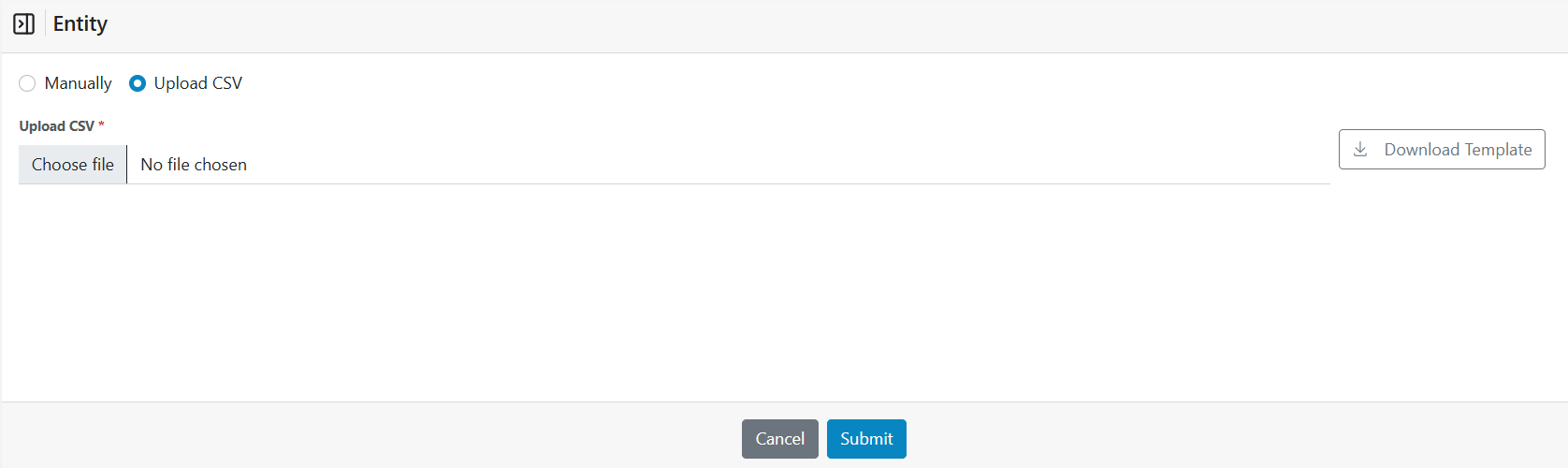
- As we select Upload CSV and Click on Download Template button. The following template is downloaded.
- Source entity id (hostname) is the mandatory column, rest are the additional details available in the environment.
- Users can choose to provide values of the additional details or can add more details as per their requirement by adding columns in the template.
- The new additional details will be added in the repository while the data is uploaded.
- Upload the excel by clicking on Upload CSV. As we click on the upload CSV our local directory browser will appear.
- Browse to the local directory where the data file is saved and select the file. As the file is selected it appears.
- Click Import. On successful data creation confirmation box is displayed.
- Clicking Ok updates, the Grid View and the new data are displayed in the grid.