
Installation Steps:
- Download the file
MongoDB_Community
.msi file for Community Version from below link:
https://fastdl.mongodb.org/windows/mongodb-windows-x86_64-8.2.2-signed.msi

- Execute the mongodb.msi file using “Run as
administrator” on the Windows system.
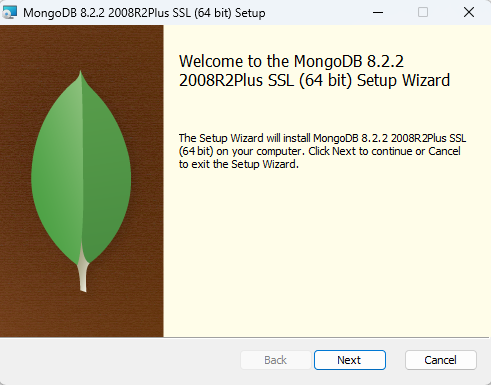
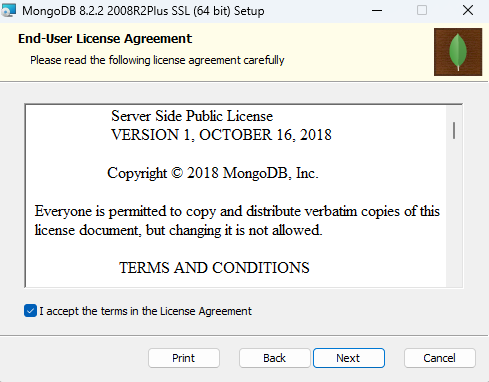
- Click on Next and accept the license agreement.
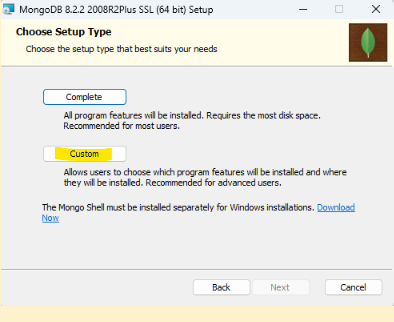
- Click on Next and Select the “Custom” option.
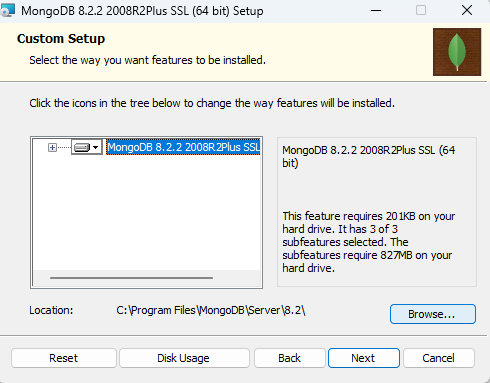
- Click on Browse and Select the non-os drive, as per the
provided screenshot.
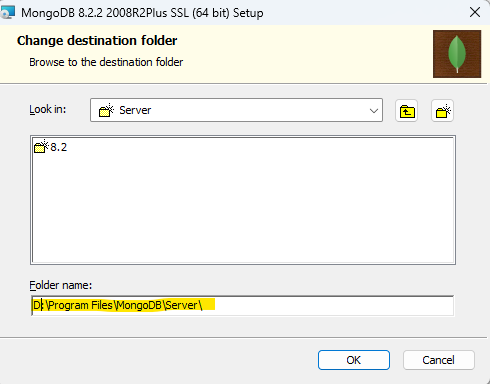
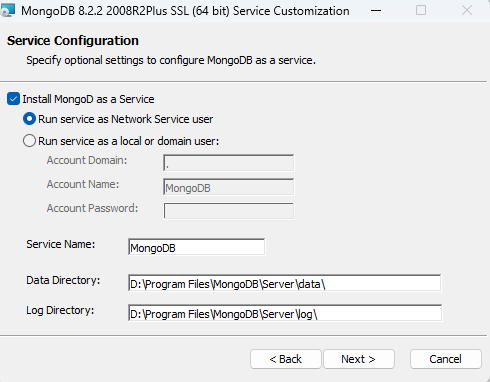
- After selecting the data (non-os) disk drive, click on next and
select the Run as a Network Service Option and configure the Log
and Data Disk Drive, as per the screenshot below:
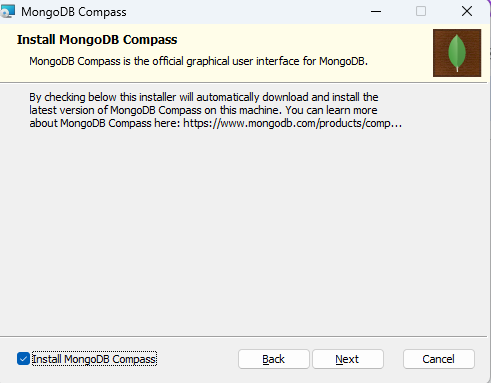
- Click on Next and select the Install MongoDB Compass option.
- Click on Install option and it will start installing the
mongoDB server with mongoDB compass for GUI utility
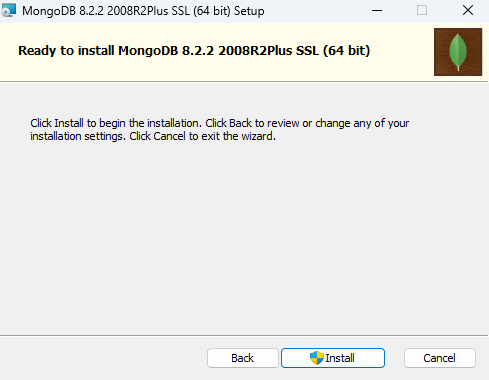
- At the time of installation, it will show the following window.
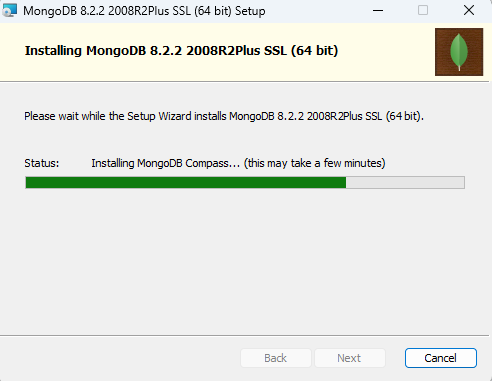
- Once the installation is completed it will pop-up a window of successful message of
installation.Note:Please use the non OS drive for the installation of MongoDB and configuration of any relevant directories like data drive or logging drive.