
Task Type
Task type can be segmented into the following types:
- Generic Task: These are out of box tasks provided by HCL BigFix CLM which has predefined process to execute in orchestrator engine of HCL BigFix CLM.
- Custom Task: These are the tasks where users can add PowerShell and Python scripts to execute tasks in orchestrator engine of HCL BigFix CLM.
- Script Library Task: These are pre-defined library of reusable
custom scripts. When user is defining process workflow using Script
Library option he/she can add existing custom scripts from
repository in workflow and in case if user wants to modify selected
custom script, can do so by using Manage Task action (
 ).
).
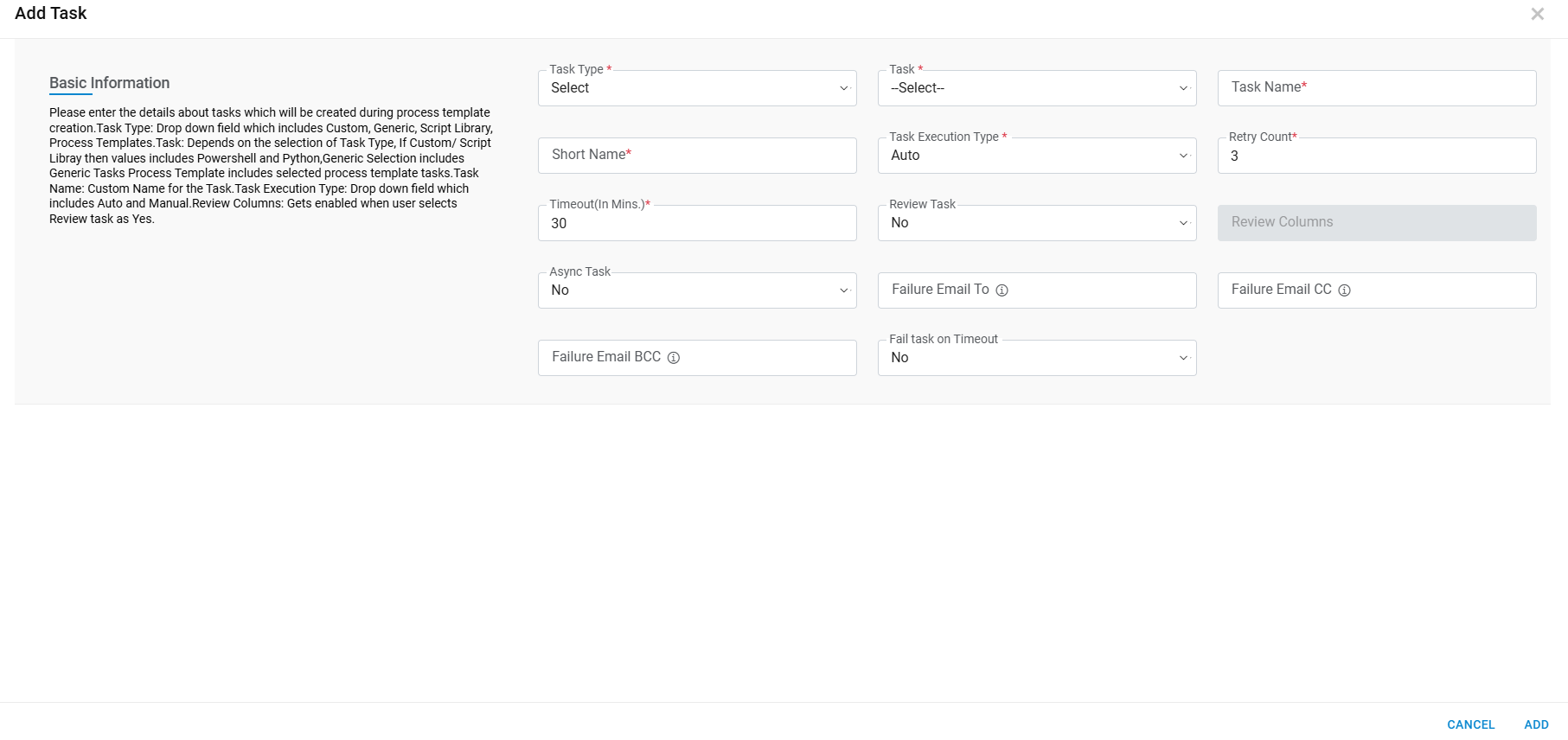
Refer the below table to understand the fields mentioned in the above figure:
| Fields | Description |
|---|---|
| Task Type | Provide the task type |
| Task |
The field highlights the tasks that need to be added in the process template. If provider user selects generic task under task type, then HCL BigFix CLM out of box tasks (like Clone, add disk etc.) are populated and if user selects Custom task in task type, then following tasks are populated: Call PowerShell script: Provider can write PowerShell scripts to execute task and map PowerShell variables from the Dynamic UI form values and can also use HCL BigFix CLM predefined functions to execute the script. Call Python script: Provider can write Python scripts to execute task and map Python variables from the Dynamic UI form values and can also use HCL BigFix CLM predefined functions to execute the script. Task Help icon ( |
| Script | This option enabled when task type is script library and user can add existing custom script(PowerShell and Python) from repository in workflow. |
| Task Name | It highlights the name of the task and use with ITSM tool for
integration purpose. All the task details shown on hover of task
name inside table help icon (.png) )
like short name, execution type etc. )
like short name, execution type etc. |
| Short Name | Provide a short name for the ease of usage |
| Task execution Type |
Defines execution type of tasks. This can be auto or manual, Auto: Auto task execution type executed by orchestrator engine in HCL BigFix CLM for submitted service requests Manual: Manual task execution will be executed by respective support team manually and update the status in ITSM tool. Simultaneously, ITSM tool will notify HCL BigFix CLM and update the status of task. |
| Retry Count | Number of times a task will be retried for execution upon getting failed. |
| Timeout (In Mins) | Time limit before the task becomes inactive. |
| Review Task |
In Process Workflow if user wants UI Templates columns to be reviewed before marking that task as completed, user can opt for Review Task option and Mark the columns to be reviewed. In Request Task Tracking Report user can validate the Pending Review task for the Request and perform appropriate action. Review Task -Yes (signifies user opts in for Review) Review Task -No (signifies user opts out for Review) |
| Review Columns | Define the list of columns from UI Template chosen to create Process Workflow. (Enable only when Review Task marked as Yes otherwise disable. |
| Async Task | Using this task type we can configure task that need to be execute asynchronously. At the time of execution HCL BigFix CLM triggers the task and save the acknowledgement no. once task is completed third party tool will invoke HCL BigFix CLM API to close the task success/failure. |
| Failure Email To | This field will be used to send "To" Email notification, in case of Task Failure. Please use comma (,) to add multiple emails in this fields. |
| Failure Email CC | This field will be used to send "CC" Email notification, in case of Task Failure. Please use comma (,) to add multiple emails in this fields. |
| Failure Email BCC | This field will be used to send "BCC" Email notification, in case of Task Failure. Please use comma (,) to add multiple emails in this fields. |
| Fail task on Timeout | this is to be used in case of timeout whether task needs to be marked as failed or not. |
| Task Code | It’s a code in HCL BigFix CLM that has been assigned to each of the task. |
| Notify success | Notify to ITSM tool when the task has been executed successfully. |
| Notify Failure | Notify to ITSM tool when the task has failed to execute. |
| Move Group | Helps to move up and move down the task within the group. |
| Group sequence | Helps to set the sequence of a group. |
| MoveTask |
Under MoveTask there are below options : MergeTask up into group above. MergeTask Down into the group below |
| Ungroup task |
Under MoveTask there are below options: Ungroup and move task Up. Ungroup and move task below |
| Action | Empowers the Provider user to take actions like Edit, Filter, manage tasks, Copy Task ,if task is custom then there is option to add script from library and Delete against the listed Process templates |
 ) shows all the
task details like task code, task name, platform, description
etc.
) shows all the
task details like task code, task name, platform, description
etc.- Populate the above-mentioned fields.
- Click Add Task.
Figure 2. Add Task 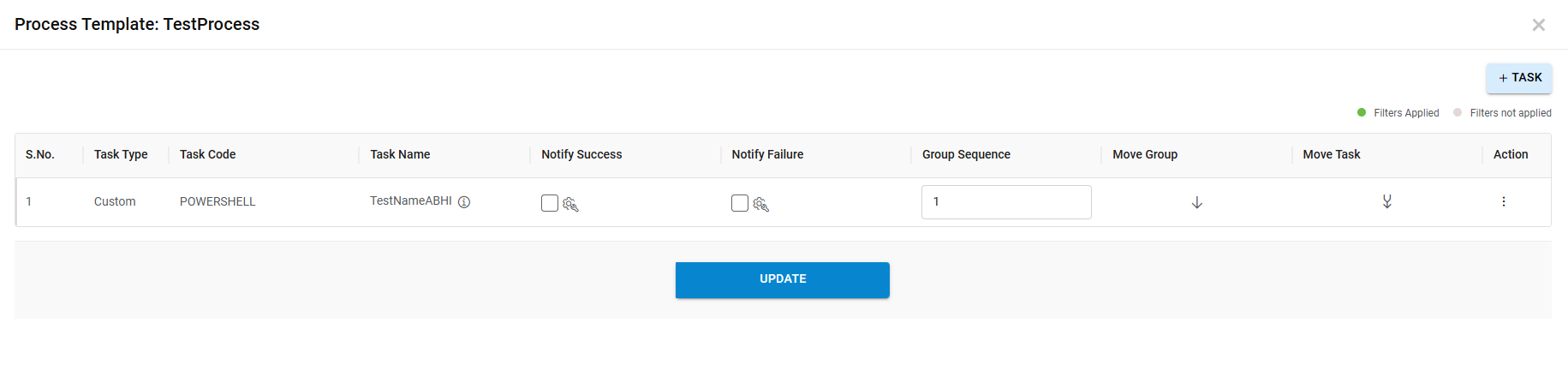
The new task has been added successfully and appears in the list of existing tasks.