
Reporting a problem with HCL Traveler for Microsoft Outlook
If you can't resolve a problem with HCL Traveler for Microsoft Outlook, you can report it to Support.
About this task
When you report a problem, you might be asked to submit log files. Complete the following steps to create, locate, and submit the logs.
Procedure
-
Verify that verbose logging is enabled:
-
In Outlook, click .
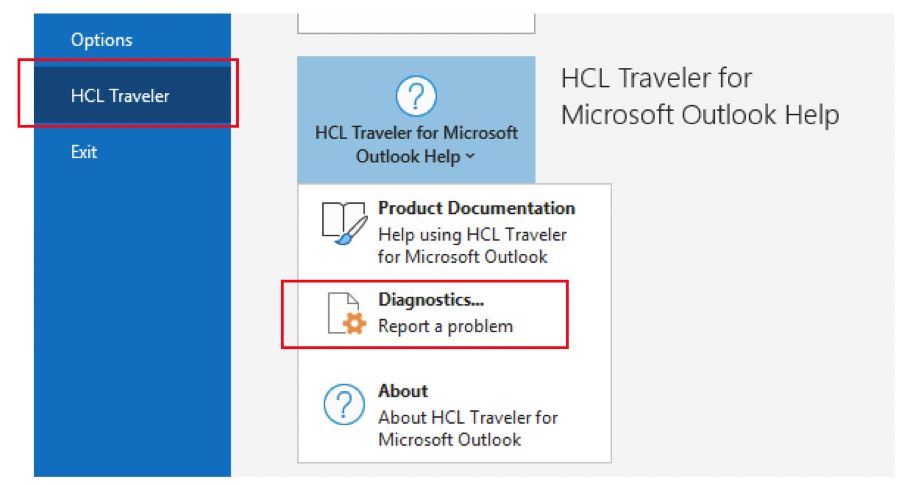
-
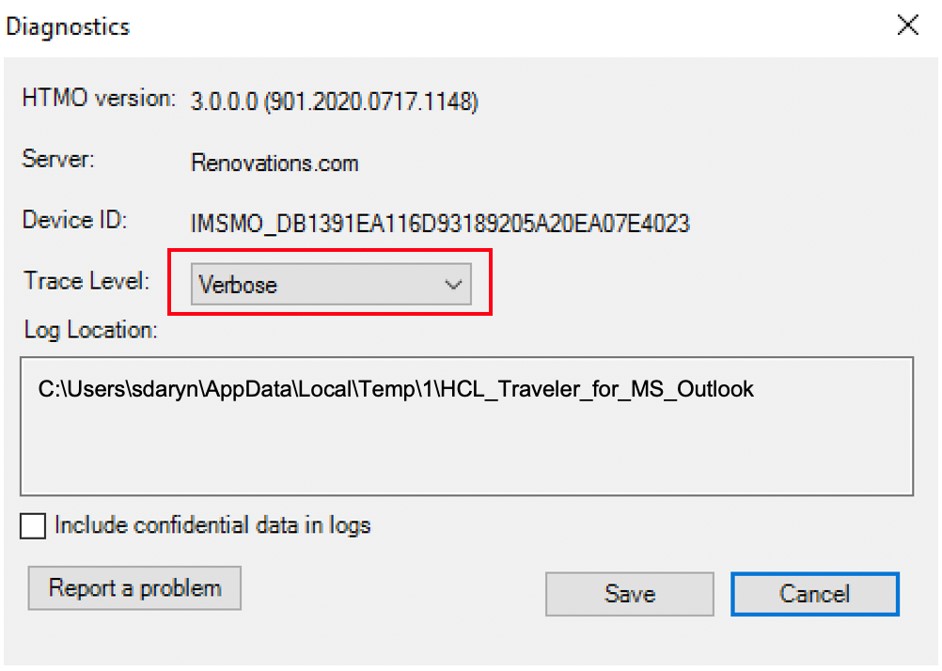
In the Diagnostics dialog box, verify that the Trace Level is set to
Verbose.
-
In Outlook, click .
-
Locate the logs:
There are two ways to locate the logs:
- Open Windows Explorer and navigate to the following folder (you can paste the path directly into
the address
bar:)
\%temp%\HCL_Traveler_for_MS_Outlook - Open the Mail Help's Diagnostics dialog box and view the logs path:
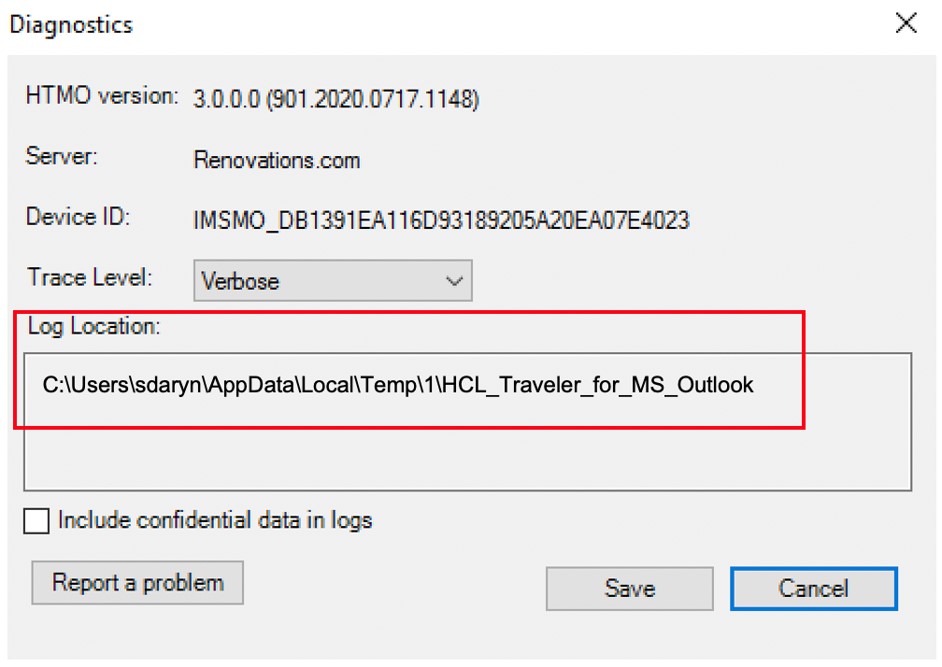
- In Outlook, click .
- Copy the path that displays in the Diagnostics dialog box:
- Open Windows Explorer and navigate to the following folder (you can paste the path directly into
the address
bar:)
-
Compress the logs into a .zip file:
In Windows Explorer, right-click on the folder and click .
- Mail the .zip file to the person who requested the logs or attach the .zip file to an HCL Traveler Problem Report (TPR) generated on the HCL Traveler home page accessed at https://hostname/traveler.