WCM Content AI Analysis
This topic describes how to enable AI analysis for a WCM Content in the traditional on-premise deployment. This also discusses steps on how to configure a content AI provider (for example, OpenAI ChatGPT) to be used for AI analysis. The AI analysis for a WCM Content feature is available from HCL Digital Experience 9.5 Container Update CF213 and higher.
Content AI Providers Overview
OpenAI ChatGPT Overview
OpenAI is the AI research and deployment company behind ChatGPT. When you sign up with ChatGPT, it provides API access via an API key. After signing up at https://platform.openai.com/playground, you can create a personal account with limited access or a corporate account. The playground can be used to experiment with the API as well. A highlight of the API is that it accepts natural language commands similar to the ChatGPT chatbot.
For privacy and API availability and other conditions, see the OpenAI website or contact the OpenAI team.
Config Engine Task for enabling Content AI analysis
To enable content AI analysis:
-
Connect to DX Core and run the following specified config engine task.
/opt/HCL/wp_profile/ConfigEngine/ConfigEngine.sh action-configure-wcm-content-ai-service -DContentAIProvider=OPEN_AI -DContentAIProviderAPIKey={APIKey} -DWasPassword=wpsadmin -DPortalAdminPwd=wpsadminNote
- Possible value for
ContentAIProviderparameter isOPEN_AI. - Depending on the ContentAIProvider, set the correct API key of the respective provider in the
ContentAIProviderAPIKeyparameter.
- Possible value for
-
Validate that all the required configurations are added.
- Log in to WAS console.
-
Verify that the
AI_CLASSconfiguration property is added in WCM Config Service by going to Resource > Resource Environment > Resource Environment Providers > WCM_WCMConfigService > Custom Properties. Possible value forAI_CLASSis:com.hcl.workplace.wcm.restv2.ai.ChatGPTAnalyzerService(ifContentAIProvidervalue is set asOPEN_AI)

-
Log in to the DX Portal.
-
Verify that the Credential Vault with the Vault slot Name
ai.authis configured using the AI content provider's API key by going to Administration > Security > Credential Vault > Manage System Vault Slot.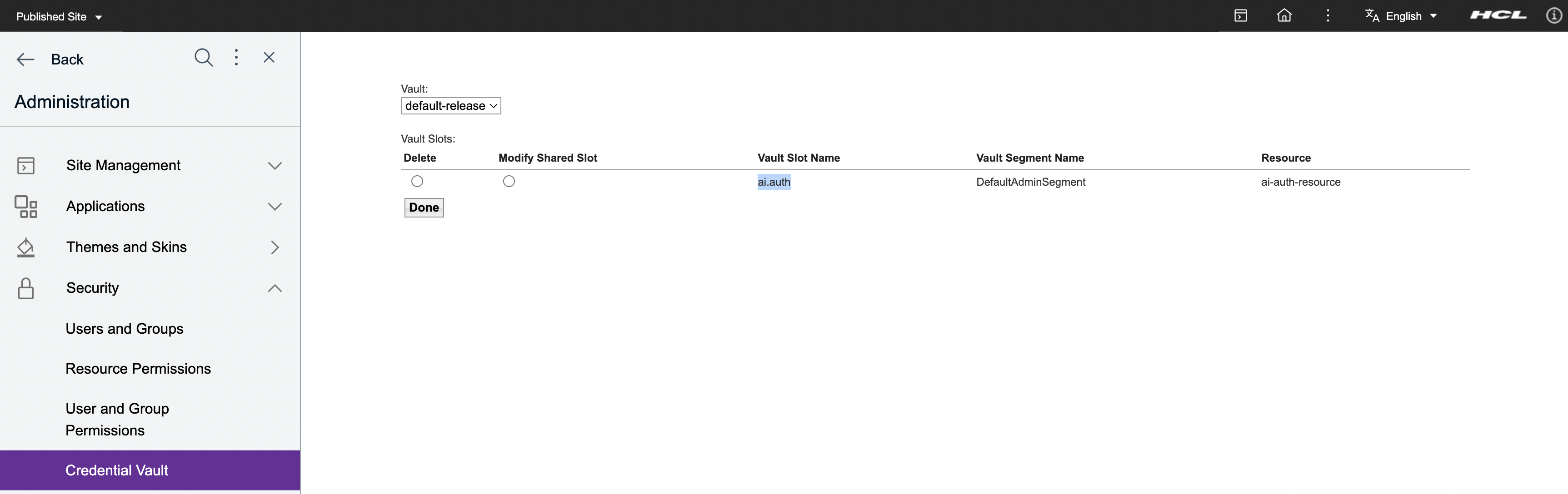
Config Engine Task for disabling Content AI analysis
To disable content AI analysis:
-
Connect to DX Core and run the following specified config engine task.
/opt/HCL/wp_profile/ConfigEngine/ConfigEngine.sh action-remove-wcm-content-ai-service -DWasPassword=wpsadmin -DPortalAdminPwd=wpsadmin -
Validate that all the required configurations are deleted.
- Log in to WAS console.
- Verify that the
AI_CLASSconfiguration property is deleted from WCM Config Service. - Log in to the DX Portal.
- Verify that the Credential Vault with the Vault slot Name
ai.authis deleted.
Custom Configurations for AI Analysis
If AI analysis-related configurations needs customization, log in to WAS console for customizing any of the custom properties in WCM Config Service (Resource > Resource Environment > Resource Environment Providers > WCM_WCMConfigService > Custom Properties).
OpenAI ChatGPT specific custom configurations
OPENAI_MODEL: Currently supported AI model istext-davinci-003. However, AI model can be overriden by overriding this property.OPENAI_MAX_TOKENS: Set any positive integer values between 1 and 2048 for GPT-3 models liketext-davinci-003. It specifies the maximum number of tokens that the model can output in its response.OPENAI_TEMPERATURE: Set any positive float values ranging from0.0to1.0. This parameter in OpenAI's GPT-3 API controls the randomness and creativity of the generated text, with higher values producing more diverse and random output and lower values producing more focused and deterministic output.
After enabling the Content AI analysis in DX deployment, use the WCM REST V2 AI Analysis API to call the AI Analyzer APIs of the configured Content AI Provider.