Dashboard
The Practitioner Studio Dashboard is a modern, React-based dashboard that replaces the Practitioner Studio homepage. It includes widgets, quick links, and an info hub to help you manage content, track status, and personalize user experiences.
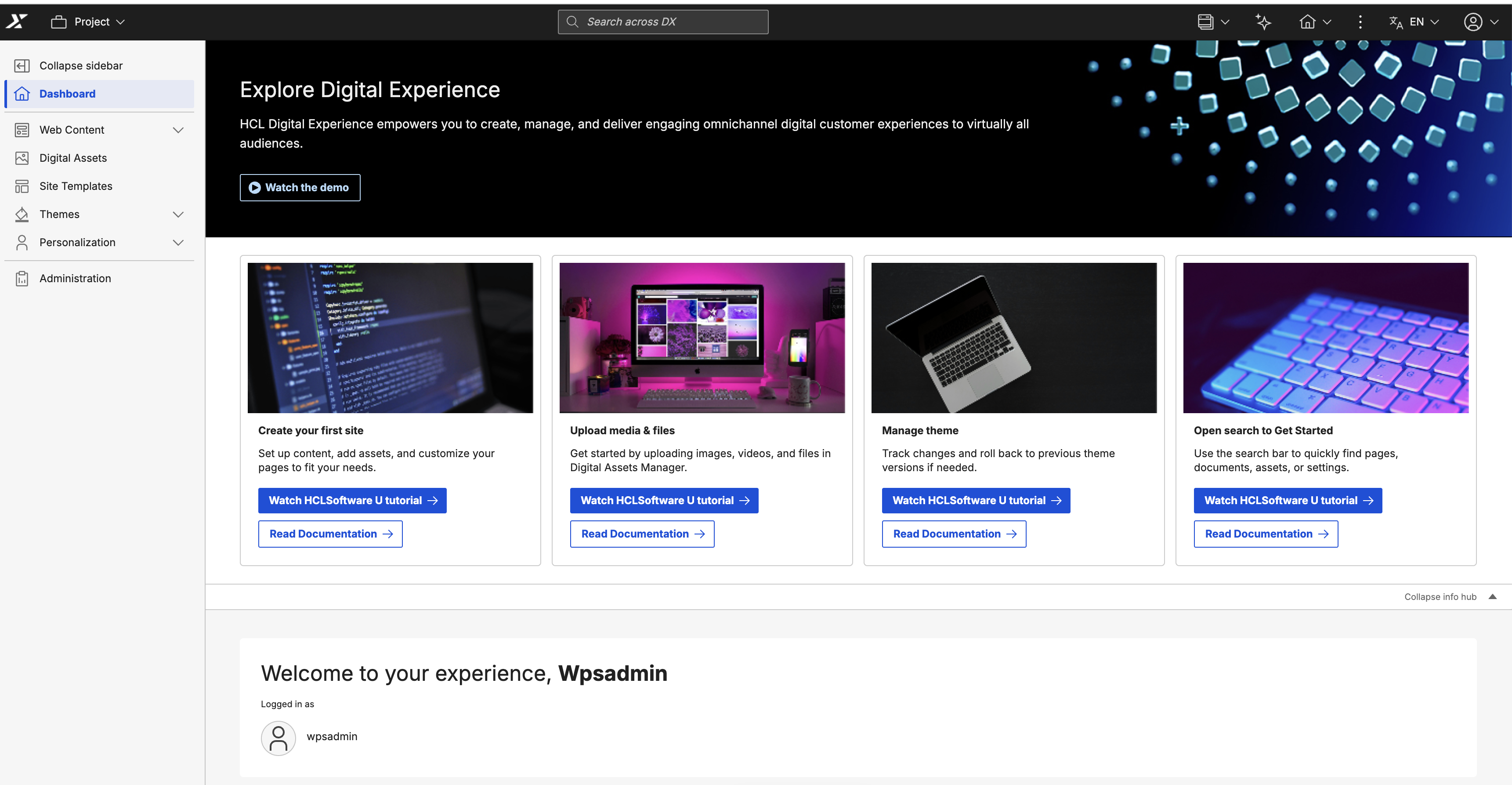
The dashboard includes the following widgets:
- Status monitoring: Shows items that require approval or attention, including expiring content.
- My Projects: Displays project names, last modified timestamps, and status.
- Recent content and project: Displays recently modified content items and projects with preview capabilities and direct authoring access.
- Tags & Keywords Manager: Search and filter content using tags and keywords (requires Search V2).
- Personalization rules (PZN): Monitors visibility rules, profilers, select actions, and binding rules targeted at site users.
The dashboard also includes an interactive banner that displays dynamic announcements, tips, and tutorials. These can include notifications about new CF releases and links to helpful tutorials.
Explore Digital Experience info hub
The Explore Digital Experience info hub provides direct access to tutorials and documentation through interactive cards for common tasks. Toggle Collapse info hub to collapse or expand this section to manage screen space.
The section features the following task cards:
- Create your first site: Set up content, add assets, and customize pages to meet your needs.
- Upload media and files: Upload images, videos, and files in Digital Asset Management (DAM).
- Manage themes: Create, customize, and manage themes to control layout, styling, and branding.
- Use search to get started: Locate pages, documents, assets, or settings using the search bar.
Each card includes the following options:
- Watch HCLSoftware U tutorial: Opens video demonstrations for the task.
- Read documentation: Opens detailed written guidance for the task.
Welcome header
The Practitioner Dashboard includes a personalized welcome header that greets you with "Welcome to your experience," followed by your username. Below the greeting, the header displays "Logged in as" with your username and profile icon to indicate the active session.
Quick links
Quick links provide shortcuts to common tasks in Practitioner Studio.
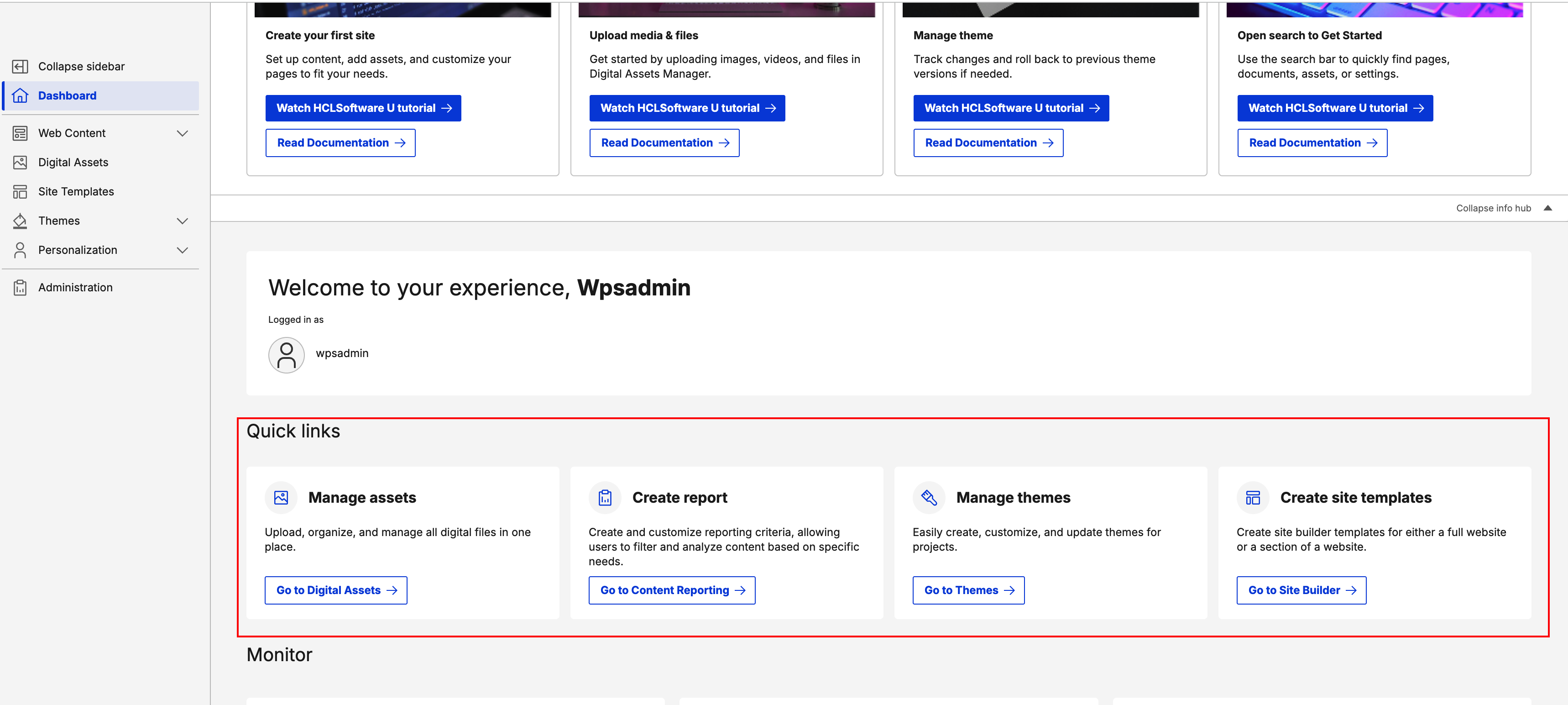
- Manage assets: Opens Digital Assets to upload, organize, and manage digital files.
- Create report: Opens Content Reporting to generate and customize content reports.
- Manage themes: Opens Themes to configure layouts, styling, and site branding.
- Create site templates: Opens Site Builder to create templates for sites or site sections.
Monitor
Use the Monitor section to track real-time content status and activity across three key metrics:
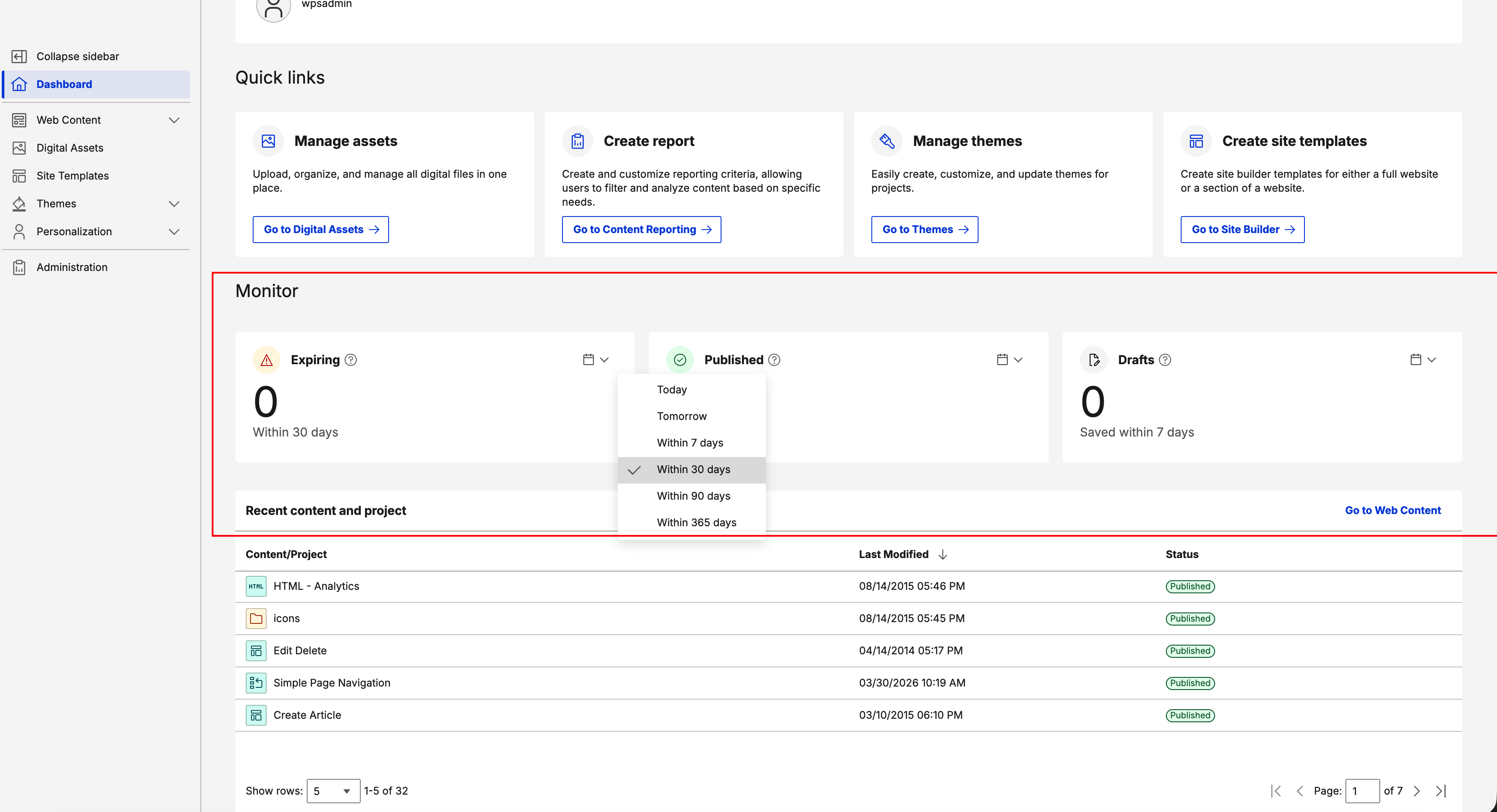
- Expiring: Displays content items expiring within a selected timeframe.
- Published: Displays content items published within a selected timeframe.
- Drafts: Displays draft content saved within a selected timeframe.
Each metric includes customizable time filters ranging from Today to Within 365 days.
Note
- For Expiring, Within 7 days includes the current day and the next six days.
- For Published and Drafts, Within 7 days includes the current day and the previous six days.
My Projects
Use the My Projects widget to view and manage your projects.
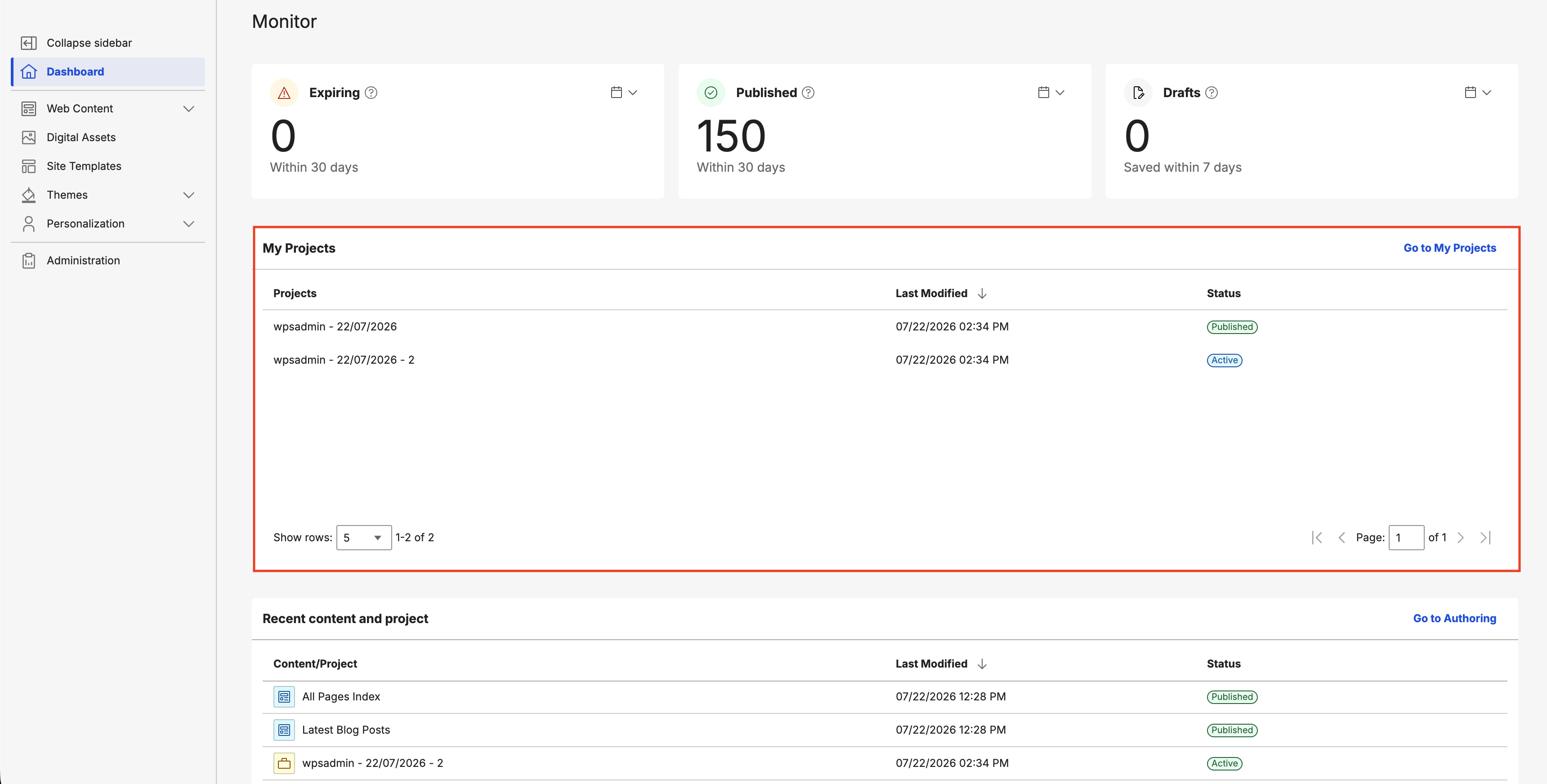
- View the Projects, Last Modified date, and Status.
- Select Go to My Projects to view your projects in the Web Content Manager (WCM) Authoring Portlet.
Note
Viewing and managing projects in this widget requires Editor-level access for the WCM REST Service under Virtual Resources. For more information, refer to Web Content Manager REST service.
Recent content and project
Use the Recent content and project widget to view up to 100 of your most recently modified content items and projects.
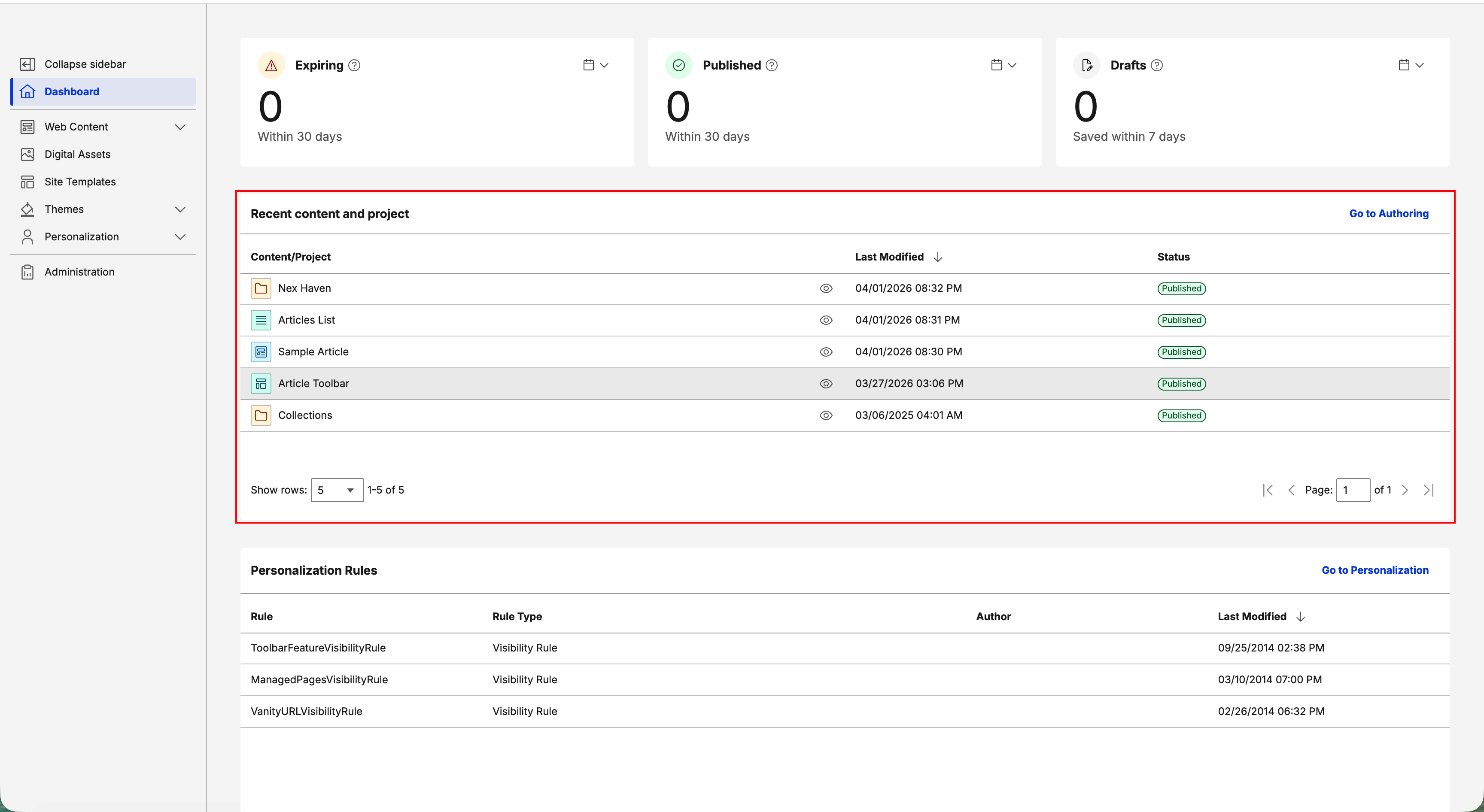
- Select the eye icon on a content item to view it directly.
- Select Go to Authoring to view the library explorer in the WCM Authoring Portlet.
Personalization rules
Use the Personalization Rules widget to monitor the personalization (PZN) rules that customize user experiences on your website.
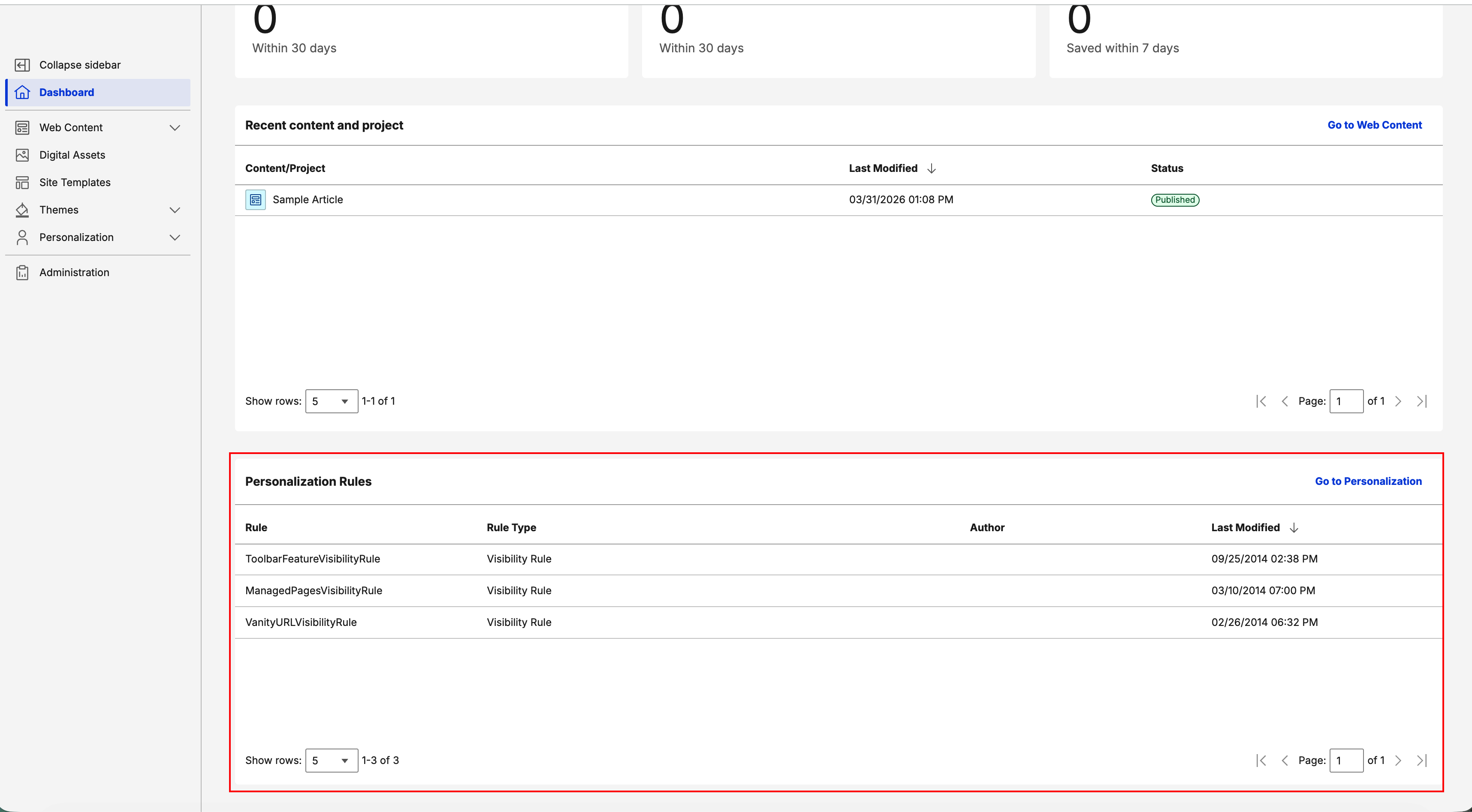
- View the Rule, Rule Type, Author, and Last Modified date.
- Filter or review rules by Rule Type such as Visibility Rule, Profiler, Select Action, and Binding Rules.
- Select Go to Personalization to manage and configure rules on the main Personalization page.
Tags & Keywords Manager
Use the Tags & Keywords Manager widget to search and filter content by WCM keywords, DAM keywords, and social tags using a two-pane interface. The widget uses a split-pane layout to separate search controls from content results.
Note
- This widget requires Search V2 to be enabled in your HCL DX deployment. For more information, refer to Installing Search V2.
- If DAM is not enabled in a virtual portal, DAM keyword links are disabled.
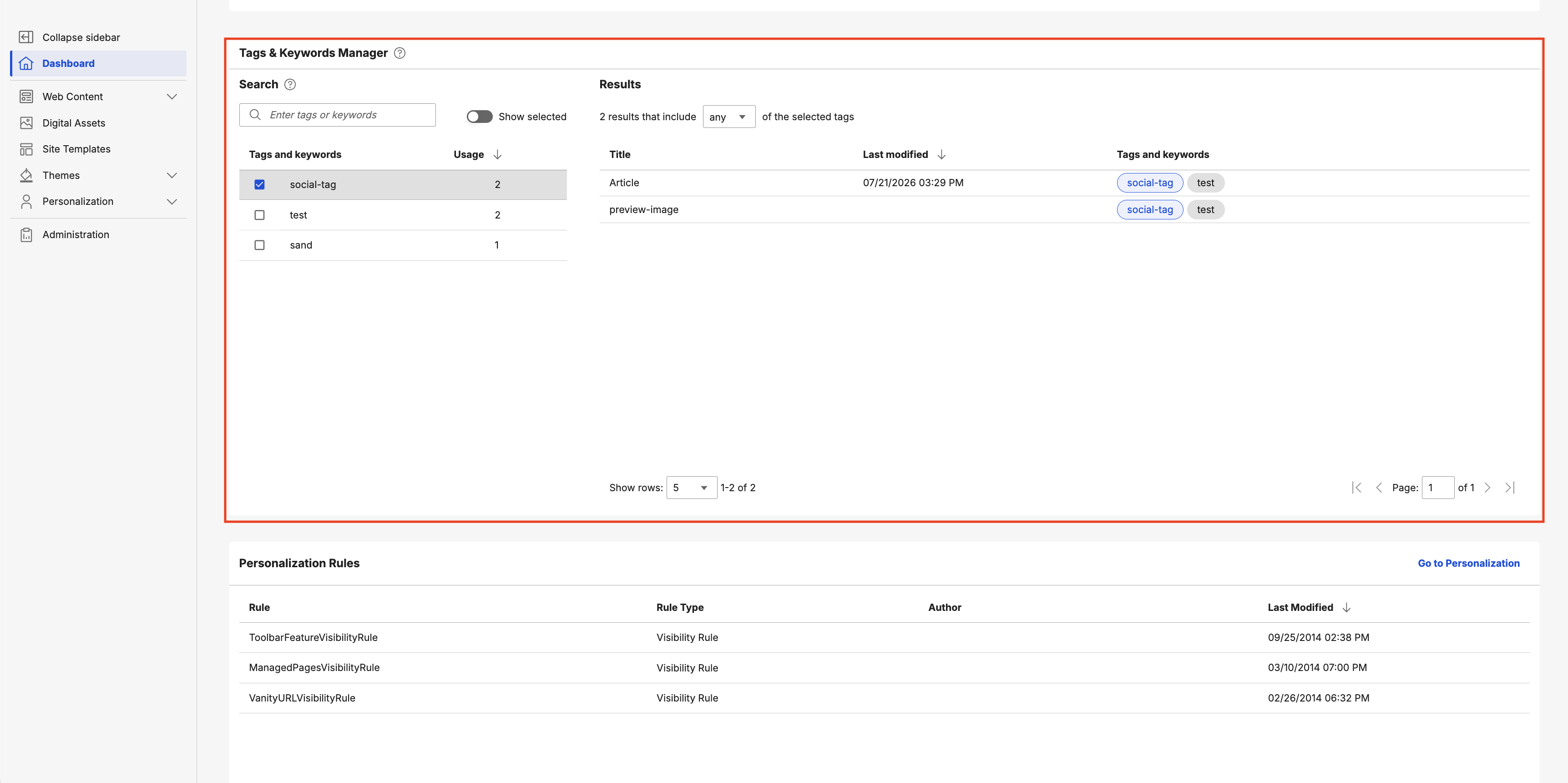
The Search pane allows you to combine search filters by selecting multiple tags.
- Toggle Show selected to display active tags only.
- Type tag names to display autocomplete suggestions.
- Select recent searches for quick filtering.
- Select the help icon to display tooltips.
The Results pane displays content items that match your selected tags.
- View content items matching selected tags, including Title, Last Modified, and Tags and keywords.
- Select any or all to filter content matching any or all selected tags.
- Select a content title to open its source location.
Configuring widget parameters
Use the dashboard to customize which widgets appear on your screen. To change these settings:
- Navigate to Administration > Site Management > Pages > Content Root > Practitioner Studio.
- Select the Edit Page Layout pencil icon for Dashboard.
- Open the Practitioner Dashboard portlet and select the widgets you want to enable.
- Select Save.
| Parameter name | Type | Default value | Description |
|---|---|---|---|
RECENT_CONTENT_WIDGET |
Boolean (checkbox) | true |
Shows or hides the Recent Content widget, which displays recently accessed or modified content items. |
RECENT_STATUS_WIDGET |
Boolean (checkbox) | true |
Shows or hides the Status Monitor widget, which displays system health and alerts. |
RECENT_PZN_WIDGET |
Boolean (checkbox) | true |
Shows or hides the Personalization widget, which displays recent Personalization (PZN) activities and campaigns. |
PROJECTS_WIDGET |
Boolean (checkbox) | true |
Shows or hides the My Projects widget, which displays your projects in a paginated data grid. |
TAG_MANAGER_WIDGET |
Boolean (checkbox) | true |
Shows or hides the Tags & Keywords Manager widget, which displays managed tags and keywords. Note: This widget requires Search V2 to be enabled. |
Configuring main portals
The Practitioner Dashboard displays the React-based modern dashboard by default. To display the classic JSP home page, disable the dashboard during deployment. Run the following ConfigEngine tasks to switch between the new React-based dashboard and the classic JSP home page.
Note
You cannot disable the dashboard in DX Compose.
-
To enable the Practitioner Dashboard:
ConfigEngine/ConfigEngine.sh enable-practitioner-dashboard -DWasPassword=wpsadmin -DPortalAdminPwd=wpsadmin -
To disable the Practitioner Dashboard and revert to the classic JSP home page:
ConfigEngine/ConfigEngine.sh disable-practitioner-dashboard -DWasPassword=wpsadmin -DPortalAdminPwd=wpsadmin
Configuring virtual portals
New virtual portals use the modern Practitioner Studio configuration by default, while existing virtual portals remain unchanged. The VirtualPortal.zip asset includes XML configurations for both modern and classic dashboards. Modify the XML script reference in the shared setting to switch between the modern dashboard and classic JSP home page in new virtual portals.
-
To use the default React-based Practitioner Studio:
# XML script to create virtual portal content tree WebSphere:assetname=VirtualPortal.zip:InitVirtualContentPortalV9.5NoWoodburn.xml -
To use the classic JSP home page:
# XML script to create virtual portal content tree
WebSphere:assetname=VirtualPortal.zip:InitVirtualContentPortalV9.5NoWoodburn-preCF235.xml