DAM Soft Delete
The Soft Delete feature helps prevent accidental deletion of assets and collections in Digital Asset Management (DAM). Instead of removing items immediately, soft delete moves them to a Trash state. Items in this state are hidden from standard views but remain in the database for a configurable period. Authorized users can restore items or permanently delete them.
Soft Delete Lifecycle
Moving an item to Trash
The system uses a soft delete mechanism: instead of permanent removal, items are moved to a hidden Trash state. It automatically records the deletion date and the user who performed the action.
To move an item to Trash:
- Open the overflow menu for the asset or collection.
- Select Move to Trash.
- Confirm the action in the confirmation dialog.
- A snackbar notification will confirm the move.
Soft-deleted items are hidden from all standard lists, search, and fetch APIs. They remain accessible only through the Trash view.
Items in the Trash are permanently deleted after a configurable retention period (default: 30 days). The Days left until permanent deletion value is displayed on each asset in the Trash view. For collections, this information is available via the Info (i) icon.
Trash visibility and permissions
Access to the Trash is restricted by role:
| Role | Trash access |
|---|---|
| Collection Admin | Can view, restore, and permanently delete items. Can also clear all the accessible items in the trash. |
| Editor/User | Can view or access trash but no items would be displayed. |
The Trash can be accessed via Settings.
Restore logic and conflict handling
Standard restore
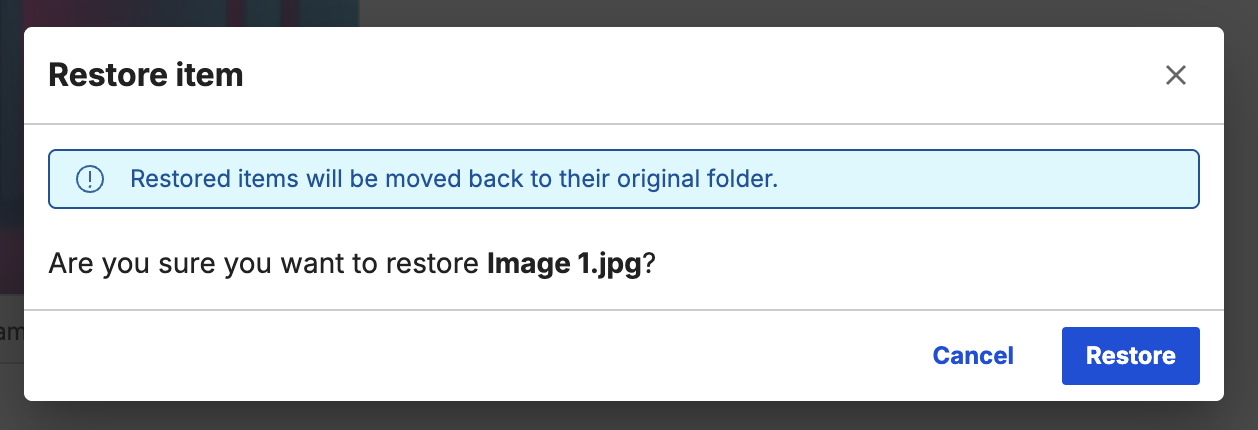
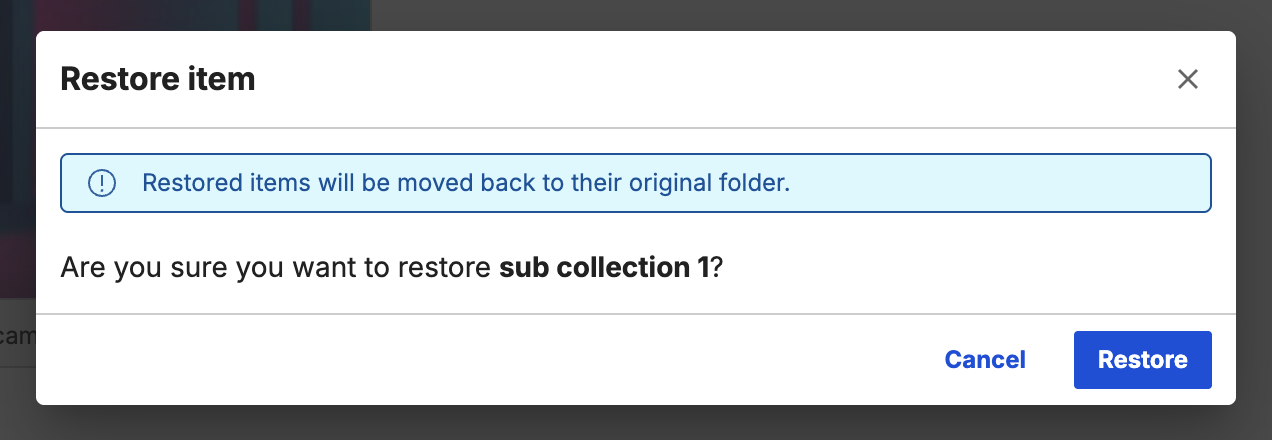
A Collection Admin can restore individual assets or entire collections from the Trash. Restoring a collection restores the collection and the items that were present in it when the collection was moved to Trash. Restore does not automatically restore subcollections or individual assets subcollections/individual assets that were moved to the trash separately before the parent collection was soft deleted.
Dependency rules
- Referenced items: Moving referenced items to the Trash makes them unavailable in linked content. A dialog box appears so the user can review references before confirming the action.
- Nested deletions: If a subcollection or asset is in the Trash and its parent collection is also in the Trash, restoring the subitem prompts a dialog box to select a new location.
- Parent deletion: If the parent collection has been permanently deleted, all child items are also permanently deleted and cannot be recovered.
Media item restore
Collection restore
Name conflict resolution
If a new item with the same name is created in the original location after a soft delete, a name conflict occurs during restoration. In this case, a Rename and restore dialog appears, allowing the user to rename the item to resolve the conflict.
Permanent deletion
Individual permanent delete
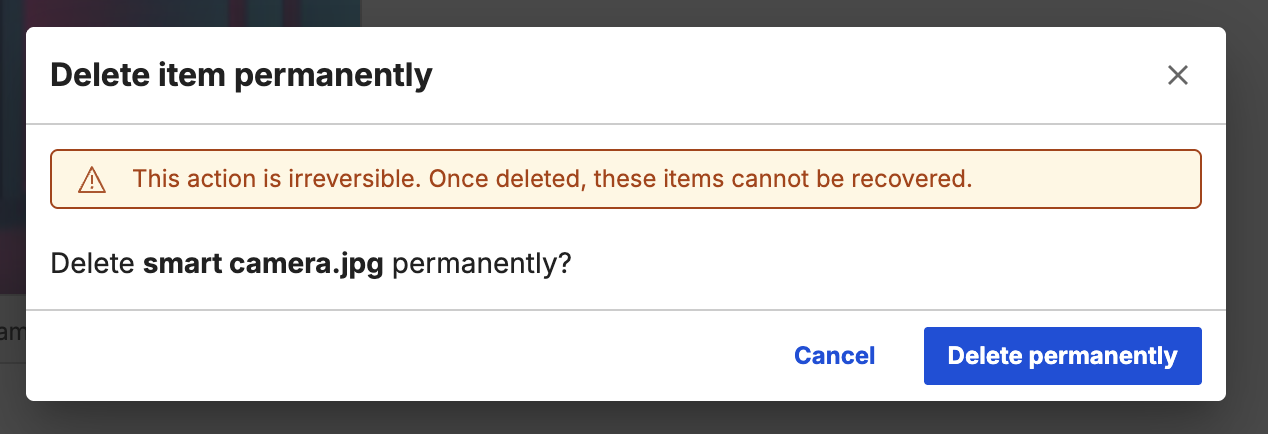
A Collection Admin can permanently delete a specific item from the Trash at any time, bypassing the retention period. This action is irreversible.
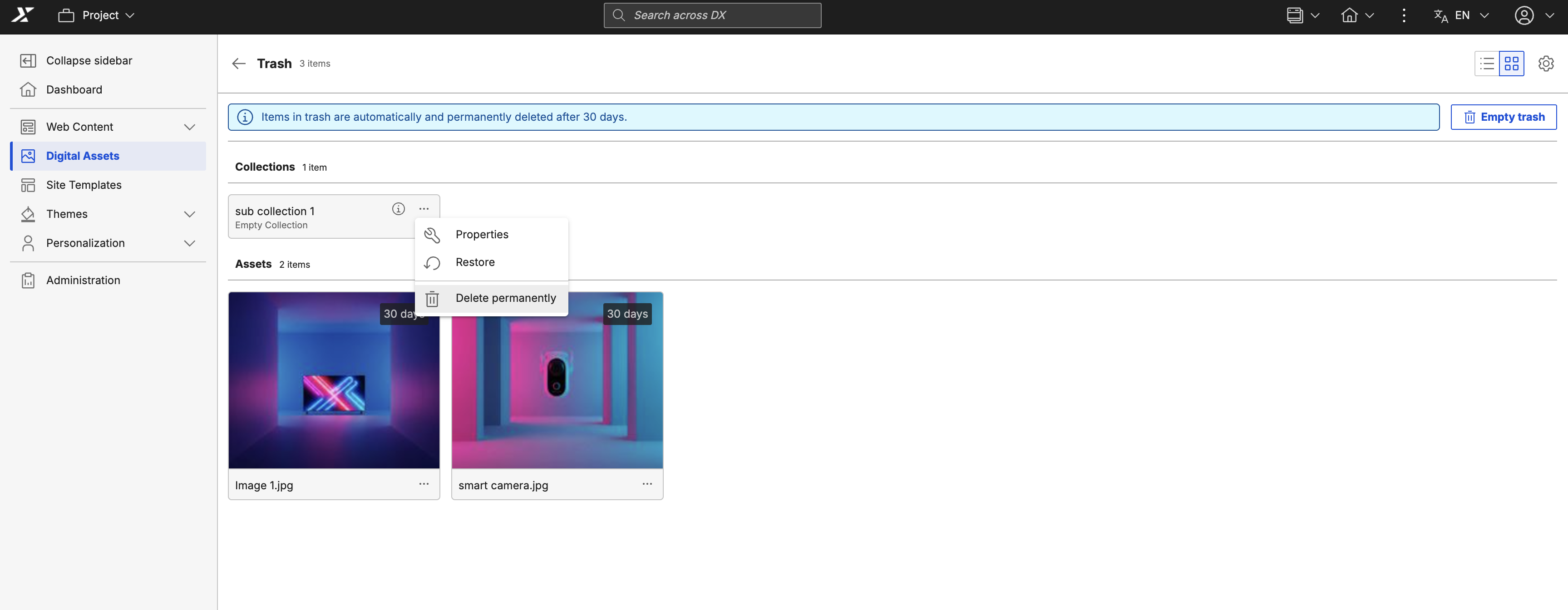
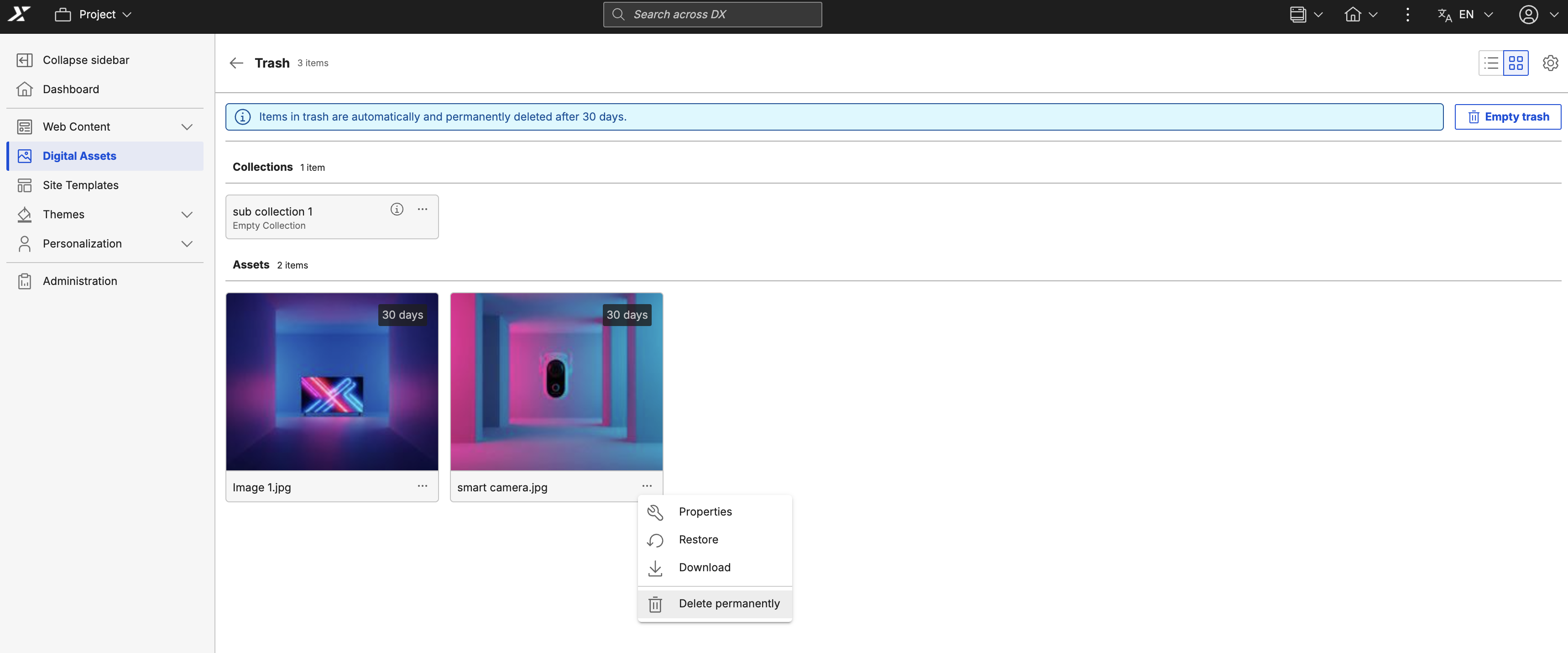
To permanently delete a collection/asset:
- Open the overflow menu for the collection or asset in the Trash.
- Select Permanently delete.
- Confirm the action in the confirmation dialog.
- A snackbar notification will confirm the permanent delete.
Permanent delete collection
Permanent delete media asset
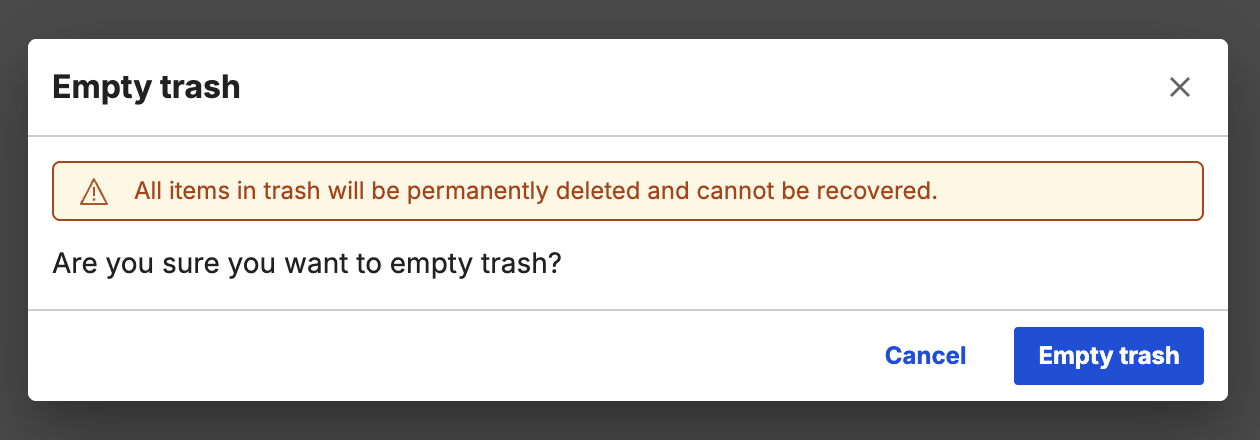
Empty Trash
A Collection Admin can clear all items from the Trash that they have administrative access to. This permanently removes those items immediately.
Automated Trash clearance (heartbeat)
A background heartbeat process runs at a configured interval to automatically purge items whose retention period has expired. This ensures the Trash is maintained without manual intervention.
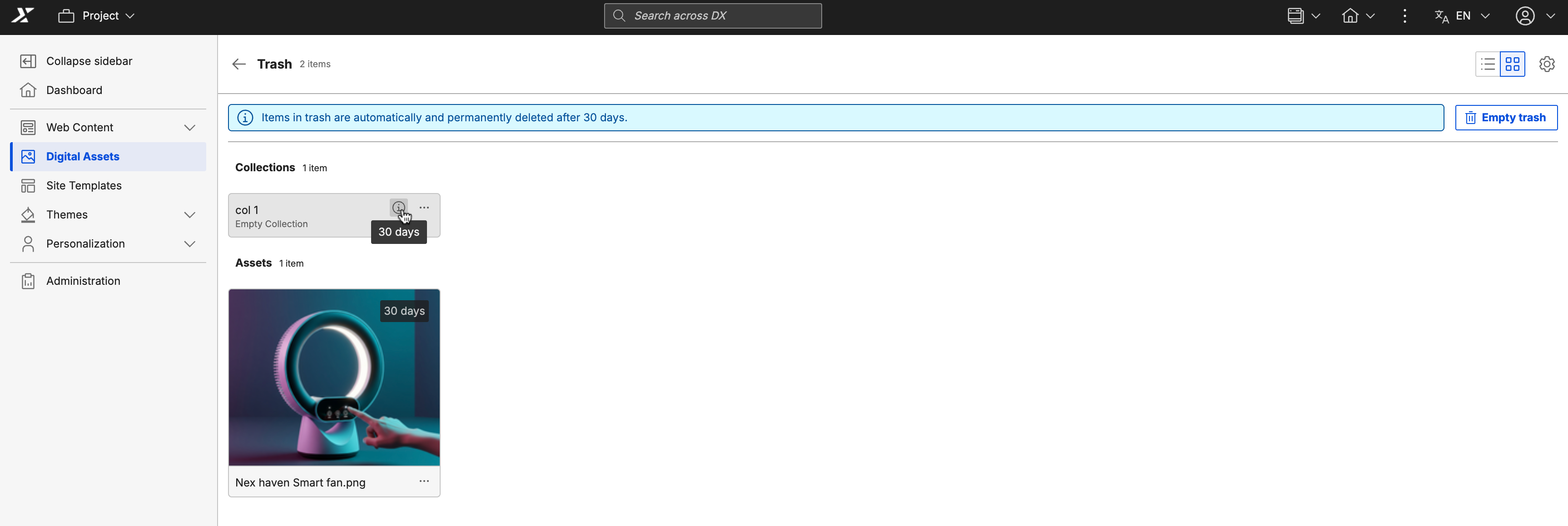

Actions available in Trash for collections and assets
- Preview: View the content (for image and video assets).
- Download: Download the content (for assets).
- Properties: View asset or collection metadata.
- Restore: Restores the asset or collection
- Delete permanently: Deletes the asset or collection permanently
Configuration
Soft delete and Trash clearance behaviors are controlled in values.yaml under the configuration.digitalAssetManagement section:
configuration:
  digitalAssetManagement:
    # Enable or disable automatic Trash clearance
    enableTrashClearance: true
    # Number of days before items are permanently deleted
    trashClearanceTimeInDays: 30
    # Interval (in minutes) for the clearance heartbeat
    trashClearanceHeartbeatInMinutes: 60
Staging
In a Publisher/Subscriber staging setup, soft delete actions on the Publisher are propagated as hard deletes to Subscribers.
| Action on Publisher | Impact on Subscriber |
|---|---|
| Soft delete | Item is hard deleted immediately |
| Restore | Item is re-created |
| Permanent delete | N/A (already deleted) |
Limitations
- Search and filtering are not available in the Trash view.
- Multi-select for bulk deletion or restoration is not supported.
- Collections in the Trash cannot be traversed; their contents cannot be browsed while the collection is soft-deleted.