Practitioner Studio
Practitioner Studio provides a modern user experience for HCL Digital Experience (DX). Please see the following pages to understand how the navigation is organized.
Note
During the update, custom-created authoring pages may no longer contain the referenced portlets, if those specific portlets were part of the rearrangement of pages. To prevent this, simply export the custom authoring page before migration and import it again after the process is complete.
Enhanced Practitioner Studio and toolbar
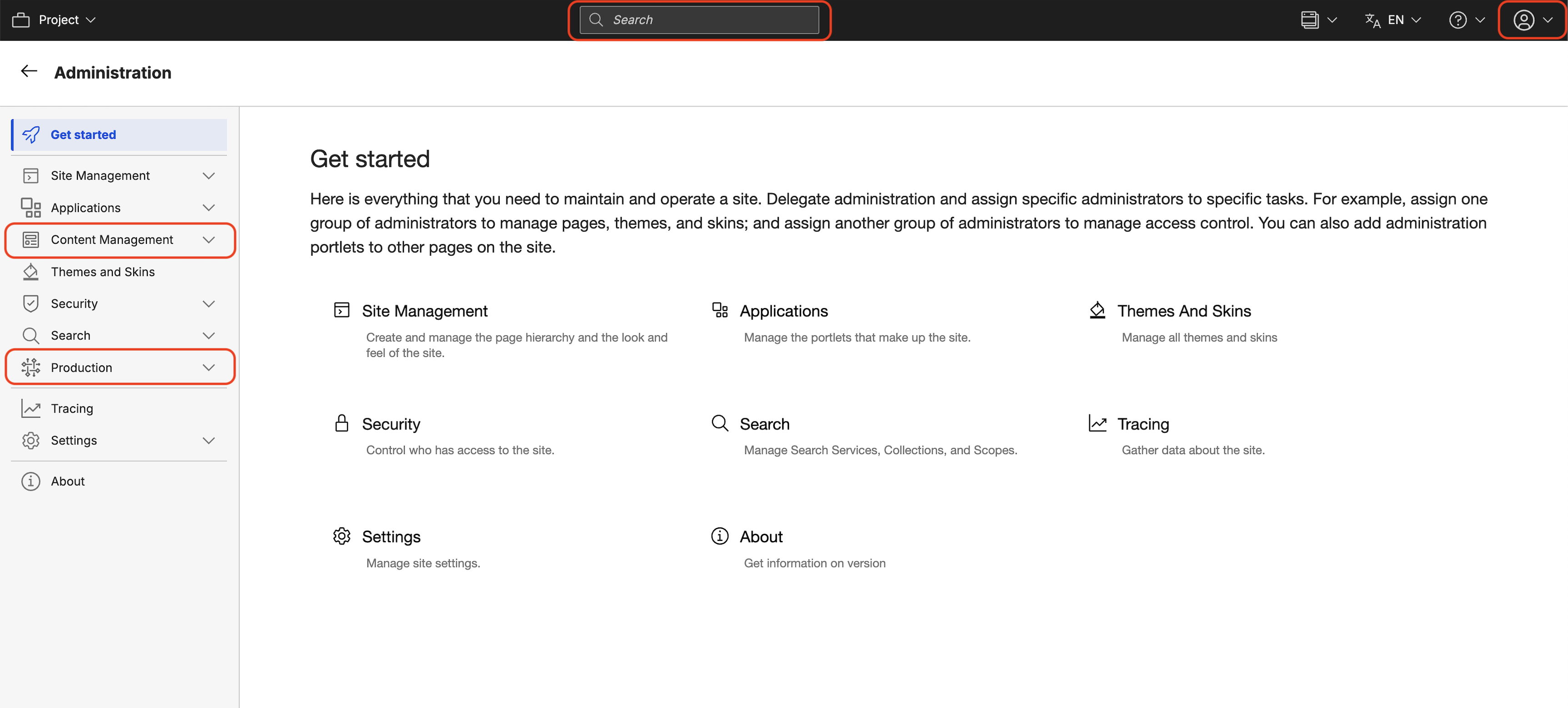
Starting from CF230, the Practitioner Studio toolbar and UI have undergone the following changes to enhance the user experience:
- The toolbar now features a centralized search function, making it easier to locate content and tools.
- A dedicated user profile menu has been introduced, providing quick access to profile management, impersonation, and logout options.
- The Administration pages have been reorganized to improve usability. Two new sections have been introduced:
- Content Management: This section provides access to applications used for the general administration of Web Content Management.
- Production: This section includes applications designed to streamline essential administrative tasks for managing the portal.
Overview
Practitioner Studio provides a modern and streamlined user experience for HCL DX.
There are several advantages to this new look. The consolidated navigation has a consistent look and feel for most administration tasks so that commonly used tasks are found together. User assistance is easily found and is provided for pages that are in the navigation.
In time, this interface also serves as the launching point for newly developed features.
Enabling Practitioner Studio deactivates the legacy Administration and Applications pages. However, all of these functions are still available.
- Working with Practitioner Studio
Learn how to enable, configure and disable Practitioner Studio on the latest version of HCL DX. - Web content
Learn more about managing libraries, creating, editing or cleaning up data, and setting up syndication for HCL DX web content management. - Site templates
Site templates are configured and managed using Site Builder. If you choose not to enable Practitioner Studio, you can still manage Site Templates using the Application navigation menu in the toolbar. - Themes
Learn how to use the Theme Manager portlet and the Theme Optimization Analyzer in creating and developing theme web content. - Personalization
Learn how to configure your HCL DX portal site as an administrator. - Portal administration
Use the Portal administration portlets that are provided with HCL DX to do various day-to-day administration tasks.
HCLSoftware U learning materials
For an introduction and a demo on how to use Practitioner Studio, go to Practitioner Studio.
For an introduction and a demo on how to use Practitioner Studio for administration tasks, go to Practitioner Studio Administration. To try it out yourself, refer to HCL DX Practitioner Studio Administration Lab.