Configuring HCL Leap for integration with HCL DX
This page provides information on how to configure the integration of HCL Leap with the existing Digital Experience (DX) environment.
Access Layer for HCL DX and HCL Leap
You have two options for implementing the Access Layer in the DX deployment and Leap: Ingress and Gateway API. Choose the option that fits your specific needs and preferences.
Ingress for HCL DX and HCL Leap
Refer to the following steps to implement a generic Ingress on your Kubernetes cluster for use with DX and Leap. The actual implementation might vary depending on the cluster's setup and configuration.
Prerequisites
Ensure you follow the guidelines provided in the optional Ingress documentation to set up Ingress for DX.
Implementing Ingress for HCL DX and HCL Leap
-
Create a separate Ingress resource for Leap or extend the existing DX Ingress configuration. In Kubernetes, Ingress resources manage how external HTTP(S) traffic is routed to services within the cluster. You can either define a dedicated Ingress for Leap or incorporate its routes into the existing DX Ingress.
-
Ensure the Ingress resource is configured to match Leap’s deployment path. The specified path (for example,
/apps) should align with Leap’s context route so that incoming requests are correctly routed to the Leap service as accessed by end users.
The following YAML file demonstrates how to define an Ingress resource that routes traffic to the Leap backend service based on a specific path (for example, /apps):
apiVersion: networking.k8s.io/v1
kind: Ingress
metadata:
    name: custom-routes
spec:
    ingressClassName: nginx
    tls:
    - secretName: dx-tls-cert
        hosts:
        - your-kube-deployment.com
    rules:
    - host: your-kube-deployment.com
        http:
        paths:
        - path: /apps
            pathType: Prefix
            backend:
            service:
                name: leap-deployment-leap
                port:
                number: 9080
- The
metadatasection identifies the Ingress resource. - The
specsection outlines the routing configuration. - The
tlsblock sets up HTTPS for the specified domain. - Within the
rulessection, requests to the/appspath (including sub-paths) for the defined host are directed to the Leap service deployed in the cluster.
Gateway API for HCL DX and HCL Leap
Refer to the following steps to configure the optional Gateway API for DX and Leap. The Gateway API allows you to route requests to both products under the same hostname, enhancing the deployment's efficiency and management.
Prerequisites
Ensure you follow the guidelines provided in the optional Gateway API documentation to set up the Gateway API for HCL DX.
Implementing Gateway API for HCL DX and HCL Leap
-
Create a separate Gateway API resource for Leap or extend the existing DX Gateway configuration. The Gateway API offers a more flexible and expressive approach to traffic management than traditional Ingress. Consolidating routing for both DX and Leap under a single configuration can simplify access layer management.
-
Ensure the Gateway API configuration accurately reflects the context route used in the Leap deployment (for example,
/apps). This ensures that incoming requests to that path are properly routed to the Leap backend service.
The following YAML file demonstrates how to define a Gateway API HTTPRoute resource for routing requests to the Leap backend service:
apiVersion: gateway.networking.k8s.io/v1
kind: HTTPRoute
metadata:
  name: leap-http-api-route
spec:
  parentRefs:
  - name: gateway
    sectionName: https
  hostnames:
  - your-kube-deployment.com
  rules:
  - matches:
    - path:
        type: PathPrefix
        value: /apps
    backendRefs:
    - name: leap-deployment-leap
      port: 9080
- The
metadatasection assigns a name to the HTTPRoute resource. - The
specsection outlines the routing configuration. - The
parentRefssection links the route to a specific Gateway and its section (for example,https). - The
hostnamessection indicates the domain this route is intended for. - Within
rules, thematchesblock defines the path prefix condition (such as/apps) - The
backendRefssection specifies the target backend service and port where Leap is hosted.
Enabling SSO between HCL Leap and HCL DX in Kubernetes
You can enable Single Sign-On (SSO) between HCL Leap and HCL DX in Kubernetes using the Lightweight Third-Party Authentication (LTPA) or the modern OpenID Connect (OIDC) protocol.
Implementing LTPA SSO
This guide explains how to enable SSO between HCL DX and HCL Leap on Kubernetes using LTPA. The process works by sharing a single LTPA encryption key between the DX and Leap pods. By storing this common key in a Kubernetes Secret, both applications can trust each other's login tokens, allowing users to sign in once and access both platforms seamlessly. The following steps are based on a community post from the HCLSoftware Community:
-
Ensure both DX and Leap use an identical user registry configuration.
- For DX, please refer to the doc on User Registry Options for details.
- For Leap, please refer to the Leap documentation for details.
-
Ensure both DX and Leap use the same realm name.
To set the realm name for DX:
- Log in to the WebSphere Integrated Solutions Console (
your-domain.com/ibm/console) as an administrator. - Click Security > Global Security > User Account Repository > Realm Name.
-
Under User account repository, set the Realm name (for example,
defaultWIMFileBasedRealm).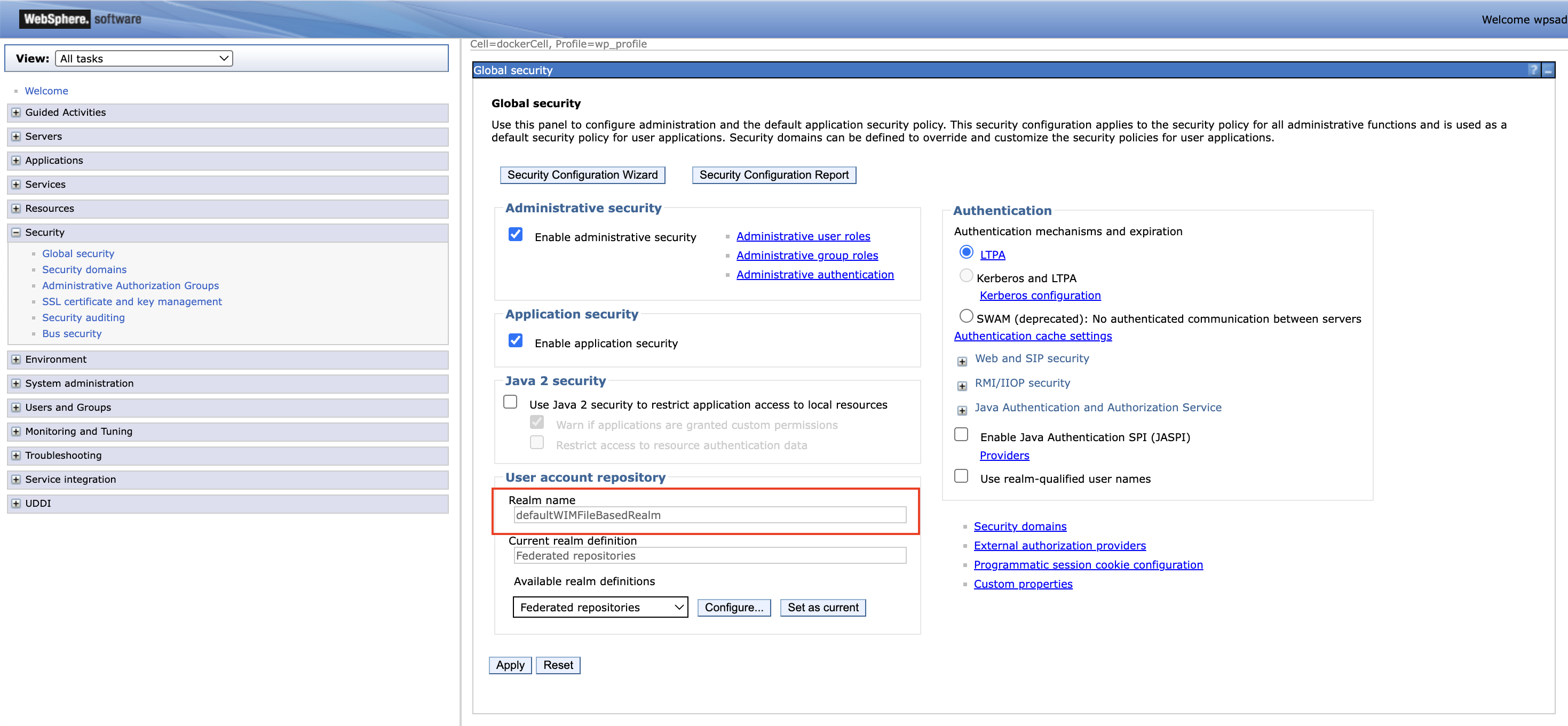
-
Click Apply.
- Click Save at the top of the console messages.
To set the realm name for Leap:
-
Edit the
configOverrideFilessection in your Helm chart'svalues.yamlfile. In the following example, the realm name for Leap is set todefaultWIMFileBasedRealm, similar to the realm name set in DX.configuration: leap: configOverrideFiles: mycustomoverride: | <server description="leapServer"> <federatedRepository id="leapRepo"> <primaryRealm name="defaultWIMFileBasedRealm" allowOpIfRepoDown="true"> <participatingBaseEntry name="o=defaultWIMFileBasedRealm" /> </primaryRealm> </federatedRepository> <basicRegistry id="leapRegistry" realm="defaultWIMFileBasedRealm" ignoreCaseForAuthentication="true"> <user id="<my-user-id>" name="uid=<my-user-id>,o=defaultWIMFileBasedRealm" password="<my-password>" /> </basicRegistry> </server> -
Perform a Helm upgrade to apply your changes.
Note
For more information regarding Leap's
configOverrideFilesparameter, refer to Open Liberty server customizations. - Log in to the WebSphere Integrated Solutions Console (
-
Ensure both DX and Leap use the same DNS domain. Refer to these steps for details.
-
Ensure LTPA cookies flow only over HTTPS.
To limit the flow of LTPA cookies to SSL only on the traditional WebSphere Application Server (WAS):
- Log in to the WebSphere Integrated Solutions Console (
your-domain.com/ibm/console) as an administrator. - Click Security > Global security > Web and SIP security > Single sign-on (SSO).
- Select the Requires SSL checkbox.
- Click Apply.
- Click Save at the top of the console messages.
To limit the flow of LTPA cookies to SSL only on Liberty:
-
Add the following parameter to the
configOverrideFilessection of yourvalues.yamlfile<webAppSecurity ssoRequiresSSL="true"/> -
Perform a Helm upgrade to apply your changes.
- Log in to the WebSphere Integrated Solutions Console (
-
Ensure both DX and Leap use the same LTPA keys.
- Export the LTPA keys from WAS:
- Log in to the WebSphere Integrated Solutions Console (
your-domain.com/ibm/console) as an administrator. - Click Security > Global security > LTPA.
- In the Cross-cell single sign-on section, enter values for the following fields:
- Under Password, enter and confirm a secure password. You will require this password later.
- Under Fully qualified key file name, specify a name for the file that holds the exported keys (for example,
ltpa.keys).
- Click Export keys.
- Log in to the WebSphere Integrated Solutions Console (
- Look for the exported
ltpa.keysin your DX core pod.- In your cluster, run
kubectl exec -it <your-dx-core-pod-name> -- sh. - Run
find / -name ltpa.keysto find the location of the ltpa.keys file, e.g./opt/HCL/profiles/prof_95_CF229/ltpa.keys. - Run
cat <ltpa.keys-location>to print the file's contents into the terminal.
- In your cluster, run
- Copy the content of the exported LTPA key file into a file named
ltpa.keysin your cluster. This file will be used to create the Kubernetes secret. - Exit the DX Core pod shell by running
exit. -
Run the following command in your cluster to create the Kubernetes secret:
kubectl create secret generic my-custom-ltpa-key --from-file=/path/to/ltpa.keys --namespace=<namespace> -
Update
ltpa-keyin the Leap custom Helmvalues.yamlfile, then run a helm upgrade:configuration: leap: customSecrets: ltpa-key: my-custom-ltpa-key -
Look for
ltpa.keysin your Leap pod (steps are similar to those that you did to find it in the DX pod). Check that its contents are the same as the ltpa.keys exported in DX. Note the location of the ltpa.keys file for the next step. -
Update the LTPA
keysFileNameandkeysPasswordparameters by adding this line to theconfigOverrideFilessection of your Leapvalues.yamlfile:<ltpa keysFileName="/path/to/ltpa.keys" keysPassword="<myLtpaKeyPassword>" /> -
Perform a Helm upgrade to apply your changes.
Note
For more details on using custom secrets as key file, refer to Using custom secrets as key file.
See the resulting
values.yamlfile after adding the<webAppSecurity ssoRequiresSSL="true"/>and<ltpa keysFileName="/path/to/ltpa.keys" keysPassword="<myLtpaKeyPassword>" />lines to theconfigOverrideFilessection:### Leap custom values file configuration: leap: configOverrideFiles: mycustomoverride: | <server description="leapServer"> <webAppSecurity ssoRequiresSSL="true"/> <ltpa keysFileName="/path/to/ltpa.keys" keysPassword="<myLtpaKeyPassword>" /> <federatedRepository id="leapRepo"> <primaryRealm name="defaultWIMFileBasedRealm" allowOpIfRepoDown="true"> <participatingBaseEntry name="o=defaultWIMFileBasedRealm" /> </primaryRealm> </federatedRepository> <basicRegistry id="leapRegistry" realm="defaultWIMFileBasedRealm" ignoreCaseForAuthentication="true"> <user id="<my-user-id>" name="uid=<my-uid>,o=defaultWIMFileBasedRealm" password="<my-password>" /> </basicRegistry> </server> - Export the LTPA keys from WAS:
-
Restart HCL Leap and HCL DX. You should now be able to log in to DX and open Leap without having to log in again.
Implementing OIDC SSO
This guide explains how to enable SSO between HCL DX and HCL Leap on Kubernetes using OIDC. The OIDC approach connects directly to the preferred Identity Provider (IdP) such as Keycloak, Azure Active Directory (AD) or Okta. By configuring DX and Leap to trust your central IdP, users get a seamless "login once" experience and security is managed in a single place. Refer to the following steps:
-
Install and configure your IdP.
-
Create a client for each product. IdPs serve as the single point of truth for credential inputs.
-
(Optional) Customize the IdP access UI. Refer to IdP Customization and Consideration for more information.
-
-
Enable OIDC in HCL DX.
Refer to Updating WebSphere to support OIDC Authentication for DX to enable OIDC on the HCL DX Websphere Application Server.
-
Enable OIDC in HCL Leap.
Leap can be configured to leverage OIDC as the primary authentication mechanism, turning it into a Relying Party (RP) to the specific IdP. RP is an application that relies on a third-party (such as an IdP) for authentication. When OIDC is used, the user and group lookup feature of Leap is not available and must be disabled as part of the configuration.
-
Configure the OIDC IdP, which will serve as the OIDC provider.
As part of the configuration process for your identify provider, you will have created or obtained a digital certificate for configuring HTTPS. This certificate will also need to be deployed to Leap so that the two servers can communicate with each other.
Note
The SSL certificate (
.crt) and public key (.key) should be in PKCS12 format. -
After copying the
.keyand.crtto the Kubernetes image, create a secret using the following command:kubectl -n <namespace> create secret tls <tls_secret> --key="/tmp/oidc.key" --cert="/tmp/oidc.crt"This secret can be referenced in the
values.yamlfile using the following configuration:configuration: leap: customCertificateSecrets: keycloakCert: <tls_secret> -
Add the OIDC definition as a server customization in the
values.yamlfile.The properties that you need to specify may differ based on your identity provider. For additional information, refer to Open Liberty documentation on OIDC
Before moving on, verify that the
discoveryEndpointURLproperty is valid by opening the URL in a browser prior to entering it in thevalues.yamlfile and updating theclientSecretwith the proper value obtained from your IdP.Example of an OIDC definition:
# Enter appropriate values for <your-oidc-id>, <your-client-id>, <your-client-secret>, <your-oidc-server>. You may have to refer to your identity provider's configuration.
configuration:
    leap:
        configOverrideFiles:
            openIdConnect: |
                <server description="leapServer">
                <openidConnectClient id="<your-oidc-id>"
                    clientId="<your-client-id>"
                    clientSecret="<your-client-secret>"
                    signatureAlgorithm="RS256"
                    authFilterRef="interceptedAuthFilter"
                    mapIdentityToRegistryUser="false"
                    httpsRequired="true"
                    scope="openid"
                    userIdentityToCreateSubject="preferred_username"
                    discoveryEndpointUrl="https://<your-oidc-server>/realms/<your-realm-name>/.well-known/openid-configuration">
                </openidConnectClient>
                <authFilter id="interceptedAuthFilter">
                    <requestUrl id="authRequestUrl" matchType="contains" urlPattern="/apps/secure|/apps/secured"/>
                </authFilter>
                <httpEndpoint id="defaultHttpEndpoint"
                    host="*"
                    httpPort="9080"
                    httpsPort="9443">
                    <samesite none="*" />
                </httpEndpoint>
                </server>
For more details on defining a server customization, refer to Open Liberty server customizations.
Important
The openIdConnectClient redirects to
https://<your-domain>/oidcclient/redirect/<your-oidc-id>after authentication. Make sure that your valid redirect URIs includes an entry that matches this, and that you're using a different id than what you're using for DX. You may also have to modify your Ingress/Gateway API configuration so that/oidcclient/redirect/<your-oidc-id>redirects to the Leap service. -
Add the following config properties related to OIDC in the
values.yamlfile.The following properties must be set to complete the OIDC configuration:
userLookups: Set this tofalseto disable user lookups, which is not available when configured with OIDC.userGroups: Set this tofalseto disable group lookups, which is not available when configured with OIDC.postLogoutRedirectURL: Set this to the URL to which Leap will redirect the browser after a user logs out. This is necessary to complete the loop with the OIDC IdP.
configuration:
    leap:
        leapProperties: |
            ibm.nitro.NitroConfig.userLookup=false
            ibm.nitro.NitroConfig.userGroups=false
            ibm.nitro.LogoutServlet.postLogoutRedirectURL=https://myOIDCServer.com/realms/Leap/protocol/openid-connect/logout?client_id=hcl-leap-oidc-client&post_logout_redirect_uri=https://myLeapServer.com/apps/secure/org/ide/manager.html
For more details on setting Leap properties, refer to Leap properties.
-
Perform a Helm upgrade to apply your changes.
-
Delete the Leap pod using the following command:
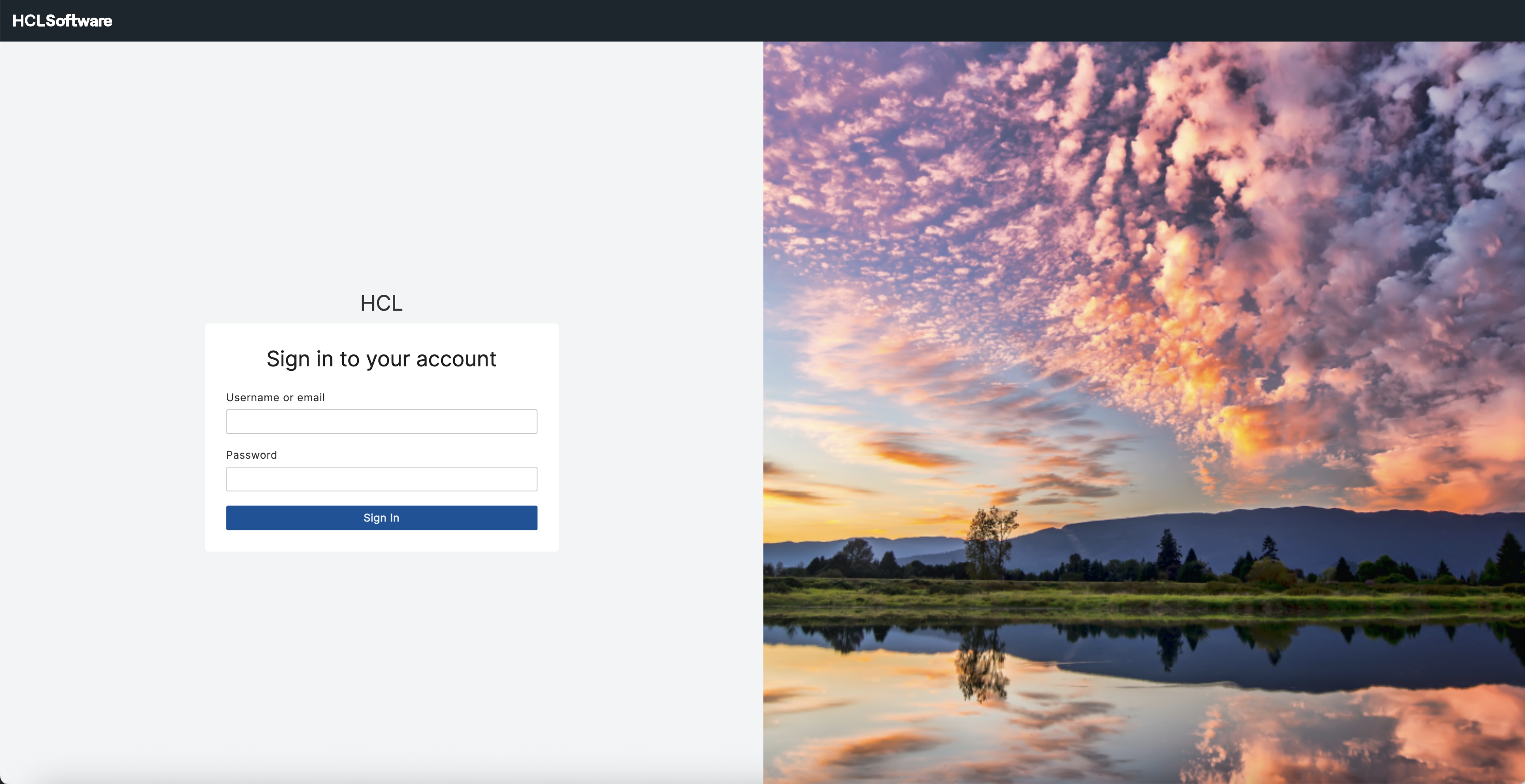
kubectl -n <namespace> delete pod <leap-pod-name>Since Leap was installed with a Helm chart, a new pod will be created automatically. Afterwards, accessing Leap should redirect you to authenticate using your OIDC IdP.
For example, the following screenshot shows an authentication page accessed using Keycloak:
-