Installation in the shell sharing mode
You can install HCL DevOps Test UI (Test UI) in the same package group with the other supported Eclipse-based products. These products share a common environment, or they are shell shared. Shell shared products have a common installation directory, <Install_Directory>\HCL\DevOpsTest. Test UI installs as a perspective in the UI of the product with which it is shell-shared.
Shell sharing with IBM® Engineering Workflow Management
You can install the Engineering Workflow Management Client Extension in Test UI by adding the p2 Install Repository.
Before you begin: You must download the EWM-Client-p2Repo-7.0.3.zip file from the Engineering Workflow Management downloads page.
- Open Test UI.
- Click .
The Install window opens.
- Click
Add.
The Add Repository window opens.
- Click Archive... and select the downloaded EWM
p2repo
.zip file.
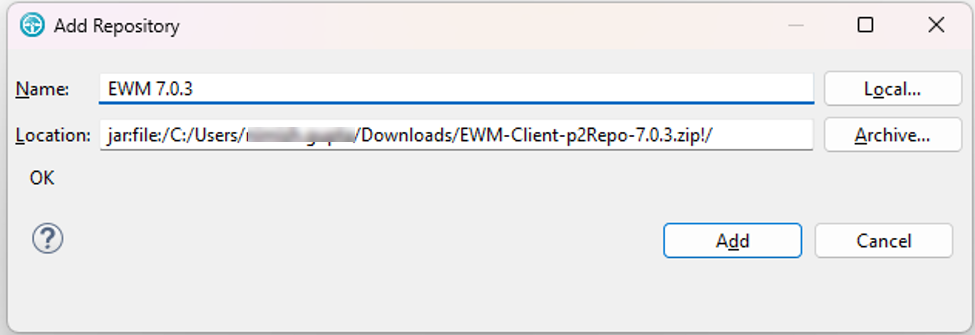
- Click Add.
- Click Select All, and then click Next.
- Click Next.
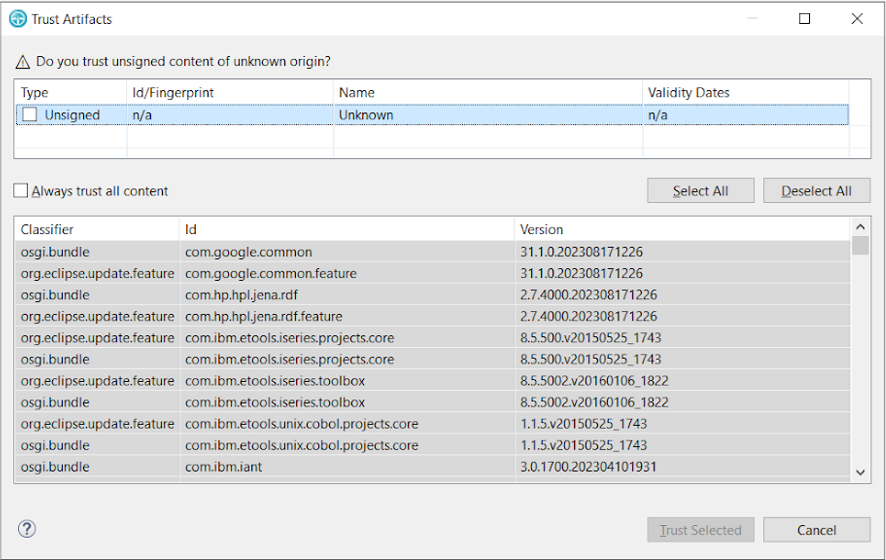
- Click Finish.Note:The Trust Artifacts window might open to verify the unsigned content of the unknown origin. You must then click Select All, and then click Trust Selected.
- Click Restart Now when you are prompted to restart
the
software.
Test UI restarts with the software update.
Shell sharing with Test Performance
| If | Then |
|---|---|
| Test UI is not installed | You must follow these steps:
|
| Test UI is already installed | You must follow these steps:
|
Shell sharing with IBM® Rational® Team Concert™
| If | Then |
|---|---|
| Test UI is not installed | You must follow these steps:
|
| Test UI is already installed |
Install Rational® Team Concert™ Client Extension and while installing it, choose the DevOpsTest directory where Test UI is already installed. |