
Testing with Cucumber
You can use Cucumber integration to create, annotate, and run functional test scripts that can be easily understood by all members of the team.
About Cucumber
Cucumber is a software testing tool that fosters better communication among domain experts, business analysts, testers, and developers by providing everyone a clear view of the testing effort. Cucumber is based on the principles of behavior-driven development (BDD). For more information, see Behavior Driven Development.
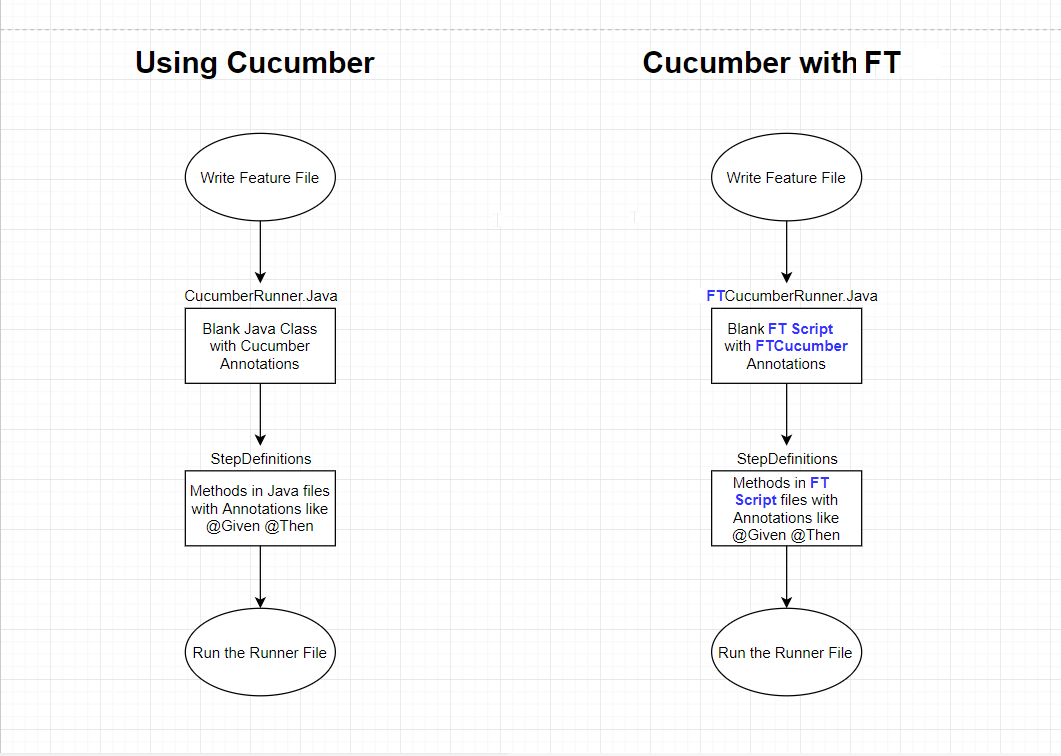
A functional test script for the Eclipse version of Test UI is a collection of Java™ methods. You must be able to read and understand the Java™ code to completely understand the test script. With Cucumber integration, anyone can understand the test script because the flow of the test is described in simple, English statements within a Cucumber feature file.
- Create a Feature file, a text file with a .feature extension.
- Create a Runner File, an empty functional test script, and annotate the Class in the test script with @FTCucumberOptions annotations. Any functional test script that is annotated becomes a runner file.
- Provide Step definitions using Cucumber annotations, such as @When, @Given, @Then, and so on.
- Run the Runner File, either from Test UI or from the command line.
Requirements
Before using the Cucumber integration in Test UI, you must set up Cucumber. There are two ways to set up Cucumber:
- Manual setup: You can download the required Cucumber jar files, and copy them to the customization folder.
- Automated setup: You can run a Maven command to set up Cucumber automatically.
Manual setup
To set up Cucumber manually, you must add the following Cucumber-related jar files to the Test UI Customization directory, which on Windows™ is located at C:\ProgramData\HCL\DTUI\customization.
- apiguardian-api-1.1.2.jar
- ci-environment-10.0.1.jar
- cucumber-core-7.18.0.jar
- cucumber-expressions-17.1.0.jar
- cucumber-gherkin-7.18.0.jar
- cucumber-gherkin-messages-7.18.0.jar
- cucumber-java-7.18.0.jar
- cucumber-plugin-7.18.0.jar
- datatable-7.18.0.jar
- docstring-7.18.0.jar
- gherkin-28.0.0.jar
- html-formatter-21.3.1.jar
- junit-xml-formatter-0.4.0.jar
- messages-24.1.0.jar
- query-12.2.0.jar
- tag-expressions-6.1.0.jar
- testng-xml-formatter-0.1.0.jar
- cucumber-core-1.2.5.jar
- cucumber-java-1.2.5.jar
- cucumber-jvm-deps-1.0.5.jar
- gherkin-2.12.2.jar
- cucumber-html-0.2.3.jar
You can download these jar files from the Central Maven repository at https://mvnrepository.com by searching for them one by one. All of the Cucumber-related libraries are grouped under the info.cukes group in the Maven repository at https://mvnrepository.com/artifact/info.cukes. The version numbers vary, depending on when you download the files.
Also, if you have test assets that are migrated from the previous versions of Test UI, you must delete the existing import statements that point to the old jar files in the Step Definitions file. To update the file with the correct import statements, you must press CTRL+A, followed by CTRL+SHIFT+O, and then save the file.
Automated setup using Maven
To set up Cucumber with Maven:
- You must verify that you have an Internet connection.
- You must have installed Maven and set up an environment variable that points to the M2_HOME directory. For more details about setting up Maven, see Testing with Maven.
- You must verify that the pom_dependency_cucumber.xml file is available from your Maven setup.
- You must run the following command in your command prompt window:
mvn -f <path to pom_dependency_cucumber.xml file> dependency:copy-dependencies -DoutputDirectory=<FT Customization Directory>For example:mvn -fC:\Users\<user_name>\Desktop\pom_dependency_cucumber\pom_dependency_cucumber.xml
dependency:copy-dependencies -DoutputDirectory=C:\ProgramData\HCL\DTUI\customization
This command downloads the required Cucumber jars into the Test UI Customization directory. Depending on the speed of your Internet connection, this command can take several minutes to complete.
Cucumber feature file
- (Given) some context
- (When) some action is carried out
- (Then) a particular set of observable consequences are obtained.
- Given the login page is displayed for the application.
- When user attempts to log in with incorrect credentials.
- Then user should be re-prompted for credentials.
- Reset password link should be displayed.
The feature files are saved in a folder named features inside the functional test project.
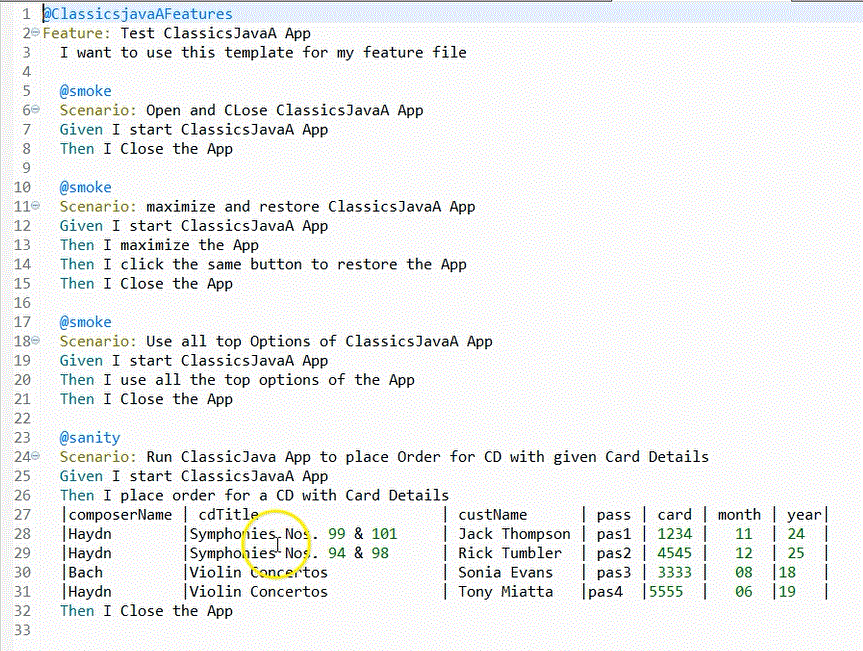
A sample feature file that contains four scenarios is as follows:
Cucumber Runner file
A Test UI Cucumber Runner file is a functional test script that includes @FTCucumberOptions annotations. The @FTCucumberOptions annotations must be declared outside of the class definition, as shown in the following figure:
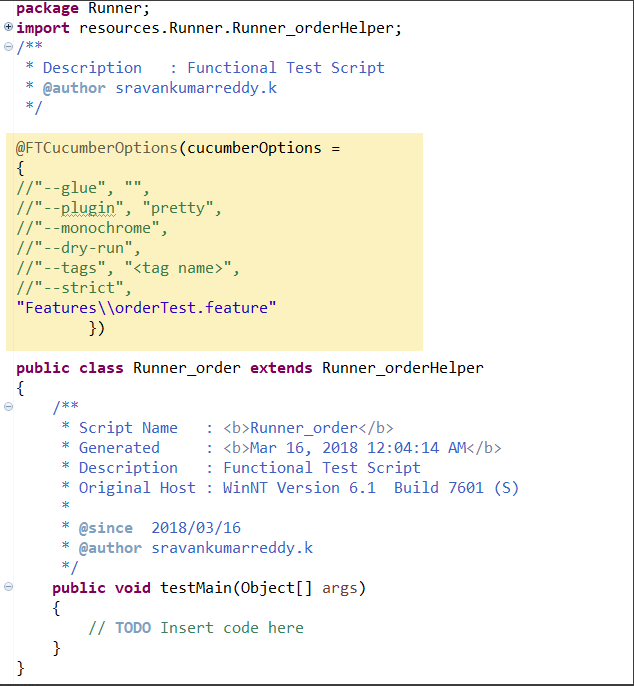
Use the Run button in Test UI to run the Runner file, or use the command line. For Cucumber command line options, see https://cucumber.io/docs/cucumber/api/ and look for List configuration options.
Cucumber Step Definitions
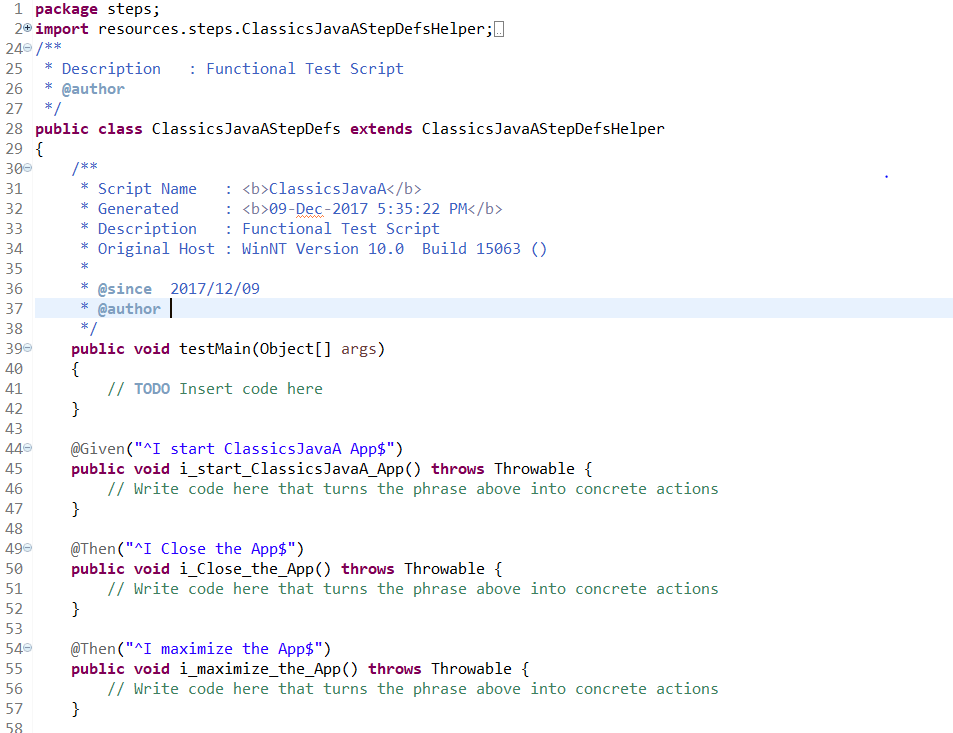
The Step Definition file is a functional test script that contains the code behind each Cucumber annotation in the feature file, that is the @Given, @When, and @Then annotations. An example of a step definitions file for Test UI Cucumber integration is as follows:
Reports
Default Cucumber logs
When you run a Test UI test script with Cucumber annotations, the log files that are generated contain color-coding to indicate the pass-fail status of each step, as shown in the following example:
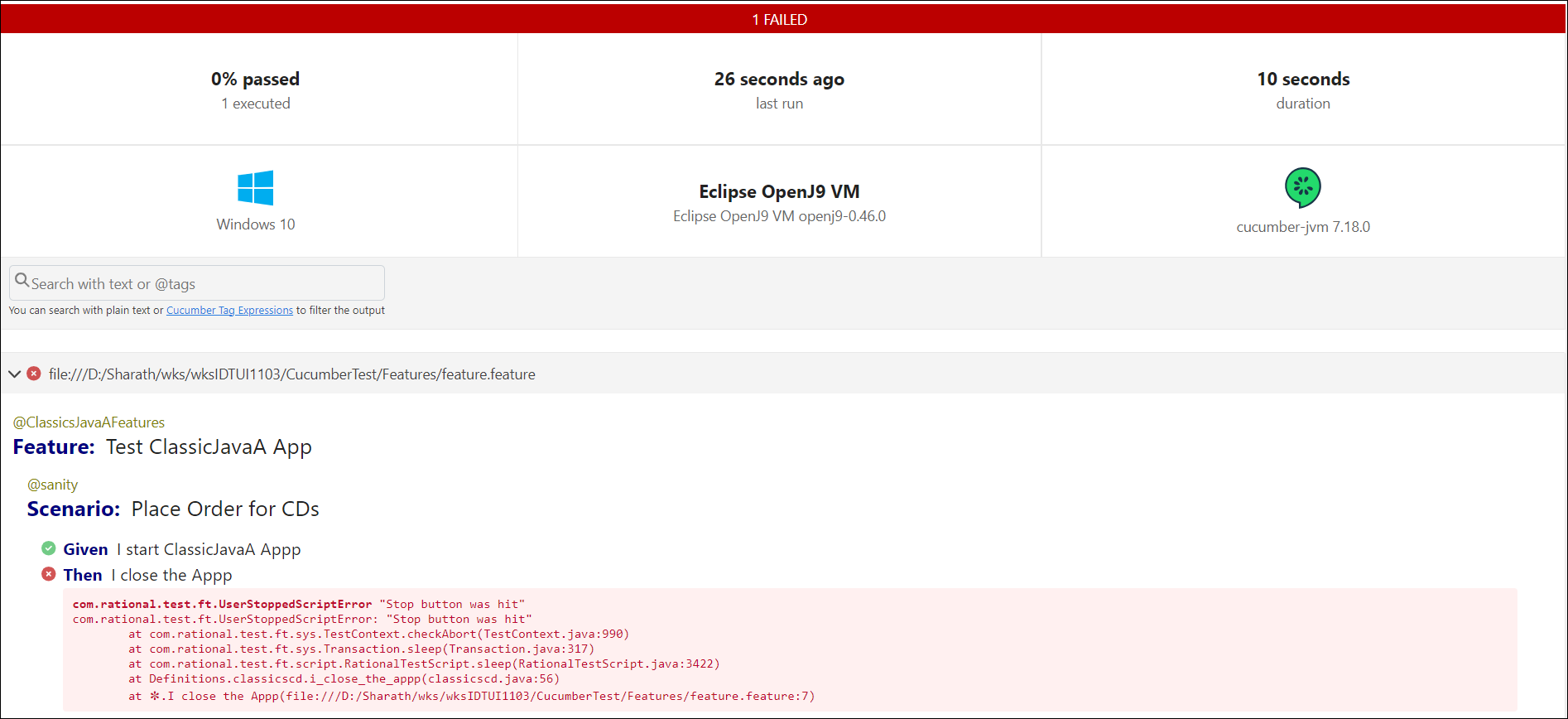
The log files also indicate the start point and end point of the feature and each scenario.
If you selected html in the list, in the functional test log, you can see a link to view Cucumber HTML logs
as follows: 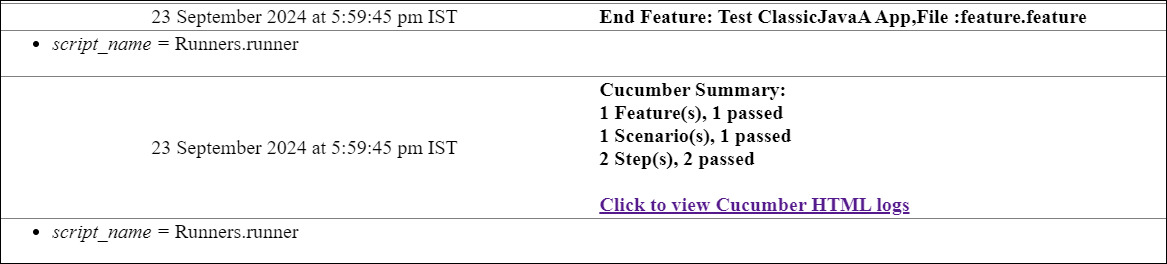
Otherwise, you can find the path of Cucumber HTML logs in the Cucumber
Summary step of the unified report as follows: 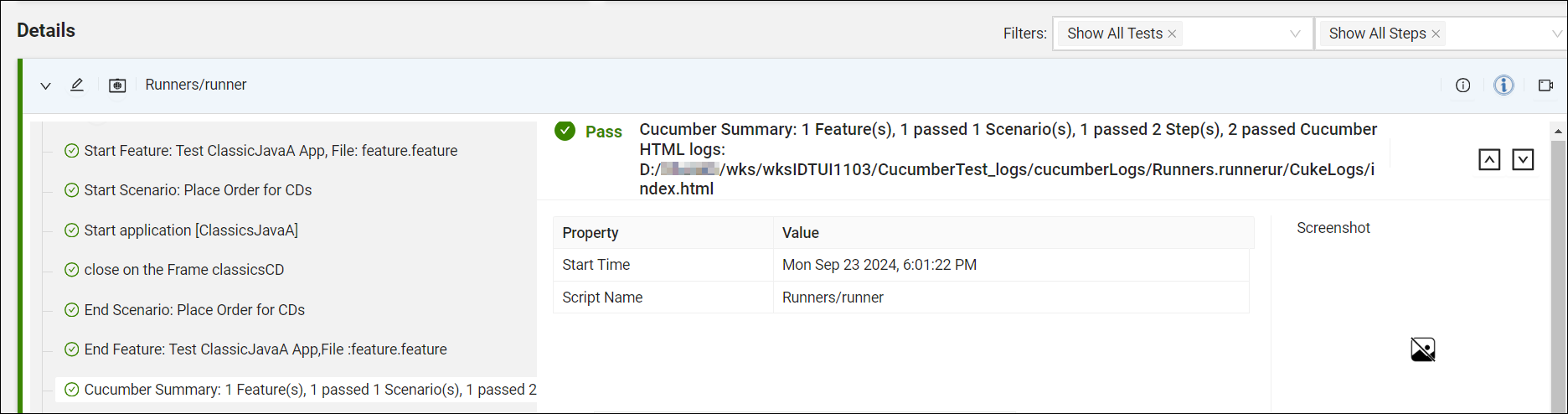
Running a feature file with default options
Here is sample code for running a feature file with default options:
@FTCucumberOptions( cucumberOptions =
	{
		"cuketest2.feature"  // just providing the folder to the feature files will also work fine.
	})
Here are the default options for the other required parameters for the preceding example:
--glue '' --plugin pretty --plugin html:CukeLogs --plugin json:CukeLogs/abc.json --monochrome";Required annotations for making a functional test script integrate with Cucumber
Cucumber annotations must be applied to the class. Cucumber options that are passed must be in the same format they would be passed in the Cucumber command line interface. The required annotations include --glue and the .feature file that needs to be run.
- --glue: Specifies where glue code (step definitions, hooks and plugins) are loaded from. In this case, a blank string ("") as a value to glue tells Test UI to search for the step definitions inside all folders in the functional tester project. Duplicate steps lead to exceptions.
- The feature file is in a folder named Features inside the functional test project.
@code
@FTCucumberOptions(cucumberOptions =
 {
 	"--glue", "",
  	"Features\\ValidateOrderFeature.feature"
 })
Providing a folder for the feature files
Run all feature files in the folder named features inside the functional test project.
@FTCucumberOptions(cucumberOptions =
 {
 	"--glue", "",
 	"Features"
 })
Providing more than one feature file
Here is an example with more than one feature file:
 @FTCucumberOptions(cucumberOptions =
 {
 	"--glue", "",
 	"Features\\PlaceOrder.feature",
 	"Features\\ValidateOrder.feature",
 })
Providing two glue (step definition) options
In this case, the step definitions are present in two different folders packages inside the project.
@FTCucumberOptions(cucumberOptions =
 {
 	"--glue", "com.package1", //Folder inside project- com/package1
 	"--glue", "com.package2", //Folder inside project- com/package2
 	"Features\\ValidateOrderFeature.feature"
 })
Command-line options for running functional test scripts with Cucumber
Option 1Option 1 assumes that you have already added FTCucumberOptions annotations to the functional test script class (a Runner Script). Test UI uses these annotations to run as Cucumber.
-datastore <datastore>
     -usecucumberoptionscli -playback CucumberRunnerScript
Option 1 example:
-datastore C:\work\RFT_WS2\Cuketest3 -usecucumberoptionscli -playback
     steps.CucumberRunnerScript
With Option 2, any options in the Runner Script are ignored, but the command-line options are honored.
-datastore
     <datastore> -cucumberoptionscli All Cucumber options as single entry -playback
     CucumberRunnerScript
Options 2 example: -datastore
C:\work\RFT_WS2\Cuketest3
-cucumberoptionscli --glue 'steps'
C:\work\RFT_WS2\Cuketest3\cuketest2.feature
-playback
steps.CucumberRunnerScript
The value for key cucumberoptionscli is a single value between double quotes. All of the Cucumber-related command line options go as a single value.
The value for (--glue) is either no value between single quotes for all packages (') or for specific packages, values between single quotes, for example, 'steps'. For more than one glue entry, specify separate entries as follows: --glue 'steps' --glue 'moreSteps'.