
License configuration
You must first apply a license to start using the product.
-
If the license is not used for 15 minutes, the license is returned to the server for others to consume it. If the product looses connectivity to the MHS, you can use the product for two hours only if the server ID that you entered last time is correct.
-
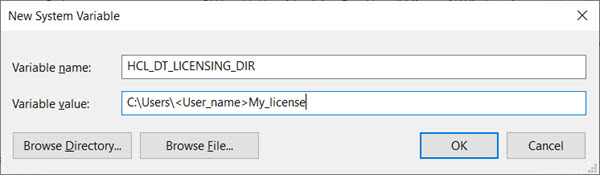
After the product installation, when you apply the license to the product, the license information is cached in a system directory. If there are any permission issues accessing the directory or the directory is deleted, there can be licensing error when starting the product. The workaround is to create an environment variable HCL_DT_LICENSING_DIR and specify a directory path. The licensing information is now stored in the new directory. For example,
| Variables | Values |
|---|---|
| HCL_DT_LICENSING_URL | URL of the licensing server. You get this URL when you activate your deployment in the My HCLSoftware (MHS) . For example, https://my.hcllicenserver.com. |
| HCL_DT_LICENSING_ID | Enter your server ID or deployment ID. |
You can add HCL_DT_LICENSING_PRIORITIZE_STUDIO as an environment variable and set the value to "true", if you want to prioritize the checkout of Workbench licenses over Performance seat licenses.
-
Running a test from the command line
-
Running a test with Jenkins
-
Running a test with Ant
-
Running a test with Deploy
-
Running a test with IBM® Engineering Test Management